

Present the most compelling in-app purchase promotions based on the user's behavior, demographics, and geo location to maximize conversion opportunities.
About the Growth Play
Presenting personalized in-app offers is crucial for maximizing user engagement and conversion rates in mobile apps
Benefits
- Increased user engagement. Personalized offers keep users engaged by presenting relevant content and promotions.
- Higher conversion rates. Tailoring in-app offers to individual user behavior and preferences increases the likelihood of feature adoption and subscriptions.
- Enhanced user satisfaction. Users are more likely to have a positive experience when presented with offers that match their interests and needs.
- Improved revenue growth. Effective in-app offers can drive subscriptions and feature adoption, leading to increased revenue.
How it works
To illustrate the use case, we will use a made-up music streaming app called Music.ly.
Step 1: Set up tracking, define events & create segments
- Install Intempt's iOS SDK:
Integrate Intempt's iOS SDK into your mobile app to start tracking user activities. Follow the iOS SDK integration guide to ensure proper setup.
- Identify key events:
Determine which user activities you want to track, such as playing, liking, sharing, and visiting the subscription page.
Set up event tracking:
Configure these events in Intempt's dashboard. For example:
played_song: Triggered when a user plays a song.
liked_song: Triggered when a user likes a song.
shared_song: Triggered when a user shares a song.
visited_subscription_page: Triggered when a user visits the subscription page.
- Create segments in Intempt:
Navigate to the Segments section and create new segments based on the tracked events. For instance:
Listened to 5 songs but not liked: Users who have played at least 5 songs but have not used the "Like" functionality.
Listened to 10 songs but not shared: Users who have played at least 10 songs but have not used the "Share" functionality.
Visited subscription page multiple times: Users who have visited the subscription page at least 5 times but have not subscribed.
Step 2: Set up personalizations
- Create a new server-side personalization campaign:
Go to the Personalizations section and create a new server-side personalization campaign
- Create experiences and add content using the code editor:
Each campaign will require multiple experiences to be set; each will contain the content you want to display for the use
Use the code editor to create and style the in-app messages or popups.
Good to know
Refer to Server-side personalizations for a complete guide on creating server-side personalizations.
Personalization: Feature Adoption Prompts
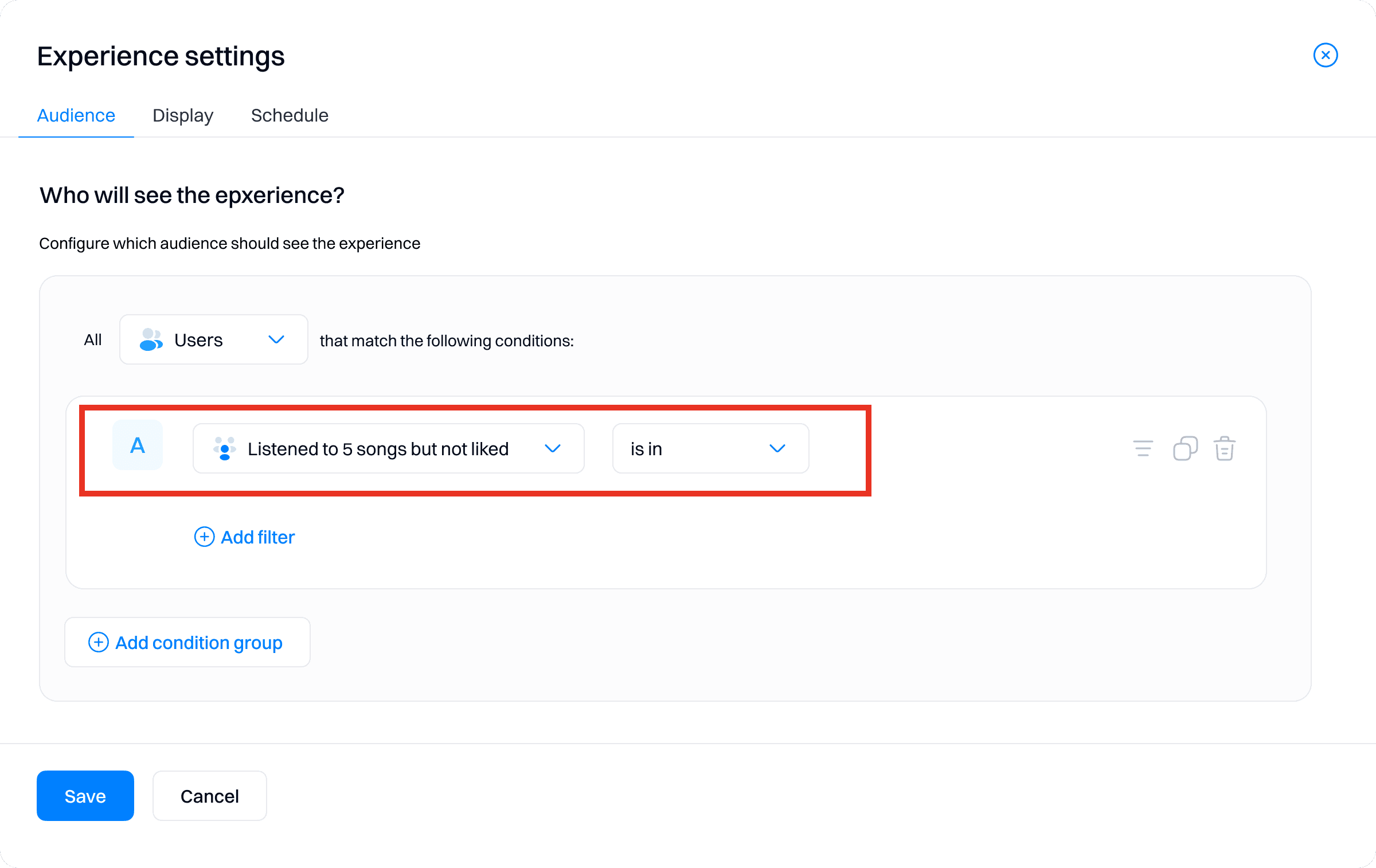
- Experience for Like Feature Adoption:
Target segment: Listened to 5 songs but not liked
Changes:
In-App Message:
Show a feature adoption screen encouraging the use of the "Like" functionality.
Content:
Message: "Ready to share your favorite songs? Can't stop listening to your beat? Share it with your friends so they can get the same experience!"
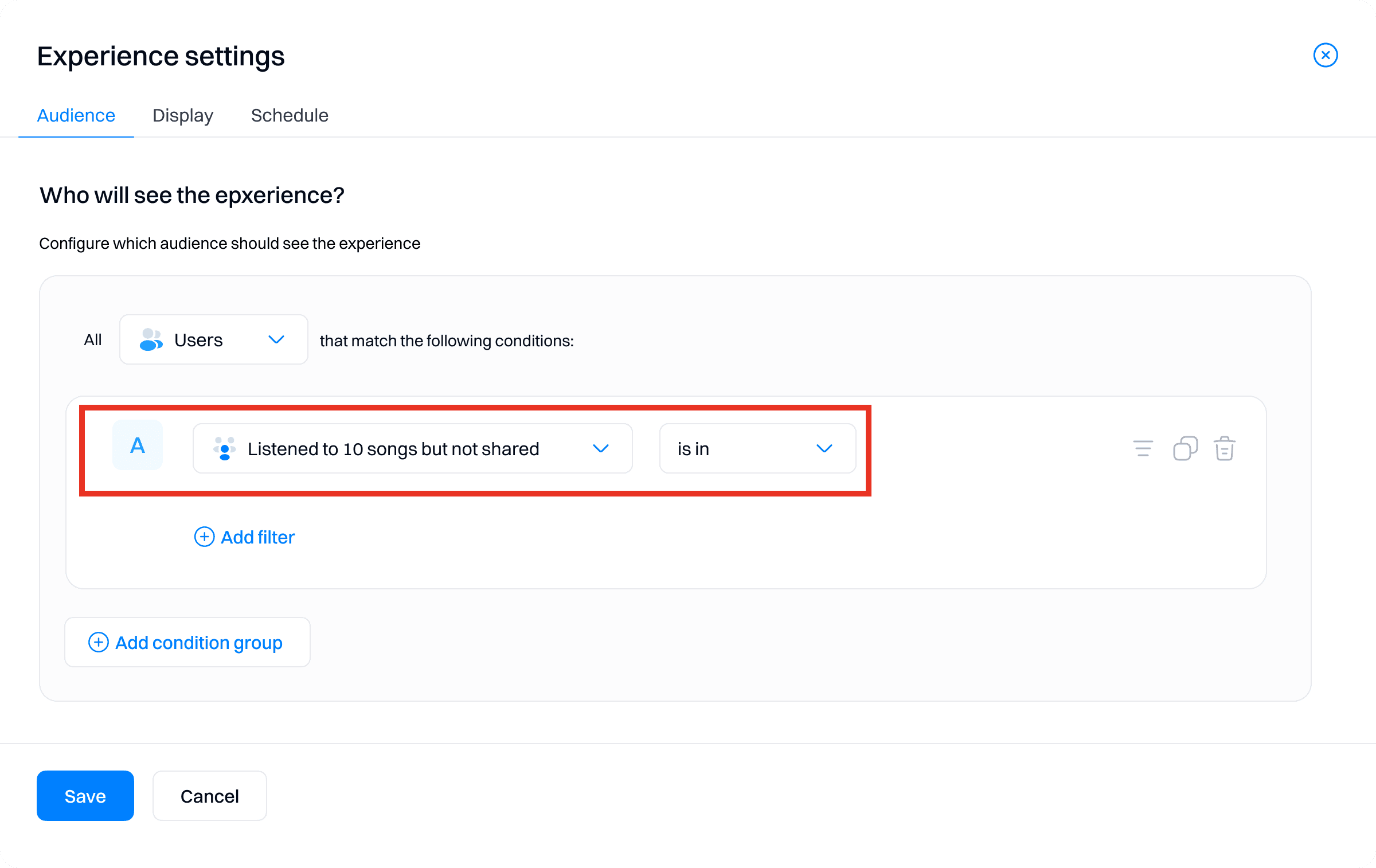
- Experience for Share Feature Adoption:
Target segment: Listened to 10 songs but not shared
Changes:
In-App Message:
Show a feature adoption screen encouraging the "Share" functionality.
Content:
Message: "Ready to share your favorite songs? Can't stop listening to your beat? Share it with your friends so they can get the same experience!"
Personalization: Subscription Offers
- Experience for Subscription Trial Offer:
Target segment: Visited subscription page multiple times
Changes:
In-App Popup:
Show a 3-day trial offer to users who frequently visit the subscription page but have not subscribed.
Content:
Message: "Enjoy a 3-day free trial of our Premium plan! Explore all the features we have to offer and elevate your music experience."

Step 3: Configure targeting and display settings
- Set targeting conditions:
For each experience, configure the audience targeting based on the relevant segments. Ensure that the conditions match the segments created in Step 3.
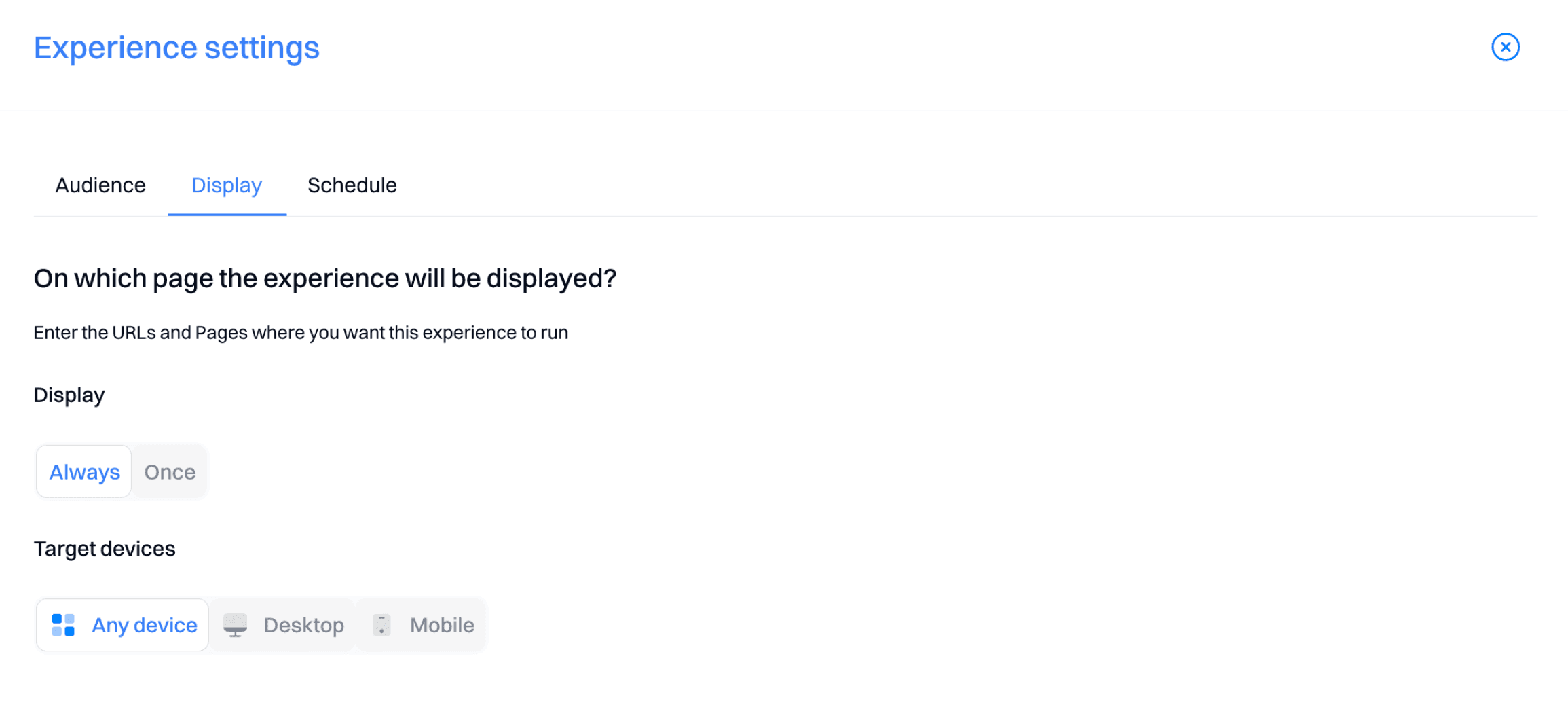
- Define display rules:
Specify the conditions under which the personalized experiences will be displayed, such as when a user plays a song or visits the subscription page.
Set the display frequency to ensure the personalized content is shown consistently to the targeted users.
Step 4: Launch and monitor the personalization campaign
- Start the personalization campaign:
Once all experiences are set up and configured, start the personalization campaign in Intempt.
- Monitor performance:
Use Intempt's Personalization Analytics to track the performance of each experience. Key metrics to monitor include:
Unique views: Number of users who viewed the personalized content.
Conversion: Number of users who completed a desired action, such as liking a song or subscribing to a plan.
Conversion %: Percentage of users who converted based on the total audience targeted.
Lift: Improvement in conversion rate compared to the control group.
- Adjust and optimize:
Based on the analytics data, make adjustments to the experiences to improve performance. For instance, if the conversion rate for the Listened to 5 songs but not liked segment is low; consider refining the content or targeting criteria.