
Blu in Journeys
Open any journey's detail page and Blu Chat scopes itself to that journey automatically, so you can build or edit it by describing what you want instead of placing blocks by hand.
Overview
Every journey's detail page opens with Blu Chat already scoped to that journey. You don't open the panel and explain which journey you mean first: you land on the page, and Blu already knows. Describe the trigger, actions, conditions, or controls you want, and Blu builds or edits the journey you're looking at.
How it works
The chat panel opens automatically, scoped to the journey
Opening a journey's detail page opens Blu Chat on its own, docked to the console. There's no toggle to click first. Its welcome message reflects the journey you're on: How can I help with "<journey name>" Journey?, instead of the generic prompt you'd see elsewhere in the console.
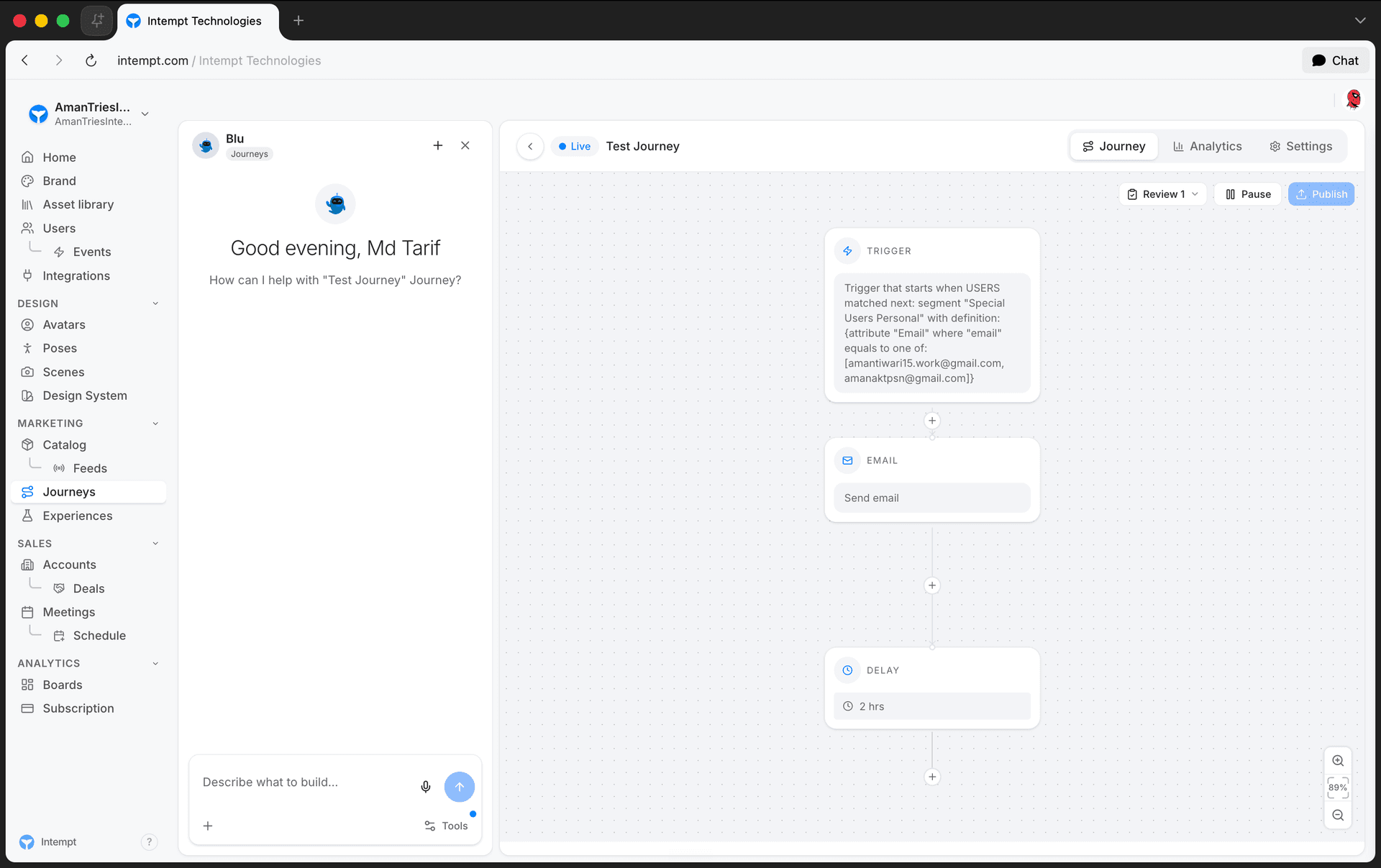
The composer's placeholder text changes to match: it reads "Describe what to build...", not the generic "Ask Blu anything..." shown on pages without a dedicated channel.
Leaving the journey's detail page closes the panel. Switching between the page's Journey, Analytics, and Settings tabs does not: the chat stays open and scoped to the same journey for as long as you're on it.
Blu edits the journey you're currently viewing
Ask Blu for a change, and it applies it to the journey open on your screen. There's no separate "apply" step: once Blu finishes, the canvas refetches and shows the result.
📘 Good to know
If you ask Blu to build a different journey than the one you're currently viewing, Intempt navigates you to it instead of changing your current screen. Blu Chat re-scopes itself to the journey you land on.
Getting started
- Go to Journeys and open the journey you want to work on.
- Blu Chat opens automatically, already scoped to that journey.
- Describe the change you want, the same way you'd describe it to a person: a trigger, an action like an email or SMS step, a delay or wait condition, or a branch.
- Blu applies the change. The canvas updates on its own to show it.
- If Blu creates a new journey instead of editing this one, Intempt takes you to it and Blu Chat re-scopes automatically.
Use cases
- Building a journey from a description. Describe the trigger, actions, conditions, and controls you want instead of placing and wiring each one on the canvas yourself.
- Adjusting an existing step. Ask Blu to change a delay, a wait condition, or a branch on a step that's already on the canvas.
- Adding a step mid-flow. Ask Blu to insert a new action or condition at a specific point in the journey.
- Starting a second journey while reviewing the first. Ask Blu to build a different journey than the one you're viewing. Intempt takes you to the new one once it exists.