
Journey blocks
Triggers define the conditions that users need to meet to enter the journey.
Triggers
Every journey has exactly one trigger node. It's the entry point that determines which users enter the journey and when. A journey needs a configured trigger, plus at least two configured steps, before you can publish it.
On condition
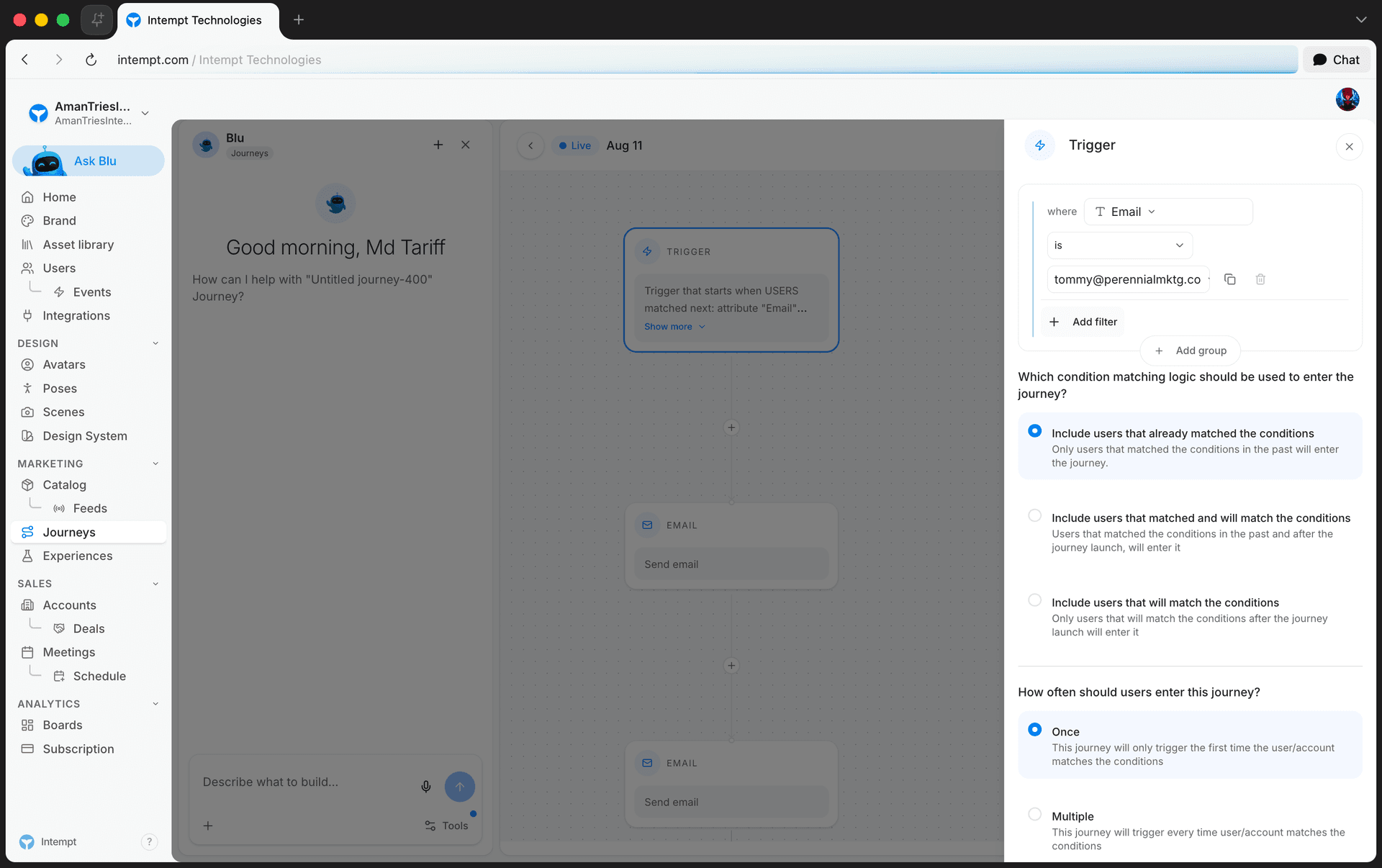
On condition is the only trigger type. It matches users with the same filter builder used for segments, so you can target by event, attribute, segment, consent, group, or collection criteria.
Configuration
Set the entry filter, then choose the condition matching logic and the entry frequency.
📘 Good to know
See Creating a segment and the Segment Conditions & Logic Reference for how to build the filter itself.
Condition matching logic
This setting answers: "Which condition matching logic should be used to enter the journey?"
| Option | Description |
|---|---|
| Include users that already matched the conditions | Only users that matched the conditions in the past will enter the journey. |
| Include users that matched and will match the conditions (default) | Users that matched the conditions in the past and after the journey launch will enter it. |
| Include users that will match the conditions | Only users that will match the conditions after the journey launch will enter it. |
Entry frequency
This setting answers: "How often should users enter this journey?"
| Option | Description |
|---|---|
| Once (default) | The journey only triggers the first time the user or account matches the conditions. |
| Multiple | The journey triggers every time the user or account matches the conditions. |
Use cases
-
First-time welcome offer. Matching logic "will match," frequency "Once." Sends a single welcome message only to users who meet the condition after the journey goes live, so users who already matched before launch don't get a stale welcome.
-
Win-back for lapsed customers. Matching logic "already matched," frequency "Once." Reaches everyone who already fits the condition, for example past purchasers, the moment the journey launches, without re-entering them later.
-
Always-on nurture. Matching logic "matched and will match," frequency "Multiple." Enrolls existing and new condition matches every time they qualify again, for a continuously running nurture flow.
-
Abandoned cart reminder. Matching logic "will match," frequency "Multiple." Re-triggers every time a user abandons a cart after launch, instead of only the first time.
-
New product launch interest. Matching logic "will match," frequency "Once." Targets only users who show interest after the launch date, excluding anyone who matched the condition before launch.
-
Recurring lifecycle check-in. Matching logic "already matched," frequency "Multiple." Re-enters a user each time they fall back into a past condition, such as a trial expiring again after a renewal.
Actions
Actions refer to engagement flows, such as sending emails, SMS, or push notifications, or calling an external system with a webhook.
Steps you can add today
The Add step picker offers these steps, grouped the way the picker groups them:
| Group | Steps |
|---|---|
| Message | Email, Send SMS, Push Notification |
| Control | Delay, Wait Until, Condition (True/False), Multi-Branch |
| Data | Webhook |
Slack steps are not available yet. There is no Slack option in the picker, so a journey can't send to Slack today.
Send email
This action allows you to send emails via a selected destination: SendGrid or Gmail.
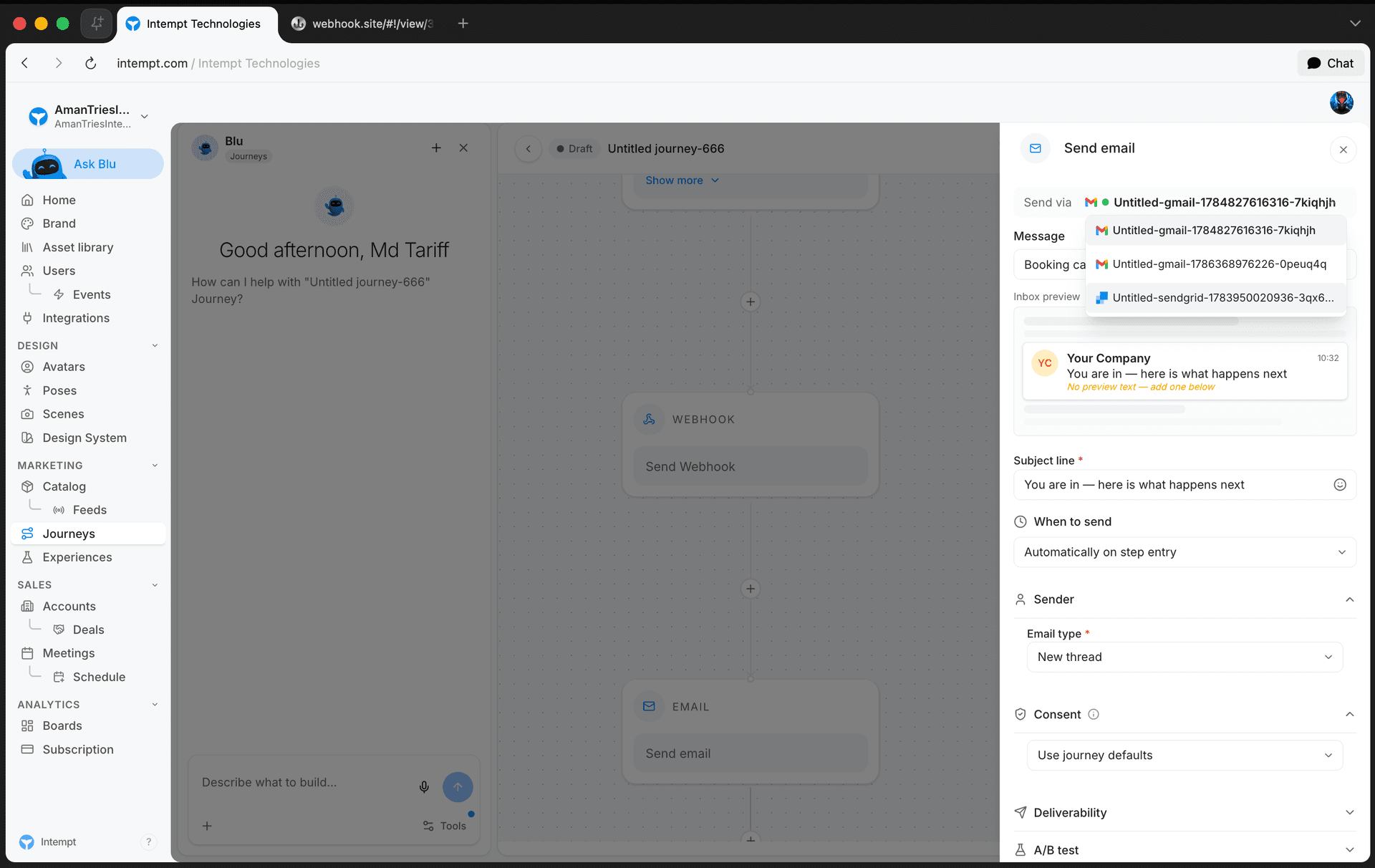
Choose the email destination depending on your requirements and use cases.
SendGrid vs. Gmail
| Criteria | SendGrid | Gmail |
|---|---|---|
| Volume | Suitable for high-volume email campaigns. | Best for low to moderate email volumes. |
| Deliverability | High deliverability rates optimized for bulk mailing. | Good deliverability, but more suited for personal communication. |
| Scalability | Highly scalable and can handle rapid increases in email volume. | Limited scalability in comparison to SendGrid. |
| Customization | Extensive customization options with email block builder | Basic customization options, suitable for straightforward communications (rich text editor) |
| Cost | Cost-effective at scale; pricing based on volume. | Generally free up to certain limits; beyond that, fees apply based on Google Workspace plans. |
| Ease of Use | It may require a technical setup for domain authentication. | User-friendly, especially for those familiar with Google products. |
| Regulatory Compliance | Strong compliance features for mass mailing. | Compliance features are available and adequate for individual and small business use. |
| Use Case | Ideal for marketing campaigns, newsletters, and customer engagement emails. | Best for 1:1 sales communications, nurture flows, and internal business communications. |
To summarize, choose SendGrid for professional, high-volume email campaigns where deliverability, scalability, and customization are priorities.
Opt for Gmail for internal communications and low-volume or 1:1 lead interactions like sales emails.
SendGrid
SendGrid action allows you to deliver emails via the SendGrid API using the selected template within the configuration.
📘 Good to know
Refer to SendGrid on how to connect your SendGrid account.
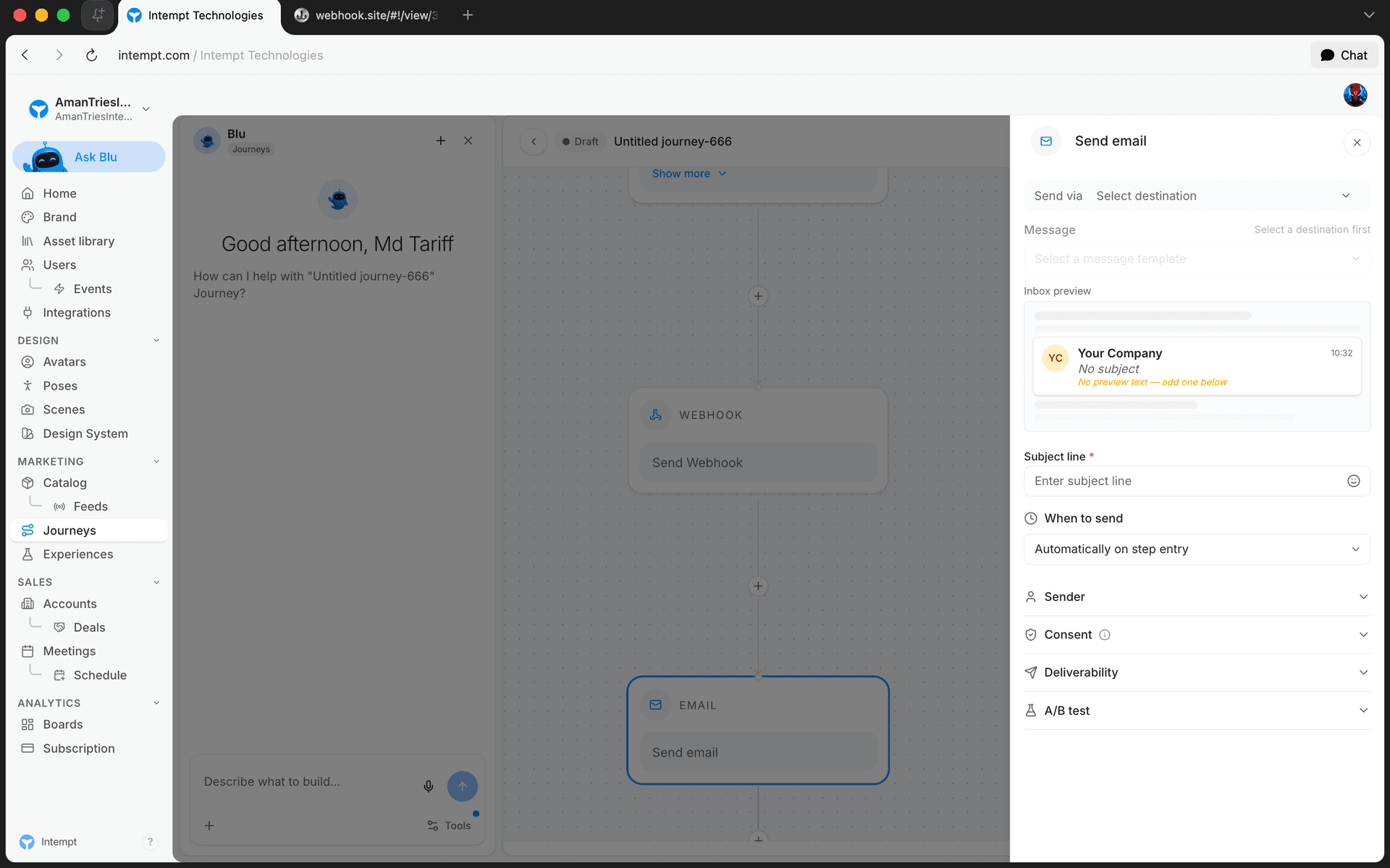
Configuration overview
📘 Good to know
SendGrid action uses Email block templates. Refer to Creating emails with the Email Editor for a complete creation guide.
-
Destination. Indicates the messaging service being used (SendGrid in this case) and its current status (Active).
-
Selected email template. This shows the email template currently selected for sending (e.g., Winback campaign).
-
Edit. Make changes to the email content or design directly from the journey builder.
-
Create a new email. Open the email builder to create a new email template from scratch.
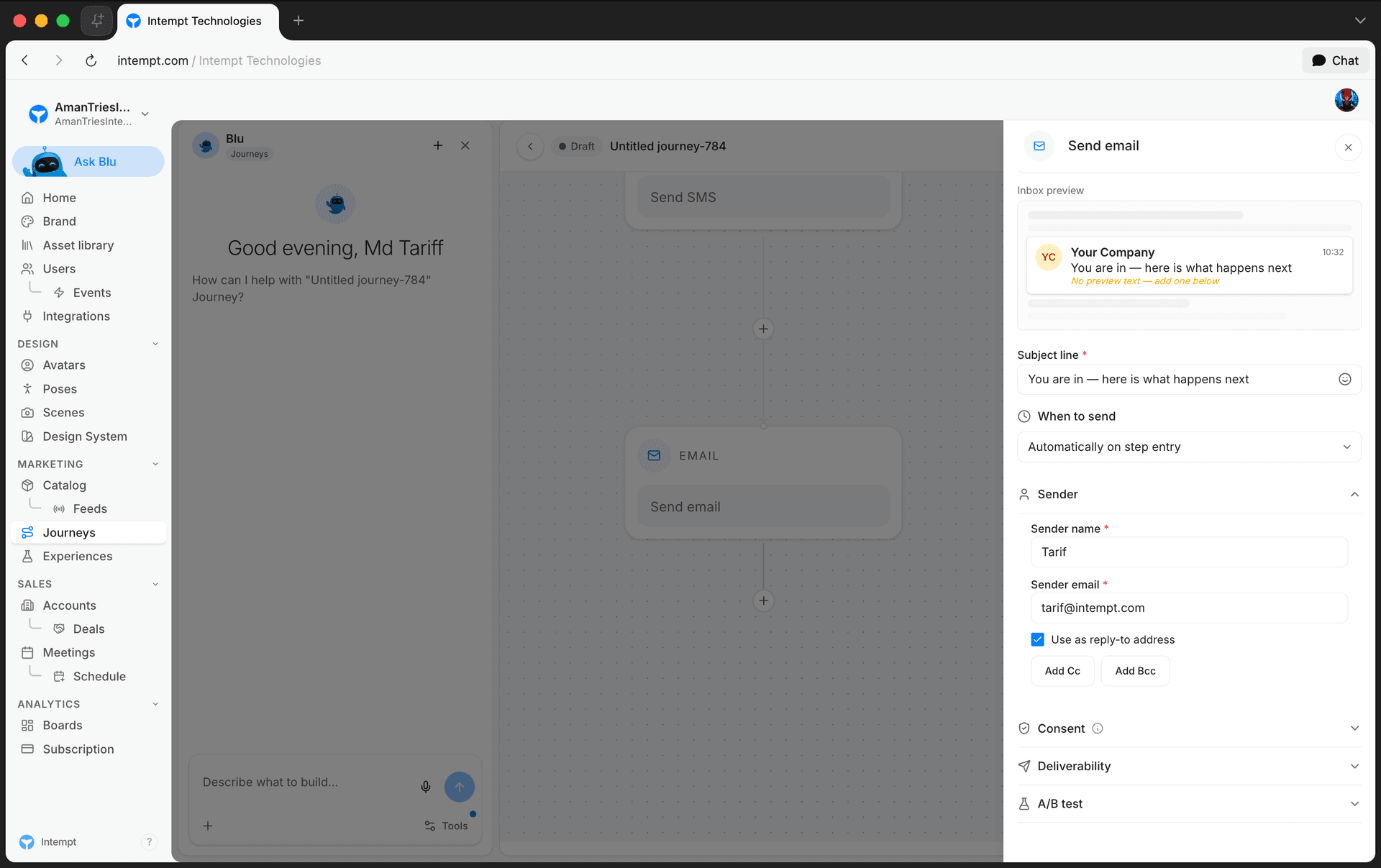
5. Subject line. The field where users can input or edit the email's subject line, up to 60 characters. Note that this will override the subject line from the message template.
6. Sender name. Allows setting the name that appears as the sender in the recipient's inbox.
7. Sender email. The email address that shows as the sender's address to recipients.
8. Reply-to. By default, replies go to the sender email above. Uncheck "Use as reply-to address" to pick a different reply-to address from your team's connected inboxes, and optionally add Cc or Bcc recipients.
📘 Good to know
A separate reply-to address is useful when you want replies routed somewhere other than the sending address, for example a shared support inbox.
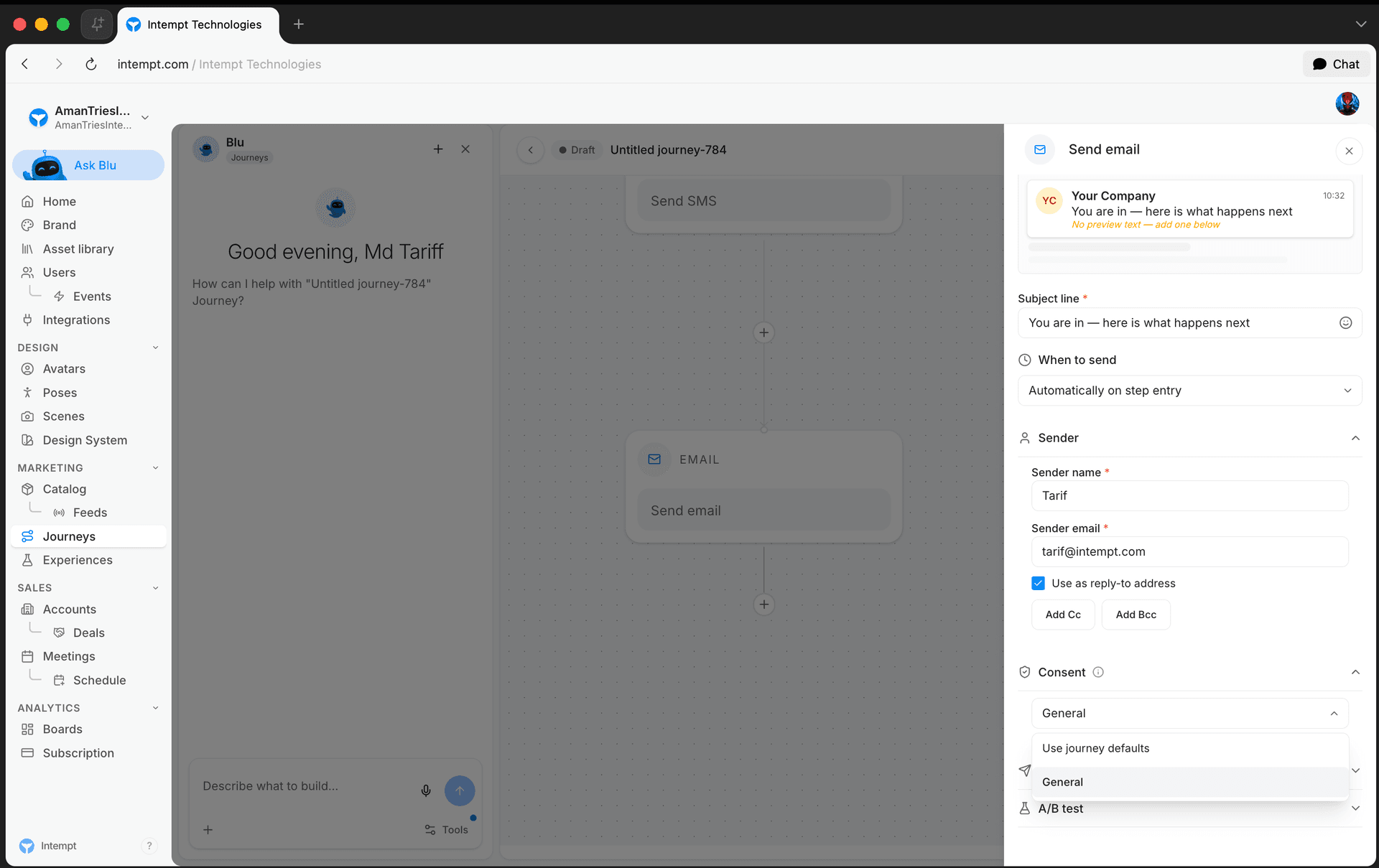
9. Consent category. Select the consent category associated with this email action (e.g., Weekly newsletter). This ensures compliance with user consent preferences by only sending emails to users who have granted permission for that category. It is crucial for maintaining trust and adhering to regulations like GDPR.
📘 Good to know
Users will not receive an email if they have not consented to the selected consent category.
Refer to Managing consents for creating and managing consents.
Use cases
-
Welcome series for new subscribers. Send welcome emails to new subscribers, introducing them to your brand, highlighting key products or services, and setting the stage for ongoing engagement.
-
Abandoned cart reminders. Trigger targeted emails to users who have added items to their cart but have not completed the purchase, encouraging them to return and finalize their transactions.
-
Seasonal campaigns. Deploy emails for seasonal promotions or holiday specials, utilizing SendGrid's capabilities to manage large volumes and deliver personalized content.
-
Customer segmentation campaigns. Use SendGrid to segment your customer base and tailor marketing messages based on past purchase behavior, demographic data, or engagement levels.
-
Re-engagement campaigns. Send emails to inactive subscribers using special offers or updates to rekindle their interest in your brand.
-
Product launch announcements. Notify your email list about new product launches with detailed descriptions, special introductory offers, and links to purchase.
-
Newsletter distributions. Regularly send out newsletters that provide valuable content, company updates, and industry news to keep your audience informed and engaged.
-
Feedback and surveys. Request feedback or conduct surveys through email to gain insights into customer satisfaction and areas for improvement.
-
Event promotion and follow-up. Promote upcoming events like webinars or in-person meetups and send follow-up content such as event recordings or key takeaways to attendees.
Gmail
Gmail action allows you to automate sending emails directly from your Gmail account.
📘 Good to know
Refer to Gmail on how to connect your Gmail account.
Configuration overview
📘 Good to know
Gmail action uses rich-text email templates. Refer to Creating email rich text templates for a complete creation guide.
-
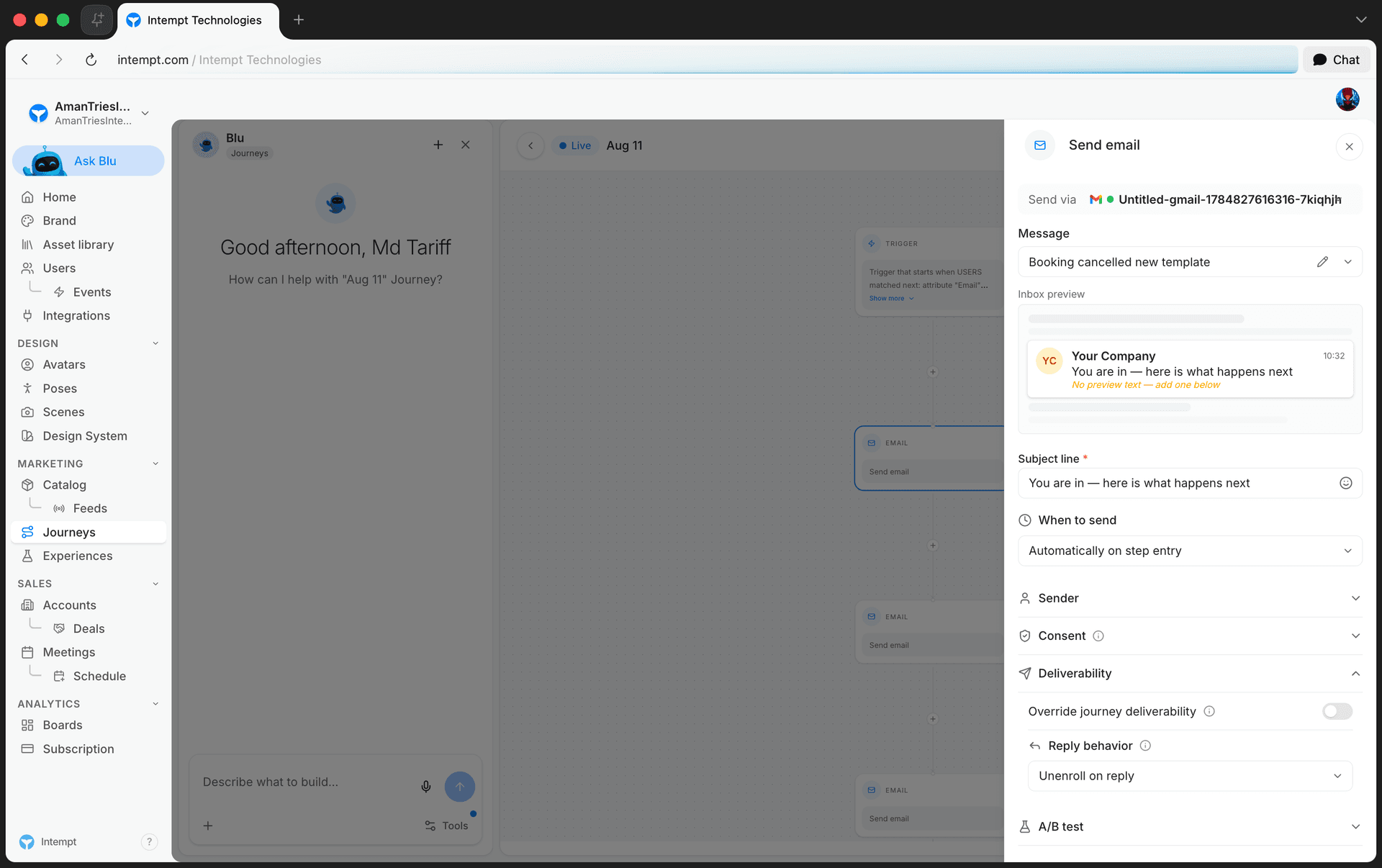
Send via. Shows the connected Gmail account this step sends from, and its status.
-
Message. Shows the template currently selected for sending (e.g., "Booking cancelled new template"), with a live inbox preview below it. Click the pencil icon to edit the template directly from the journey builder.
-
Subject line. Required. Sets the email's subject line, reflected live in the inbox preview.
-
When to send. Controls when the email fires relative to the step, for example "Automatically on step entry."
-
Reply behavior. Inside the Deliverability section, a dropdown (for example "Unenroll on reply") that controls what happens to the user in this journey if they reply to the email.
-
Consent category. Inside the Consent section, select the consent category associated with this email, ensuring it's only sent to users who have granted permission for that type of communication. This is crucial for adhering to legal standards like GDPR and maintaining user trust.
📘 Good to know
The panel also has collapsible Sender and A/B test sections alongside Consent and Deliverability.
📘 Good to know
Users will not receive an email if they have not consented to the selected consent category.
Refer to Managing consents for creating and managing consents.
Use cases
-
Lead nurturing emails. Send personalized follow-up emails to leads who have expressed interest in products or services but have not yet converted, encouraging them to take the next step.
-
Proposal follow-ups. After sending a proposal, automate follow-up emails to maintain communication, address any concerns, and keep the deal moving forward.
-
Product updates and announcements. Inform existing customers about new product features or enhancements that may interest them, keeping the brand top-of-mind and fostering customer loyalty.
-
Customer success check-ins. Periodically send emails to new customers to ensure they are satisfied with their purchase and to offer assistance or resources to maximize their product usage.
-
Appointment confirmation and reminders. Automatically send confirmation emails once meetings are booked and reminders closer to the appointment date to reduce no-shows.
-
Contract renewal reminders. Send reminders to customers whose contracts are nearing expiration, outlining the renewal process and any loyalty incentives.
-
Post-sale follow-up. After a sale is closed, send an email to thank the customer for their business, provide contact information for support, and cross-sell related products or services.
-
Event invitation and follow-up. Invite prospects to webinars, workshops, or other events that could move them further down the sales funnel. Follow up with content or recordings from the event.
Send SMS
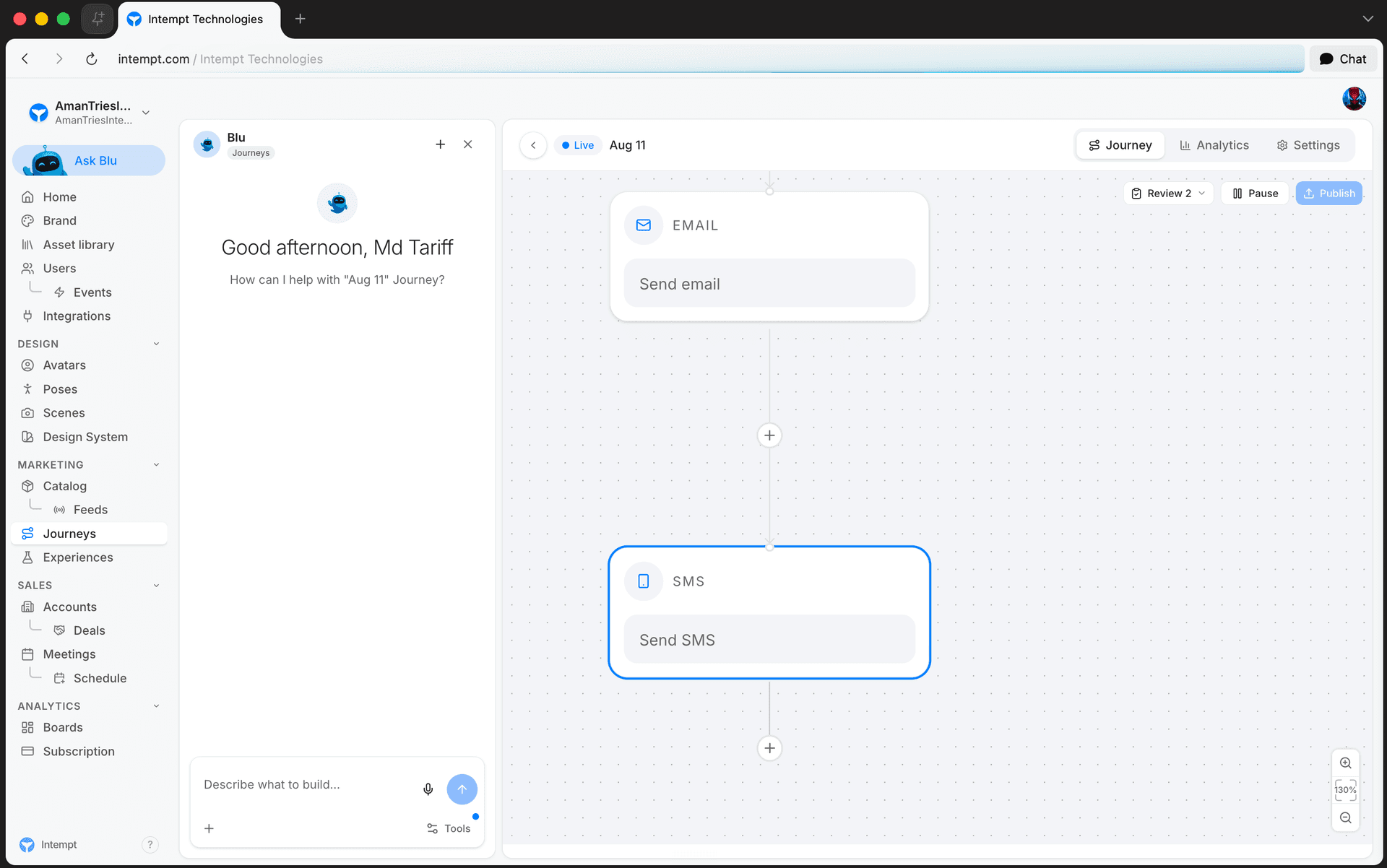
Send SMS allows you to send SMS messages via a connected Twilio account.
📘 Good to know
To send SMS messages, you need to have a Twilio account. Refer to Twilio for how to connect your Twilio account as a destination.
Configuration overview
-
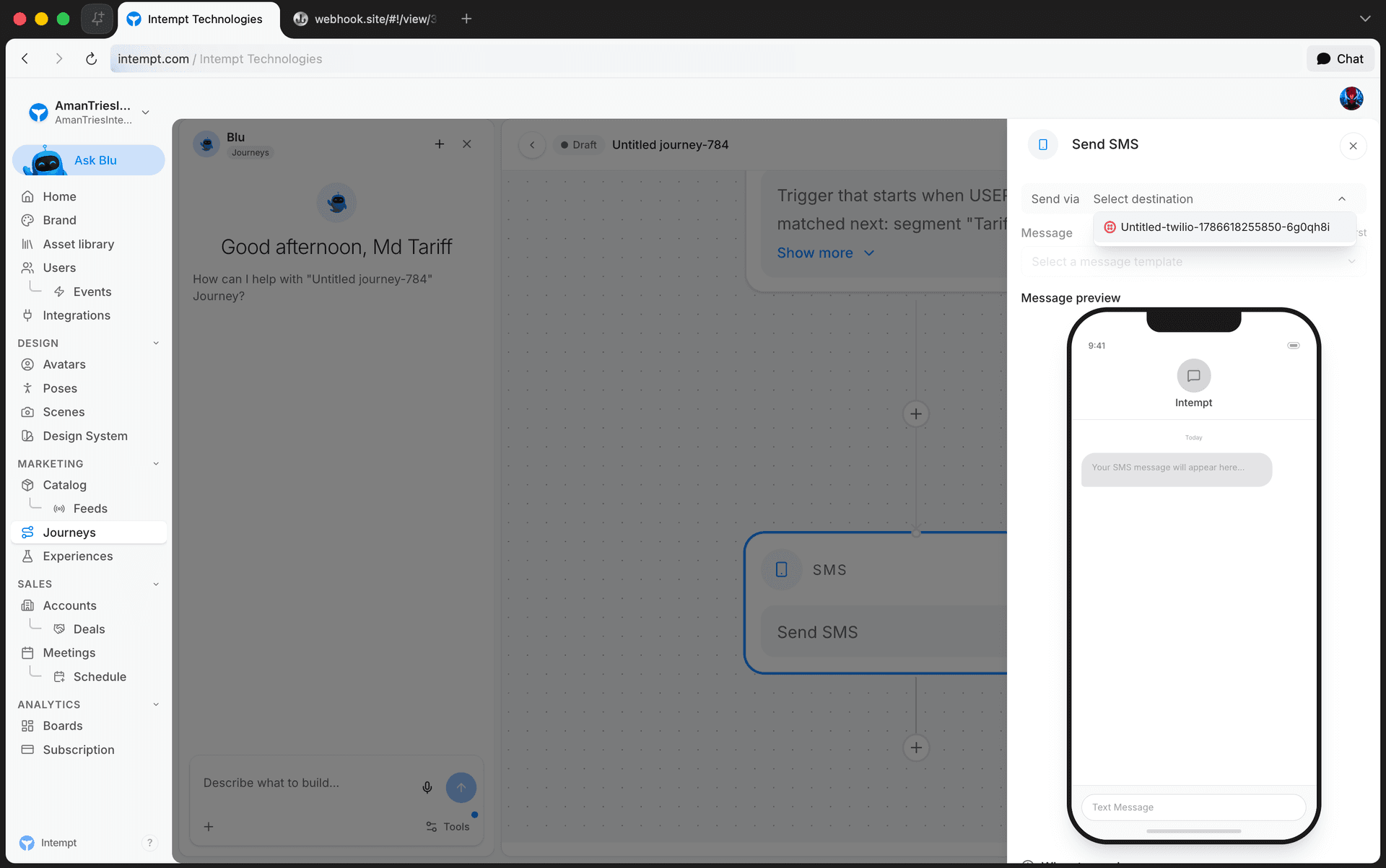
Destination name. Indicates the messaging destination being used (Twilio in this case) and its current status (Active/Disabled).
-
Selected SMS template. This shows the SMS template selected for sending (e.g., Winback campaign).
-
Edit. Make changes to the SMS content or design directly from the journey builder.
-
Create a new SMS. Open the SMS builder to create a new SMS template from scratch.
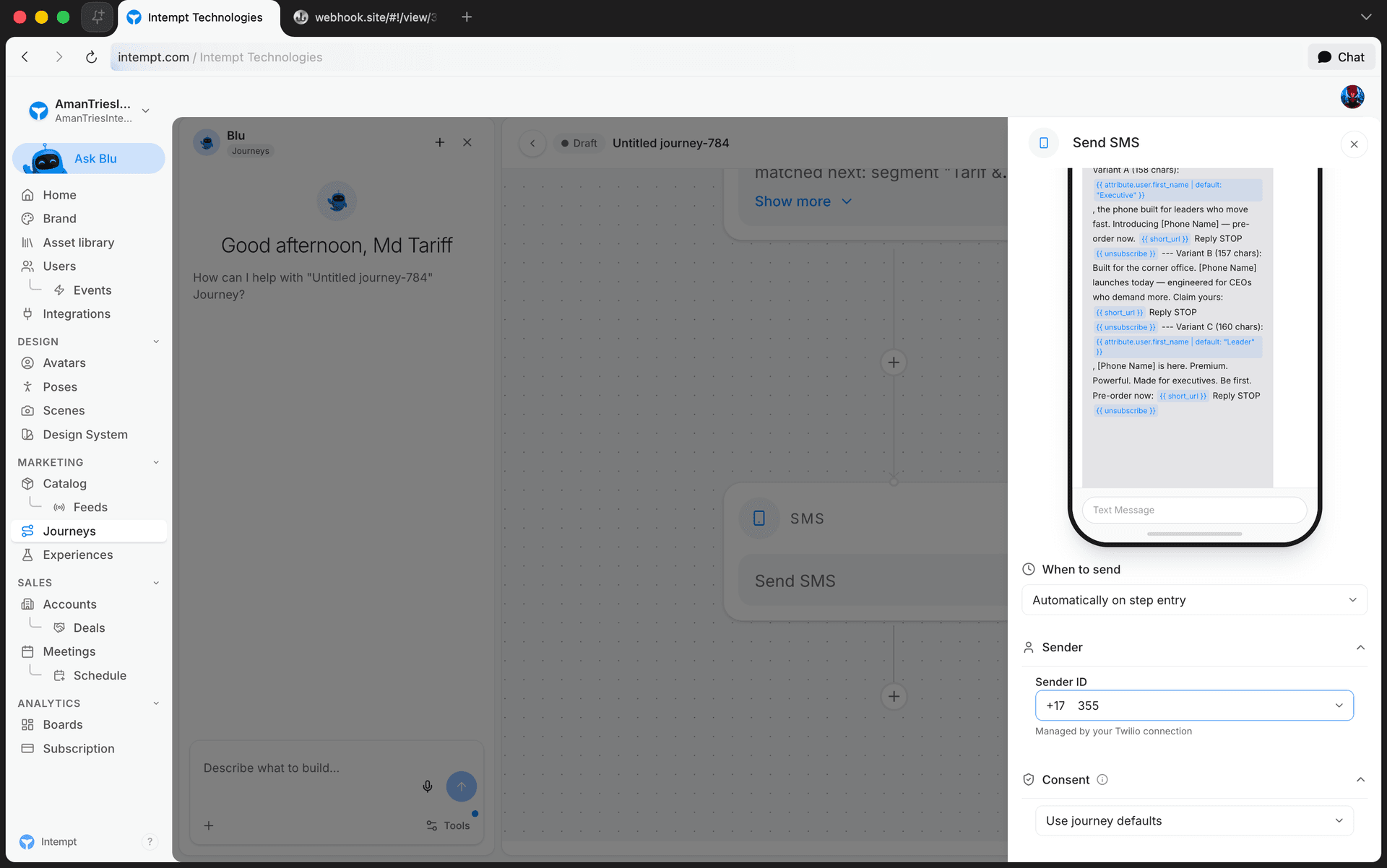
-
Sender ID. The phone number messages send from, pulled automatically from your connected Twilio number.
-
Consent category. Dropdown to select the consent category, ensuring SMS messages are sent only to users with permission for this communication type. This ensures compliance with user consent preferences, which is crucial for adhering to legal standards like GDPR and maintaining user trust.
📘 Good to know
Users will not receive an SMS if they have not consented to the selected consent category.
Refer to Managing consents for creating and managing consents.
Use cases
-
Event reminder notifications. Send SMS reminders to attendees before an event or webinar to ensure high attendance and timely arrivals.
-
Promotional campaigns. Notify subscribers about special promotions, discounts, or exclusive offers, driving immediate engagement and increasing sales opportunities.
-
New product launches. Alert customers via SMS about new product releases, providing a direct link to the product page or a special introductory offer.
-
Loyalty program updates. Send updates to loyalty program members about their points balance, upcoming rewards, or changes in program terms, keeping them engaged and informed.
-
Customer feedback requests. Shortly after a purchase or interaction, send SMS messages to customers asking for feedback or directing them to a survey, enhancing customer service and product development.
-
Flash sales alerts. Notify customers of limited-time flash sales, creating urgency and encouraging quick responses from a targeted audience.
-
Seasonal greetings and offers. Send personalized greetings during holidays or special seasons, accompanied by special offers tailored to the recipient's previous purchases or interests.
-
Re-engagement campaigns. Reach out to inactive customers with incentives to re-engage them with the brand, such as special discounts or updates on new product lines.
-
Subscription renewal reminders. Remind subscribers about upcoming renewals, providing easy instructions or incentives to renew their subscription.
-
Event follow-up communications. After an event, send thank you messages to attendees, highlights or key takeaways, and possibly an early bird offer for the next event.
Send push notification
Push Notification sends a push message to a user's device through a connected push destination: Firebase Cloud Messaging for Android or APNs for Apple devices. You pick a destination, not a provider, and the same push template works with either.
📘 Good to know
You need a push destination before this step can send. If none is connected, the message picker shows "No push destinations yet."
Configuration overview
-
Message. Select a destination, then select a push template. Edit template opens the selected template, and a preview shows how the notification will read.
-
Addressing. Shows the platform and how the device is addressed. This is resolved automatically from the source that registered the device. A send to a profile with no token for that source fails, and the report names the missing attribute.
-
When to send. Send automatically sends on step entry. Create a draft for review holds the message until someone approves it.
-
Consent, Deliverability, and A/B test. The same sections the SMS step has: pick the consent category, adjust sending windows, and turn the step into an experiment or a hold-out.
📘 Good to know
Users will not receive a push notification if they have not consented to the selected consent category. See Managing consents.
Send Webhook
Send Webhook lets a journey call an external URL in real time when a user reaches this step. Use it to notify a CRM, trigger an internal system, or hand off data to any endpoint that can accept an HTTP request the moment a user matches your journey's trigger.
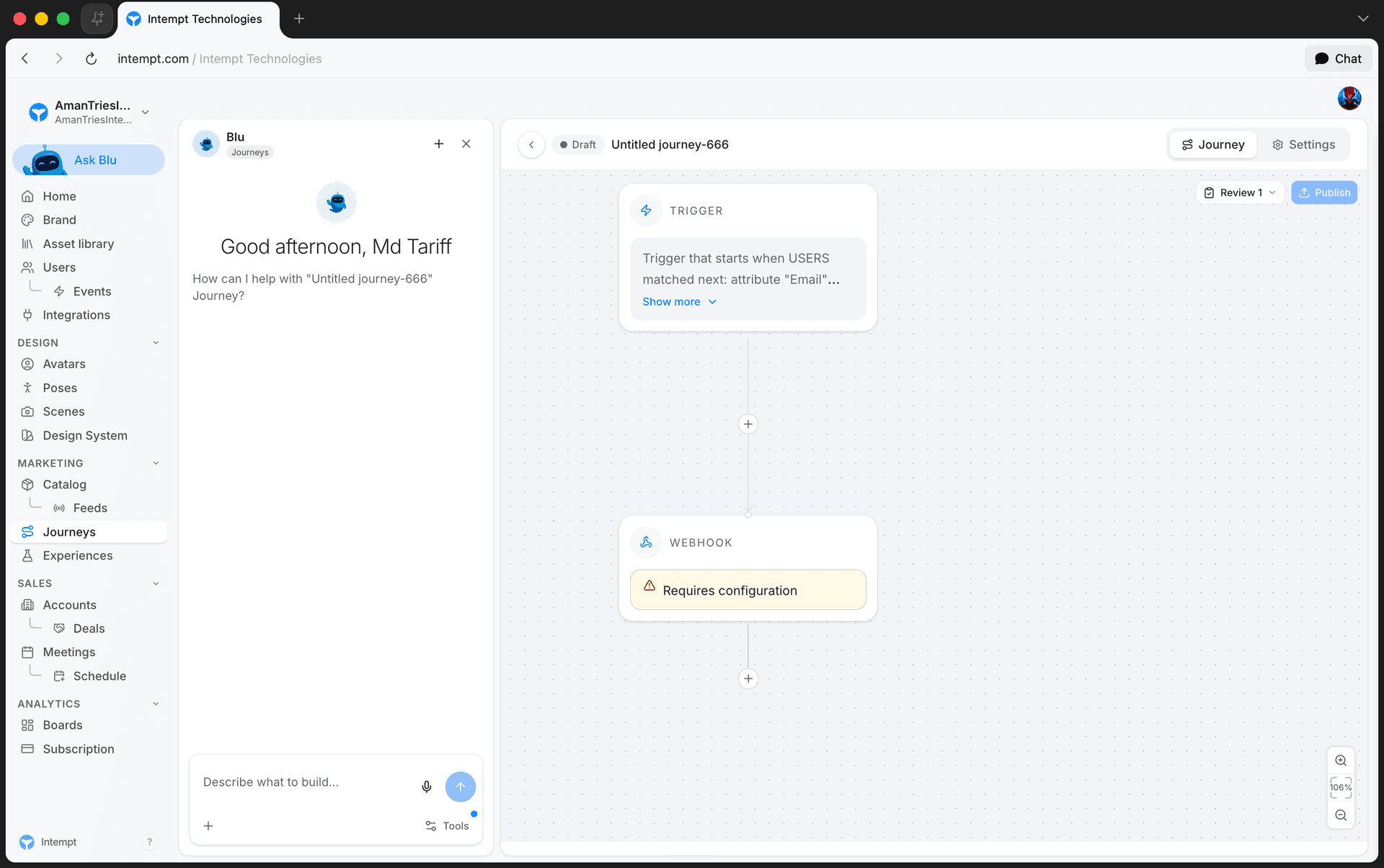
📘 Good to know
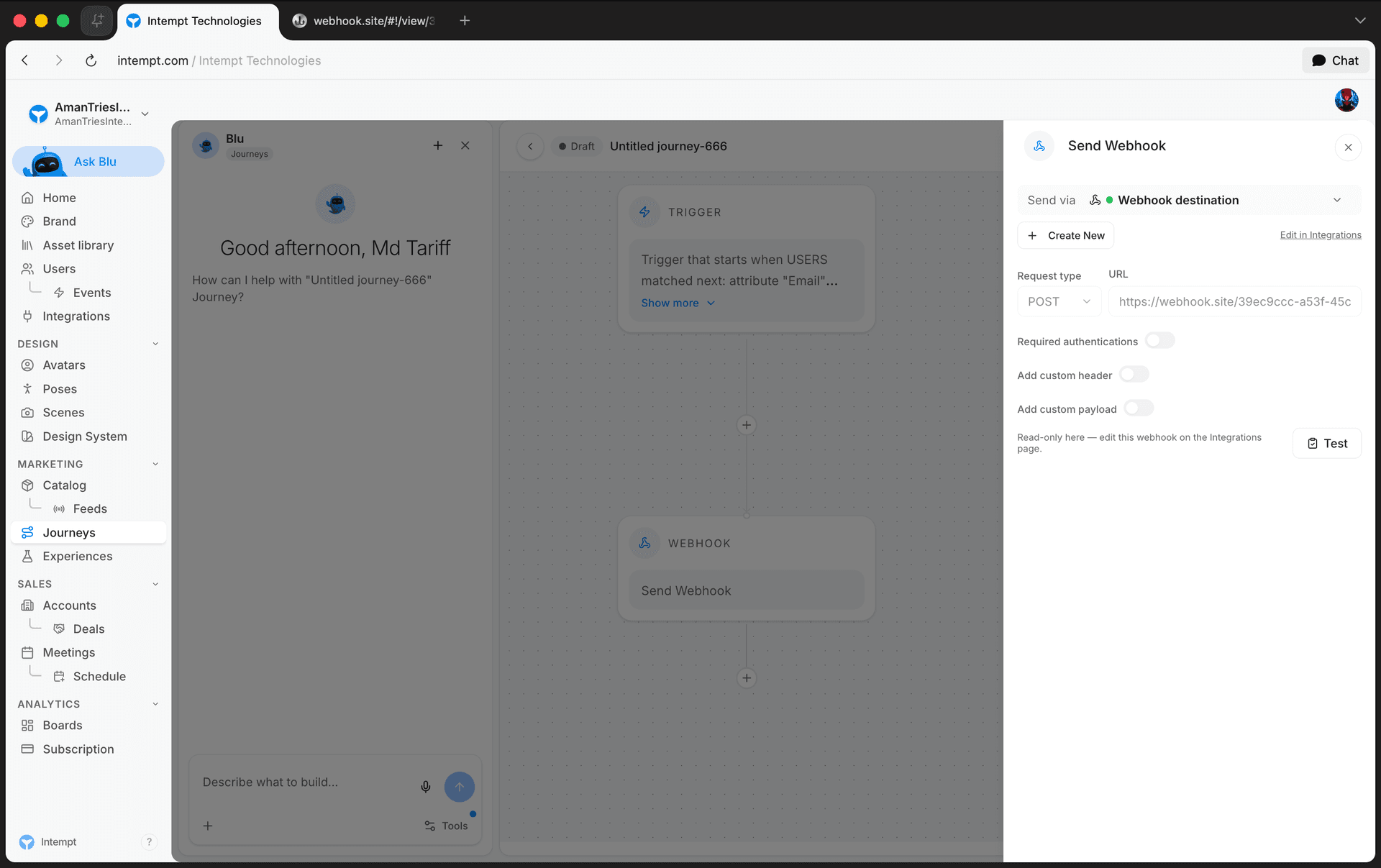
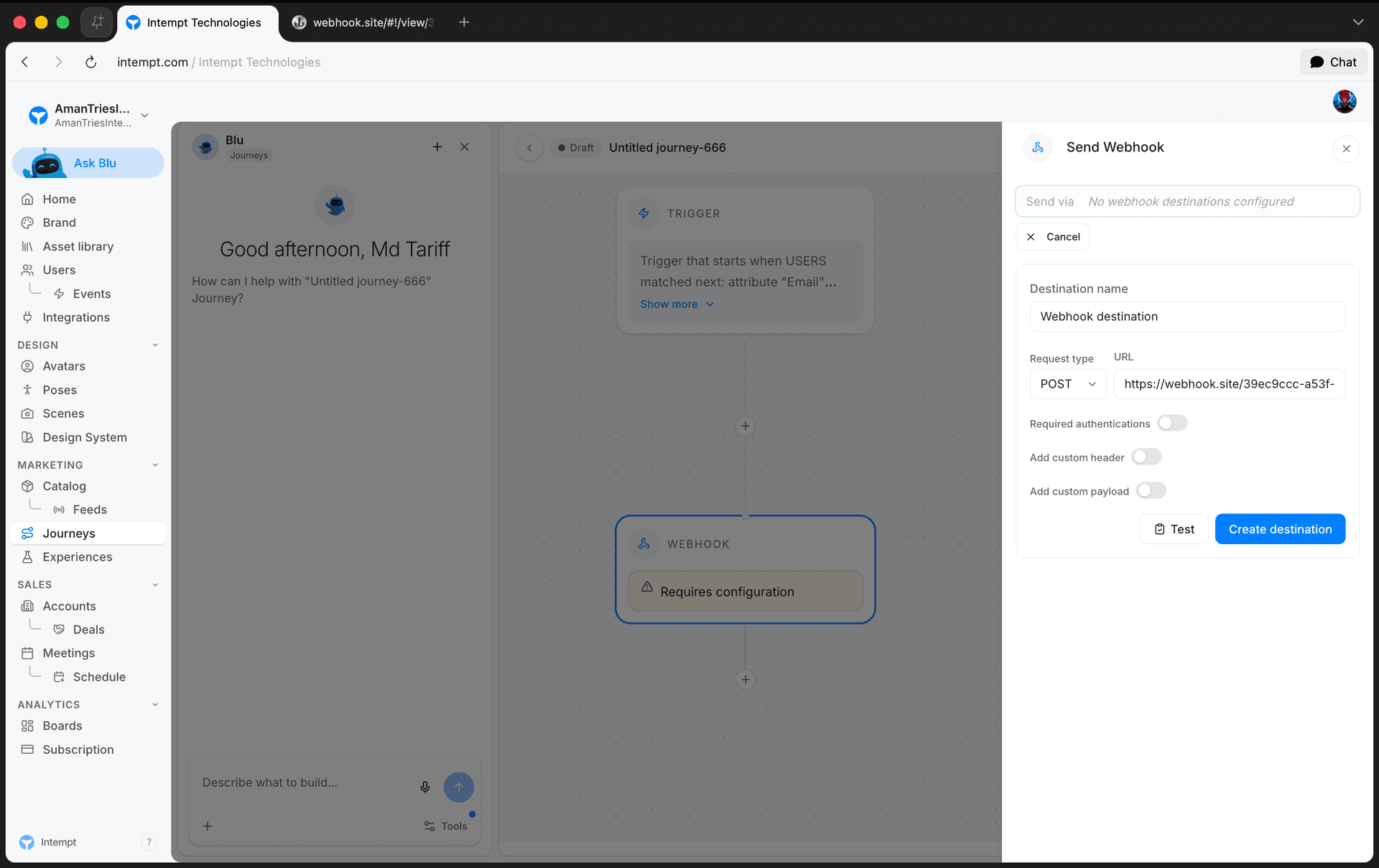
A newly added Webhook block shows Requires configuration until a destination is created and saved.
Configuration overview
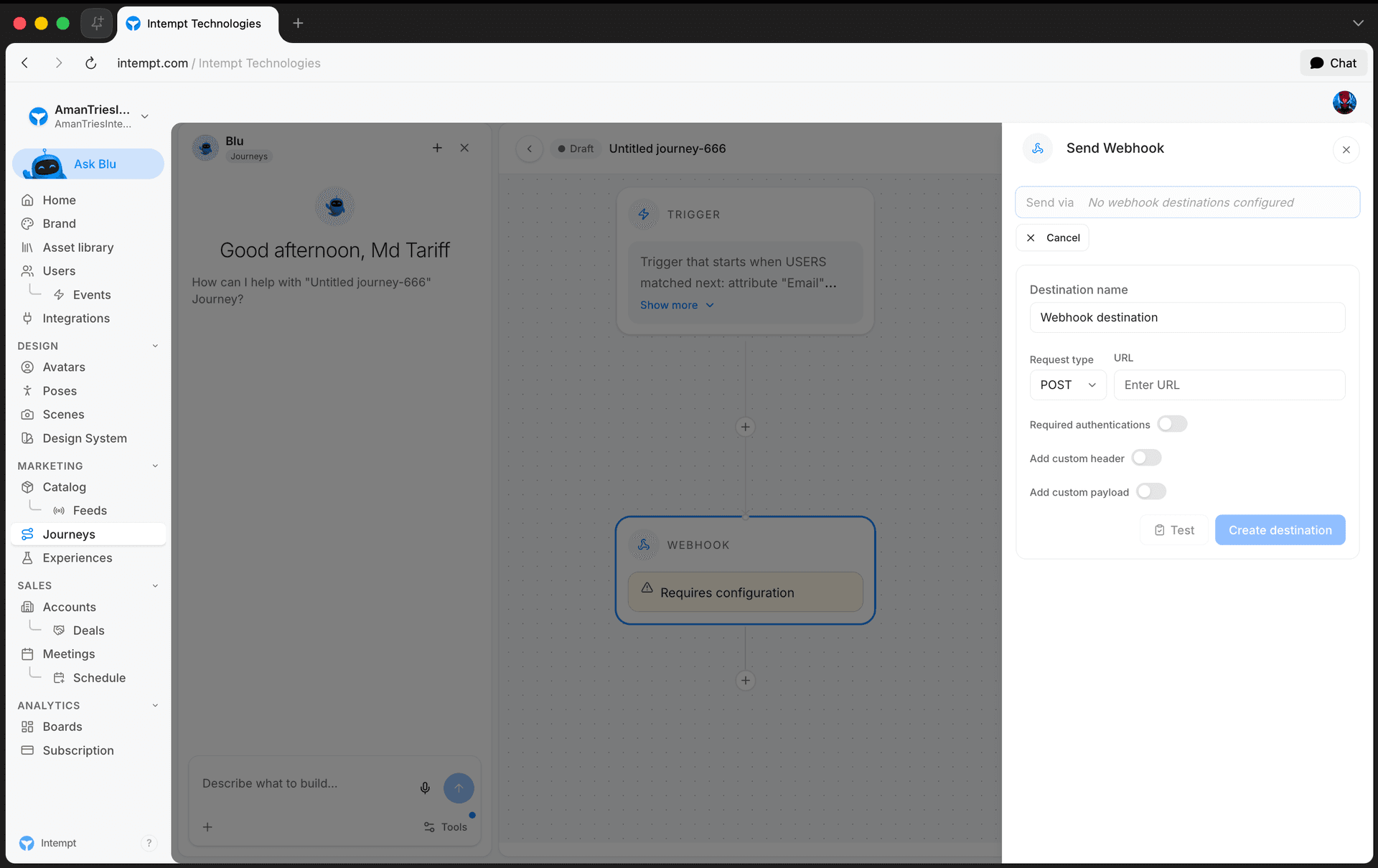
-
Send via. Choose an existing webhook destination, or click Create New to set one up from scratch.
-
Destination name. A label for this webhook destination, so you can identify it if you reuse it in other journeys.
-
Request type & URL. Select the HTTP method (POST, PUT, or DELETE) and enter the endpoint URL that should receive the request.
-
Required authentications. Optional toggle to add Basic auth (username/password) or a Token/API key.
-
Add custom header. Optional toggle to include custom HTTP headers as key/value pairs.
-
Add custom payload. Optional toggle to send extra properties as JSON in the request body, for data that isn't already present on the triggering event.
-
Test. Sends a one-off test request to the configured URL without saving it. A confirmation appears once the endpoint accepts the request.
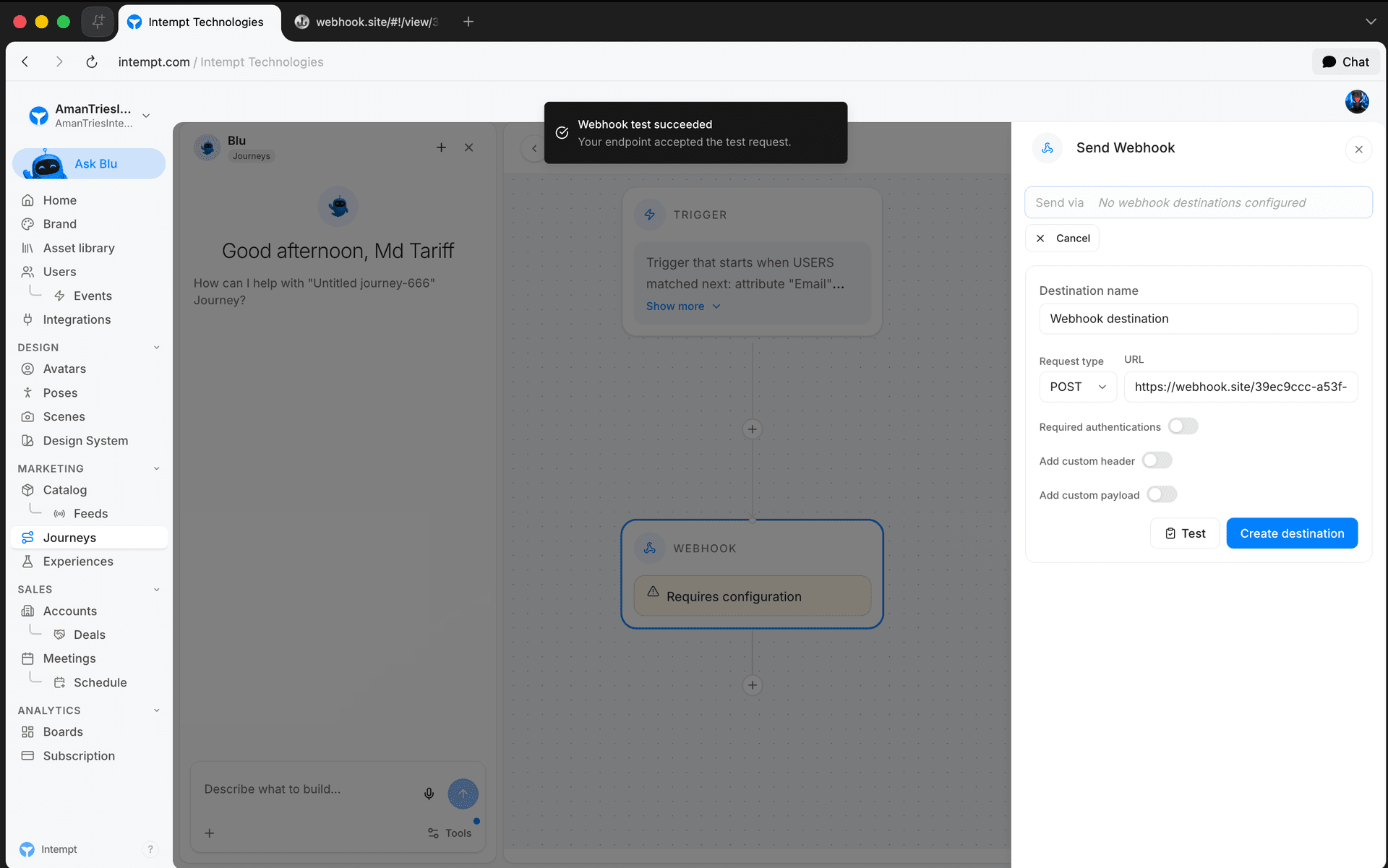
- Create destination. Saves the webhook so it can be selected from Send via going forward.
📘 Good to know
Once saved, a webhook destination is shared and can be reused across journeys. Editing it from inside a journey is read-only — use Edit in Integrations on the panel to change its settings.
How do you test a webhook?
-
Go to Webhook.site and copy the unique URL it generates for your session.
-
Paste that URL into the Webhook block's URL field and set the request type to POST.
-
Click Test.
-
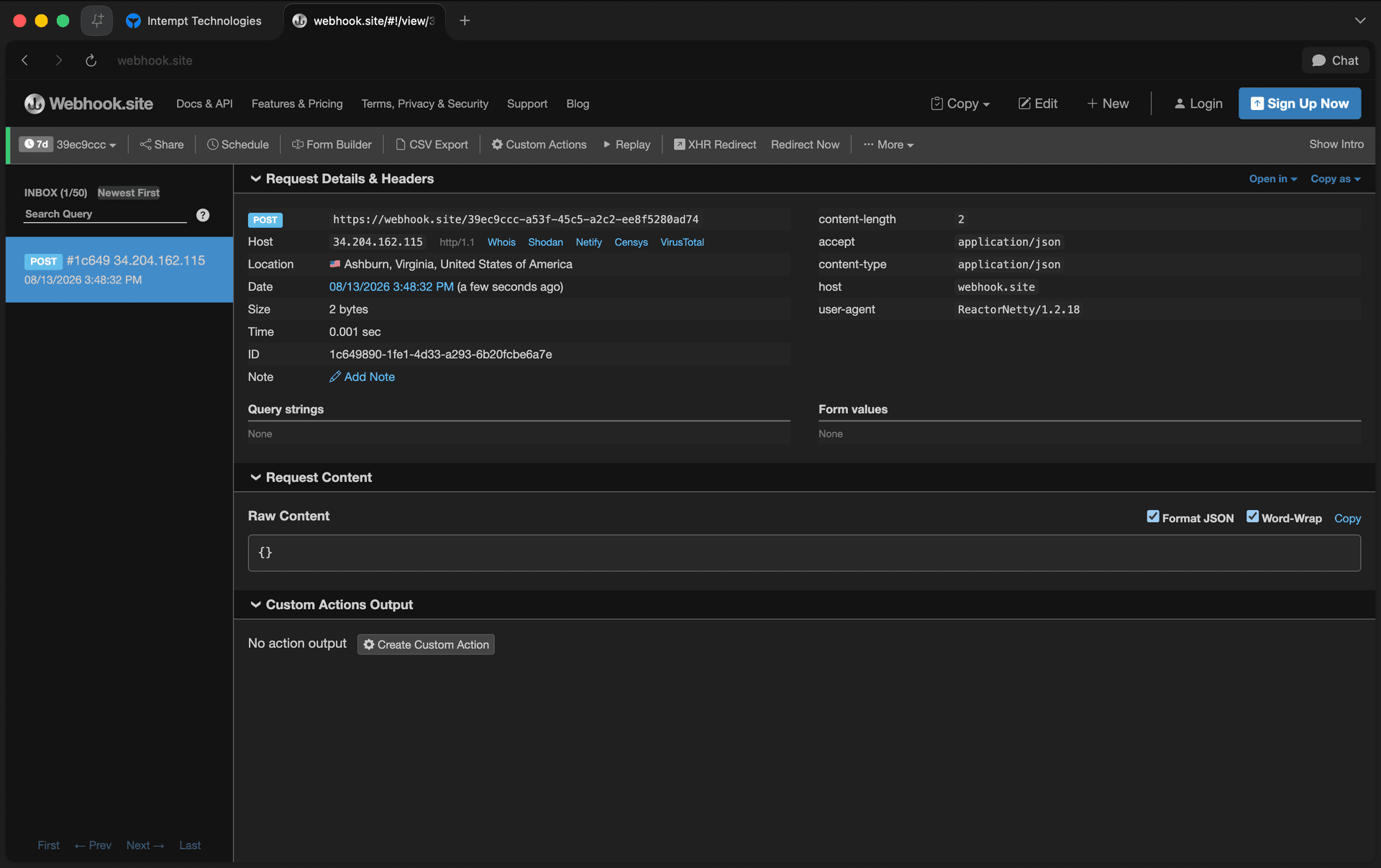
Switch back to the Webhook.site tab. The request should appear immediately, along with its headers and payload.
Use cases
-
Real-time lead notification. Notify sales teams immediately when a new lead signs up or requests information, enabling swift follow-up.
-
Customer activity tracking. Send real-time updates to a CRM or other sales tools when customers engage with key marketing materials.
-
Event registration follow-up. Trigger an immediate follow-up sequence when someone registers for an event.
-
Automated data synchronization. Keep customer information in sync across platforms whenever a user or account attribute changes.
-
Survey distribution. Trigger a targeted survey immediately after a purchase or interaction, while the experience is still fresh.
-
Referral program tracking. Update referral program trackers and any applicable rewards when a user refers another customer.
-
Marketing campaign analytics. Send interaction data to analytics platforms in real time as users engage with campaigns.
Other block types
Intempt's journey engine also defines a Slack step, a Lead Routing control, and a set of Data and Agent steps (Update Attribute, HubSpot Add to List, HubSpot Create Task, HubSpot Update Property, Enrichment, Task, Research Agent, Reply Agent). None of these are available yet: they are not offered in the Add step picker, and opening one on the canvas (in a journey that already has one) shows a placeholder instead of a configuration panel.
Controls
Controls adjust the conditional branching and time windows within the journey.
True/False
With the "True/False" block, you define the criteria for users or accounts to pass the flow to the "True" or "False" branch.
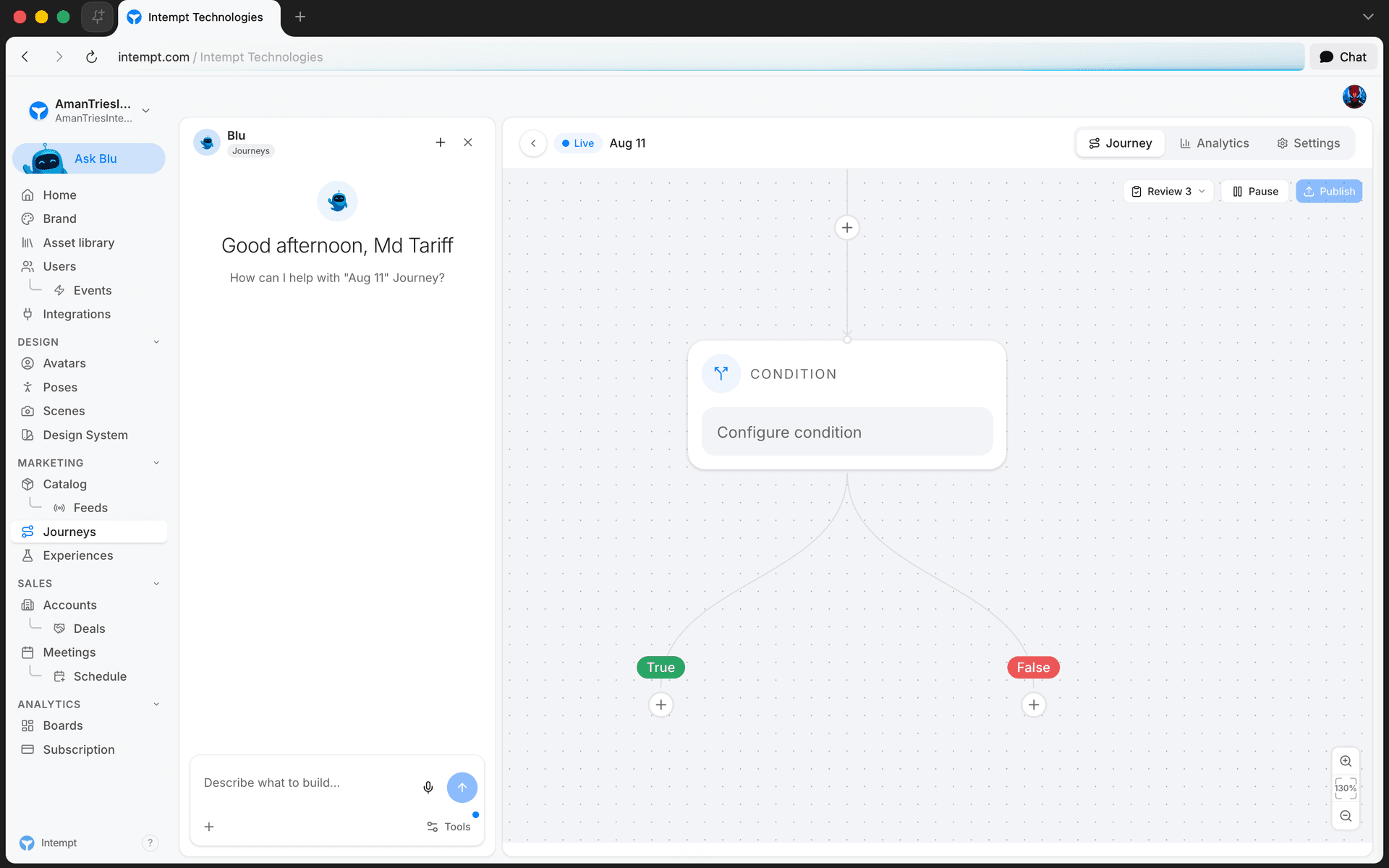
If a user matches the condition specified in the block, they will go to the green "True" branch. They will be sent to the red "False" branch if they don't.
📘 Good to know
The branching logic is excluded immediately after the user reaches this block. If you want to add additional time for the user to complete the indicated condition, we recommend adding a time delay or using the "Wait until" block.
Configuration overview
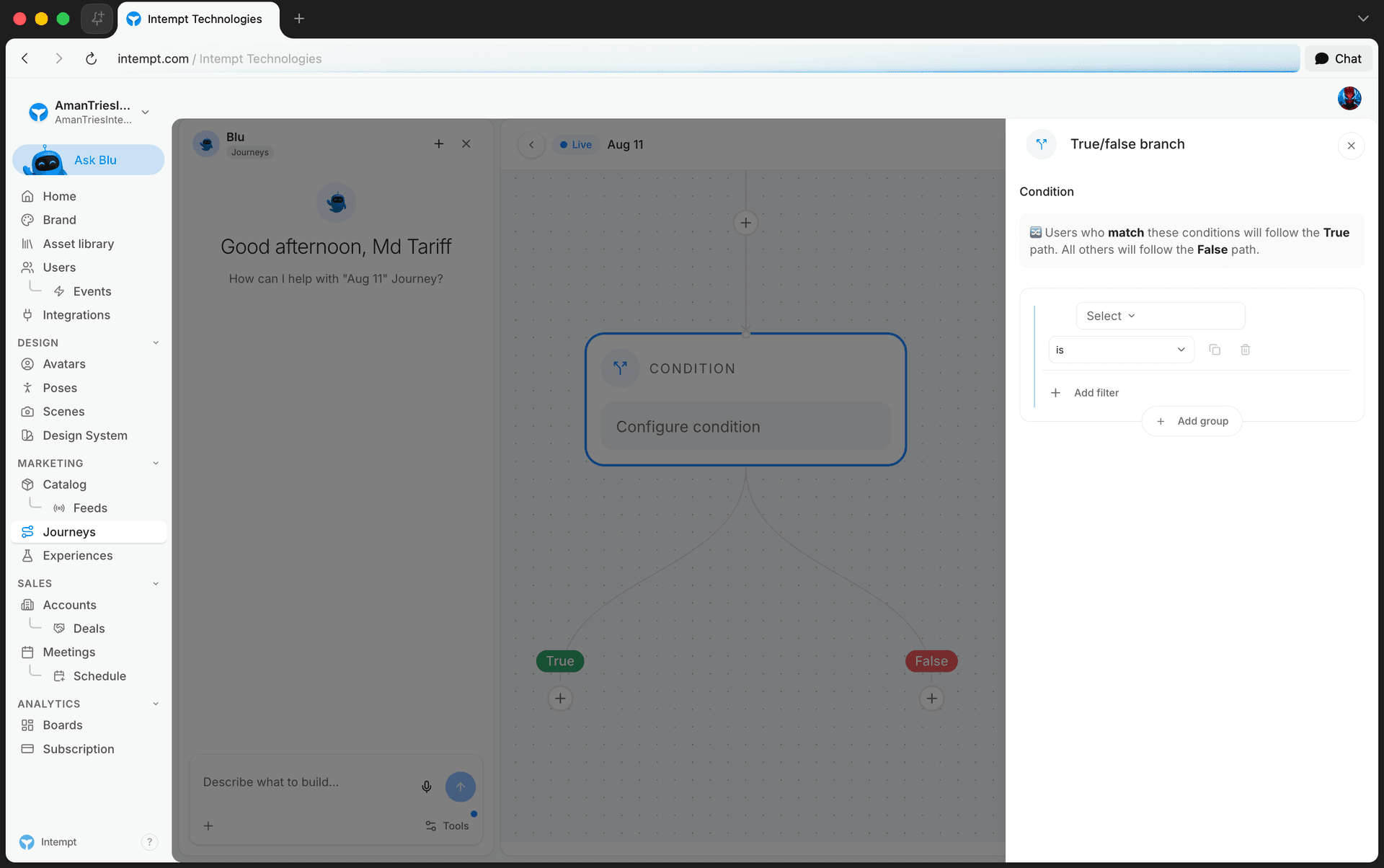
Condition logic. To define the logic, you can choose any combination of events, attributes, segments, or journeys. Refer to Creating a segment on how to use the editor.
Use cases
-
Email interaction routing. Immediately check if a user has opened or clicked on a link in a marketing email. Route users who interacted to a sales follow-up journey, while those who did not received additional nurturing emails.
-
SMS response evaluation. After sending an SMS about a limited offer, use conditions to check if the user responded or took action, directing responders to a sales conversion track and non-responders to receive a follow-up reminder.
-
Webhook trigger based on user activity. Evaluate user activity levels and, based on interaction with previous campaigns, trigger a webhook to trigger real-time actions on other tools.
-
Lead scoring adjustments. Instantly adjust lead scores based on real-time interactions with web content or email campaigns and route high-scoring leads to immediate sales attention or low-scoring leads for further qualification.
-
Purchase pattern segmentation. Check if users have made a purchase following a promotional campaign and instantly segment them into a list for upsell opportunities, while others are targeted with different offers.
-
Renewal readiness via messaging actions. Use conditions to assess engagement with renewal reminder emails or SMS, routing customers who show readiness through more direct renewal processes and others to additional educational content.
-
Event attendance follow-up via email. Post-event, determine if users attended key sessions based on email registrations and interactions, directing attendees to targeted follow-up sequences and non-attendees to access recorded sessions.
-
Customer feedback collection timing. After sending a feedback request via email, check if the customer has submitted feedback and route those who haven’t to a reminder sequence, ensuring more customers respond.
-
Dynamic content delivery based on messaging events. If link tracking in email or SMS shows interest in specific topics or products, dynamically update the journey to provide more focused content or product recommendations, enhancing user engagement and potential conversion.
-
Sentiment-based response routing. After receiving a reply to an email, SMS, or feedback request, analyze the sentiment of the message. Route users with positive sentiment to advocacy or upsell campaigns, while users with negative sentiment can be directed to support or customer success follow-ups to address concerns quickly.
Multi-split branch
The Multi-Split Branch block allows you to route users into different paths within a journey based on conditions such as user attributes, behavior, or segment membership. It’s useful for creating dynamic, personalized flows that adapt to how users interact with your product or campaigns.
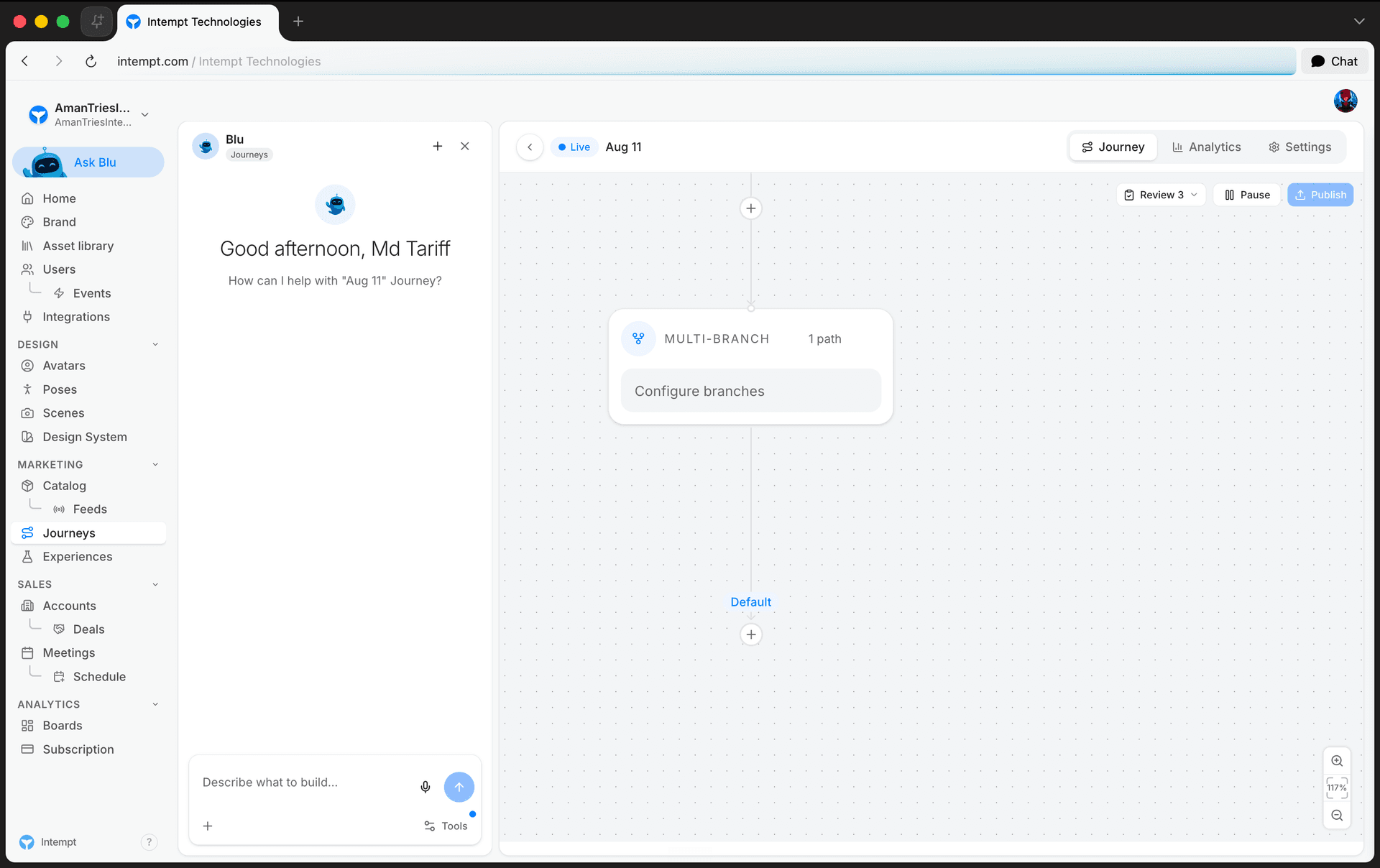
Configuration overview
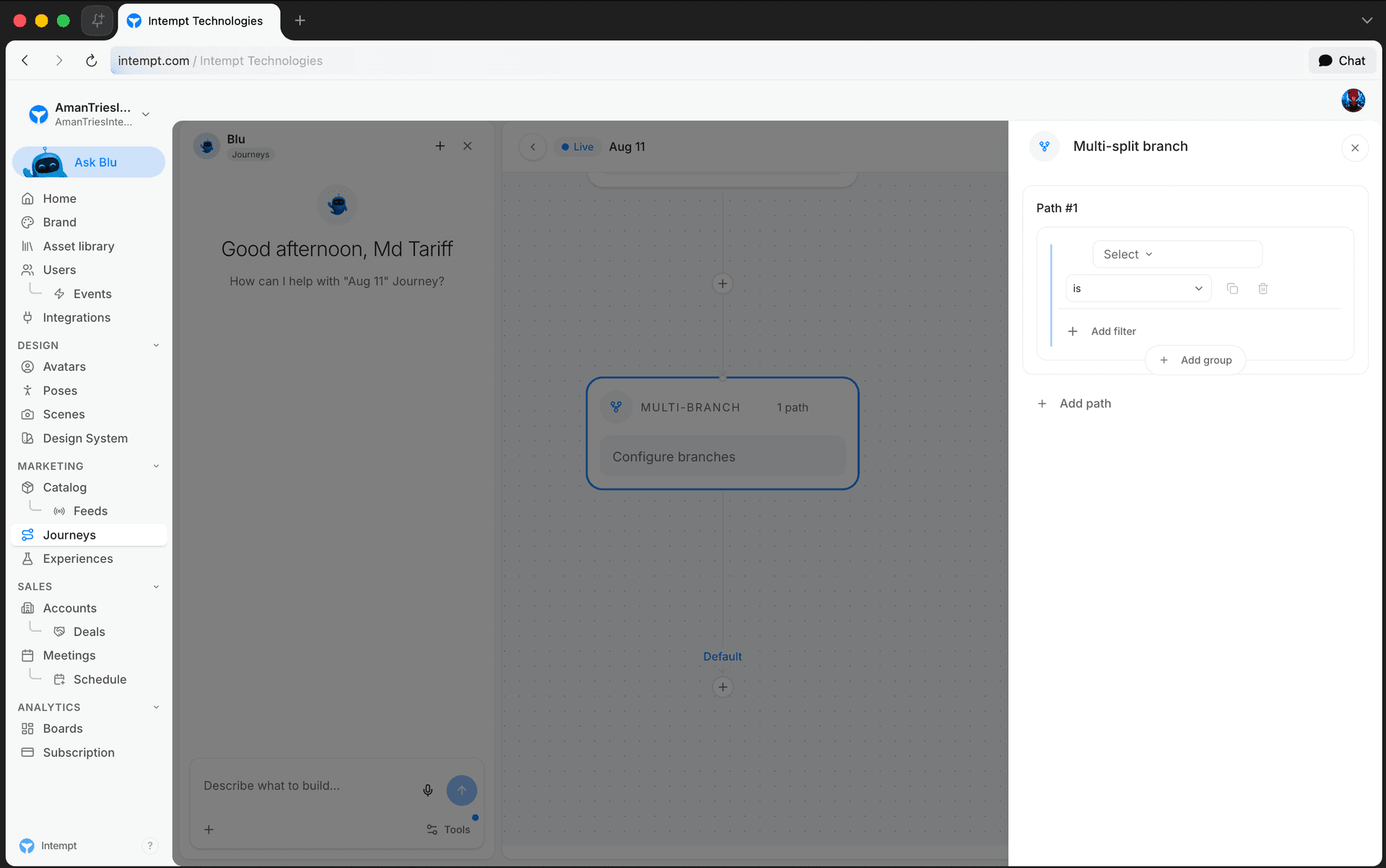
- Condition logic – Define conditions using events, user/account attributes, segments, or journey states. For help with the condition builder, refer to the Creating a segment guide.
Each branch can represent a different audience segment, making it easy to tailor follow-ups or actions based on real-time user data.
Use cases
-
Email engagement routing. Evaluate whether a user opened or clicked a marketing email.
-
Opened/clicked → route to sales follow-up.
-
Ignored → send another nurturing email with a different message.
-
-
SMS reply flow. Check if users responded to an SMS about a time-sensitive promotion.
-
Replied → move to a conversion-focused journey.
-
No replied → trigger a reminder message.
-
-
Webhook triggering based on behavior. Split users by activity level and trigger webhooks to notify external systems.
-
Engaged → trigger webhook to CRM.
-
Inactive → push to re-engagement campaign.
-
-
Lead scoring-based branching. Evaluate user interaction to update lead scores.
-
High score → route to sales rep task.
-
Low score → assign to long-term nurture journey.
-
-
Purchase segmentation. Determine if users made a purchase after a promotion.
-
Purchased → move to upsell sequence.
-
Did not purchase → send alternative offers.
-
-
Sentiment-based routing. Analyze the sentiment of user responses or feedback.
-
Positive sentiment → route to upsell or advocacy campaigns.
-
Negative sentiment → route to support or customer success follow-up.
-
Wait until
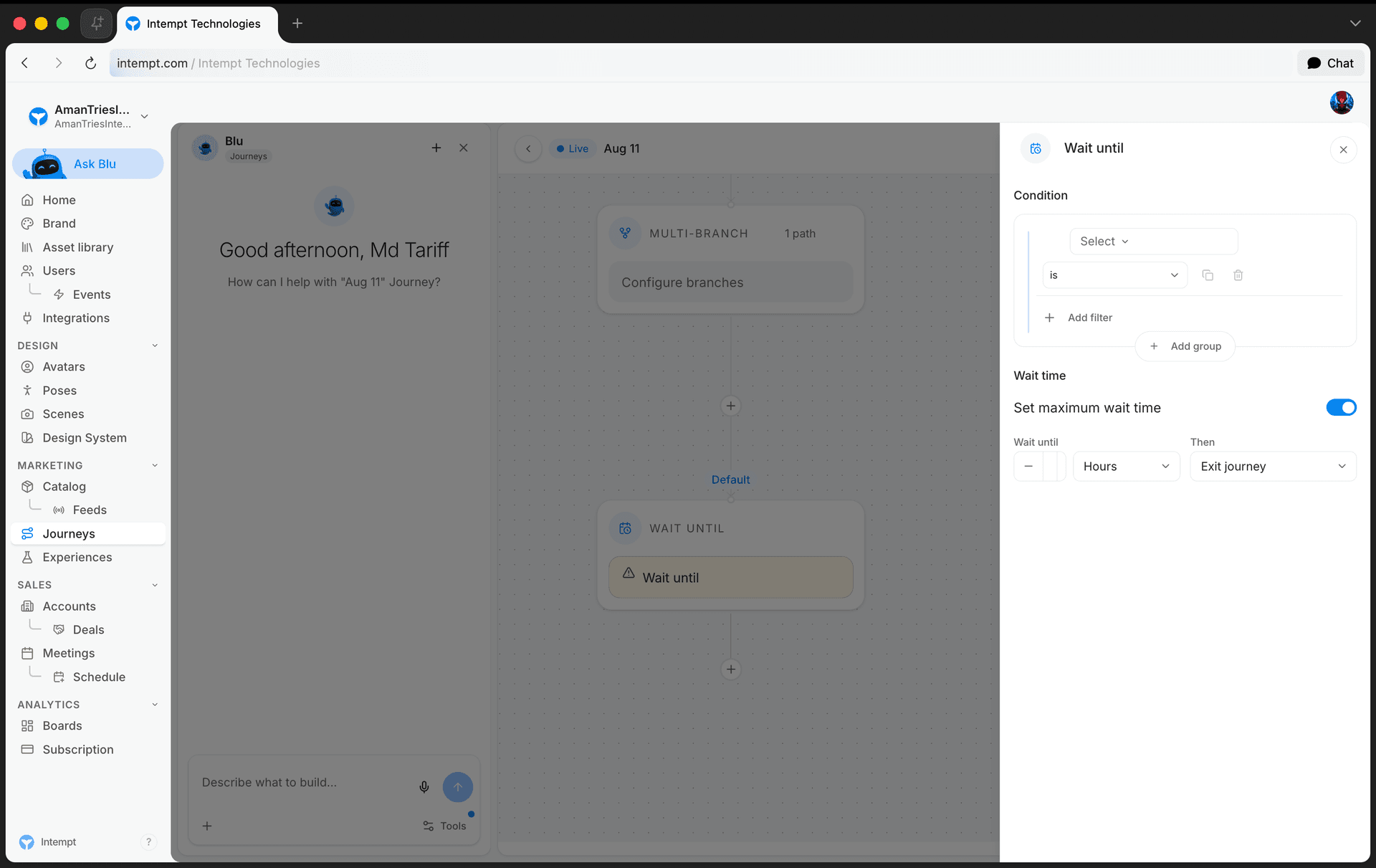
Wait until is a condition check that waits until users match the specified conditions; for example, it makes a conversion event. The fundamental difference between the "Condition" and "Wait until" blocks is that "Condition" checks if the users match the conditions only when a user enters the block. At the same time, "Wait until" waits for the user to match the condition for prolonged periods.
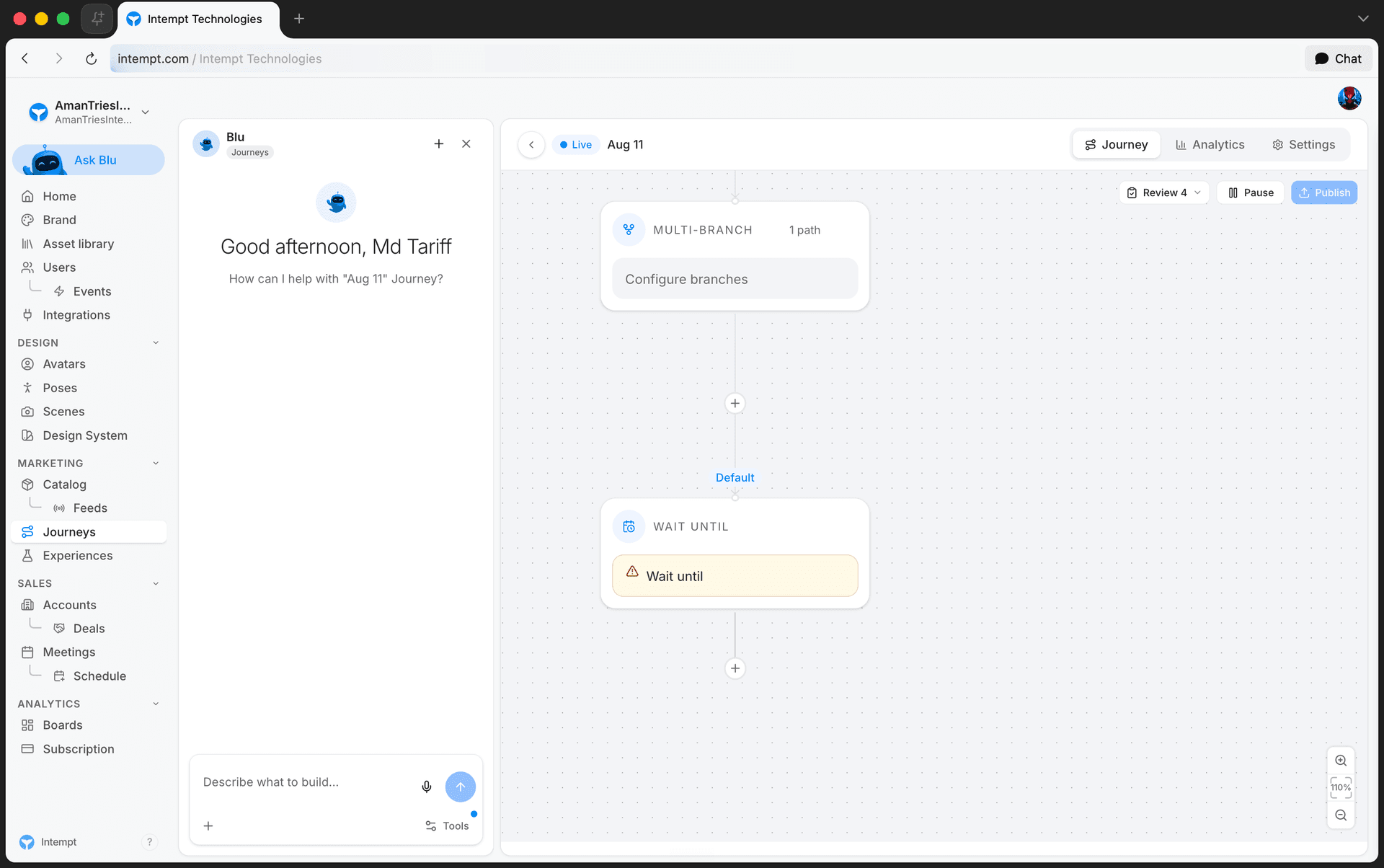
Configuration overview
-
Conditions. Define the conditions the users need to match to proceed to the next step of the journey.
-
Set maximum wait time. You can specify how long to wait until the user matches the conditions. This is useful if you have a time-based action (e.g., a special discount) after this step. If users reach it too late, the action will be rendered useless.
-
Action after time passes. You can specify how the user should be handled after reaching the indicated maximum wait time.
-
Exit journey. Users exit the journey - they will not enter any new steps.
-
Move to another journey action. Users skip this step and are moved to the next action.
-
Use cases
-
Conversion event completion. Wait until a user completes a conversion event, such as making a purchase or signing up for a service, before moving them to a post-conversion engagement sequence, enhancing the relevancy of follow-up interactions.
-
Engagement verification. Pause the journey until a user engages with a key piece of content, like a promotional email or a critical product video, ensuring that the subsequent messages or actions are timely and appropriate.
-
Lead qualification. Delays further sales actions until a lead meets specific qualification criteria, such as repeated website visits or interactions with pricing information, allowing sales teams to engage with more informed and interested prospects.
-
Customer feedback collection. Hold the journey until the customer provides feedback on a recent purchase or service experience, using this input to tailor future communications or improve service offerings.
-
Anniversary or milestone recognition. Wait until a specific date, such as an account creation anniversary or a seasonal milestone, to send personalized offers or messages, increasing personalization and customer loyalty.
-
Behavior-based upselling. Delay upselling actions until a user demonstrates clear usage patterns or product familiarity, ensuring that upsell offers are timely and relevant to the user’s experience level.
-
Contract renewal preparation. Pause the journey until it's closer to the contract renewal date before initiating renewal discussions or offers, optimizing the timing of renewal outreach.
-
Trial period completion. Wait until the end of a trial period to assess whether the user converts to a paying customer or requires further nurturing, allowing for targeted follow-up based on user actions at the trial’s conclusion.
-
Event follow-up timing. Delay post-event communications until a user has had sufficient time to digest the event content, maximizing the impact of follow-up materials or offers.
Delay
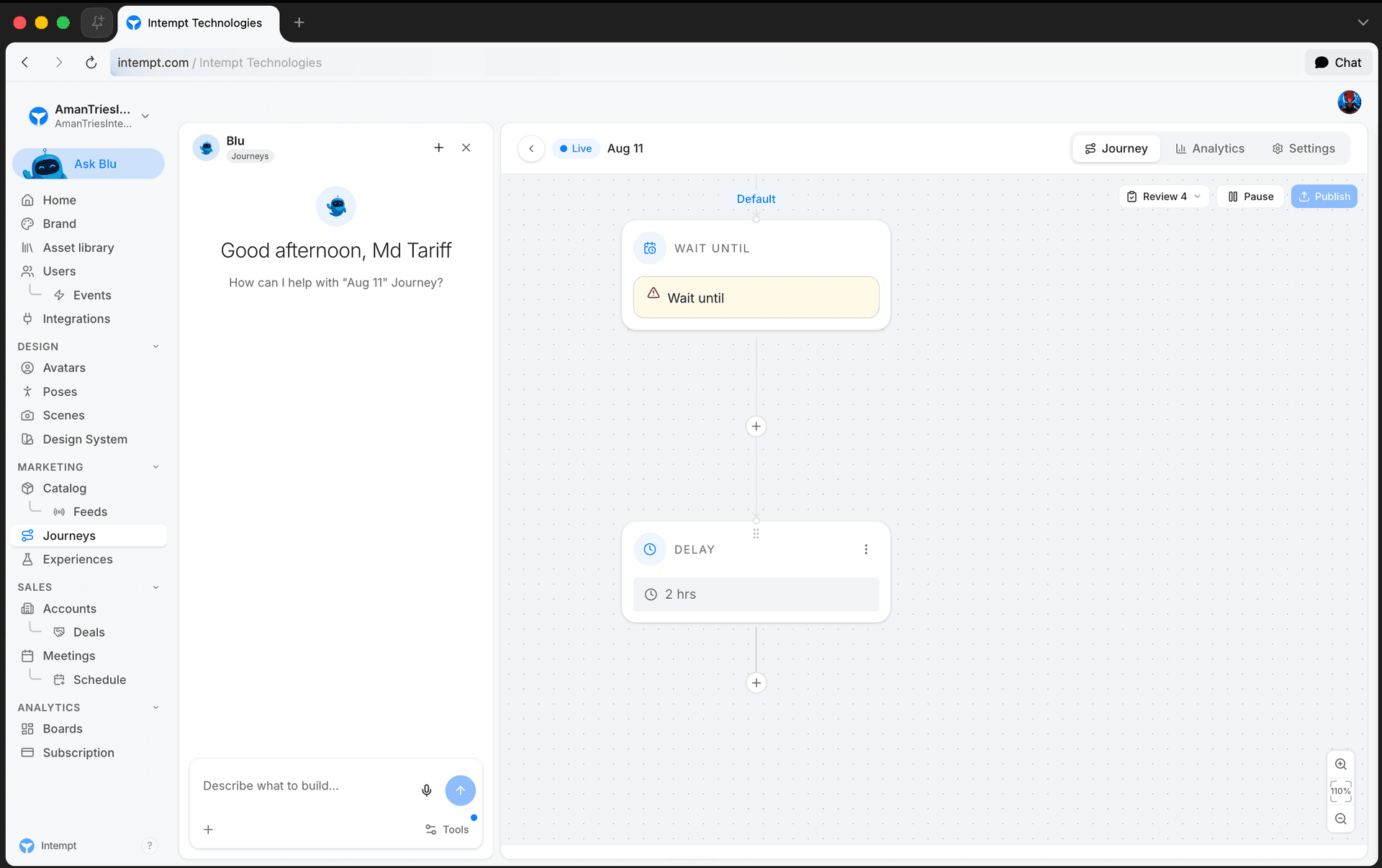
The delay block adds a specific time gap between two journey steps.
Configuration overview
-
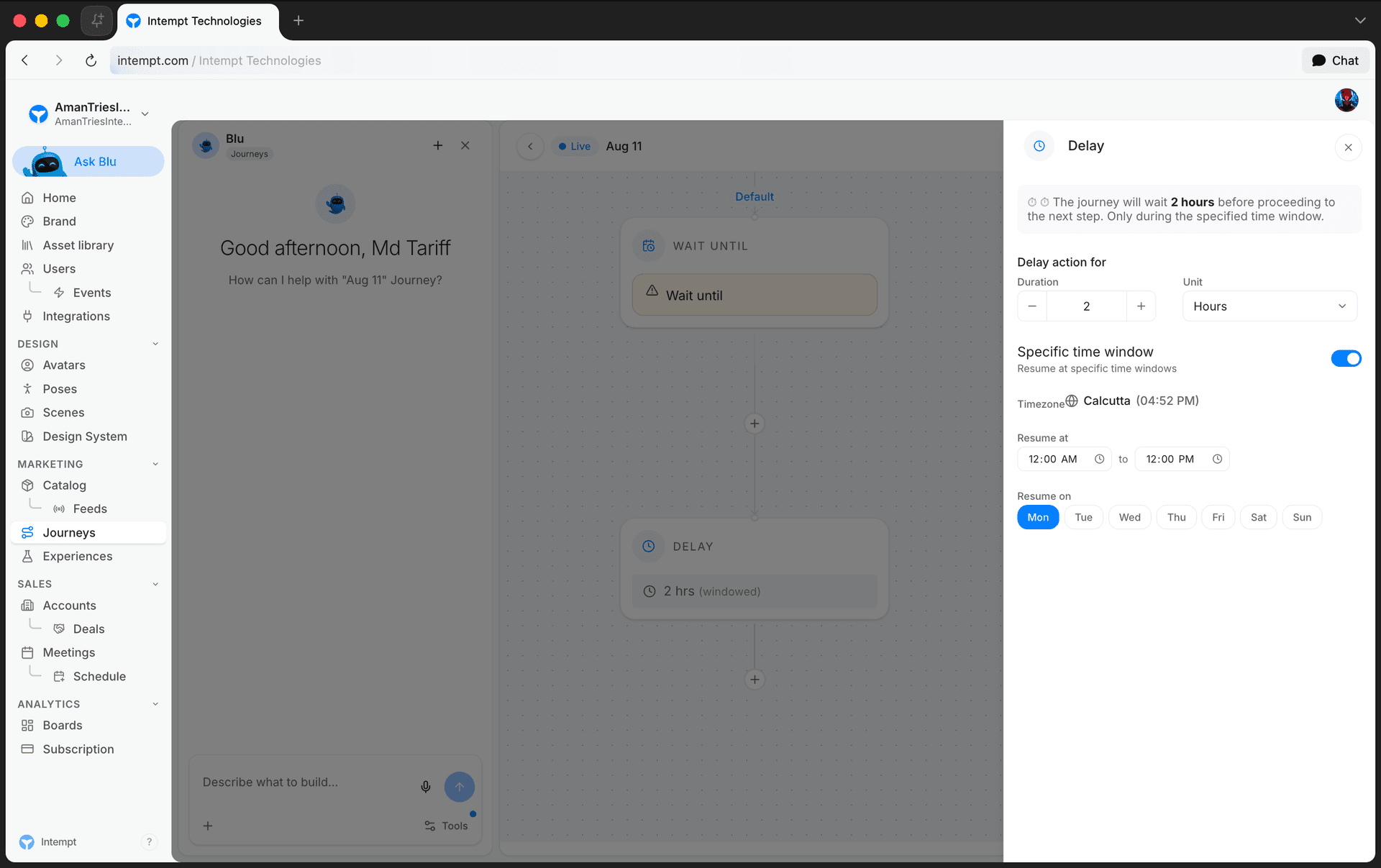
Delay period. Specify when the delay block should be added between journey steps. You can select minutes, hours, days, or weeks.
-
Resume at specific time windows. You can enable this option if you want to delay to be executed during a specific time of day or week.
-
Timezone. The delay time windows will be executed within your selected timezone.
-
Resume at. Specify the time of day when the delay is eligible to be executed.
-
Resume on. Specify one or multiple weekdays that delay can be executed.
📘 Good to know
Time windows are useful if you want to execute specific actions (e.g., send email campaigns) only during work hours or work days, acting as a Do Not Disturb precaution.
Use cases
-
Scheduled follow-up emails. Insert a delay after an initial contact or lead capture to time follow-up emails strategically, such as waiting 24 hours before sending a follow-up to maximize engagement without appearing too aggressive.
-
Nurturing lead engagement. Use delays to space out interactions in a lead nurturing campaign, such as sending educational content over several days or weeks to keep leads engaged without overwhelming them.
-
Post-purchase follow-up. Set a delay after a purchase to send a thank you email or a customer satisfaction survey, giving customers enough time to experience the product before asking for feedback.
-
Anniversary or renewal reminders. Employ delays to time communication close to an anniversary or contract renewal date, ensuring timely and relevant messages.
-
Holiday campaign preparation. Schedule marketing campaigns to begin delays leading up to holidays or special events, ensuring promotions launch opportunistically.
-
Event countdown communications. Implement delays in an event marketing journey to send reminders and teasers at specific intervals before the event date, building anticipation.
-
Behavior-based targeting timing. Delay actions until a certain behavior is observed, such as visiting a key page on a website and then waiting a specific period before sending targeted content.
-
Time zone sensitivity for global campaigns. Use delays to ensure that emails or messages are sent during appropriate local times to avoid reaching customers during inconvenient hours, enhancing the customer experience.
-
Weekend avoidance for business communications. Set delays to pause actions during weekends and resume on weekdays to ensure business-related communications are sent during work hours.
-
Sequential product launches. Introduce a delay between announcements in a multi-product launch strategy to give each product adequate attention and space, maximizing impact and engagement for each launch.