
Multivariate testing
Test more than two variants against a single control in one experience, then compare all of them side by side in Results.
Overview
Multivariate testing means running an experience with more than one treatment variant, not just Control vs. a single Treatment. Intempt doesn't have a separate "multivariate" experience type: you create a visual-editor experiment the same way you'd create any web experiment, then add variants on the Variants tab. A two-variant A/B test and a five-variant multivariate test are the same feature at different scale, but they are not on the same plan: Control plus one variant is included everywhere, and the third and later variants require the multivariate_testing entitlement, which comes with the Organization plan. Below that plan the "Add variant" button is disabled once you have one named variant.
This article covers what's different when you're running with three or more variants: splitting traffic across all of them, and comparing every variant's results at once.
How it works
Add more than one variant
On the experience's Variants tab, click "Add variant" once for every additional treatment you want to test. Each variant opens in the same visual editor you'd use for a two-variant test, and Control is still added automatically as the implicit baseline.
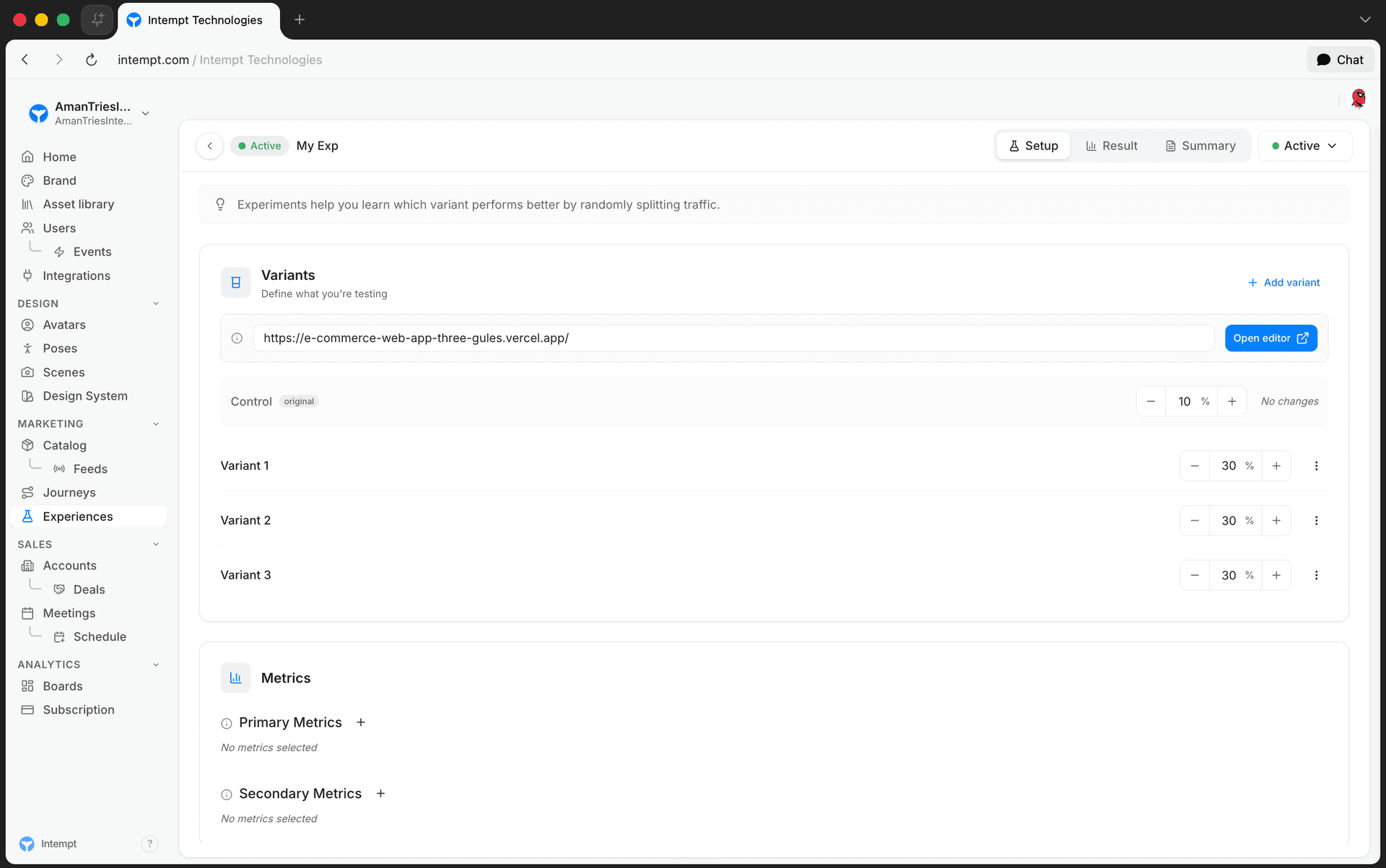
Traffic distribution across variants
Traffic still has to sum to 100% across Control and every named variant. Change one variant's own percentage and Control's share recomputes automatically as 100% minus the sum of every named variant. Adjust Control's percentage directly instead, and the remaining budget splits evenly across whichever variants are currently above 0% (a variant sitting at exactly 0% stays there). Delete a variant and the rest are rebalanced automatically too, so you're not left rebalancing every row by hand.
📘 Good to know
There's no sample size calculator in the Setup UI. The more variants you add, the smaller each one's traffic share and the longer it typically takes any single variant to reach statistical significance against Control, so plan your test duration accordingly.
Compare multiple variants in Results
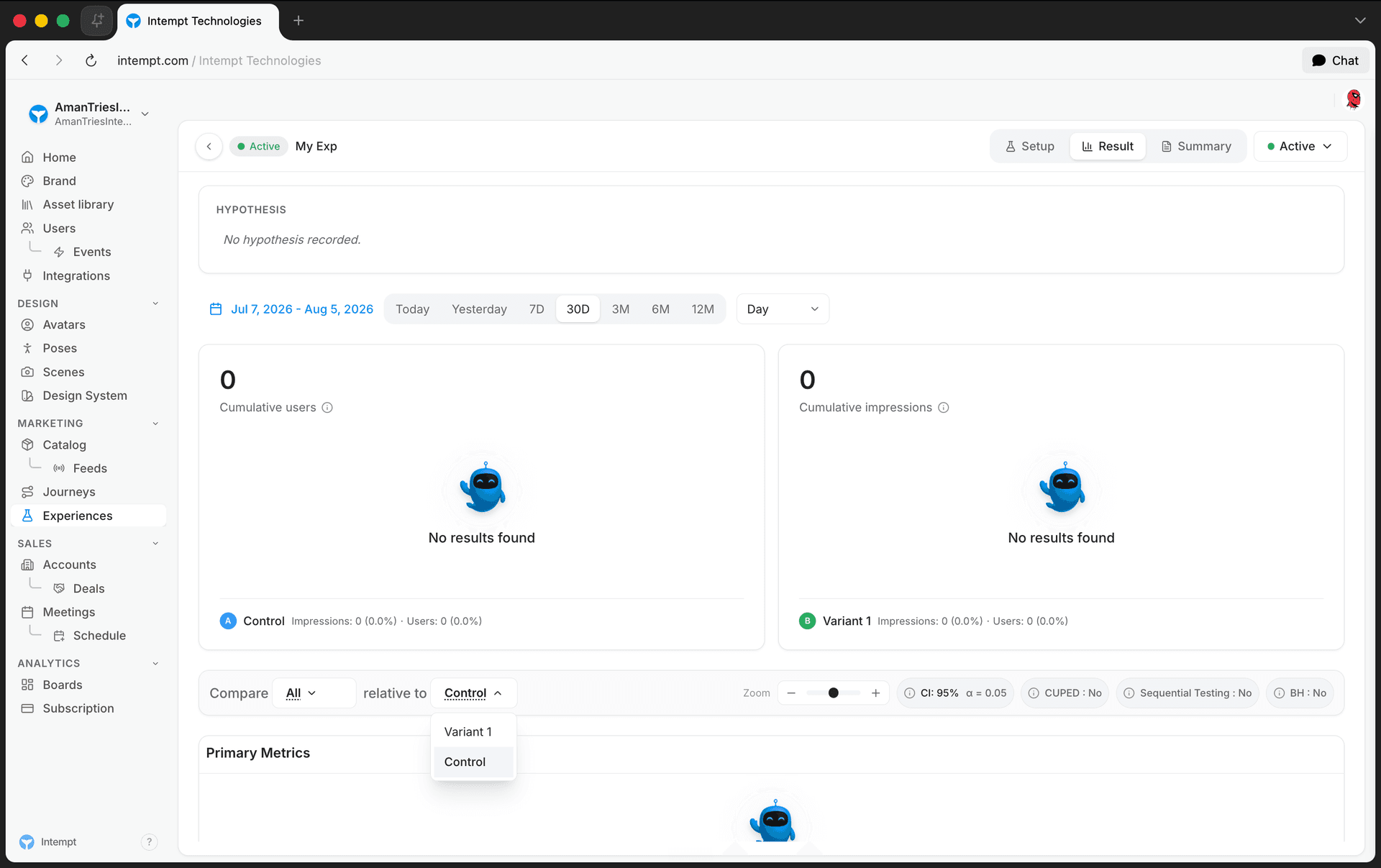
The Results tab's Compare controls let you look at all variants at once or focus on one:
- Compare: choose "All" to see every variant's lift, or pick a single variant to isolate it.
- relative to: choose which variant (typically Control) the comparison is measured against.
- Confidence Interval: 80/85/90/95/98/99%, each with its corresponding alpha.
- CUPED and Sequential Testing toggles, same as any experiment.
- Benjamini-Hochberg (BH) toggle: controls the false discovery rate when your scorecard has multiple metrics.
Review each variant's methodology
Open a metric's drill-down (Metric Details) and switch to the Methodology tab to see the Variant Comparison table: Group, Users, Mean, and Total for the variant, plus a footer showing the delta against the comparison variant. This gives you the same per-variant numbers as the Results tab, scoped to one variant and one metric at a time.
📘 Good to know
The Methodology tab's Column Guide legend also lists an SE (standard error) column, but the table itself doesn't render one yet.
Getting started
- Create a visual-editor experiment as described in Creating an experiment.
- On the Variants tab, click "Add variant" for each additional treatment. The second and later additions need the Organization plan; the button is disabled without it.
- Set each variant's traffic percentage. Control automatically receives whatever's left after your named variants.
- Configure your scorecard: one primary metric plus any secondary metrics you want to track.
- Start the experiment, then use Compare, relative to, Confidence Interval, and Benjamini-Hochberg on the Results tab to evaluate all variants together.
Use cases
- Headline testing. Compare three or more headline options against Control in one experience instead of running separate sequential A/B tests for each.
- CTA button testing. Test several button copy, color, or placement combinations at once on the same page.
- Landing page layout testing. Run multiple full-page layout variants simultaneously to find the strongest performer before committing further traffic to it.
- Onboarding flow testing. Compare several onboarding variants at once when you have enough traffic to split it several ways without starving any single variant of sample size.
- Pricing page testing. Test multiple pricing-table presentations against Control in parallel rather than one variant at a time.
Where to go next
- Creating an experiment: the full experience creation flow this article builds on.
- Statistical significance: how Intempt determines whether a variant's lift is real.
- CUPED: variance reduction that applies to every variant in your experience.
- Sequential testing: early stopping rules for experiments with multiple variants.
- Experiment analytics: a full walkthrough of the Results tab.
Mobile vs. web in A/B testing
The web console and the mobile app both show your Experiences, but only one of them lets you create and configure a test. Here's the split.
Sequential testing
Intempt's Statistics Engine uses mSPRT sequential testing so you can monitor experiment results continuously without inflating false positive rates.