
How to create an event tracking plan
A tracking plan is the list of events your project needs, built from your existing Events table and the Create event flow, so you always know what's tracked and why.
Overview
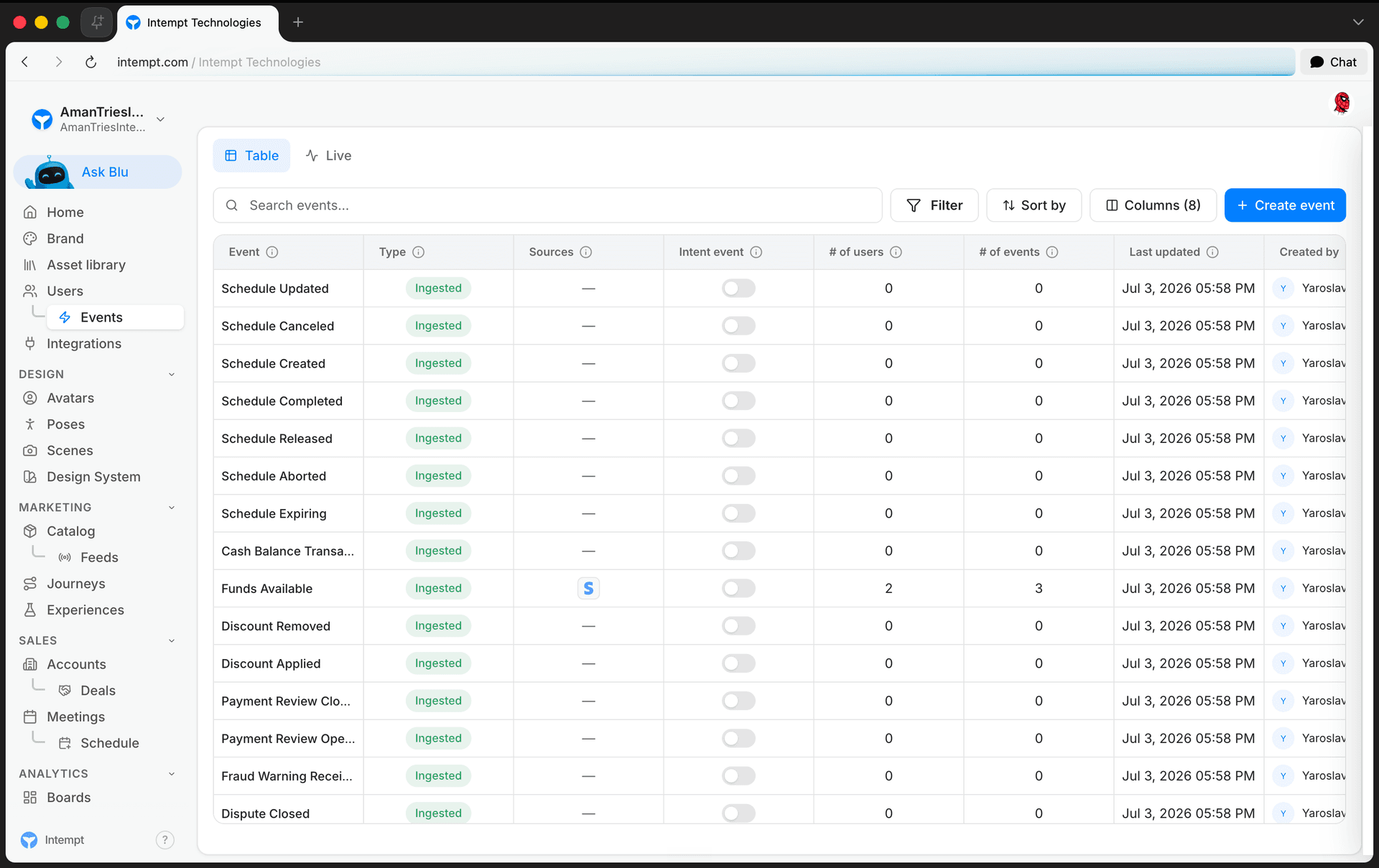
A tracking plan is the list of events your project needs to answer your team's questions, kept in sync with what's actually being tracked. In Intempt, the Events page is both where that plan lives and where you build it: it shows every event already tracked, and it's where you create new ones.
How it works
Every project's Events page has two tabs:
- Table: every event defined in your project, with its type, sources, user and event counts, and last-updated date.
- Live: a real-time stream of raw events as they arrive, useful for confirming tracking works before you add it to your plan.
The Table's Type column marks each event as one of three kinds:
- Ingested: auto-tracked events (page views, clicks, form activity) that arrive on their own once a source is connected.
- Created: user-defined, built by applying conditions on top of an Ingested or System event.
- System: system-defined events that Intempt itself provides.
A tracking plan is mostly a mix of the first two: ingested events already flowing in, and created events you define for the specific actions your use cases need.
Getting started
-
Start from your use cases. Write down what you and your team need to answer, for example which channel drives signups, or where users drop off before checkout. Each use case points to the user actions you need data on.
-
Check what's already tracked. Open Events → Table tab and review the list. Anything marked Ingested is already flowing in automatically from a connected source.
-
Create events for the actions autotracking doesn't cover. Click Create event, name it, pick the event type it should build on, and add the conditions that narrow it down to the specific action you care about. See Creating an event for the full walkthrough of conditions and attributes.

📘 Media pending
Screenshot for this section hasn't been captured yet.
-
Flag your core events. Toggle Intent event on for the events that signal purchase intent, so they're easy to find in the table.
-
Verify before you rely on it. Switch to the Live tab and trigger the action yourself to confirm the event arrives with the right properties. See Live data feed.
📘 Good to know
The Events Table doubles as your living tracking plan. There's no separate document to keep updated. As your product changes, revisit it, add events for new use cases, and check the # of users and # of events columns to see which events are actually firing.
Where to go next
Event types
Intempt's power comes from automatically capturing a wealth of user interactions in your app, classified as events and attributes. This autocaptured data is organized into the hierarchy account > u...
Creating an event
All custom and autotracked events are automatically added to the 'Events' list as soon as they are sent to Intempt. However, if you want to create more granular (filtered) versions of these events,...