
Creating a Source
A source connects an app or server to Intempt so it can send event data. Intempt supports seven source types: JavaScript, Node.js, Python, PHP, iOS, Android, and React Native. Each source collects either users and events, or events only.
Overview
A source connects an app or server to Intempt so it can send event data. Intempt supports seven source types: JavaScript (web), Node.js, Python, PHP, iOS, Android, and React Native. Node.js, Python, and PHP are server-side; the rest run on a device your customer controls. Create a separate source for each website, app, or server you want to track, so events from each one stay attributable to where they came from.
How it works
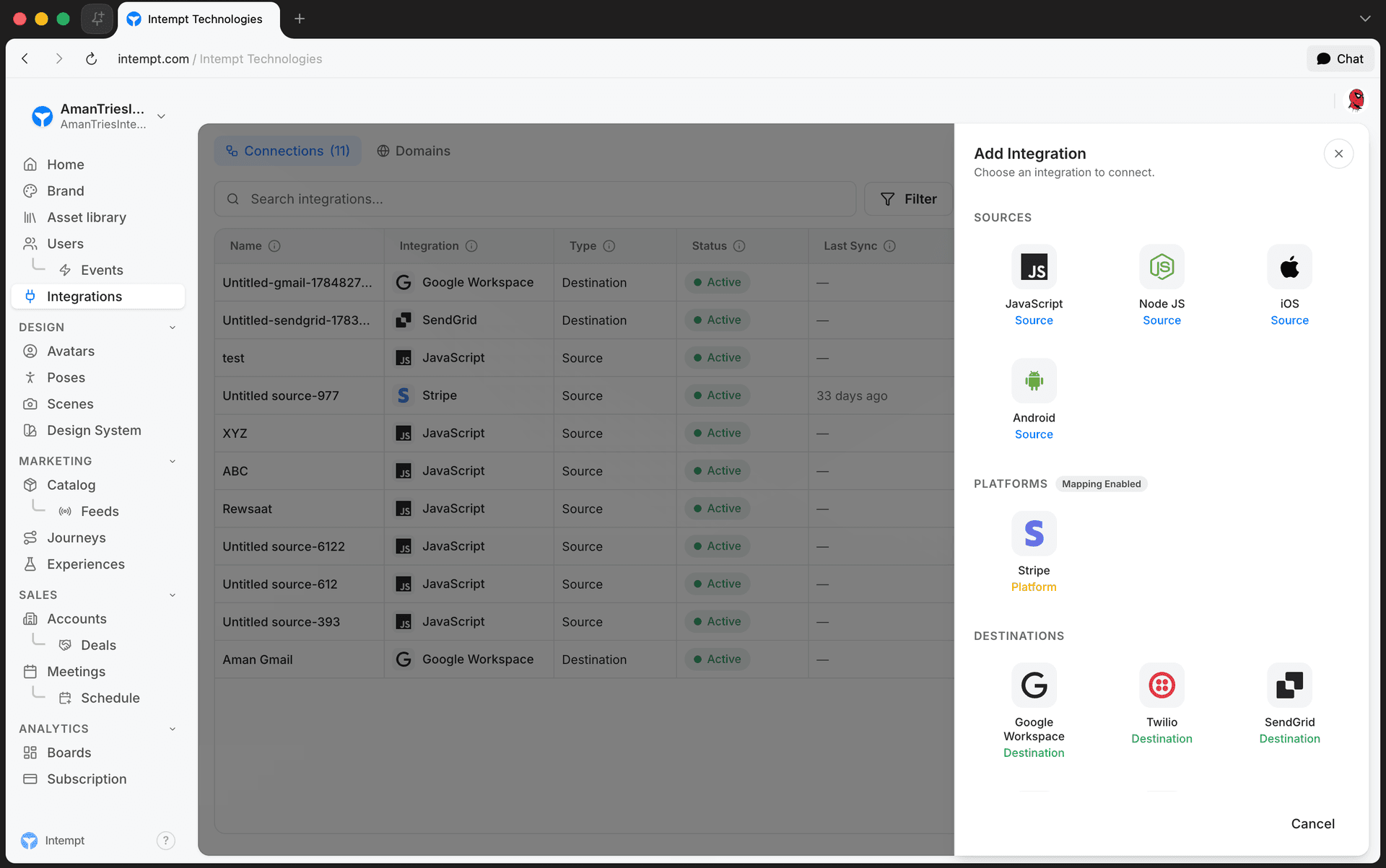
Sources live on the Integrations page, in the Connections tab, alongside platforms (HubSpot, Stripe, Shopify) and destinations (Gmail, Twilio, SendGrid, Slack, Amazon SES). See Integrations Overview for the full connectors table, platforms, destinations, and the Domains tab.
Each source type opens its own setup panel when you connect it. Every panel asks for the same two things before it creates the source:
- A Connection name, which Intempt checks against your existing connectors to prevent duplicates.
- What this source collects: Users and events or Events only. See What a source collects below.
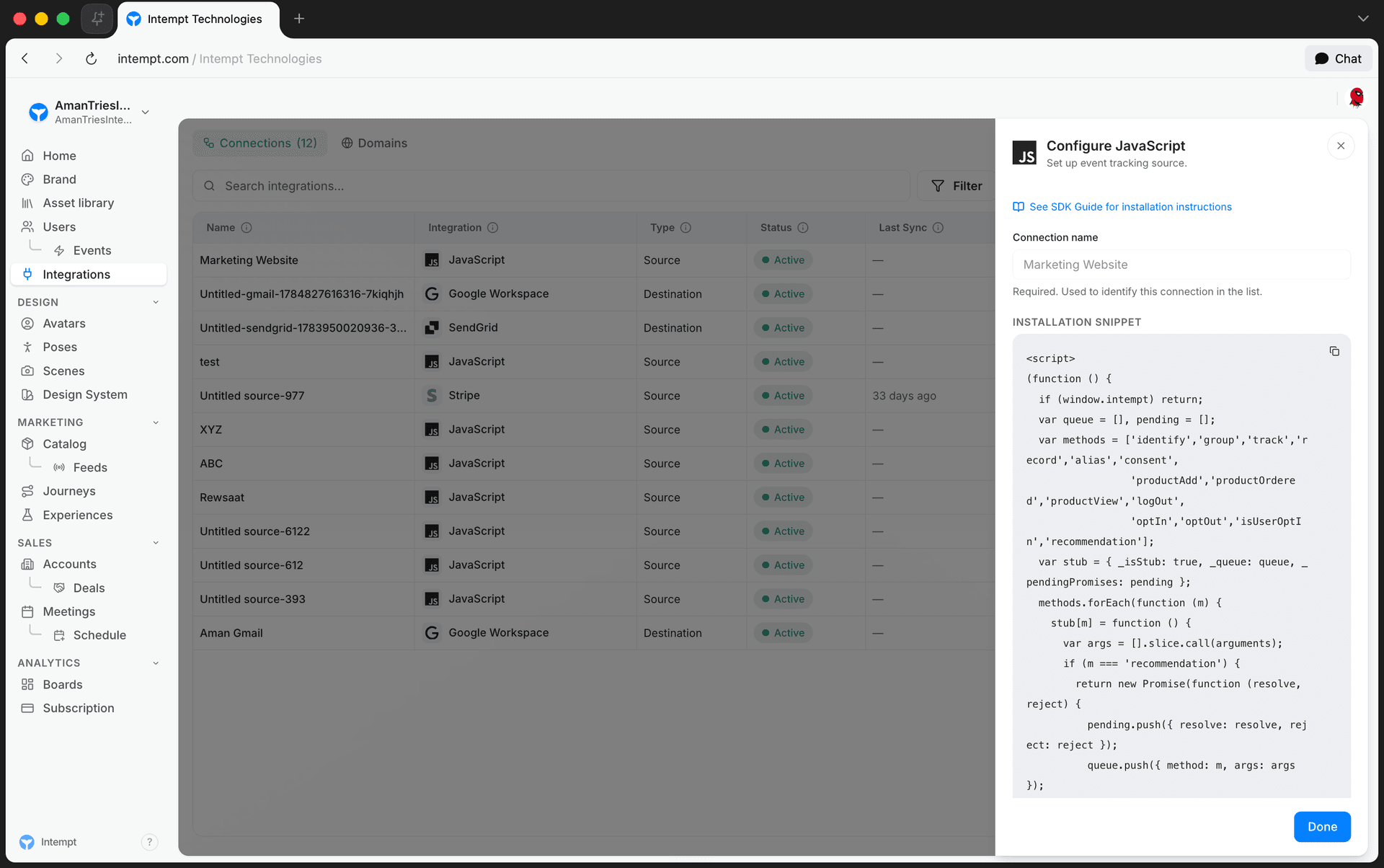
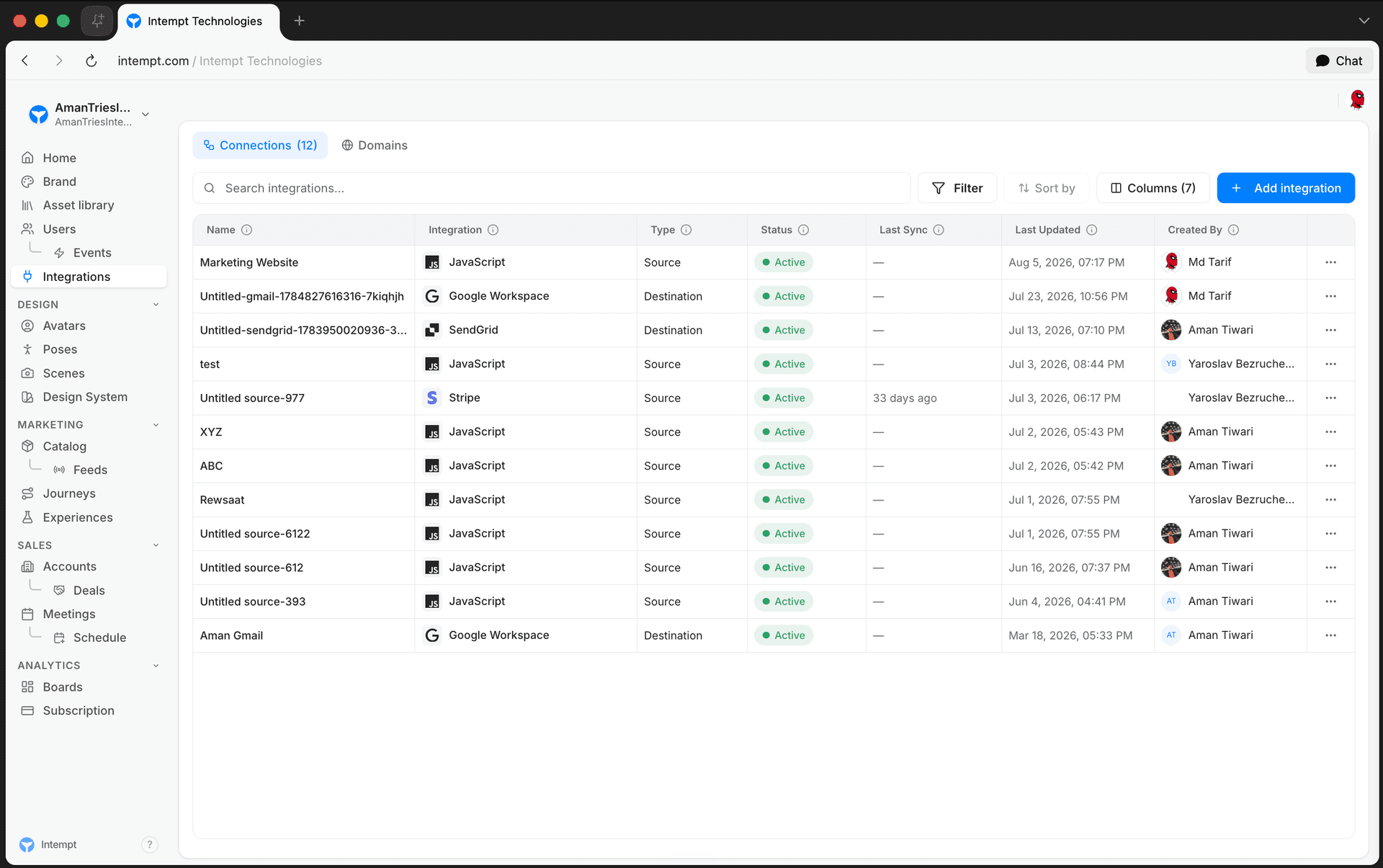
Every panel then shows a copyable installation snippet for that source type. Once created, the source appears as a row in the Connected Integrations table, tagged Source.
What a source collects
When you create a source you pick what it collects. The choice is made once: a source's type can't be changed after it's created. To collect the other way, create another source.
| Users and events (recommended) | Events only | |
|---|---|---|
| What it keeps | Every event, plus a user profile for each person. Identity resolution runs on every event | Raw events only. Identity resolution is skipped and no users are created in the CRM |
| Meter it bills on | Identified events | Events |
| Works with | Segments, journeys, experiences, recommendations, workflows, user analytics, event analytics, Live data feed | Workflows (through the Raw events trigger), event analytics, Live data feed |
| Doesn't work with | Nothing is excluded | Segments, user analytics, journeys, experiences, recommendations |
| Use it for | Almost everything | High-volume events you send straight to destinations, such as a Kafka topic |
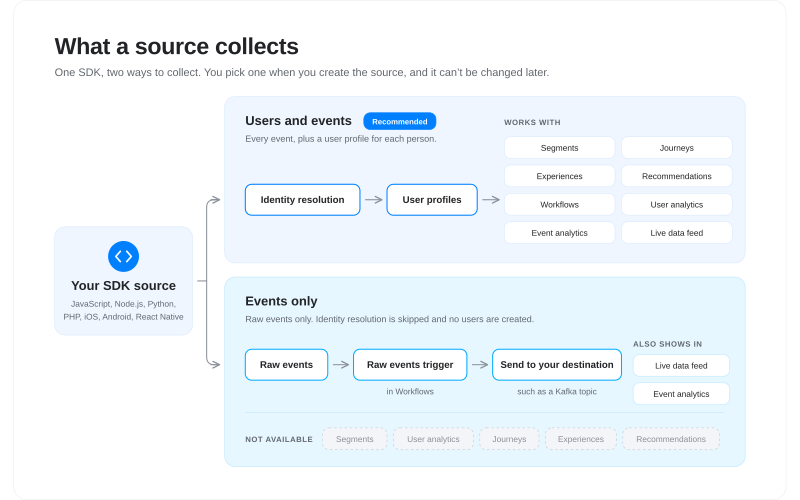
Pick Users and events unless you're sure no one will need to reach, segment, or personalize for the people behind these events. Each type bills on its own meter and keeps data for the window you set in Settings > Billing > Data retention. See Data retention for how the two meters work, and the pricing page for cost.
Getting started
-
Go to Integrations in the left navigation.
-
On the Connections tab, click Add Integration.
-
Under Sources, click Connect next to the source type you want to add.
-
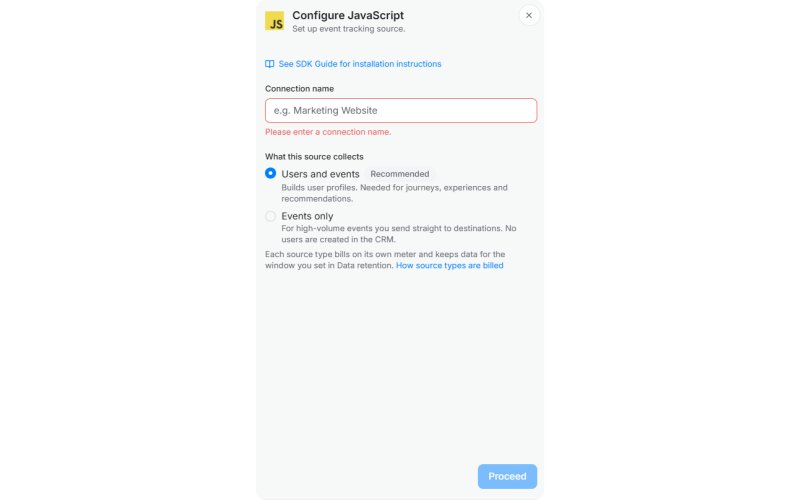
In the panel that opens, enter a Connection name and pick What this source collects. The rest of the steps depend on the source type.
Connecting a JavaScript source
-
In the Configure JavaScript panel, enter a Connection name (for example, "Marketing Website") and pick What this source collects.
-
Click Proceed. Intempt creates the source.
-
Copy the installation snippet (a script tag that loads
intempt.min.jswith your organization, project, and source IDs) and add it to your site. -
Click Done.
Connecting a Node.js source
-
In the Configure Node JS panel, enter a Connection name and pick What this source collects.
-
Click Proceed. Intempt creates the source, and the panel shows Source Type: Server.
-
Copy the installation snippet from the panel to install the Node.js SDK.
-
Click Done.
Connecting a Python source
-
In the Configure Python panel, enter a Connection name (for example, "Django Backend") and pick What this source collects.
-
Click Proceed. Intempt creates the source and shows its Source ID.
-
Copy the Source ID — the Python SDK takes it as
source_id.
Connecting a PHP source
-
In the Configure PHP panel, enter a Connection name (for example, "Laravel Backend") and pick What this source collects.
-
Click Proceed. Intempt creates the source and shows its Source ID.
-
Copy the Source ID — the PHP SDK takes it as
sourceId.
⚠️ Keep the Source ID a string
A Source ID is a 19-digit number. Passing it through a numeric type loses the last digits on some runtimes and addresses a different source, with no error to tell you.
Connecting an iOS source
-
In the Configure iOS panel, enter a Connection name and pick What this source collects.
-
Click Proceed. Intempt creates the source.
-
Copy the Swift Package Manager installation snippet into your app.
-
Click Done.
Connecting an Android source
-
In the Configure Android panel, enter a Connection name and pick What this source collects.
-
Click Proceed. Intempt creates the source.
-
Copy the Gradle installation snippet into your app.
-
Click Done.
Connecting a React Native source
-
In the Configure React Native panel, enter a Connection name (for example, "Mobile App") and pick What this source collects.
-
Click Proceed. Intempt creates the source and shows its Source ID.
-
Copy the installation snippet into your app. The React Native SDK covers the rest of the setup.
-
Click Done.
After you connect
The new source appears as a row in the Connected Integrations table with a status of Active, Syncing, Error, or Disabled. Open the row's action menu to Rename or Delete the source.
📘 Good to know
Rename changes a source's name only. What the source collects stays as it was created.
Use cases
-
Tracking your website. Connect a JavaScript source to track events from a web application.
-
Tracking a mobile app. Connect an iOS, Android, or React Native source for mobile analytics from your app.
-
Server-side tracking. Connect a Node.js, Python, or PHP source for server-side event tracking, so events come from your backend rather than a browser that can be blocked.
-
Separating environments. Create one JavaScript source for production and another for staging, so their events don't mix in the same connector.
-
Separating properties. Create a distinct source for each website or app you own, instead of sending all their events through a single shared source.
-
Streaming high-volume events. Connect an Events only source for events you only forward, such as clickstream or telemetry you publish to Kafka, so they don't build user profiles.
Where to go next
-
Integrations Overview for the full connectors table, platforms, destinations, and the Domains tab.
-
Data retention for the Events and Identified events meters and their retention windows.
-
Basic Intempt Installation for installing the JavaScript SDK end to end, including API keys.
-
JavaScript SDK, iOS SDK, Android SDK, and React Native SDK for the complete method reference for each client SDK.
-
Node.js SDK, Python SDK, and PHP SDK for the server-side SDKs.
-
REST API for sending events directly without an SDK.
Goal and Intent Events
Goal and Intent events allow you to measure how close your users are to completing the actions that matter most to your business.
Collect data from third parties with webhooks
Intempt collects events from the webhooks of supported third-party software. The vendor pushes its own event stream to your Intempt collector, where it is normalised onto a named stream and attributed to a source.