
Failed events
See every tracked event the ingestion pipeline rejected, find out why, and export the records you need to fix and resend.
Overview
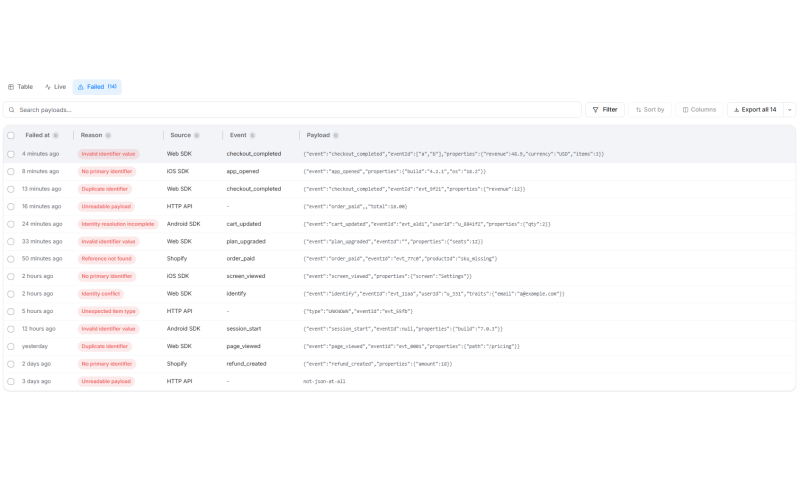
The Failed tab on the Events page lists every tracked event the ingestion pipeline accepted, then rejected while processing it. Each row shows when it was rejected, why, which source sent it, and the payload exactly as the pipeline received it.
Use it when an event you sent never shows up in the Table or Live view. The Live view shows what arrived. The Failed tab shows what arrived and was then thrown away.
📘 Good to know
A request the API refuses on the spot never reaches this tab. The sender gets that error back in the API response. The Failed tab only holds events that were accepted and later rejected during processing, which is why nothing else in the console would otherwise tell you about them.
How it works
Opening the Failed tab
Open Events in the main nav. The page has three tabs: Table, Live and Failed. Once you've opened it, the Failed tab shows how many failed events match the current search and filters.
Retention
Failed events are kept for 30 days, then removed. The line under the toolbar states the window. A rejected record older than that is gone and can't be listed or exported.
The table
| Column | What it shows |
|---|---|
| Failed at | When the event was rejected during ingestion. |
| Reason | Why the pipeline rejected this payload. See Rejection reasons. |
| Event | The event the record was headed for. |
| Source | The SDK or integration that sent it. |
| Payload | A one-line preview of the record as the pipeline received it. Open the row for the full record. |
The list is sorted by Failed at, newest first. You can flip it to oldest first from the sort control. Rejected records have no ID of their own, so rows can't be selected.
Searching and filtering
- Search payloads… narrows the list to failed events matching the text you type.
- Filter opens a panel with these fields:
| Field | What it narrows to |
|---|---|
| From / To | A date range. Leave empty for Any date inside the retention window. |
| Reason | One rejection reason. |
| Source | One source. |
| Event | One event. |
Each Reason, Source and Event option shows how many failed events it matches over the last 30 days, so you can see where the failures are concentrated before you pick one. The counts don't change with the dates, filters or search you set. Clear resets every filter.
If nothing matches, the table says No failed events match these filters. Widen the time range or clear a filter. If the window holds no failures at all, it says No failed events and Every event in this window was ingested. If the list can't load, it says We couldn't load failed events, with a Try again button.
Opening a failed event
Click a row to open the Failed event panel.
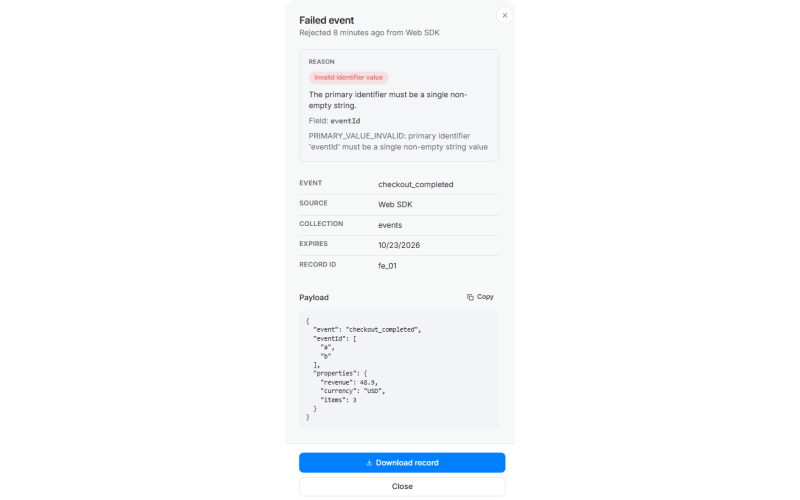
- Summary line. When it was rejected and which source sent it, in the form Rejected 2 hours ago from followed by the source name.
- Reason. The rejection reason and a one-line explanation of what it means.
- Error message. The pipeline's own message, in full. It's shown only when the pipeline recorded one.
- Source and Collection. Where the record came from and which event it was meant for, when the record names them.
- Not fixed by resending. A note that appears on reasons the payload itself doesn't control. See Rejection reasons.
- Payload. The raw record, with JSON indented for reading. Copy puts it on your clipboard.
- Download record. Saves this one record as a JSON file.
The downloaded file carries these fields:
| Field | Contents |
|---|---|
failed_at | When the record was rejected |
reason | The rejection reason code |
reason_detail | The pipeline's error message, or null |
source_id / source_title | The source that sent it |
collection_id / collection_title | The event it was headed for |
error | The same error message as reason_detail |
raw_payload | The record as received |
Rejection reasons
| Reason | Code | What it means | Fixable in the payload? |
|---|---|---|---|
| No primary identifier | no_primary_identifier | The record carried no eventId, objectId or productId, so it could not be placed. | Yes |
| Invalid identifier value | primary_value_invalid | The primary identifier must be a single non-empty string. | Yes |
| Unreadable payload | deserialization_failed | The request body could not be read as valid JSON. | Yes |
| Duplicate identifier | duplicate_event | This identifier was already processed. Identifiers stay claimed for 7 days. | No |
| Identity resolution incomplete | resolution_incomplete | The record waited for related identifier items that never arrived. | No |
| Reference not found | foreign_match_failed | The referenced record does not exist in the target collection. | No |
| Unexpected item type | unexpected_item_type | The item type is not one the pipeline handles. | No |
| Identity conflict | merge_conflict | The identifier change was rejected because it conflicts with an existing identity. | No |
| Other | other | The pipeline rejected this record for a reason it does not classify further. | No |
For the three reasons marked Yes, the fix is in the payload you send: add the missing identifier, send it as a single non-empty string, or send valid JSON.
For the rest, the detail panel says so directly: This one is not fixed by resending. The pipeline rejected it for a reason the payload itself does not control. The pipeline can also mark an individual record either way, and the panel follows that mark over this table.
📘 There's no replay button, and that's on purpose
A record's eventId stays claimed for 7 days, even when the record is rejected. If you fix a payload and resend it under the same eventId inside those 7 days, it's dropped as a duplicate and lands back on this tab as Duplicate identifier. When you resend a corrected event, give it a new eventId.
Exporting failed events
Export when you need the records outside the console: to hand them to the developer who owns the integration, to fix and resend a batch, or to keep a copy past the 30-day window.
Start an export
- Set the search and the Reason, Source and Event filters the export should cover. The export uses them, so filter first.
- Click Export all N in the toolbar, or Export 1 event when only one matches. N counts the failed events matching your current search and filters. The button is disabled when nothing matches.
- In Export failed events, pick the From and To dates. These replace any dates set in the Filter panel, so the export can cover a different number of events than N. The range starts 7 days before today by default and runs to today.
- Click Start export.
The date picker only offers days your plan keeps data for. The note under it names your plan's retention window and the earliest date you can export from.
📘 Good to know
Your plan's data retention and the 30-day failed-events retention are separate. If your plan keeps data longer than 30 days, you can pick a date older than 30 days, but failed events from that date have already been removed and the export comes back empty for it.
Track and download it
Large exports are prepared in the background. You can leave the page and come back.
When an export you started from this browser finishes as a single file, the download starts on its own the next time the Failed tab is open. An export written in more than one part never downloads on its own. Download each part from the Exports list.
The arrow half of the export button opens the Exports list. While an export is running, it shows how many are in flight. A dot appears when one has finished and you haven't opened the list yet.
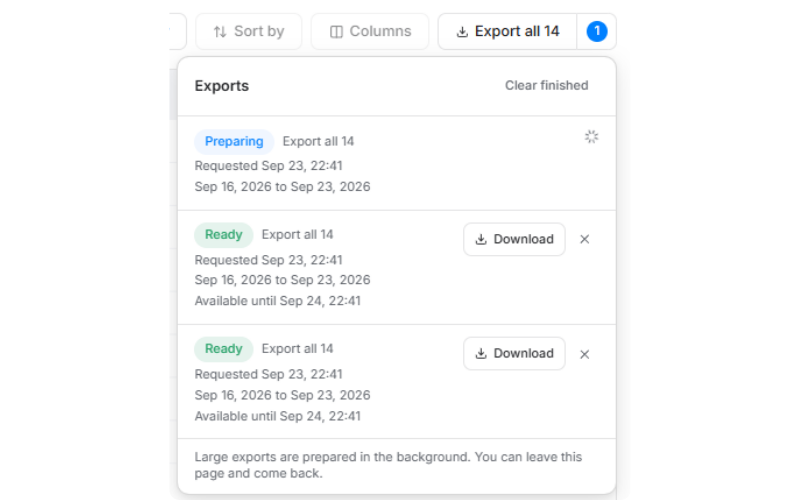
The list holds every export the project still has, including ones teammates started. Each shows its status, progress and files. Exports you started from this browser also show when they were requested, how many filters they used and the date range they cover:
| Status | What it means |
|---|---|
| Queued | Waiting to start. |
| Preparing | Being written, one day at a time. Progress reads as Day 3 of 7 (43%), with the rows written so far. |
| Ready | Done. Download the files. |
| Failed | Preparing the file didn't finish. Run the export again. |
| Cancelled | You cancelled it. Any parts already written are still listed. |
| Expired | The download links have expired. Run the export again to get a fresh file. |
| Unknown | The console couldn't read the status. Dismiss it, or run the export again. |
An export is written in parts, and each part is its own file with its row count and size. A long export is partly downloadable while it's still running. The list says when the links expire.
Cancel stops a running export. Dismiss deletes an export and its files. Clear finished does the same for every export that's no longer running. A deleted export's files can't be downloaded again.
Send failed events to S3 on a schedule
To keep failed events past 30 days without exporting by hand, use a workflow. In the Write Parquet to S3 node, set What to export to Failed events. See Amazon S3 for how that source differs from Events and Records.
Use cases
- An event never shows up. You tracked
checkout_completedfrom your backend, but it's not in the Live view. Filter the Failed tab by Event and Source to see whether it was rejected and why. - Checking a new integration. After connecting a source, open the Failed tab, filter by that Source, and confirm the count is zero before you rely on its data.
- Finding a missing identifier. A spike in No primary identifier after a release usually means a code path stopped setting
eventId. Open one row, look at the payload, and find the call site. - Fixing broken JSON. Unreadable payload rows point at a sender that's building request bodies by hand. The payload shows exactly what arrived.
- Avoiding a silent resend failure. Before you replay a fixed batch, check that each record gets a new
eventId, or the 7-day claim drops it as a duplicate. - Handing a failure to a developer. Open the row, click Download record, and send the JSON file. It carries the reason, the error message and the raw payload in one place.
- Auditing one source after a release. Filter by Source and a date range to see what that integration sent that the pipeline rejected.
- Knowing when not to resend. For Identity conflict or Identity resolution incomplete, resending the same payload won't help. The panel says so, which saves a round of retries.
- Keeping a record past 30 days. Export the window before it ages out, or stream failed events to your own S3 bucket with a workflow.
Where to go next
- Events: the Table, Live and Failed views and how events are defined.
- Live data feed: watch events arrive in real time.
- Validating installation: confirm a new source is sending data.
- Amazon S3: write failed events to your own bucket from a workflow.
- JavaScript SDK: the
track()call and the fields each event carries.
Live data feed
Live data feed provides a streaming, chronological, real-time view of all your custom and auto-tracked events. This is a great tool for testing that your Intempt SDK is installed correctly and that...
Event comparison
The Event comparison functionality allows you to compare the 2 already created events and access the differences in a chart.