
Events
An event is any interaction a user has with your website or app, built from autotracked or custom events plus filters, and used to target segments, journeys, and experiences.
Covered in the Academy. Intempt Academy covers events and attributes step by step.
Overview
An event is an interaction a user has with your website or app: a page view, a signup, a purchase, a button click. Events are created from a combination of autotracked or custom events and filter conditions, then reused wherever you need to target or measure a specific action, including segments, journeys, and experiences.
How it works
Table, Live and Failed views
The Events page has three views:
- Table – the default view. Every event you've defined, in a sortable, filterable list with columns for the event's name, its type (autotracked or custom), the sources it comes from, whether it's marked as an intent event, how many users have triggered it, how many times it's fired, when it was last updated, and who created it.
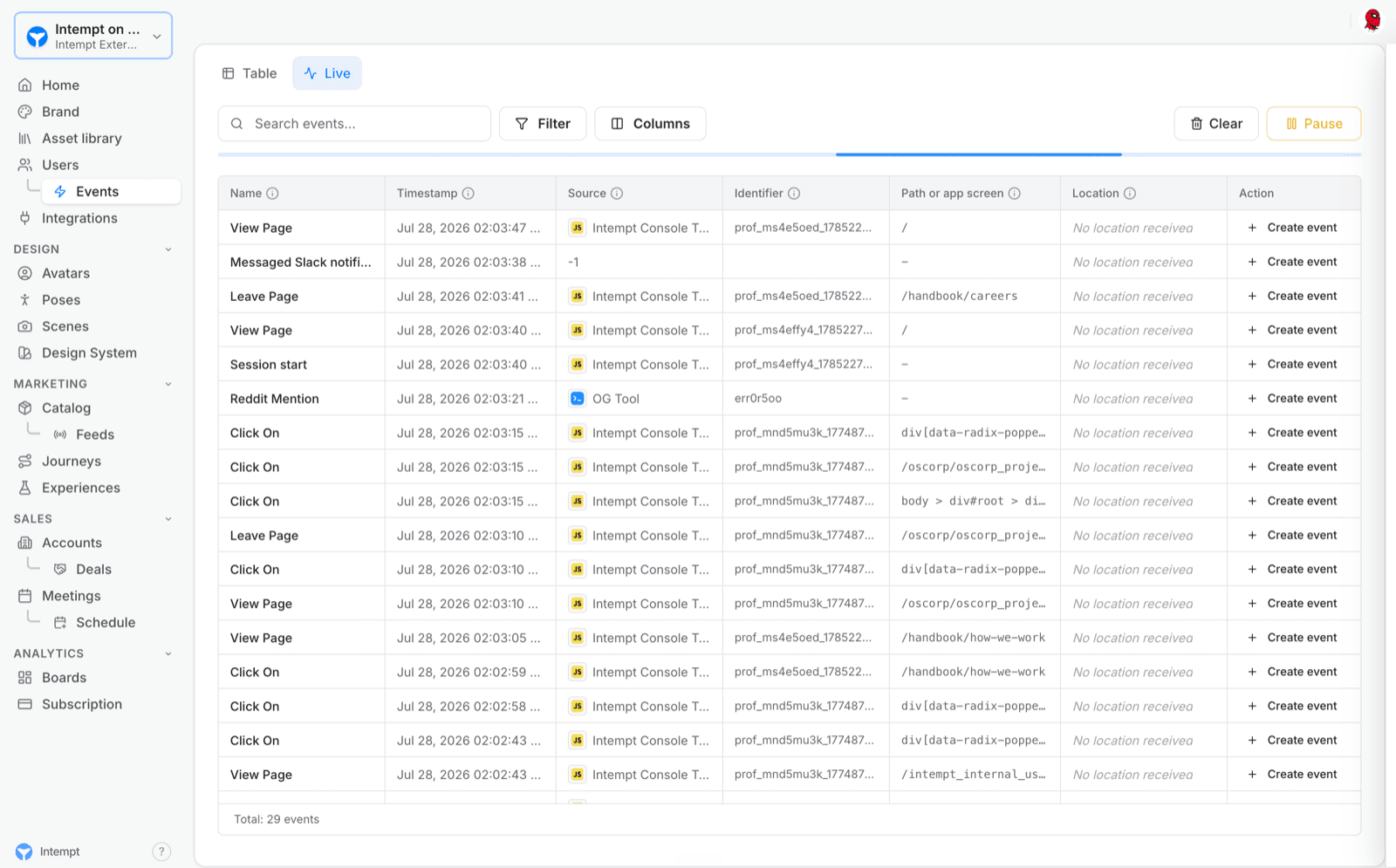
- Live – a real-time feed of events as they arrive, so you can confirm a tracking call is firing correctly without waiting for the table to refresh. The feed can be paused, resumed, and cleared, and you can create a new event definition directly from a live row, with that event's properties auto-mapped into filter conditions.
- Failed – every tracked event the ingestion pipeline accepted and then rejected, with the reason, the source that sent it and the raw payload. Failed events are kept for 30 days, and you can filter, inspect and export them.
Creating an event
Click Create Event, pick the source and base event type you want to build from, then add one or more attribute-based filter conditions, grouping them with AND/OR logic if you need more than one. Save it, and it joins the Table alongside every autotracked and custom event that already arrives on its own.
Opening an event
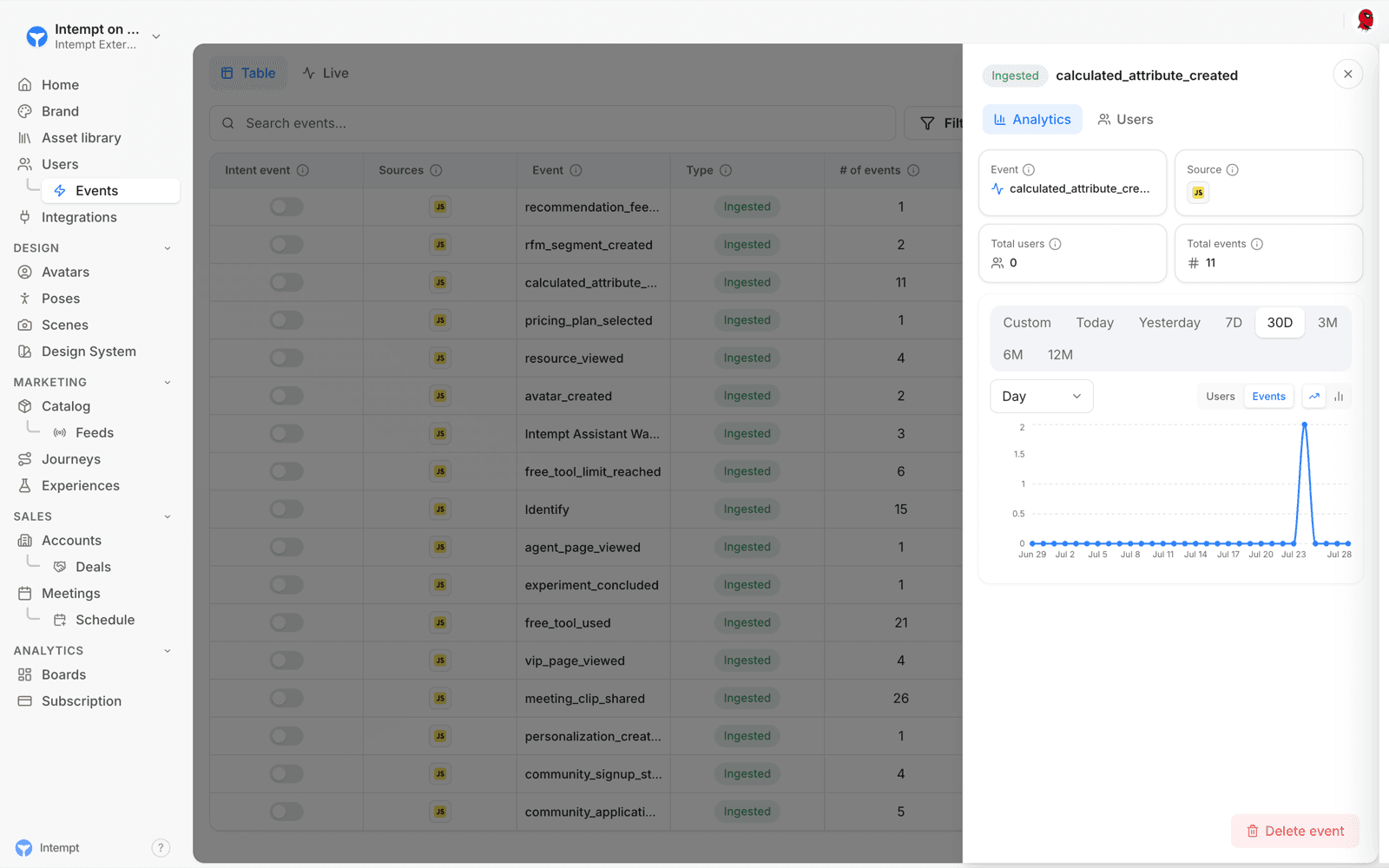
Selecting an event from the table opens its detail panel with up to three tabs: Analytics (performance metrics for that event) and Users (who has triggered it) always appear; Configuration (its name, type, and filter conditions) only appears for a created event that has at least one filter condition set, so a raw autotracked event with no conditions shows just the first two.
Use cases
- Tracking a specific customer action. Define an event like Signed Up or Add to Cart and see how many users triggered it and how often.
- Isolating high-value actions. Apply a filter condition to an event, for example a purchase amount over $50, to narrow it to the cases you care about.
- Targeting based on behavior. Use an event as a condition when building a segment, a journey trigger, or an experience.
- Verifying a new tracking call. Watch the Live view as you trigger the action on your site or app, and confirm the event arrives with the right properties.
- Creating an event from real traffic. Turn a row in the Live view directly into a saved event definition instead of configuring one from scratch.
- Auditing who did what. Open an event's Users tab to see exactly which users have triggered it.
- Finding an event that never arrived. Open the Failed view, filter by the event and source, and see why the pipeline rejected it.
You can filter, break down and aggregate events by their attributes to answer more specific questions:
-
Which pages do users look at before they visit the pricing page?
-
How many sign-ups did I get that were organic vs referral?
-
Which song name is most popular among my users?
-
How many orders contain shoes, and what did users pay for shoes in the last month?
Examples
-
A Page Viewed event might have an event attribute called
Page URL, which is set to the URL of the page that was viewed. -
A Signed-up event might have an event attribute called
Signup Type, which indicates whether the sign-up was organic or a referral. -
A Song Played event might have an attribute called
Song Name, which is set to the name of the song played. -
An Order Completed event might have an attribute called
Items, which is a list of objects, each of which contains details about an item, like its name, category, and price.
Best Practices
Keep Events as Actions
We recommend striking the right balance when defining your events. Events should neither be too broad nor too specific and should be defined at the level of how you plan to analyze the user's action or behavior. Also, remember that event attributes should be used to provide context or details about an event instead of creating different events to capture similar actions.
For example:
-
If your goal is to analyze at a high level how users move through different pages, instead of tracking multiple events
Home Page ViewedandPricing Page Viewed, track aPage Viewedevent with aPage Nameattribute set to "/home" or "/pricing". See Tracking Page Views in our JavaScript SDK documentation on how to instrument this. -
If your goal is to track users adding items to a shopping cart, instead of tracking multiple events
Add Shirt to Cart,Add Hoodie to Cart, andAdd Socks to Cart, track aAdd to Cartevent with aItemattribute set to "Shirt", or "Hoodie", or "Socks". -
If your goal is to track 1 button on a specific screen, instead of tracking multiple events
Blue Button ClickedandCheckout Button Clicked, track aButton Clickedevent with aColorattribute set to "Blue" and Button Name set to "Checkout". -
If your goal is to track different buttons from different user journeys, instead of tracking 1 event
Button ClickedwithButton Nameattribute set to "Play," "Profile," or "X," track them as different eventsSong PlayedandProfile UpdatedandLogoutwith specific properties for each event to provide richer context.
Name events and attributes consistently
We recommend having a consistent naming convention for your events and attributes:
Generally, adopting snake_case for your event and attribute names tends to be more robust. Do note that Intempt is case-sensitive (eg sign_up_completed vs Sign Up Completed are considered two separate events).
Use the (Object) (Verb) format for event names. Like song_played or page_viewed.
The Attributes page provides a means for you to change an attribute's display name on the UI (if needed) to make it more user-friendly.
Where to go next
- Event types – the autotracked and custom event types Intempt supports, and where each one comes from.
- Creating an event – step-by-step walkthrough of defining a new event and its filter conditions.
- Event comparison – compare two events side by side.
- Live data feed – more detail on the real-time Live view.
- Failed events – why events get rejected, and how to inspect and export them.
- Complete guide to event tracking – setting up autocapture and custom tracking from scratch.
- How to create an event tracking plan – planning which events and attributes to track before you instrument anything.
- Messaging events – the events Intempt auto-creates for your messaging channels.
Data types
Intempt supports six data types for attributes: text, number, date, boolean, array, and object. Each data type has its own set of filter operators.
Users & Accounts
Users are major building blocks alongside events within the Intempt data model. Each event is related to the user who is performing it. User profiles are joined to your events based on their Master...