
Asset Library Overview
The Asset library is the shared catalog of every content asset your campaigns use, pinned at the top of the left sidebar.
Overview
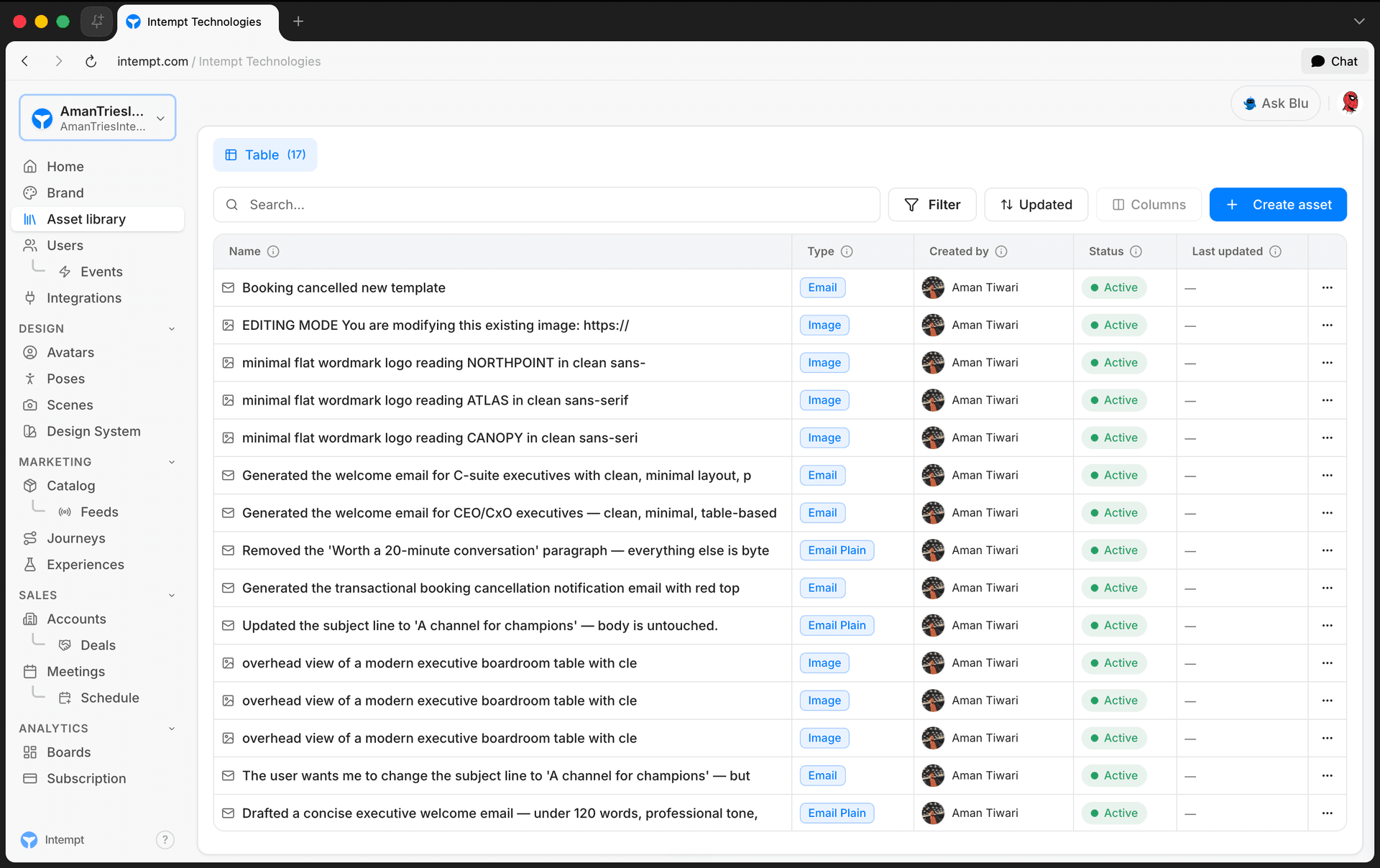
In the console, the Asset library entry sits near the top of the left sidebar, above the Design section (which holds Avatars, Poses, Scenes, and Design System). Open it and you land on a single page: a catalog of every content asset you've built or uploaded. Images, emails, SMS, push notifications, Slack messages, pages, text snippets, and code all live in the same list.
The point of a shared library is reuse. An asset you build here isn't locked to the campaign you first made it for. The same email or SMS template can be picked up again from any Journey's message step later, so you build it once and use it wherever it's needed.
📘 Good to know
This overview covers the library itself, what's stored in it and how you find things. For a full walkthrough of building an asset with Blu, editing it, and previewing it, see Studio Overview.
How it works
What lives in the library
Every asset starts from the "Create asset" button at the top of the page, which opens a panel listing eight content types: Image, Email, Email plain, Page, SMS, Push, Slack, and Text. The panel also has a separate "Upload file" option for bringing in an existing image without going through the launcher flow.
A single source of truth
Assets you save here aren't previews sitting in isolation. A Journey's Email and SMS message steps both read their template list directly from this same library, so anything you save on the Asset library page shows up as a pickable option the next time you configure a message step in a Journey.
Finding what you need
Below the launchers, the "Your assets" table lists every saved item with columns for Name, Type, Created by, Status, Tags, and Last updated. You can search by title or type, filter by content type, creator, or tags, sort by any of six fields, and select multiple rows to delete them together.
Use cases
- Building a reusable email once. Save it here, then pick it from multiple Journeys instead of rebuilding it per campaign.
- Keeping every campaign asset in one place. Images, emails, SMS, push, and Slack messages all live in the same catalog instead of scattered across separate tools.
- Narrowing a growing library by type. Filter to just SMS or just Image when you only need to see one kind of asset.
- Finding what a specific teammate built. Filter by creator instead of scrolling the whole table.
- Tagging assets by campaign or team. Group related assets with tags so they're easy to find later.
- Searching by title. Jump straight to an asset by name once the library has grown large.
- Cleaning up stale drafts. Select several unused assets and delete them together instead of one at a time.
- Checking before you reuse something. Glance at the Status and Last updated columns before picking an older asset for a new Journey.
Where to go next
- Studio Overview – the full workspace walkthrough: building an asset with Blu, editing, previewing, and managing the library's filters in detail.
- Messages – how the email, SMS, Slack, and push assets you build here get reused as templates inside Journeys.
- Creating emails with the email editor – full walkthrough of the email editor's visual, code, and preview modes.
- Journeys – where message steps pull their templates from this same library.
Setting Up a Design System
Browse, generate, and manually configure a design system's colors, typography, corner radius, elevation, and component styling from the Design Systems page.
Asset Draft/Publish System
How saving works for content items in the Asset library: there's no separate draft state for most asset types, images land on the CDN as soon as they're generated or edited, and Brand Ads are the one type with an explicit publish step.