
Studio Overview
Studio is Intempt's content-authoring workspace for building every email, SMS, push, Slack, code, and image asset your campaigns use, then reusing them across Journeys.
Overview
There's no sidebar item literally labeled "Studio." In the console, this workspace lives under the name Asset library, its own top-level item in the left sidebar, above the Design section (Avatars, Poses, Scenes, Design System). Whatever you call it, this is where you build every content asset your campaigns send: emails, SMS, push notifications, Slack messages, pages, and images.
Every asset you save here becomes part of a shared library. It's not tied to the journey or campaign you first built it for: the same email or SMS template can be picked from any Journey's message step afterward.
How it works
Building an asset with Blu
There's no blank canvas or empty form to start from. Every new asset begins the same way: click Create asset to open a sidebar listing every content type, and Intempt opens Blu (its AI chat panel) scoped to that content type. You describe what you want in chat, Blu generates a first draft, and once content exists, the editor opens automatically with that draft loaded. A pulsing "Generating…" indicator and a type-specific loading skeleton show while the draft is still streaming in.
Eight content types are available from Create asset: Image, Email, Email plain, Page, SMS, Push, Slack, and Text. It also includes a separate "Upload file" option for bringing in an existing image directly, without going through Blu.
Once an asset exists, editing it is a normal form: no chat required to change content, save, preview, or delete. The save button reads "Save" the first time and "Update" on every save after that.
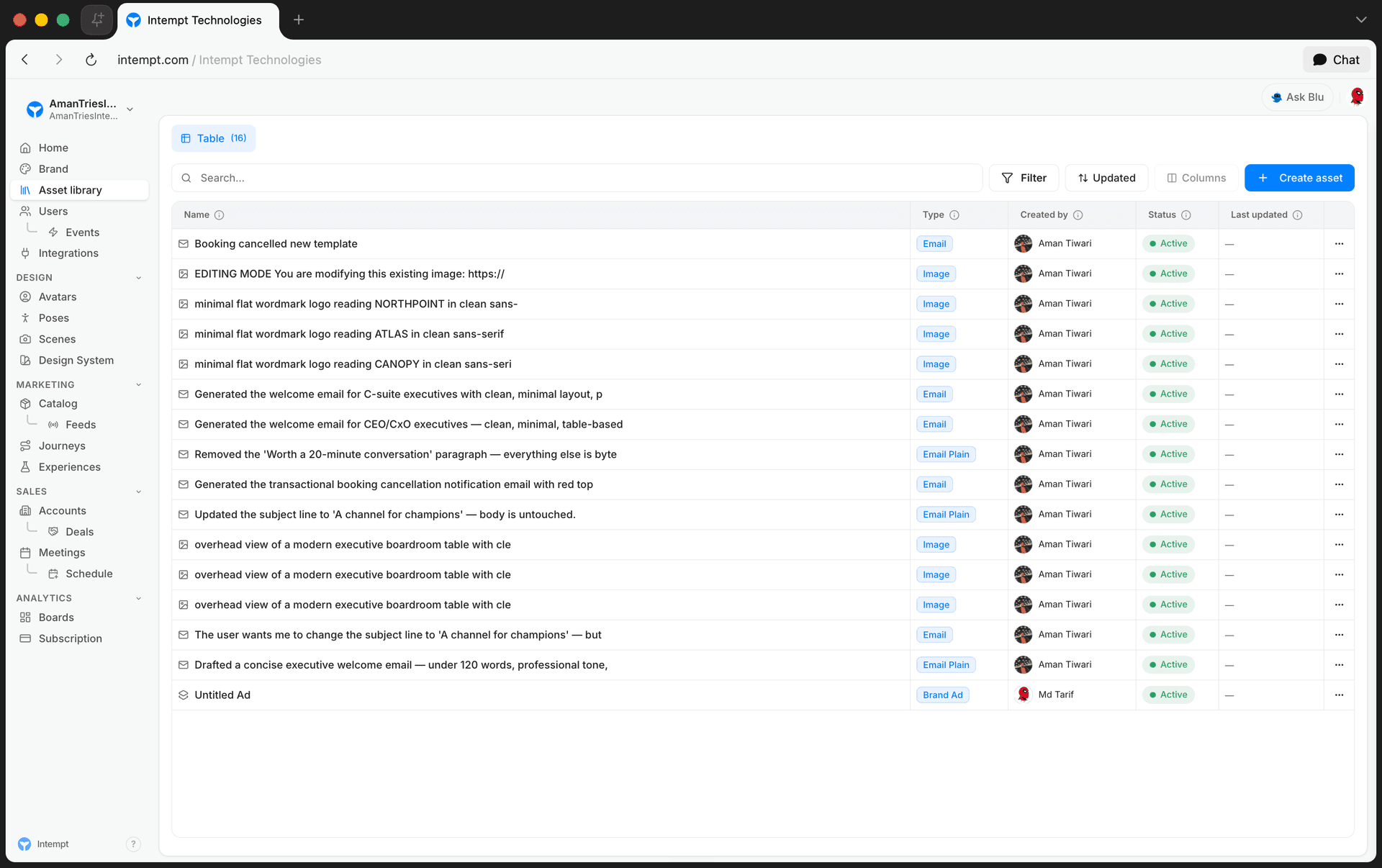
Managing your library
Below the toolbar, the "Your assets" table lists every content item you've saved, with columns for name, type, creator, status, and last-updated date. You can search by title or type, filter by type, creator, or tags, sort by any of six fields, and select multiple rows for a batch delete.
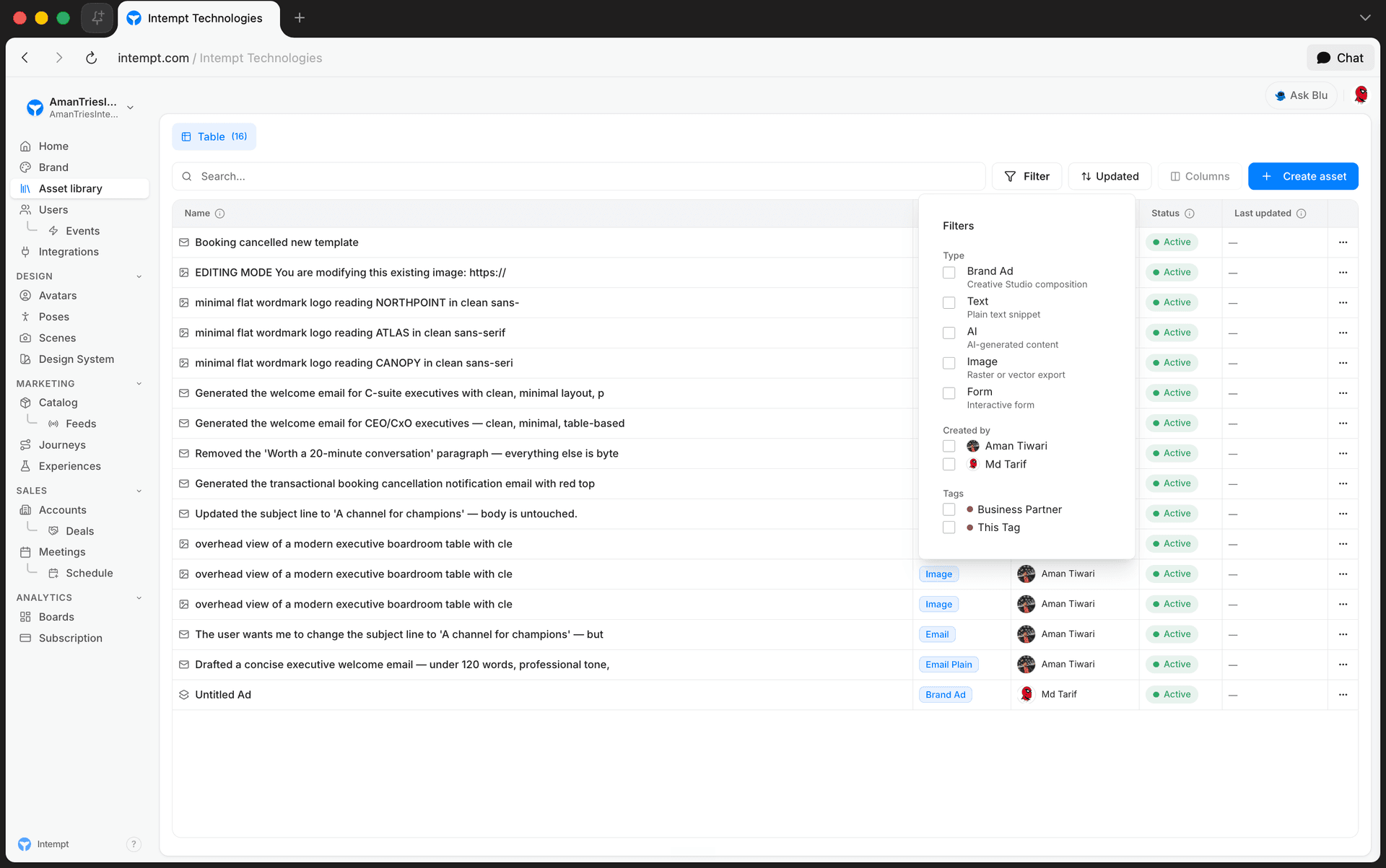
Where assets get used
Assets built in Studio aren't previewed in isolation forever. They're meant to be sent, and a Journey's Email and SMS message steps both pull their template list directly from this same library, so anything you save here shows up as a pickable option the next time you're configuring a message action in a Journey.
Use cases
- Drafting a reusable email template. Build an email once in Studio, then pick it from multiple Journeys instead of rebuilding it per campaign.
- Writing a quick SMS or push message with Blu. Describe the message in chat and let Blu produce a first draft instead of starting from a blank field.
- Drafting a JSON payload. Use the Code content type to write and validate a snippet, with a live valid/invalid badge as you edit.
- Keeping a growing library organized. Use the type, creator, or tag filters, or search by title, to find an asset later instead of scrolling the full table.
- Bringing in an existing HTML email. Upload an email built outside Intempt instead of recreating it from scratch.
- Cleaning up stale drafts. Select several unused assets and bulk-delete them instead of removing them one at a time.
- Handing a template to a teammate. Copy an asset's preview link so someone else can review it without opening the editor.
- Checking who built an asset. Use the Created by column before editing something a teammate authored.
Where to go next
- Messages – how the email, SMS, Slack, and push assets you build in Studio get reused as templates inside Journeys.
- Creating emails with the email editor – full walkthrough of the email editor's visual, code, and preview modes.
- Creating SMS messages – segment/encoding counters, emoji picker, and live preview for SMS.
- Creating a push notification message – field-by-field breakdown of the push editor.
- Creating Slack notification message – mrkdwn formatting toolbar and Slack preview.
- Creating snippets – standard and AI-assisted text snippets you can reuse across messages.
Landing Page Builder Tutorial
Build a landing page in Studio: launch the Page content type, generate a first draft with Blu, fine-tune it visually or in code, then save and export the HTML.
Template Library Reference
Field, content-type, action, and filter reference for Studio's Asset library, the shared template library every Journey message step pulls from.