
Logo & Asset Management
Upload or change your company logo and pick your project's default design theme, from Brand Kit's Identity tab Company section.
Overview
Your company logo and default design theme both live in Brand Kit's Identity tab, in the Company section at the top. This guide walks through uploading or changing your logo and setting your project's default theme.
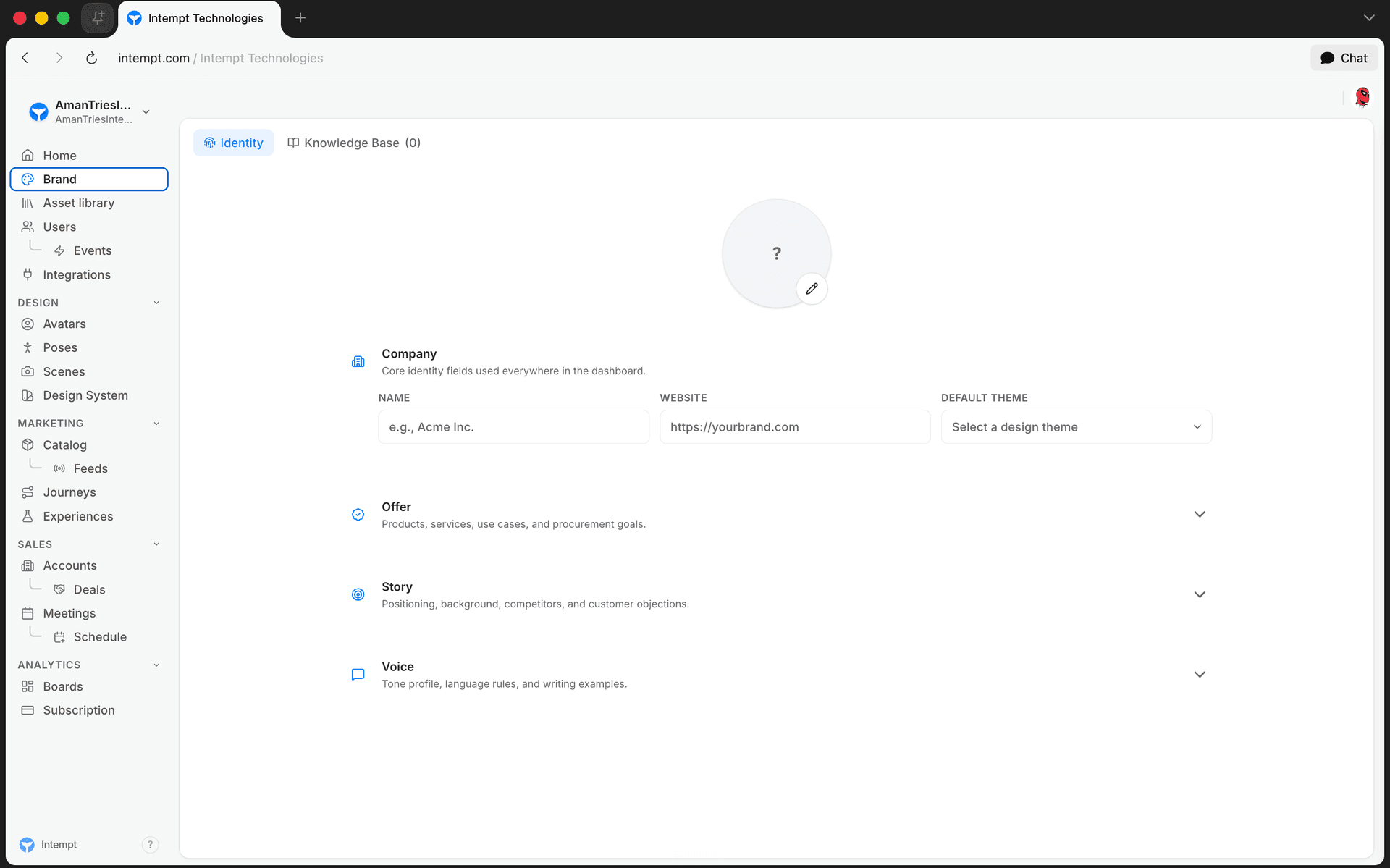
Where to find it
Open Brand in the left sidebar. Brand Kit opens on the Identity tab by default. The Company section sits at the top of the form, above Name and Website.
Uploading or changing your logo
- In the Company section, click the pencil icon on the logo circle.
- Choose an image file. Accepted formats: JPG, JPEG, PNG, GIF, WebP, SVG. Maximum size: 5MB.
- The file uploads immediately and replaces whatever was in the circle before, whether that was a placeholder or an existing logo.
Until you upload a logo, the circle shows the first letter of your company name instead (or a question mark if you haven't set a company name yet). There's no way to remove a logo once one is set — uploading a new file is the only way to change it.
Changes to your logo save automatically. There's no separate save button for the Company section.
Setting your default theme
Below the logo and company fields, Default Theme lets you pick your project's default design theme. The dropdown lists your project's design themes, both built-in presets and any custom themes you've created, each shown with a small swatch of its four colors (primary, secondary, tertiary, neutral).
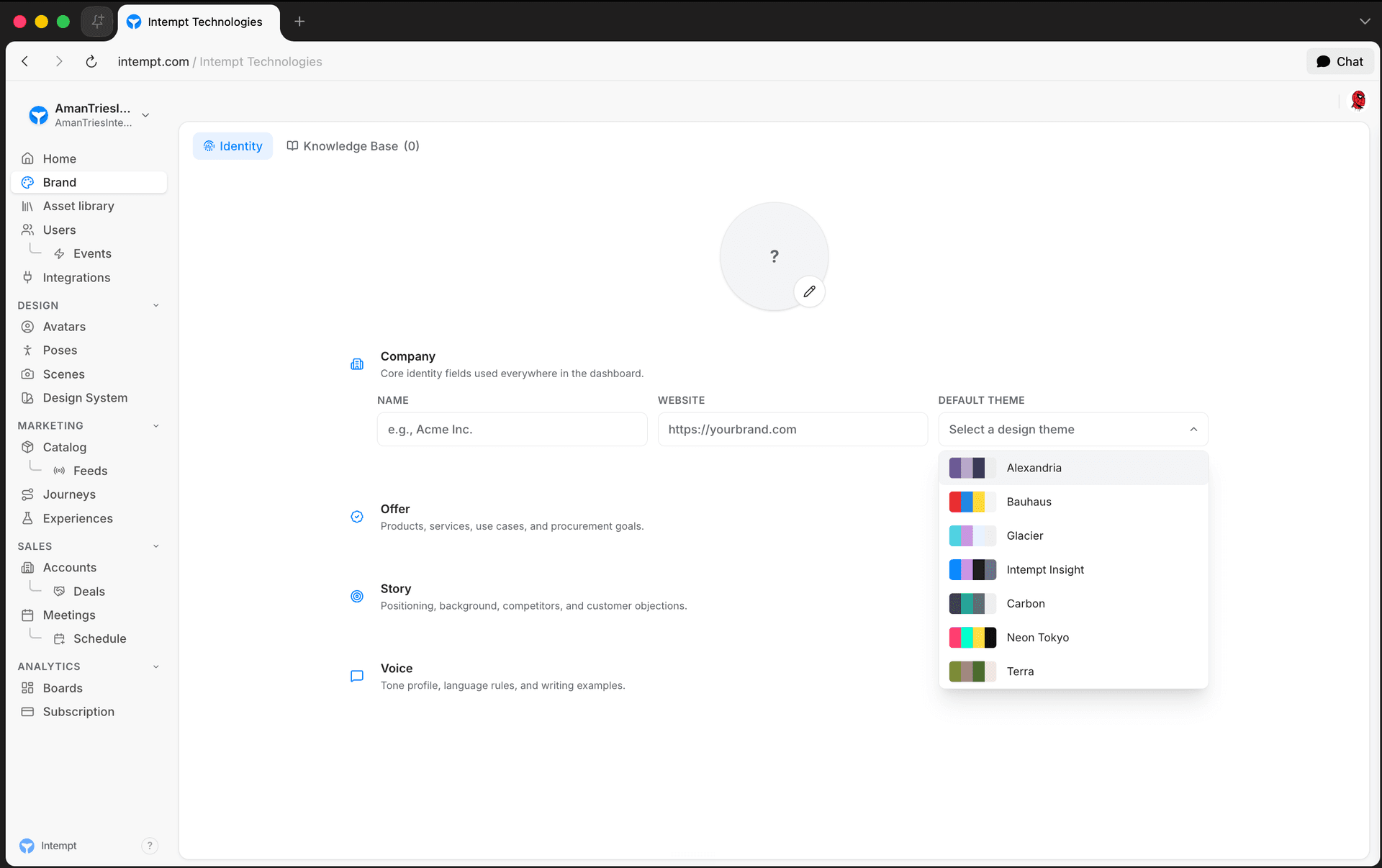
To change it, click the Default Theme dropdown and select a different theme from the list. Your selection saves immediately.
📘 Good to know
If your project has no custom design themes yet, only the built-in presets appear in this list.
Where to go next
- Brand Kit Overview for the full Identity, Personas, and Knowledge tabs
- Brand Kit (Org Settings) for the separate Settings-based Brand Kit that controls logo, colors, and fonts for message appearance
Setting Up Brand Kit
Fill in Brand Kit's Identity tab for the first time: company details, what you offer, your story, mission and goals, brand voice, and messaging guardrails.
Brand Enforcement Across Channels
How the Design system, Scene, and Avatar you set in Brand Kit carry into every ad you build in Creative Studio, so the same identity holds across every placement.