
Setting Up Brand Kit
Fill in Brand Kit's Identity tab for the first time: company details, what you offer, your story, mission and goals, brand voice, and messaging guardrails.
Overview
The first time you open Brand Kit, only the Identity tab has anything to set up. It's a single form that describes your company, your brand voice, and the words Blu should and shouldn't use. Filling it in once means Blu and every content surface can generate on-brand results without you re-explaining your business each time.
How it works
Identity has no save button. Each field saves on its own, about half a second after you stop typing or make a selection. If you reload the page mid-edit, whatever was saved up to that point is what you'll see.
The tab pulls your existing values in when it loads, so returning to Identity later shows a form already filled with what you saved, not a blank one.
Getting started
Opening Brand Kit
Click Brand in the left sidebar. There's no submenu, it opens straight to Brand Kit with the Identity tab active by default.
Adding your company details
The Company section is at the top of Identity.
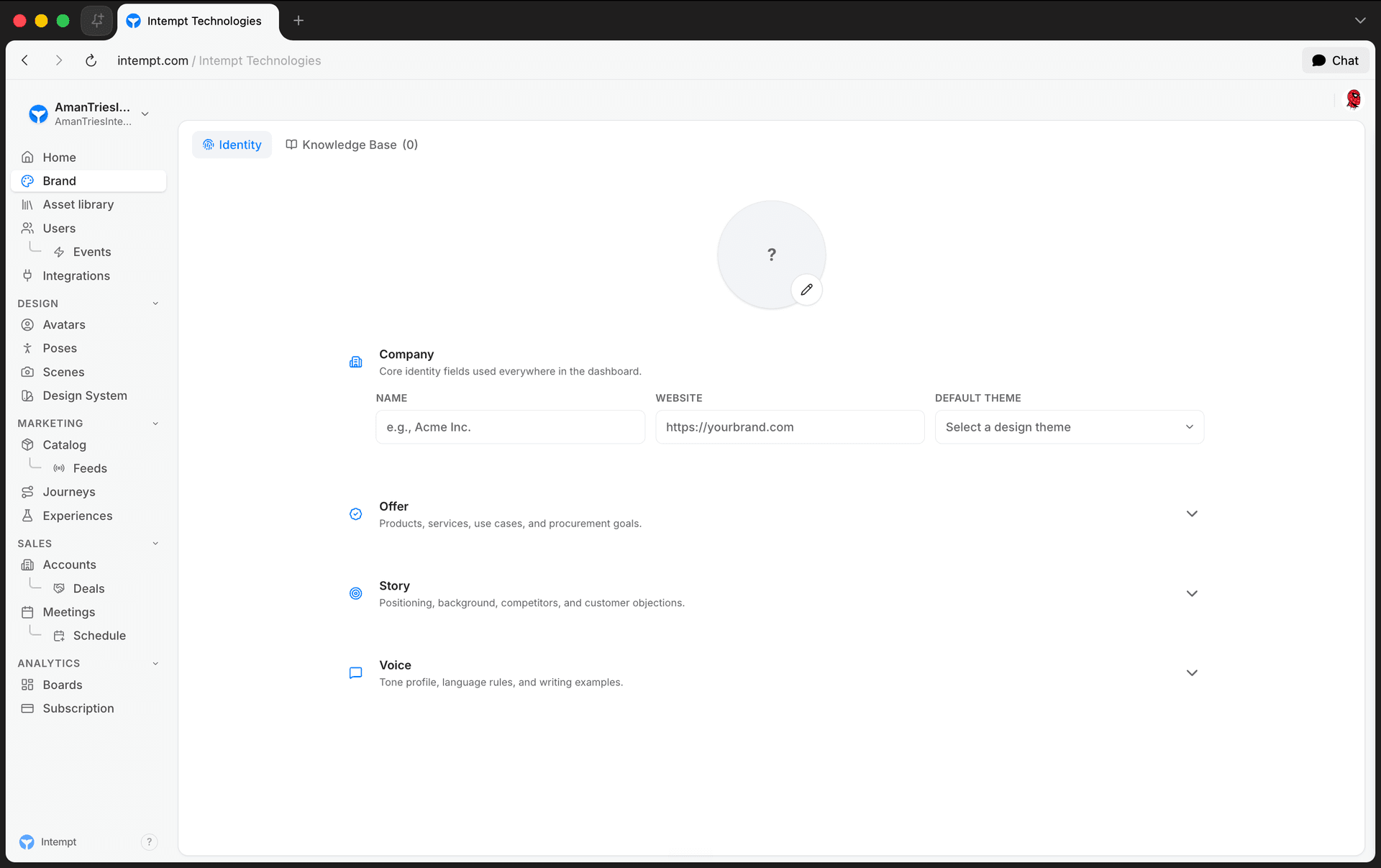
- Logo. Click the pencil icon on the logo circle and choose an image. Accepted formats are JPG, JPEG, PNG, GIF, WebP, and SVG, up to 5MB. Uploading again replaces whatever was there before; there's no way to remove a logo once one is set.
- Name. Your company name, shown wherever content references your brand.
- Website. Your company's primary URL.
- Default Theme. A dropdown of your project's design themes, each shown with its four-color swatch. Selecting one sets it as the project's default.
Describing what you offer
The Offer section covers what you sell and where your business is headed:
- Products & Services. A list of your main products or services.
- How customers use it. Real-world scenarios describing how customers actually use what you offer.
- Mission & values. Your company's mission and core values.
- Goals. Your key business goals.
Telling your story and mapping your competitors
The Story section covers your positioning and competitive landscape:
- What you do is your company's story and what sets it apart.
- Competitors is a list of named competitors.
- Common objections covers the objections your team hears most from prospects.
Choosing your brand voice
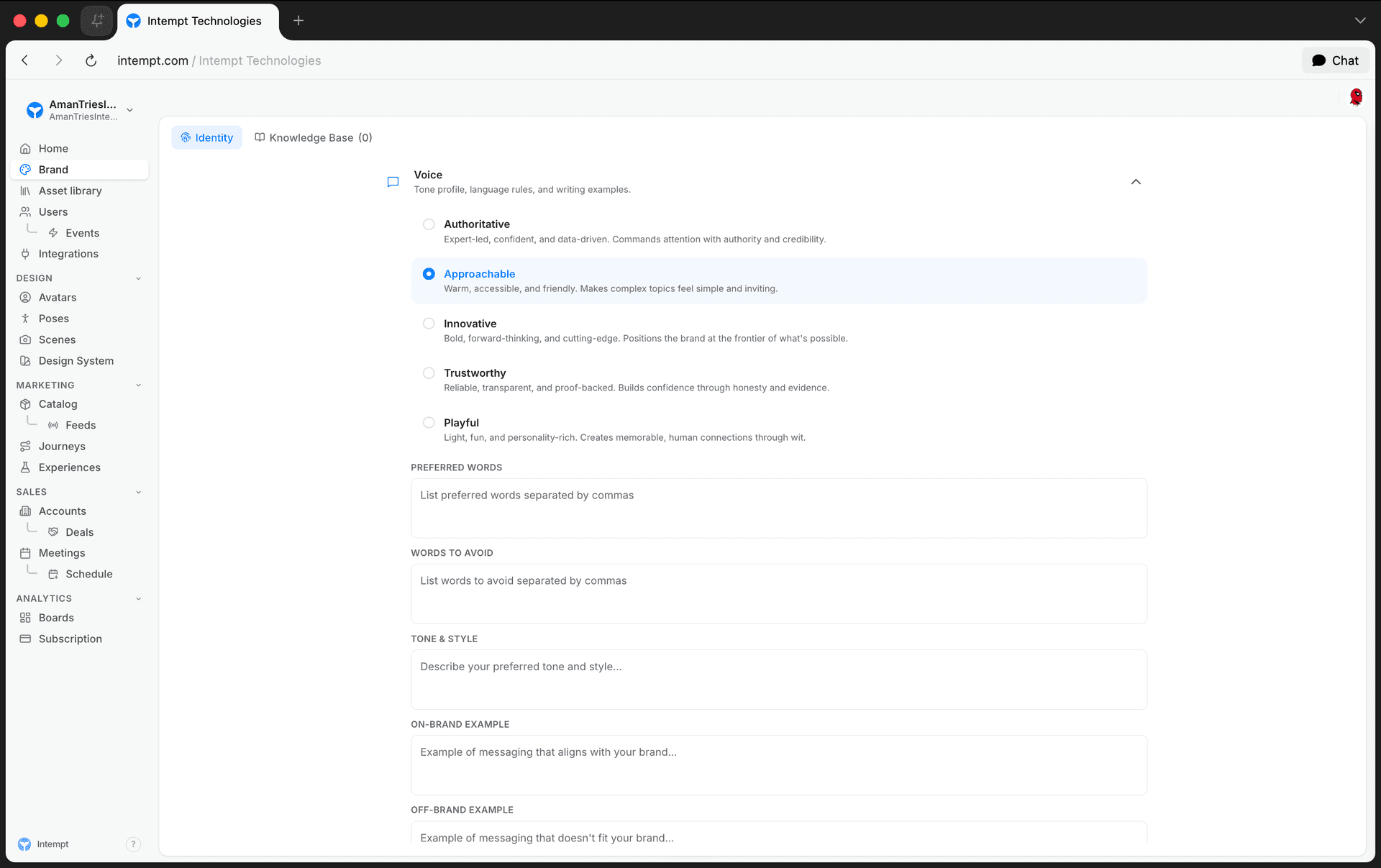
Voice shows a list of five personalities: Authoritative, Approachable, Innovative, Trustworthy, and Playful, each labeled with a fixed one-line description of that tone. Click one to select it; the description text stays the same either way and nothing expands below it, only the highlighted selection changes.
📘 Good to know
The brand voice you pick steers the tone of everything Blu writes on your behalf, from confident and data-led (Authoritative) to warm and simple (Approachable) to witty and light (Playful).
Setting keywords, tone, and brand examples
The rest of the Voice section covers messaging guardrails:
- Key Words & Banned Words. A list of preferred words to use, and a separate list of words to avoid.
- Tone & Style. A free-text description of how formal or casual, short or detailed your brand's writing should be.
- Brand Examples. An on-brand example and an off-brand example, so there's a concrete reference for what does and doesn't fit.
Continuing setup: Knowledge Base
Identity is enough to get started, but Brand Kit has one more tab next to it: Knowledge Base, where you upload files or crawl web pages Blu can pull deeper brand context from. Covered in Brand Kit Overview.
Where to go next
See Brand Kit Overview for what each Brand Kit tab does, or Brand Kit (Org Settings) if you're looking for the separate, visual-styling Brand Kit under Settings instead. Once Identity is filled in, see Generating Brand Assets for how Blu uses it.