
Brand Kit Overview
Brand Kit stores your company identity and knowledge sources in one place: the brand context Blu draws on across the product.
Covered in the Academy. Intempt Academy covers brand kit step by step.
Overview
Brand Kit is where you tell Intempt who your company is: what you sell, who you sell to, how you sound, and what Blu should know about you. Open it from Brand in the left sidebar — that's the sidebar's own label; there's no separate "Brand Kit" title on the page itself. It has two tabs: Identity and Knowledge Base.
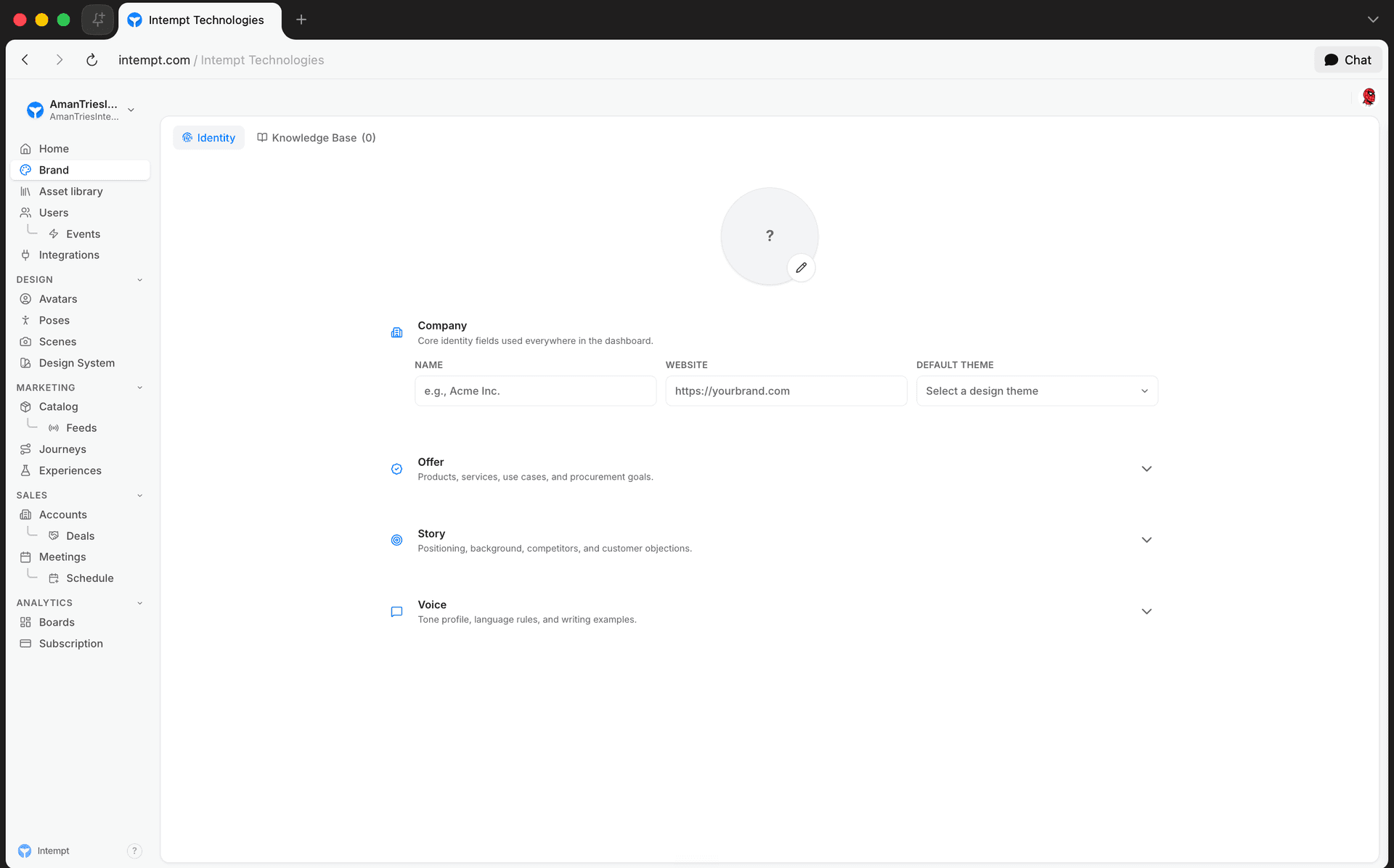
Tabs. Identity and Knowledge Base. Each is covered below.
📘 Good to know
Intempt has two different features people call "Brand Kit." This one lives under Brand in the sidebar and holds your company identity and knowledge base, the context Blu draws on to generate content. A separate Brand Kit lives in Settings and controls visual styling (logo, colors, fonts) for messages and experiences. If you're looking for message appearance settings, that's the one you want.
How it works
Identity
Identity is a single form, organized into four sections, that describes your company:
- Company. Your logo, company name, and website. Click the pencil icon on the logo circle to upload one (JPEG, PNG, GIF, WebP, or SVG, up to 5MB); there's no way to remove a logo once one is set, only replace it. This section also sets your project's Default Theme, the same default design theme used in your project's message appearance settings and design setup checklist.
- Offer. Products and services, how customers actually use them, plus your mission, core values, and key business goals.
- Story. What your company does and what sets it apart, plus named competitors and the objections your team hears most.
- Voice. A personality selector (Authoritative, Approachable, Innovative, Trustworthy, Playful, each with a fixed one-line description) that sets the overall tone Blu writes in, followed by Key Words & Banned Words (preferred words and words to avoid), Tone & Style (a free-text description of how formal or casual, short or detailed your writing should be), and Brand Examples (an on-brand and an off-brand example).
Every field on this tab saves automatically as you edit it. There's no separate save button.
Knowledge Base
Knowledge is where you upload reference material Blu uses to understand your brand more deeply than the Identity form alone can capture.
- Upload file accepts PDF, Word, plain text, Markdown, and HTML files.
- Add page crawls a URL you provide. Pages from the same subdomain are grouped together and can be expanded to see every page pulled from that domain.
- Each item shows a status: Uploaded, Running (still being processed), or Failed.
- You can search, rename, select multiple items, and bulk-delete from this tab.
Use cases
- Filling in your company profile once. Complete the Identity tab so Blu has your products, story, and mission on hand every time it drafts content, instead of re-explaining your business in every chat.
- Keeping Blu from using specific words. Add words to Words to Avoid on the Identity tab so generated copy never includes them.
- Showing Blu what good copy looks like. Fill in an On-Brand and an Off-Brand example so Blu has a concrete reference instead of a vague tone description alone.
- Setting the visual starting point for new content. Pick a Default Theme on the Identity tab so new messages and experiences start from the same design instead of a blank one.
- Giving Blu deeper context than a form allows. Upload PDFs, docs, or Markdown files to Knowledge Base for material too long or technical for the Identity tab.
- Pulling your whole site into Blu's context. Use Add page on the Knowledge Base tab to crawl a URL instead of uploading each page as a separate file.
Where to go next
Using AI Assist in Studio
How to describe what you want to Blu when creating a new asset, generating an image, and fixing a flagged email in Studio.
Setting Up Brand Kit
Fill in Brand Kit's Identity tab for the first time: company details, what you offer, your story, mission and goals, brand voice, and messaging guardrails.