
Message Templates Reference
Field reference for the message-template picker inside a Journey's Send email and Send SMS steps: which templates appear, and what each control does.
Overview
A Journey's Send email and Send SMS steps don't have their own separate template editor. Instead, each step has a picker that pulls from the same place: the assets you've saved in Studio's Asset library. This page is the field reference for that picker: what each control does, and which library assets show up for which step. For the library itself (content types, table columns, filters), see Template Library Reference. For the full editor used to build the content of a template, see Creating emails with the email editor or Creating SMS messages.
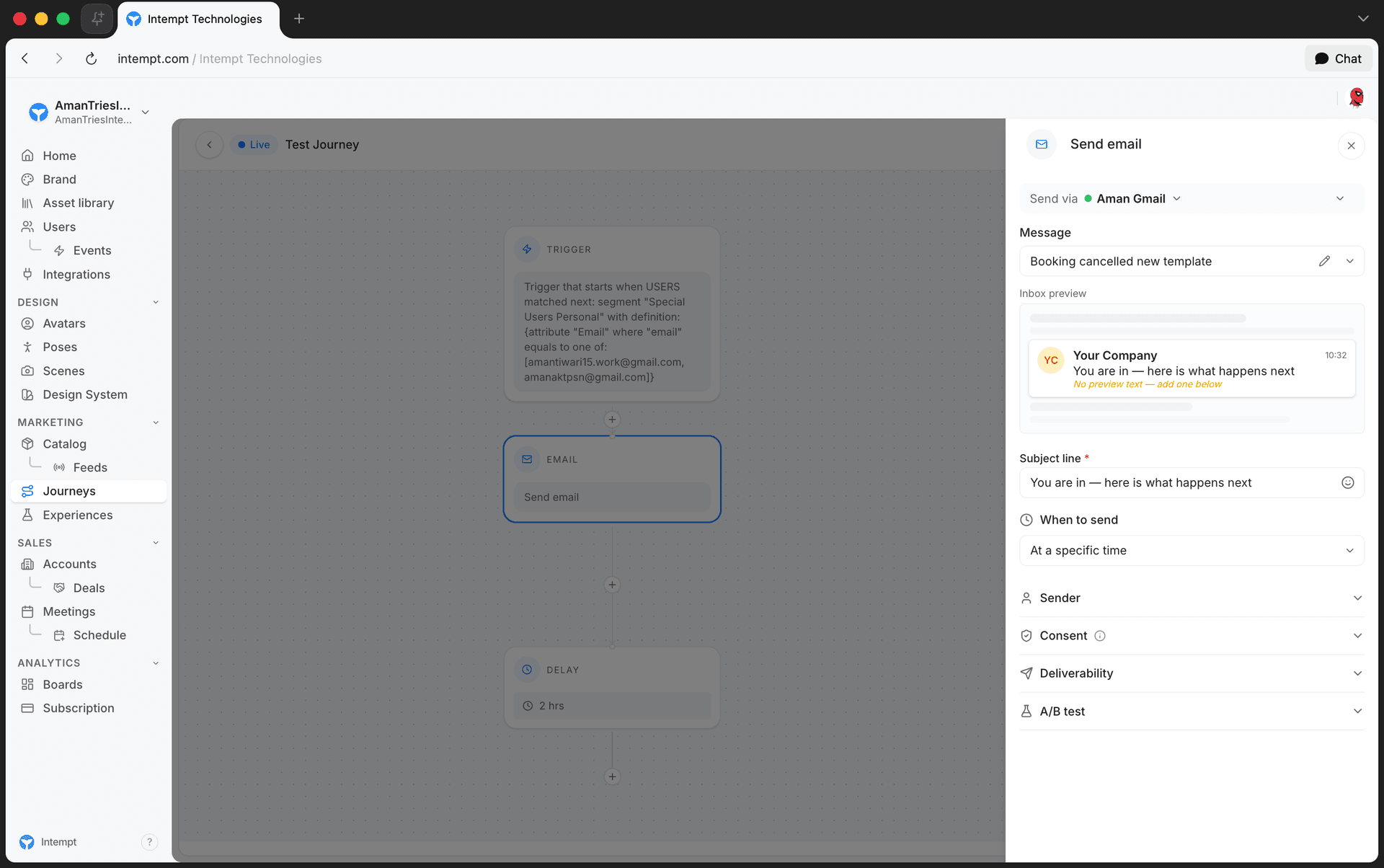
Picker fields
| Field | Description |
|---|---|
| Send via | A pill showing the step's destination. Click it to change destinations. A colored dot next to the name shows whether that destination is enabled (green) or disabled (muted). |
| Message | The template selector. Labeled "Message," with a searchable dropdown. Shows "Select a destination first" and stays disabled until a destination is chosen; shows "Loading…" while templates are being fetched. |
| Edit template | Appears next to the Message selector only after a template is selected. Opens that template directly in its Studio editor. |
| Inbox preview / Message preview | A live preview of the selected template. The Send email step's preview is labeled "Inbox preview" and shows subject and preview text, flagging "No subject" or prompting you to add preview text if either is missing. The Send SMS step's preview is labeled "Message preview" and shows "Your SMS message will appear here..." until a template is selected. |
📘 Good to know
Selecting a template for a Send email step also pulls that template's subject line into the step automatically.
Which templates appear, by step
| Step | Destination types | Templates listed in the Message dropdown |
|---|---|---|
| Send email | SendGrid, Gmail, Amazon SES | Every Asset library item with content type Email or Email Plain. The same two types show up regardless of which of the three destinations is selected. |
| Send SMS | Twilio | Every Asset library item with content type SMS. |
📘 Good to know
Both steps require a destination before the Message dropdown lists anything. Switching destinations doesn't re-filter by provider for Send email: SendGrid, Gmail, and SES destinations all draw from the same Email/Email Plain pool.
Use cases
- Checking why the Message field is disabled. A Send SMS step's Message dropdown stays disabled until a Twilio destination is selected in the Send via pill.
- Catching a missing subject before publishing. The Inbox preview flags "No subject" so you notice before turning the journey on.
- Editing without leaving the journey. Use Edit template on a selected message to open it in its Studio editor, make a change, and come back to the same step.
- Confirming a new SMS asset shows up. If a newly-created asset doesn't appear in a Send SMS step's Message dropdown, check that its content type is exactly SMS.
- Comparing preview copy to the real message. Read the Message preview's rendered text against the placeholder ("Your SMS message will appear here...") to confirm a template is actually selected.
- Finding a template by name. Use the Message dropdown's search instead of scrolling when the Asset library has many templates.
- Auditing which destination a step sends through. Read the status dot next to the destination name in the Send via pill: green means that destination is currently enabled.
- Deciding whether to add a preview line. The Inbox preview prompts you to add preview text as a nudge, not a hard requirement.
Where to go next
- Template Library Reference, the Asset library these templates are pulled from.
- Creating emails with the email editor
- Creating SMS messages
- Messages, the hub overview of email, SMS, Slack, and push messages.
- Journey blocks, the Send email and Send SMS step configuration this picker lives inside.
How you can use Liquid tags manually
Liquid Template Language is a simple and flexible templating language used to insert dynamic content into messages, experiences, or templates. Intempt uses Liquid to let you reference attributes, f...
Messages
Messages enable you to easily create, save, and re-use as templates email, SMS, Slack, and push notification messages that you can send via journeys.