
Using Liquid tags for personalization
Intempt uses the Liquid templating language to personalize messages with user, account, and product attributes.
Overview
Intempt uses Liquid, a templating language, to reference and insert personalized content into your messages and experiences. Liquid tags let you control which user, account, and product data shows up in a template, so the same message renders differently for each recipient. For emails, you can also personalize the subject line.
About Liquid
Liquid tags are built from three pieces:
-
Objects insert a personalized value into your message, like a user's first name or an account's company name.
-
Tags run logic inside your message, such as an "if" statement that shows one block of text to one segment and a different block to another.
-
Filters reformat a value before it's inserted. For example, a filter can turn a raw timestamp like
2022-09-07 08:43:50 UTCinto a readable date likeSeptember 7, 2022.
📘 Good to know
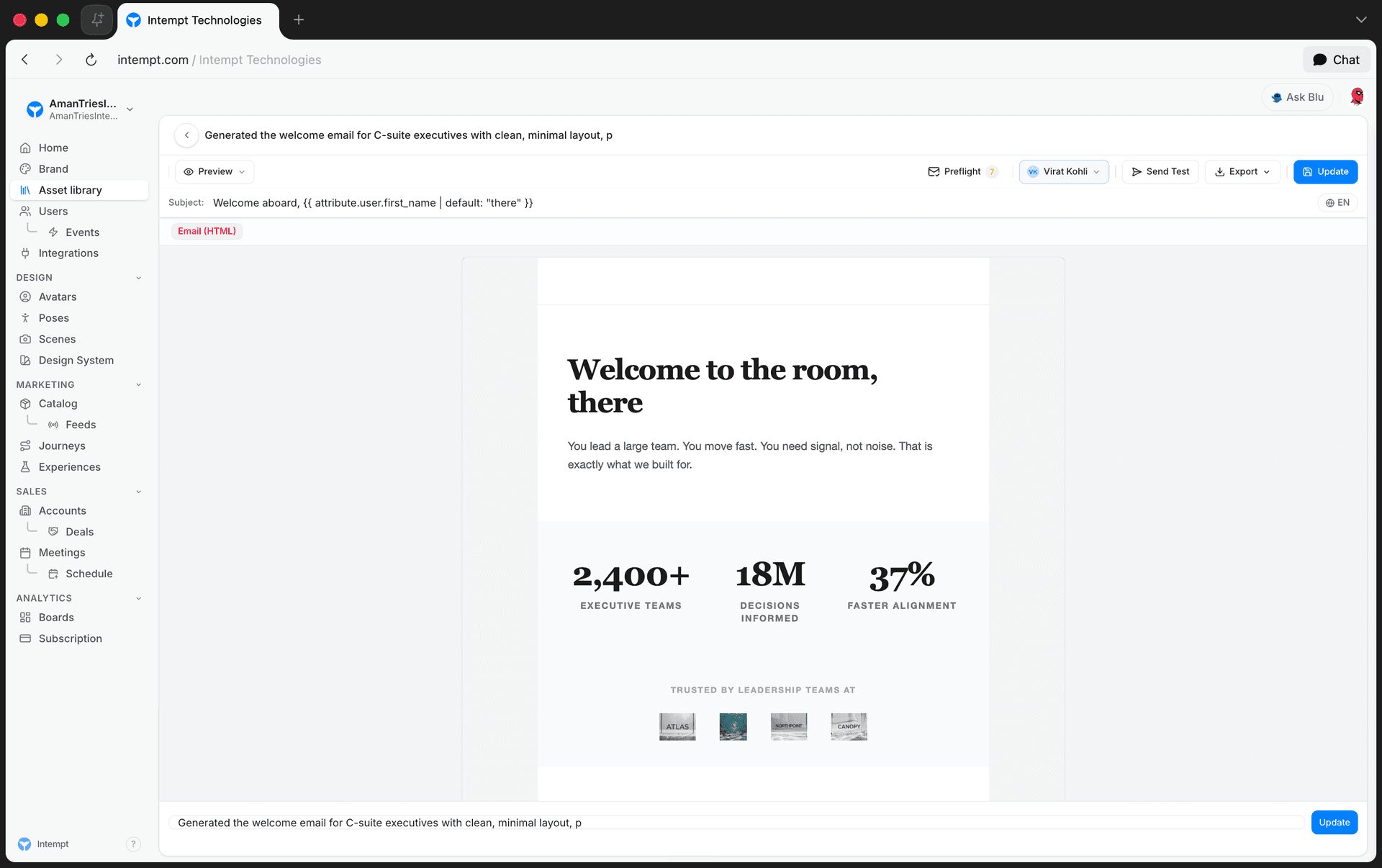
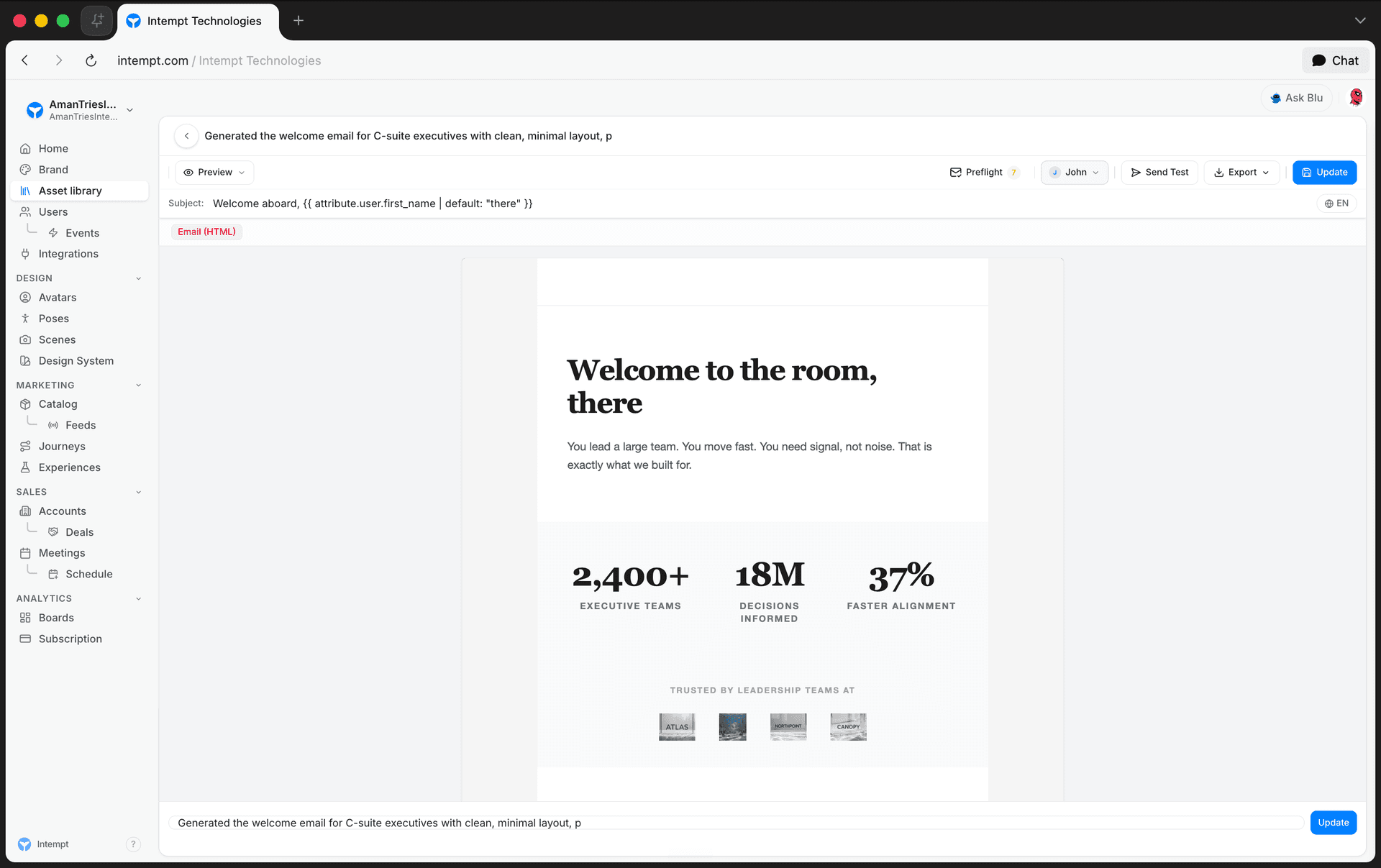
The email editor's variable picker inserts tags with a default filter built in, like {{ attribute.user.first_name | default: "there" }}. If the attribute has no value for a given recipient, the message falls back to the default text ("there," in this example) instead of showing a blank.
Liquid personalization variables
Personalization in Intempt draws from three scopes: user attributes, account attributes, and product attributes.
User attributes
User attributes reference data associated with a specific customer. You can use them in any message or action, but only for attributes that have a user identifier attached.
| Input | Output |
|---|---|
{{attribute.user.first_name}} | John |
Account attributes
Account attributes reference data associated with the account or company, not an individual user. They're only available for attributes that have an account identifier attached.
| Input | Output |
|---|---|
{{attribute.account.company_name}} | Intempt |
Product attributes
Product attributes reference product data ingested into Intempt's catalog. Each tag points to a specific product by ID, followed by the field you want to pull from it, such as its title or price.
| Input | Output |
|---|---|
{{product.4521.title}} | Nike Air Max |
📘 Good to know
Always reference an attribute's name, not its display title. The name is the technical identifier Liquid resolves against, and it's shown in the attribute's details panel on the Attributes page. For the full syntax reference, including feed and snippet tags and how to look up an attribute's name, see How you can use Liquid tags manually.
Getting started
-
Confirm the attribute you want to personalize with exists and has data. Check it on the Attributes page.
-
Open the message you want to personalize (email, SMS, push, or Slack).
-
Type the Liquid tag directly into the message body or subject line, using the attribute's name from step 1.
-
Select a sample user or account to preview how the tag resolves before sending.
Use cases
-
Greet a user by first name in a welcome email:
Hi {{attribute.user.first_name}}, welcome to Intempt! -
Reference the recipient's company name in a B2B renewal reminder sent to an account's billing contact.
-
Show the exact product a user abandoned in a cart-recovery SMS, pulling its title and price from the catalog.
-
Personalize a push notification's body with the user's first name while keeping the title generic.
-
Insert a company's website domain into a Slack alert sent to your sales team about that account.
-
Show a user's plan tier in an in-app message to explain why a feature is or isn't available to them.
-
Drop a product's price into a promotional email so the recipient sees current pricing without a manual update per send.
-
Combine a user attribute and an account attribute in the same message, like a first name and a company name in one sentence.
Where to go next
Messages
Messages enable you to easily create, save, and re-use as templates email, SMS, Slack, and push notification messages that you can send via journeys.
Meetings
Meetings is Intempt's AI notetaker in the console: it joins your sales calls, transcribes them live, and generates an AI summary you can read, edit, and share with a public link.