
Template Library Reference
Field, content-type, action, and filter reference for Studio's Asset library, the shared template library every Journey message step pulls from.
Overview
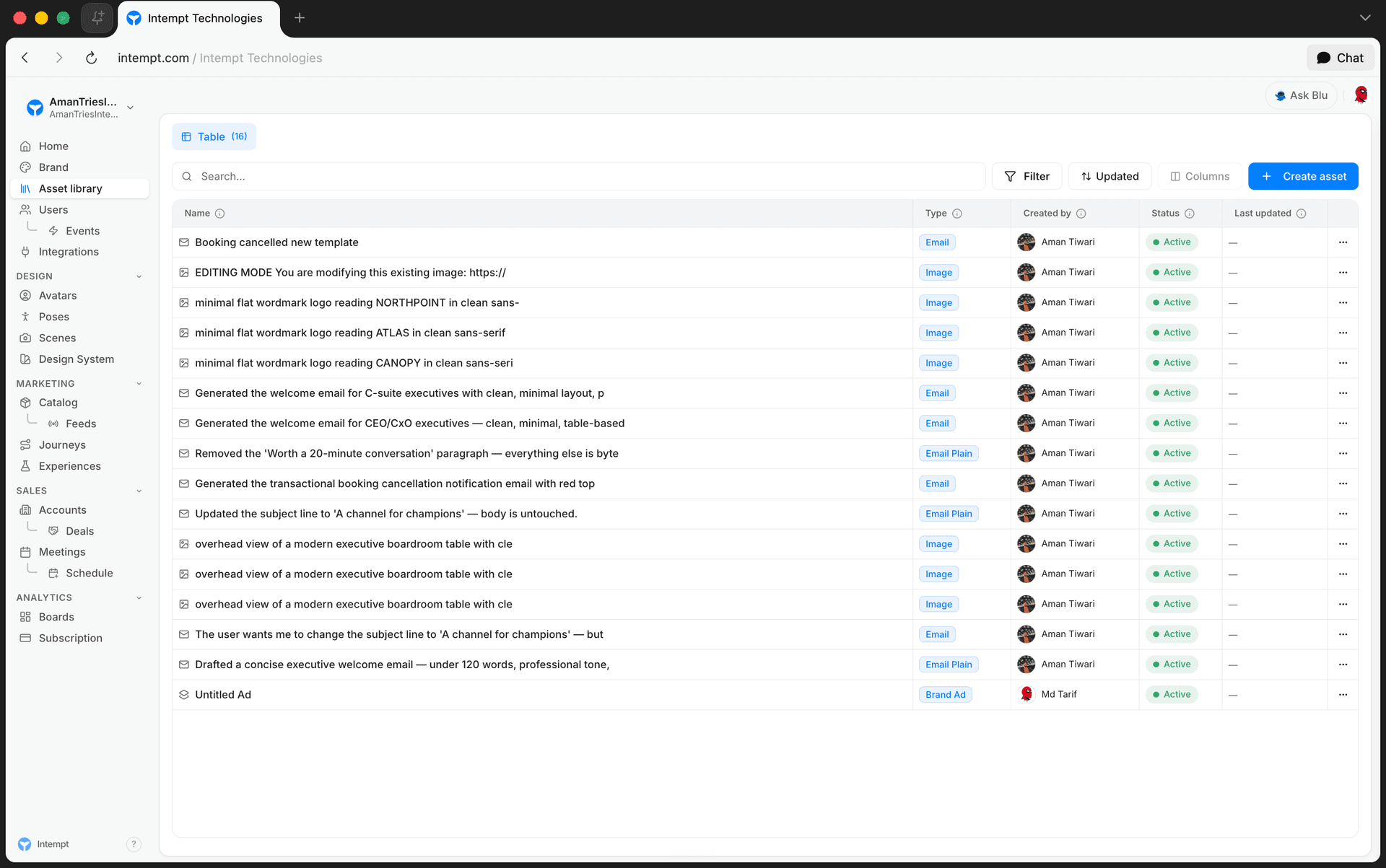
The Asset library is Studio's shared template library. Every content asset you save there, an email, an SMS, a Brand Ad design, a JSON payload, becomes a reusable template that a Journey's Email and SMS steps can pick from later. This page is the field-by-field reference for that library: content types, table columns, row actions, and the filter/sort options. For the guided walkthrough of building an asset with Blu, see Studio Overview.
Content types
| Type | Description |
|---|---|
| Brand Ad | Creative Studio composition |
| Text | Plain text snippet |
| AI | AI-generated content |
| Image | Raster or vector export |
| Form | Interactive form |
| HTML | Standalone HTML page |
| JSON | Structured data payload |
| Rich HTML email | |
| Email Plain | Text-only email |
| SMS | Short text message |
| Push | Mobile push notification |
| Slack | Slack channel message |
| Plan | Content plan |
📘 Good to know
The Create asset menu offers eight types directly: Image, Email, Email plain, Page, SMS, Push, Slack, and Text. Page isn't in the table above: it has no dedicated Type badge or type filter yet, so a saved Page asset's Type column shows the raw type string instead of a friendly label. Brand Ad, AI, JSON, Form, HTML, and Plan aren't in the Create asset menu at all, but do appear as content types because the library's type filter and Type badges support them. A Brand Ad item, for example, is created from Creative Studio's save actions instead of the Create asset menu.
Table fields
| Field | Description |
|---|---|
| Name | The asset's title, shown with a type icon. |
| Type | A badge naming the content type (see table above). |
| Created by | Avatar and name of the person who created the asset. If that person's account no longer exists, the name still shows in muted italic text, and the avatar shows a generic icon instead of initials. |
| Status | Always shows a green "Active" indicator. |
| Last updated | A relative time such as "Today," "3 days ago," or "2 weeks ago," or "—" if the asset has no recorded update time. |
Actions
| Action | Effect |
|---|---|
| Edit | Opens the asset in its type-specific editor. |
| Copy preview link | Copies the asset's reference ID to the clipboard. |
| Delete | Permanently deletes the asset. |
📘 Good to know
Deleting multiple selected assets at once shows a confirmation dialog naming the exact count before anything is removed. Deleting a single asset from its row menu does not show that confirmation.
Search, filter, and sort
| Control | Options |
|---|---|
| Search | Matches against asset name and type. |
| Filter: Type | Multi-select across the content types listed above. |
| Filter: Created by | Multi-select by teammate. |
| Filter: Tags | Multi-select across existing tags. |
| Sort | Updated, Name, Type, Category, Source, or Quality, each ascending or descending. |
📘 Good to know
"Source" sorts manually-created assets separately from AI-generated ones. "Quality" sorts by a numeric quality score, treating assets that don't have one as the lowest possible value.
Select multiple rows with the checkbox column to bulk-delete them in a single confirmation step.
Save as template (Creative Studio)
Inside the Brand Ad editor, the Save menu's "Save as template" option opens a dialog with these fields:
| Field | Description |
|---|---|
| Name | Required. For example, "Sale ribbon + product." |
| Description | Optional. Placeholder text reads "When you'd reach for this template…" |
The dialog also shows a read-only summary of the current design's layer count and page count.
📘 Good to know
Submitting "Save as template" creates a new content item in the Asset library under the given name. It doesn't change or overwrite the design you started from.
Using a template in a Journey
A Journey's Send email and Send SMS steps list templates from the same Asset library. Once a destination is connected, the Send email step's template dropdown lists both Email and Email Plain assets together, regardless of whether the destination is SendGrid, Gmail, or SES. The Send SMS step's dropdown lists only SMS-type assets. Selecting a template loads its content into the step, and an "Edit template" button opens it directly in its editor. See Journey blocks for the full step configuration reference.
Use cases
- Comparing content types before building. Check the content-types table to decide between a rich HTML "Email" and a text-only "Email Plain" asset before starting; a Journey's Send email step offers both once a destination is connected.
- Auditing who owns what. Filter by Created by to review every asset a teammate authored before they leave the team.
- Finding a template by name. Use search instead of scrolling the full table when you know roughly what an asset is called.
- Reviewing AI drafts before reuse. Sort by Quality to surface AI-generated assets that need a manual pass before they're picked as a template.
- Cleaning up in bulk. Select several outdated drafts with the checkbox column and delete them in one confirmation instead of one at a time.
- Sharing an asset for review. Use Copy preview link to hand a teammate a reference ID for a specific asset without opening its editor.
- Turning a finished design into a starting point. Use Save as template in Creative Studio so the next campaign starts from the same layout instead of from scratch.
- Picking the right template for a channel. Open a Journey's Send SMS step and confirm its template dropdown only lists SMS-type assets, unlike the Send email step, which lists Email and Email Plain together.
Where to go next
- Studio Overview: the guided walkthrough of building an asset with Blu and managing the library.
- Messages: how email, SMS, Slack, and push assets get reused as templates inside Journeys.
- Creating emails with the email editor
- Journey blocks: configuring the Send email and Send SMS steps that pull from this library.
Studio Overview
Studio is Intempt's content-authoring workspace for building every email, SMS, push, Slack, code, and image asset your campaigns use, then reusing them across Journeys.
Using AI Assist in Studio
How to describe what you want to Blu when creating a new asset, generating an image, and fixing a flagged email in Studio.