
Creating Custom Poses
Poses is Intempt's library of reference body poses for on-model photoshoots. Create your own by generating with AI, starting from scratch, or remixing a built-in preset.
Overview
Poses is Intempt's library of reference body poses for on-model photoshoots. It lives under Design in the console sidebar, at /poses. Every pose you see is either a built-in preset or a custom pose your team created, and both live side by side in the same library. You render your avatars against a pose to lock a consistent body position, camera framing, and energy across a shoot.
How it works
Built-in presets are read-only: you can view every field, but only custom poses can be edited or deleted. To make a preset your own, use Remix. It hands off to Blu chat with a pre-filled remix instruction — no new custom pose exists until that conversation produces one.
There's no blank form for building a pose. Every creation path opens Blu, Intempt's AI chat panel, scoped to the pose skill. You describe the pose in chat and Blu creates the pose record.
Once a pose exists, its detail page splits into a hero image on the left and a scrolling column of sections on the right:
- Use it for. Which verticals, avatar types, and scenes the pose suits, plus what to avoid pairing it with.
- Identity (custom poses only). Name, category, framing, direction, energy, and tags.
- Why it works. A free-text explanation of why the pose suits its use case, shown on both presets and custom poses.
- Prompt hint. The prompt text used to render the pose's image, plus negative cues to exclude. Read-only and hidden if empty on presets, editable on custom poses.
- Notes. Free-text notes, hidden if empty on presets, editable on custom poses.
- Composition. The exact body mechanics: Shot, Body, Head & gaze, Limbs, and Product.
Getting started
Go to Design > Poses.
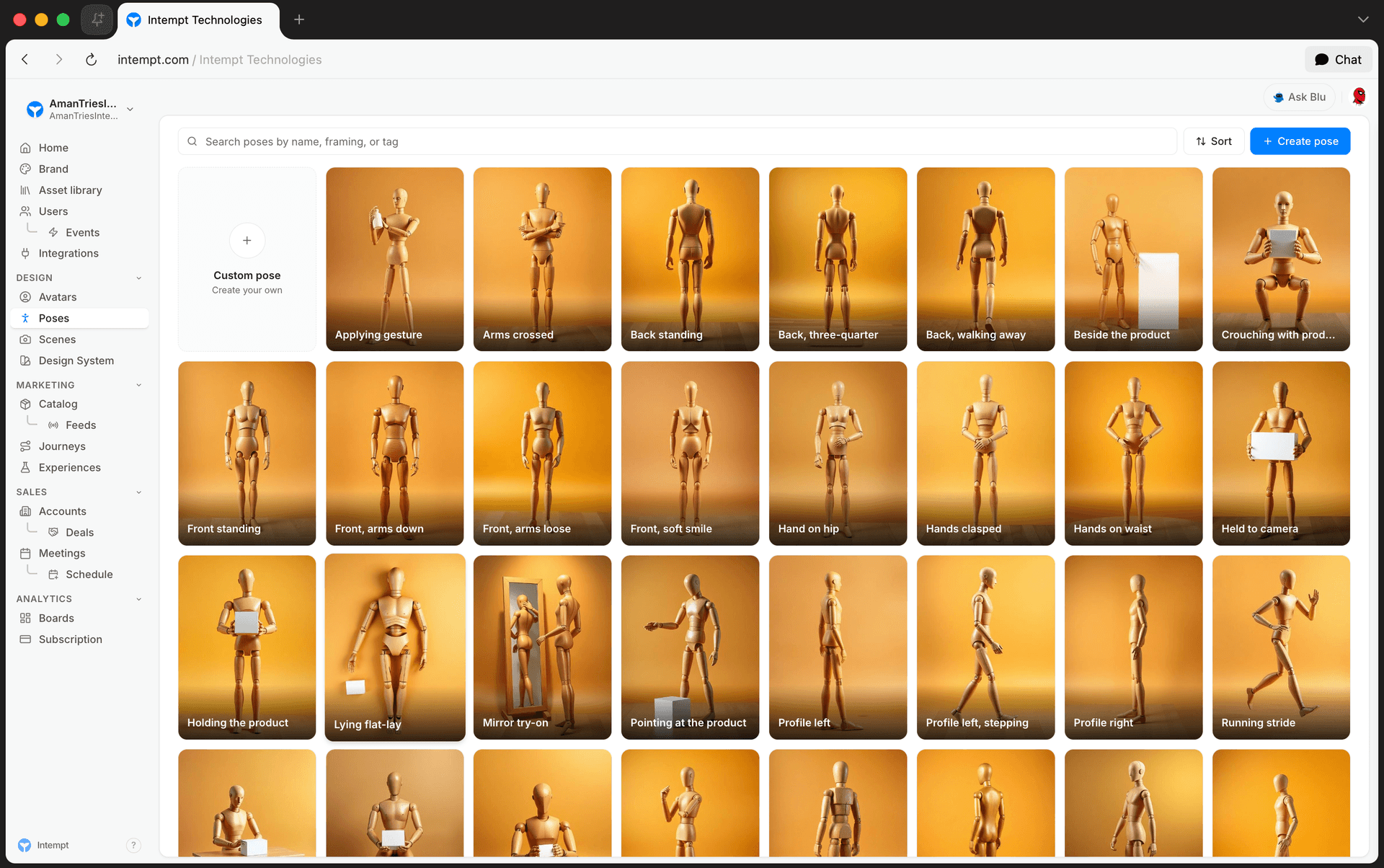
Creating a pose
Click New and choose one of two options:
- Generate with AI. Opens Blu with the prompt "Create a new brand pose: " already filled in, ready for you to describe the pose.
- From scratch. Opens Blu with the prompt "Create a new pose from scratch. I'll describe the body language and framing I want."
The Custom pose tile in the card grid does the same thing as "From scratch": it opens chat with that prompt pre-filled.
Describe the pose in chat, for example the stance, camera angle, and energy you want. Blu creates the pose record and, once the conversation produces one, its reference image.
The pose detail page
Opening any pose shows the hero image on the left and a scrolling column of sections on the right.
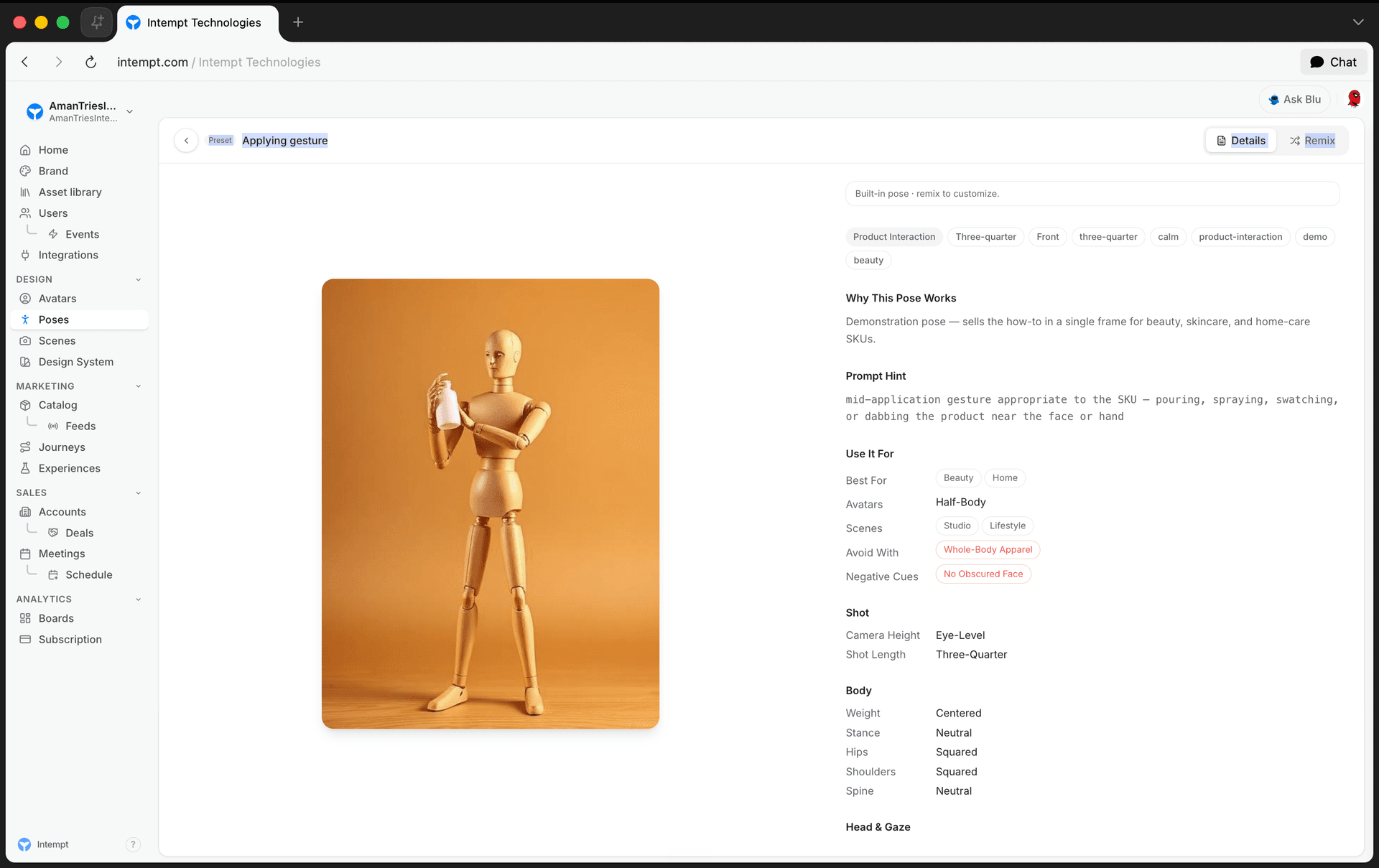
- Use it for. Set which verticals the pose is best for (apparel, beauty, accessories, lifestyle, fitness, food, home), which avatar type it suits (any, full-body, half-body), which scene kinds it works in (studio, lifestyle, outdoor, editorial), and what to avoid pairing it with.
- Identity (custom poses only). Rename the pose, and set its category (Standing, Action, Editorial, Sitting, Product interaction), framing (Full-body, Three-quarter, Profile, Back), direction (Front, 3Q-L, 3Q-R, Profile-L, Profile-R, Back), energy (still, calm, dynamic, mid-motion), and tags.
- Why it works. A free-text explanation of why the pose suits its use case, shown on the pose's hero card and on both presets and custom poses.
- Prompt hint. Edit the prompt text used to render the pose's image, and add negative cues to exclude from the render. Read-only and hidden if empty on presets.
- Notes. Free-text notes, hidden if empty on presets, editable on custom poses.
Then, the Composition groups break the pose down into exact anatomy:
- Shot. Camera height (eye-level, low, hip, high, overhead) and shot length (full-body, three-quarter, waist-up, cowboy, close-up).
- Body. Weight (centered, contrapposto-L, contrapposto-R, leaning-fwd, leaning-back, mid-motion), stance (narrow, neutral, wide, walking), hips, shoulders, and spine (neutral, s-curve, arched, twisted).
- Head & gaze. Head direction, gaze, and expression hint (neutral, soft-smile, laughing, focused, pensive).
- Limbs. Left and right arm (relaxed, on-hip, raised, holding-product, in-pocket, behind-back, gesturing, crossed) and left and right leg (planted, popped, crossed, kicked-back, walking, seated).
- Product. How the avatar interacts with a product (none, holding, wearing, applying, pointing-to, using, unboxing, presenting, mirror-tryon, flatlay) and where it's placed (camera-side, far-side, both-hands, on-body).
Every change to a custom pose's fields saves automatically. Presets show all of this read-only, without the Identity section.
Generating the reference image
On the pose's hero image, click Generate image, or Regenerate image if one already exists. This opens Blu with the prompt "Generate the pose reference image with the current settings." Regenerating replaces the existing image with a new one rendered from the pose's current composition settings.
Remixing a preset
Open a preset and click Remix in the header. This opens Blu with a pre-filled instruction to create a custom variation of the pose. Once the conversation produces one, you land on the new custom pose's detail page, where you can generate an image and adjust the composition.
📘 Good to know
Remix is the only way to turn a preset into something you can edit. Editing the fields directly on a preset isn't possible.
Deleting a custom pose
Custom poses show a trash icon on hover in the list, and a "Delete pose" option in the detail page's overflow menu. Deleting asks for confirmation first. Presets can't be deleted.
Use cases
- Locking a signature hero shot. Set Weight to "centered" and Head to "to-camera" so every hero image across a campaign shares the same confident, symmetrical stance.
- Building an editorial lookbook. Combine "leaning-fwd" weight with a "twisted" spine and "3Q-L" shoulders for a more dynamic, editorial feel across a lookbook set.
- Product-in-hand shots. Set Product interaction to "holding" and Placement to "both-hands" so the avatar visibly presents a product without it feeling staged.
- Unboxing content. Use the "unboxing" interaction with a "waist-up" shot length for social-style product reveals.
- Restricting a pose to full-body avatars. Set Avatars to "full-body" under Use it for when a pose's leg and stance settings only make sense on a full-body character.
- Excluding incompatible wardrobe. Add an entry to Avoid with, like "floor-length gowns," when a pose's stance would look wrong in certain garments.
- Remixing instead of starting over. Remix a built-in "Standing" preset to start Blu's remix conversation, then adjust just the Direction and Tags on the resulting custom pose instead of describing a full pose from scratch.
- Matching energy to a vertical. Use "still" or "calm" energy for beauty and skincare shots, and "dynamic" or "mid-motion" for fitness.
Where to go next
- Avatars Overview - browse and create the avatar characters you render against a pose.
Managing Avatar Emotions
The Emotions picker on a custom avatar's detail page generates up to 9 additional renders of that character, each showing a different emotion, without leaving the page.
Poses Library Overview
Every field a pose record carries in Intempt's Poses library: identity fields, composition anatomy, compatibility fields, and how presets differ from custom poses.