
Calendar Integration (Google & Outlook)
Connect Google Calendar to Scheduling so your booking links check real availability and new bookings sync automatically.
Overview
Connecting a calendar lets Scheduling check your real availability and add new bookings to it automatically, so you never get double-booked. Intempt currently supports Google Calendar. Microsoft Outlook / Microsoft 365 calendar connection is not available yet.
How it works
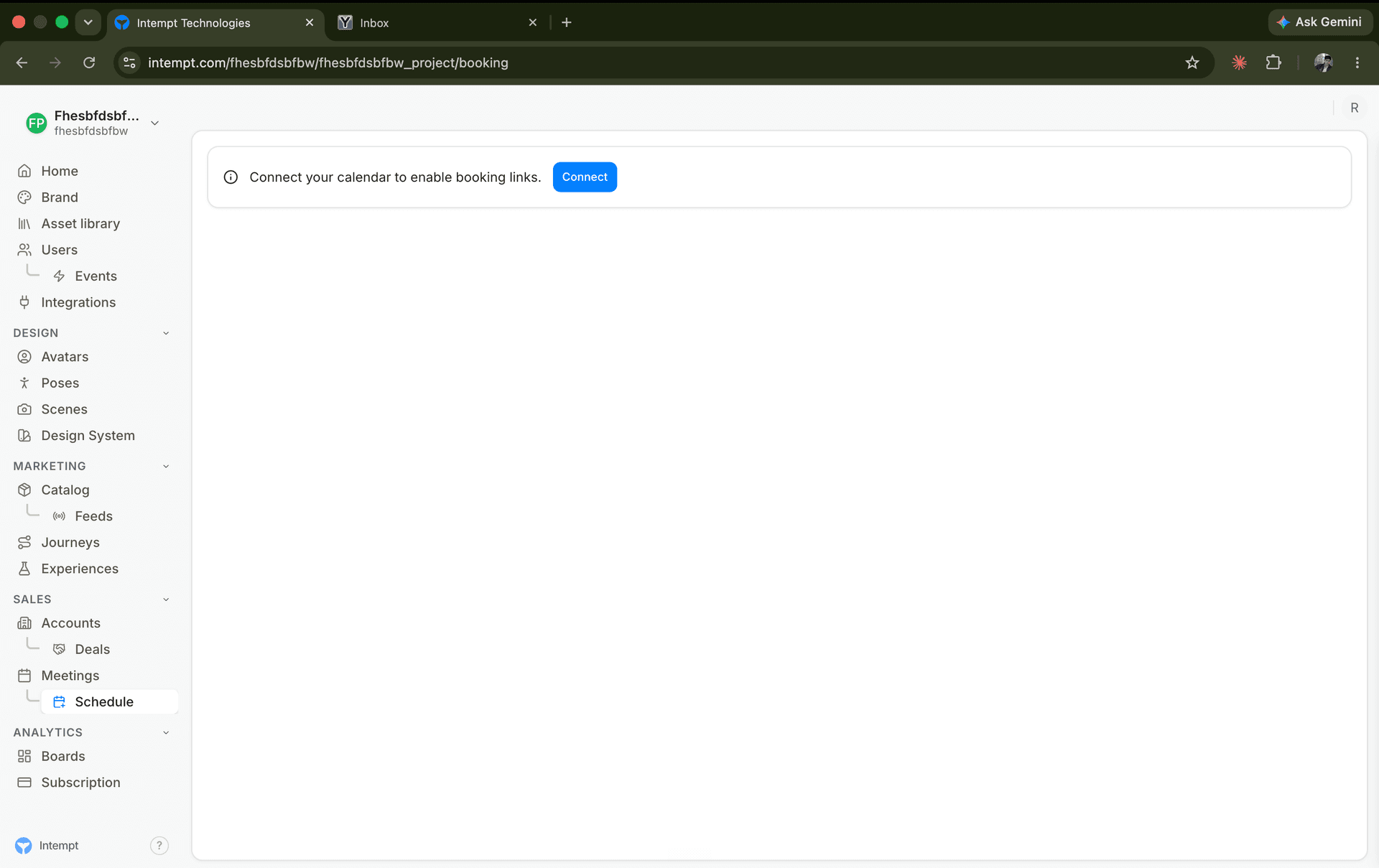
Meetings → Schedule requires an active calendar connection before it shows anything else. With no calendar connected, the page shows a connection banner and hides the meeting-types toolbar and list entirely. Connecting from the Schedule page or from Settings → Profile → Connections writes to the same underlying integration, so you only need to connect once per account.
Getting started
Connect Google Calendar from the Schedule page
- Go to Meetings → Schedule.
- Select Connect on the "Connect your calendar to enable booking links" banner.
- In the Google connection modal, select Sign In with Google and complete the OAuth popup.
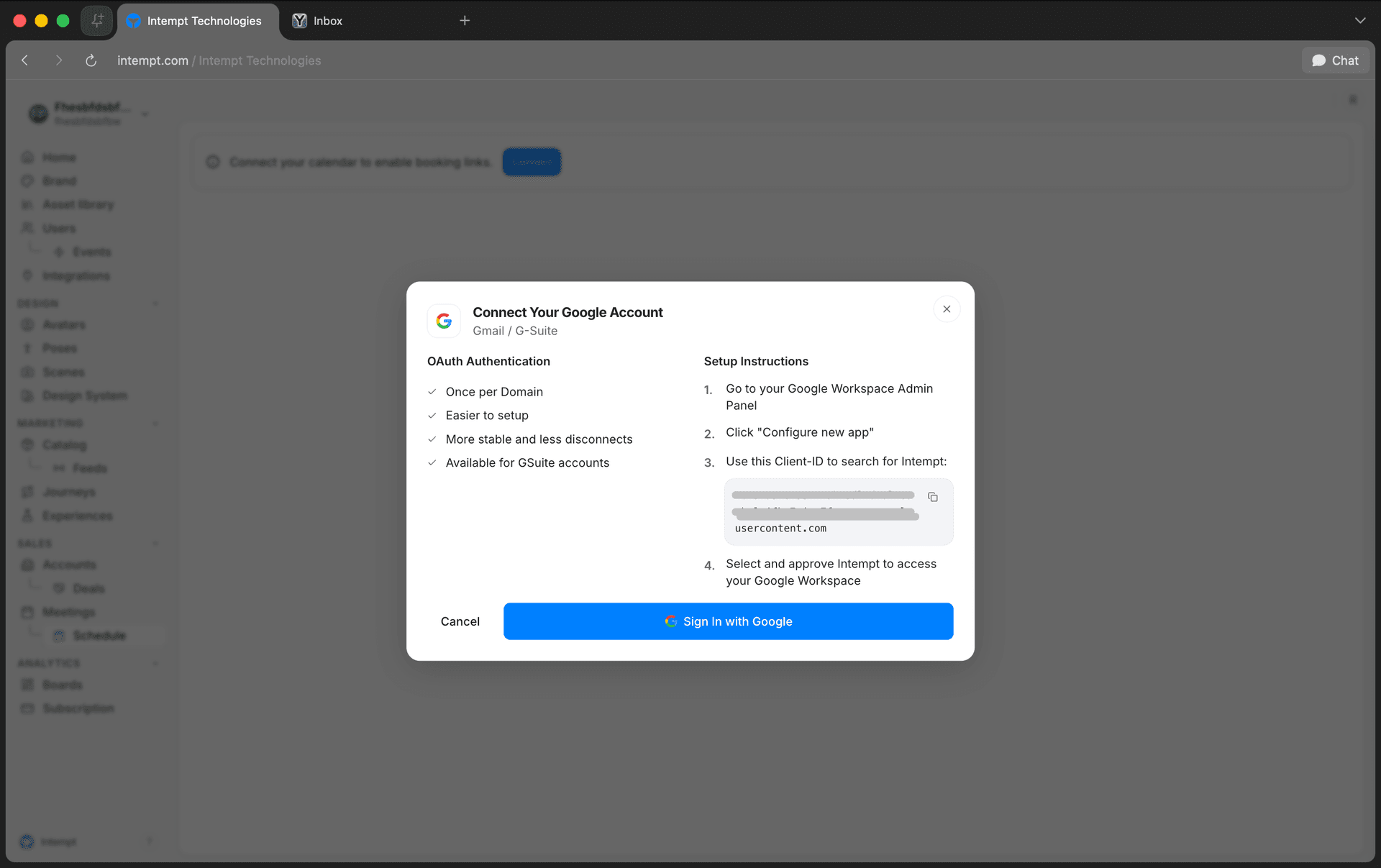
Once connected, the banner disappears and the meeting-types toolbar and list appear in its place.
Connect or manage Google Calendar from Settings
You can also connect, check, or remove the same integration from Settings → Profile → Connections.
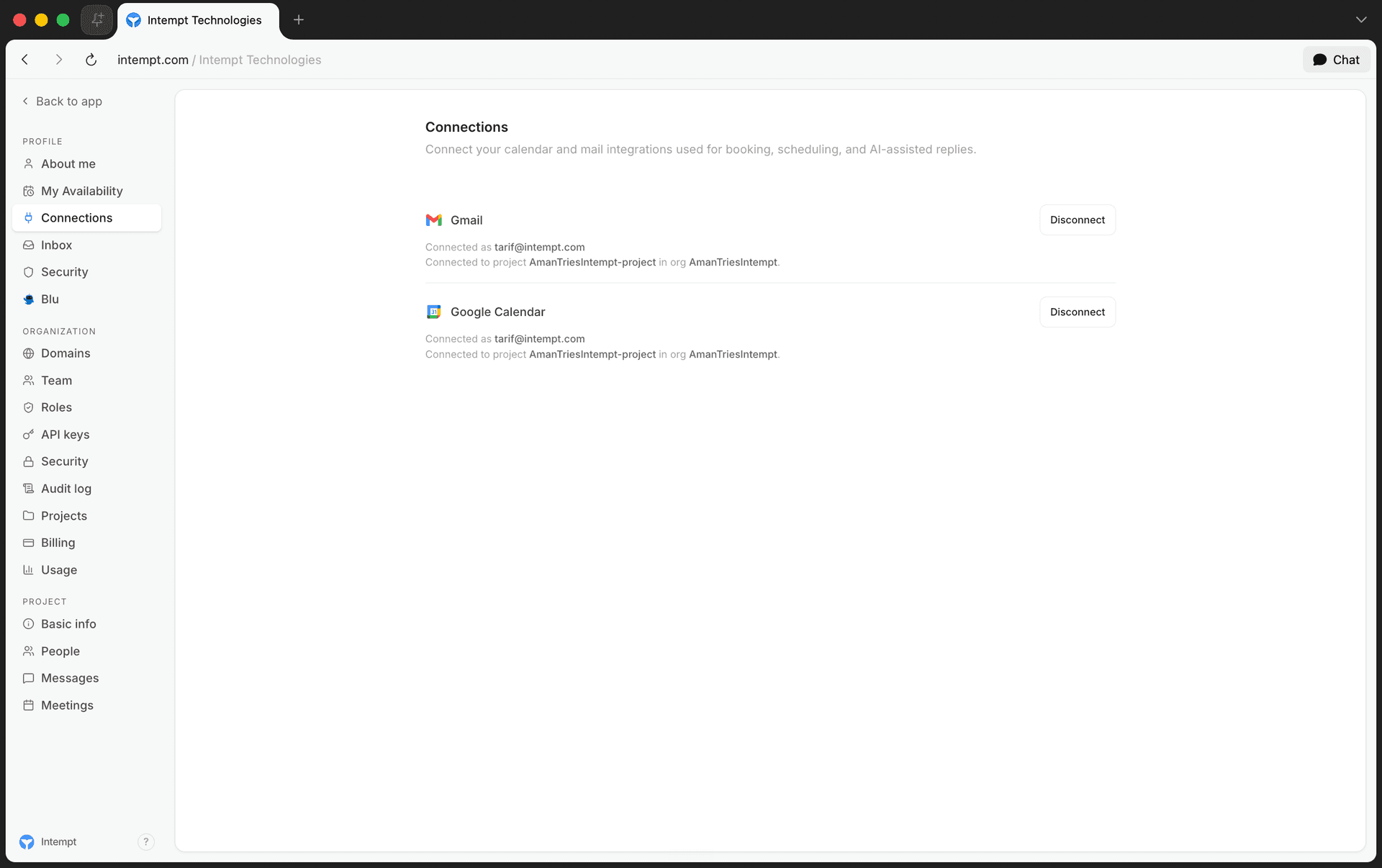
- Go to Settings → Profile → Connections.
- On the Google Calendar row, select Connect, then Sign In with Google.
- Once connected, the row shows Disconnect, Connected as {email}, and Connected to project {projectTitle} in org {orgTitle}.
📘 Good to know
Gmail is a separate row on the same page, for email features like drafting and inbox categorization. Connecting Gmail does not connect your calendar, and connecting Google Calendar does not connect Gmail. They're independent integrations.
Disconnect or remove Google Calendar
- Disconnect removes the connection immediately, with no confirmation step. If completing it requires re-authorizing with Google, a follow-up dialog offers a Re-authorize link.
- Delete Integration is more destructive: it warns how many synced calendar events (and emails, if Gmail is also connected) will be permanently removed, and requires typing the integration's exact name to confirm.
Disconnecting the calendar gating your Schedule page hides the meeting-types list again until you reconnect.
Where to go next
- Setting Up Your Booking Page to create a meeting type once your calendar is connected.
- Scheduling Overview for how meeting types, calendar connection, and the public booking page fit together.
Setting Up Your Booking Page
Create a meeting type, connect your calendar, and share a public booking page prospects can use to schedule time with you.
Scheduling Rules & Availability
Set your weekly availability hours, block off specific dates and holidays, and cap how often people can book you, all from Settings → Project → Meetings.