
Scheduling Rules & Availability
Set your weekly availability hours, block off specific dates and holidays, and cap how often people can book you, all from Settings → Project → Meetings.
Overview
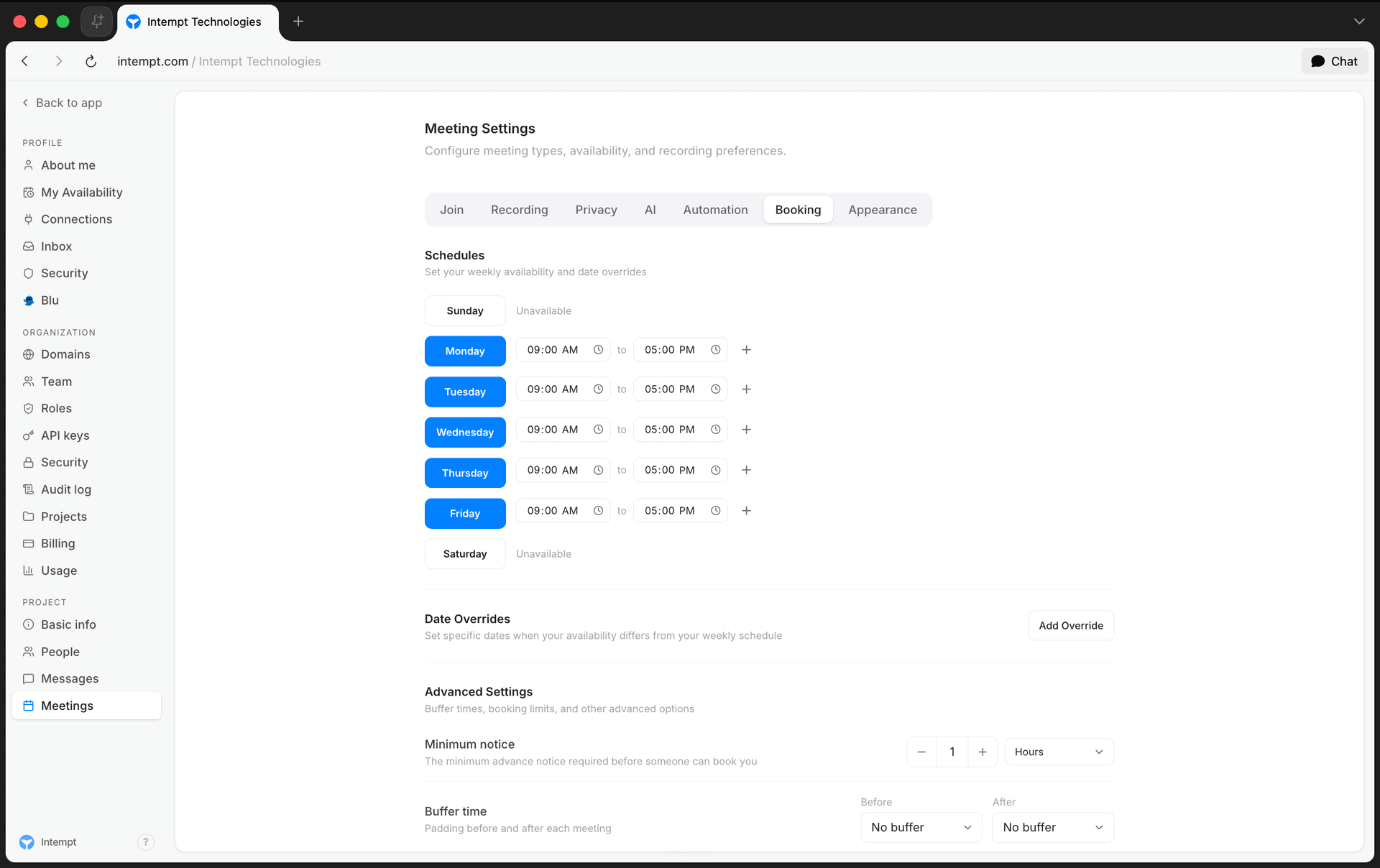
Scheduling rules control when a slot is bookable at all: your weekly hours, one-off exceptions, holidays, and limits like minimum notice or how many meetings you'll take in a day. These live in one place, Settings → Project → Meetings → Booking, and apply project-wide to every meeting type by default. Any single meeting type can also override the weekly hours with its own schedule.
How it works
Project-wide by default, per-type on request
Every meeting type inherits the weekly hours, date overrides, and holidays configured on the Booking tab. Only the weekly hours can be overridden per meeting type, in that type's own Meeting Hours card. Date overrides, holidays, minimum notice, buffers, and booking limits are project-wide only; there's no per-type version of those.
What's on the Booking tab
- Schedules: your weekly availability hours and any one-off date overrides.
- Advanced Settings: minimum notice, buffer time before and after each meeting, max meetings per day, and four conditional booking limits.
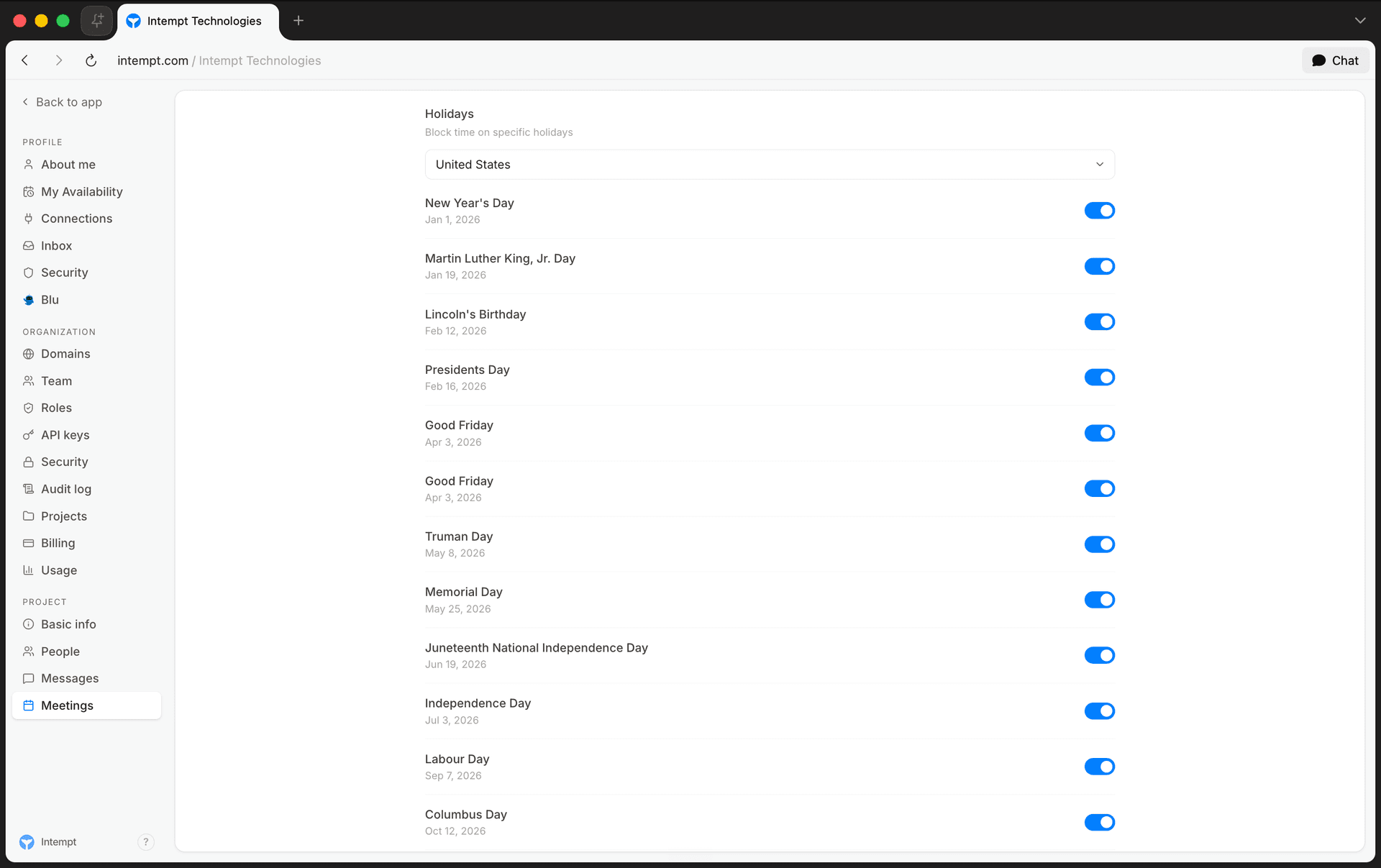
- Holidays: a country's public holidays, each with its own block toggle.
The public page's look and embed defaults live on the neighboring Appearance tab, covered in Setting Up Your Booking Page.
Getting started
Set your weekly availability hours
- Go to Settings → Project → Meetings → Booking.
- In the Schedules card, find the day you want to configure. A day with no hours shows as Unavailable.
- Select an unavailable day to turn it on. It gets one default range, 09:00–17:00.
- Adjust the start or end time as needed.
- Select Copy to all on the first day that has any availability to apply its ranges to every other day.
📘 Good to know
You can add up to 3 time ranges per day. Ranges can't overlap. If they do, an inline error reads "Time slots cannot overlap" and the change won't save. Setting an end time at or before the start time is silently rejected. Moving a range's start time past its current end time pushes the end time forward by an hour, capped at midnight.
Add a one-off date override
Use a date override when one specific date needs different hours than your usual week, for example a day you're fully unavailable or only free for part of the day.
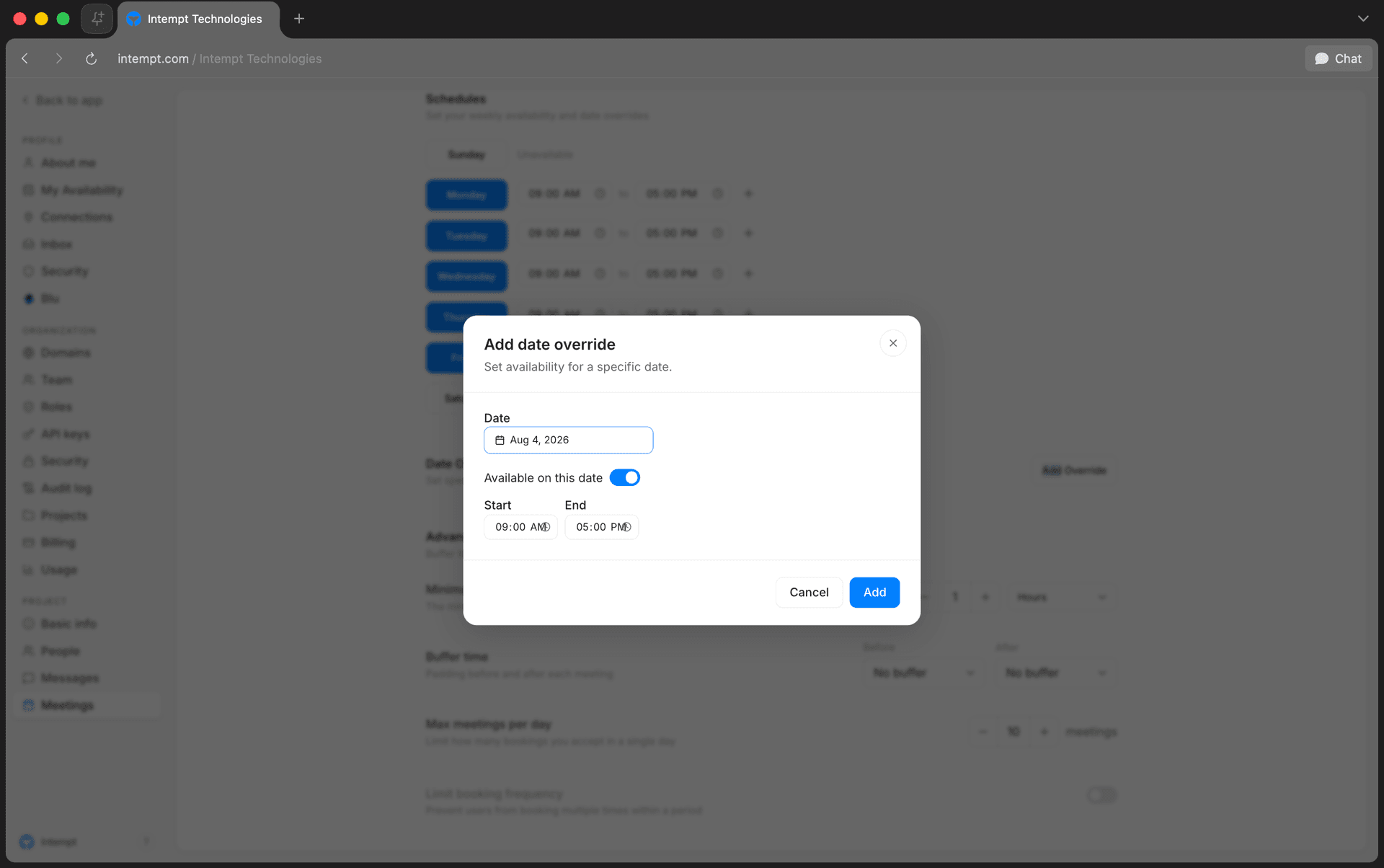
- In the Schedules card, select Add Override.
- Pick a date.
- Leave Available on this date off to block the whole day, or turn it on to set a start and end time (defaults to 09:00–17:00).
- Save. The override appears as a row with a colored availability dot.
Select the x on any override row to remove it.
Set booking preferences
In the Advanced Settings card:
- Buffer time, before and after each meeting. Choose from No buffer, 5, 10, 15, 30, or 45 minutes, or 1 hour.
- Max meetings per day, a numeric stepper. Defaults to 10.
Cap how often people can book
Still in Advanced Settings, turn on any of these conditional limits:
- Limit booking frequency: reveals a "booking per" field with a number plus a Day/Week/Month unit picker.
- Only show first slot per day: a plain toggle, no extra fields.
- Limit total booking duration, Booker active booking limit, and Limit future bookings: each reveals its own numeric limit, from 1 to 99.
Block holidays
- In the Holidays card, choose a country. The list of public holidays loads for that country.
- Turn on any holiday you want blocked.
📘 Good to know
Turning a holiday's toggle on blocks that date. It doesn't mark the date as available.
Give one meeting type different hours
To override the project-wide weekly hours for a single meeting type, open that meeting type for editing and turn off Use global hours in its Meeting Hours card. See Setting Up Your Booking Page for that walkthrough. Turning Use global hours back on discards the override and reverts to the hours configured here.
Where to go next
-
Setting Up Your Booking Page to create a meeting type and share the resulting booking page.
-
Calendar Integration (Google & Outlook) to connect the calendar your availability checks against.
-
Scheduling Overview for how meeting types, availability, and the public booking page fit together.
Calendar Integration (Google & Outlook)
Connect Google Calendar to Scheduling so your booking links check real availability and new bookings sync automatically.
Email Deliverability Guide
How to read and act on the Deliverability check in Email Preflight, the score that predicts your inbox placement odds before you send an HTML email.