
Setting Up Your Booking Page
Create a meeting type, connect your calendar, and share a public booking page prospects can use to schedule time with you.
Overview
Booking is Intempt's scheduling-link system. You create a reusable meeting type from the Schedule page, and Intempt turns it into a public booking page (plus embeddable widgets) that prospects and customers use to pick a time, book, cancel, or reschedule a real meeting, without you touching a calendar back and forth.
How it works
A meeting type is the template your booking page is built from: a title, a duration, an availability window, and a routing rule. Routing can send every booking to one person (Individual), rotate across a team (Round Robin), or require an entire team to attend (Collective).
Each meeting type produces:
- A public booking link, an unauthenticated page an invitee opens directly to book against your availability.
- Embed widgets, for placing the same booking calendar on an external page, a popup, or an email.
Getting started
Connect your calendar
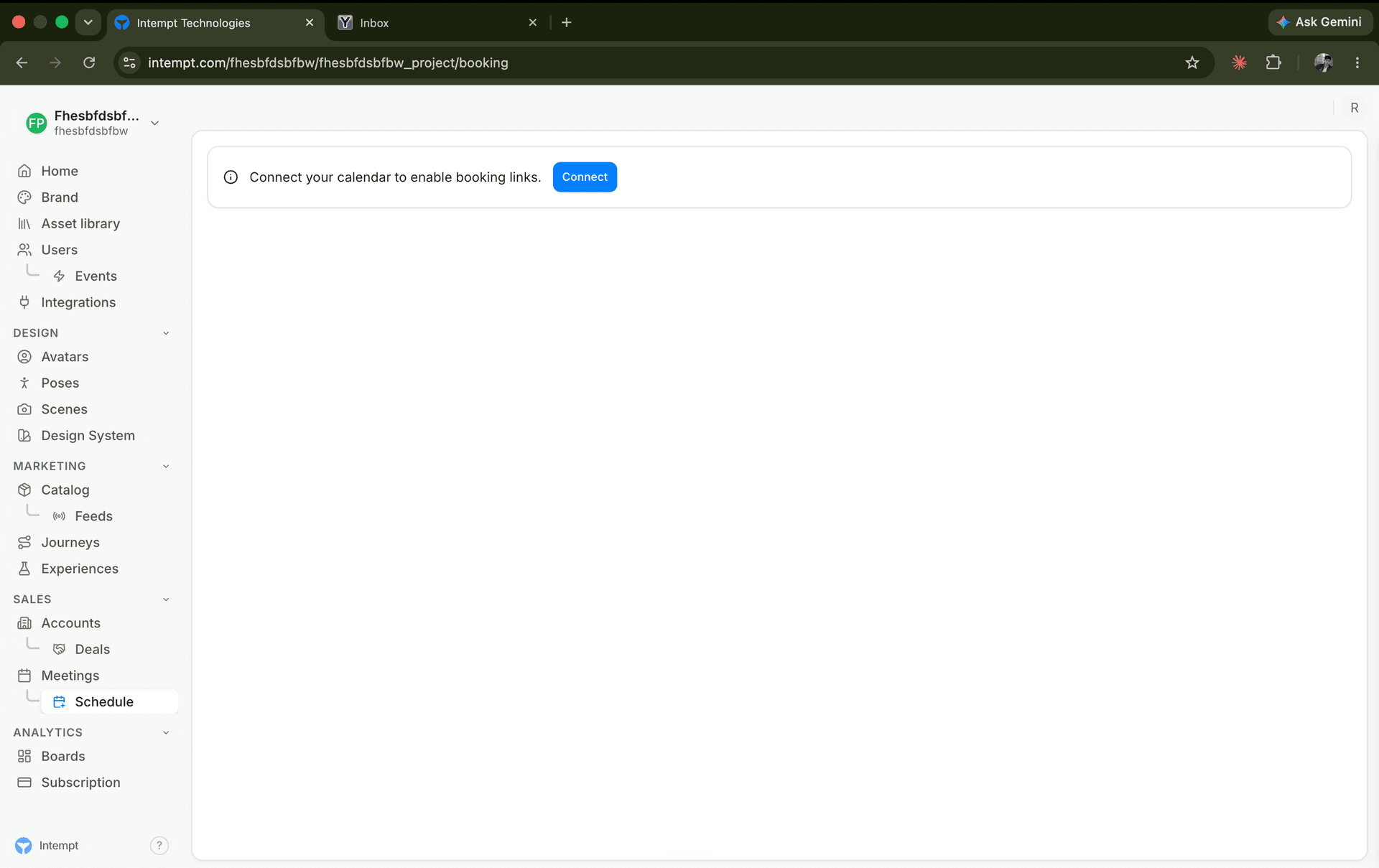
Go to Meetings → Schedule. If no calendar is connected yet, a banner reads "Connect your calendar to enable booking links." Select Connect and complete the Google Calendar OAuth flow. Once connected, the banner disappears and the meeting-types list becomes available.
Create a meeting type
Select New from the toolbar to open the Create Booking Type sidebar.
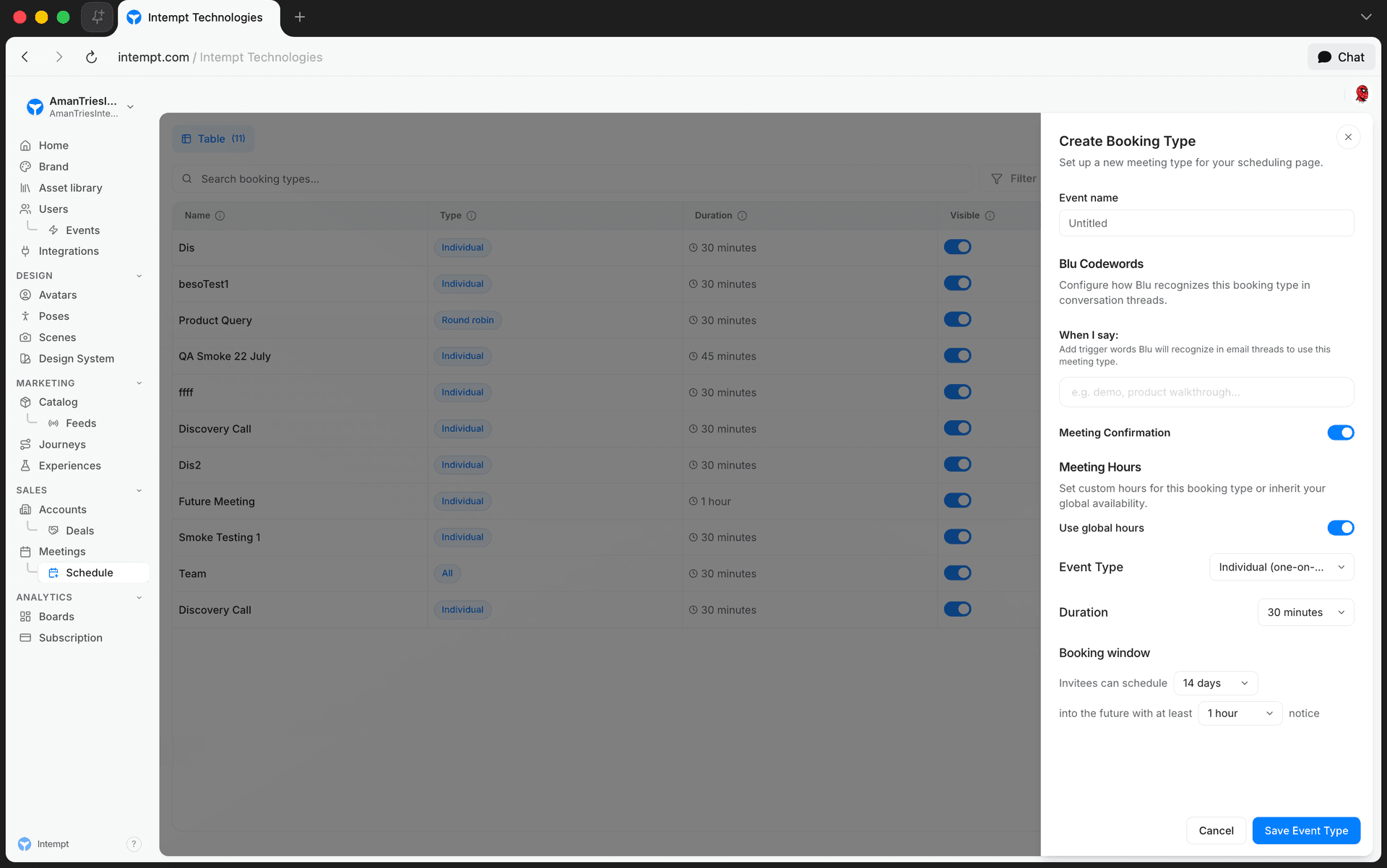
- Event name. A required title, for example "Demo Call." The heading preview above the field updates as you type.
- Blu Codewords. Trigger words, under "When I say," that Blu recognizes in email threads to use this meeting type when coordinating a booking on your behalf.
- Meeting Confirmation. A toggle (on by default) for whether invitees get a confirmation after booking.
- Meeting Hours. A "Use global hours" toggle (on by default) that inherits your account-wide availability for this meeting type instead of setting custom hours here. See Set your booking hours below for the custom-hours editor this reveals.
- Event Type. Choose Individual (one-on-one), Round Robin (rotates across a team), or Collective (every team member joins). Round Robin and Collective show a team picker; Individual doesn't.
- Duration. 15, 30, 45, 60, 90, or 120 minutes.
- Booking window. How far into the future an invitee can book: 7, 14, 30, 60, or 90 days.
- Minimum notice. The shortest advance notice required before a slot becomes bookable: 30 minutes, 1, 2, 4, 8, 24, or 48 hours.
Select Save Event Type. The sidebar closes and your new meeting type appears in the list with its event-type badge and duration chip.
📘 Good to know
An event name is required. Leaving it blank blocks saving until you fill it in, on both create and edit.
Set your booking hours (optional)
By default, a meeting type inherits your global weekly availability. To give one meeting type its own hours, turn off Use global hours in the Meeting Hours card, either while creating it or later while editing it. This reveals a Sunday-Saturday editor.
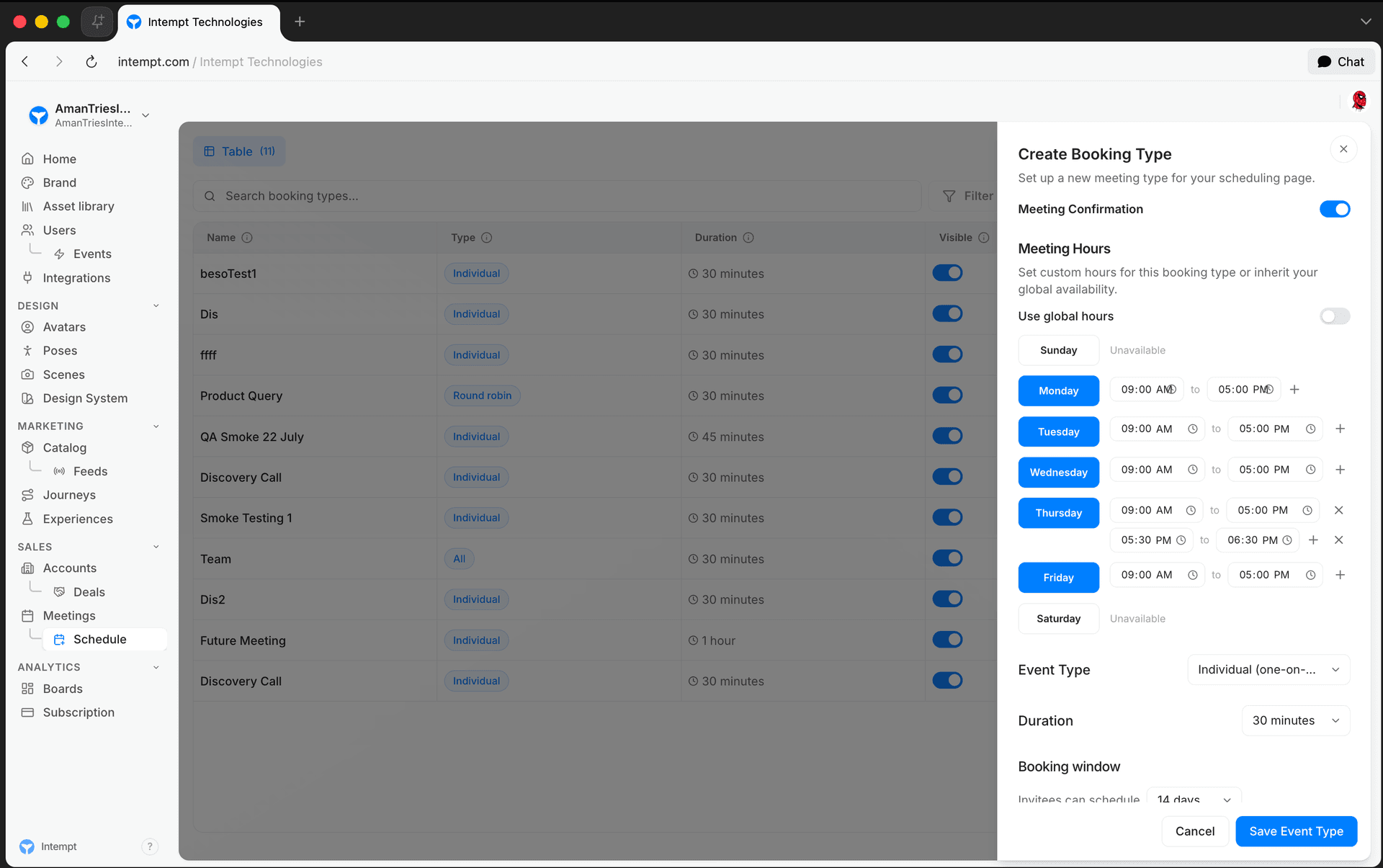
- Each day supports up to 3 time ranges, and overlapping ranges aren't allowed.
- Copy to all applies one day's ranges to every other day.
- Turning Use global hours back on discards the override and reverts to your account-wide schedule.
Customize how your booking page looks
Go to Settings → Project → Meetings → Appearance to control the public page's look and your embed defaults.
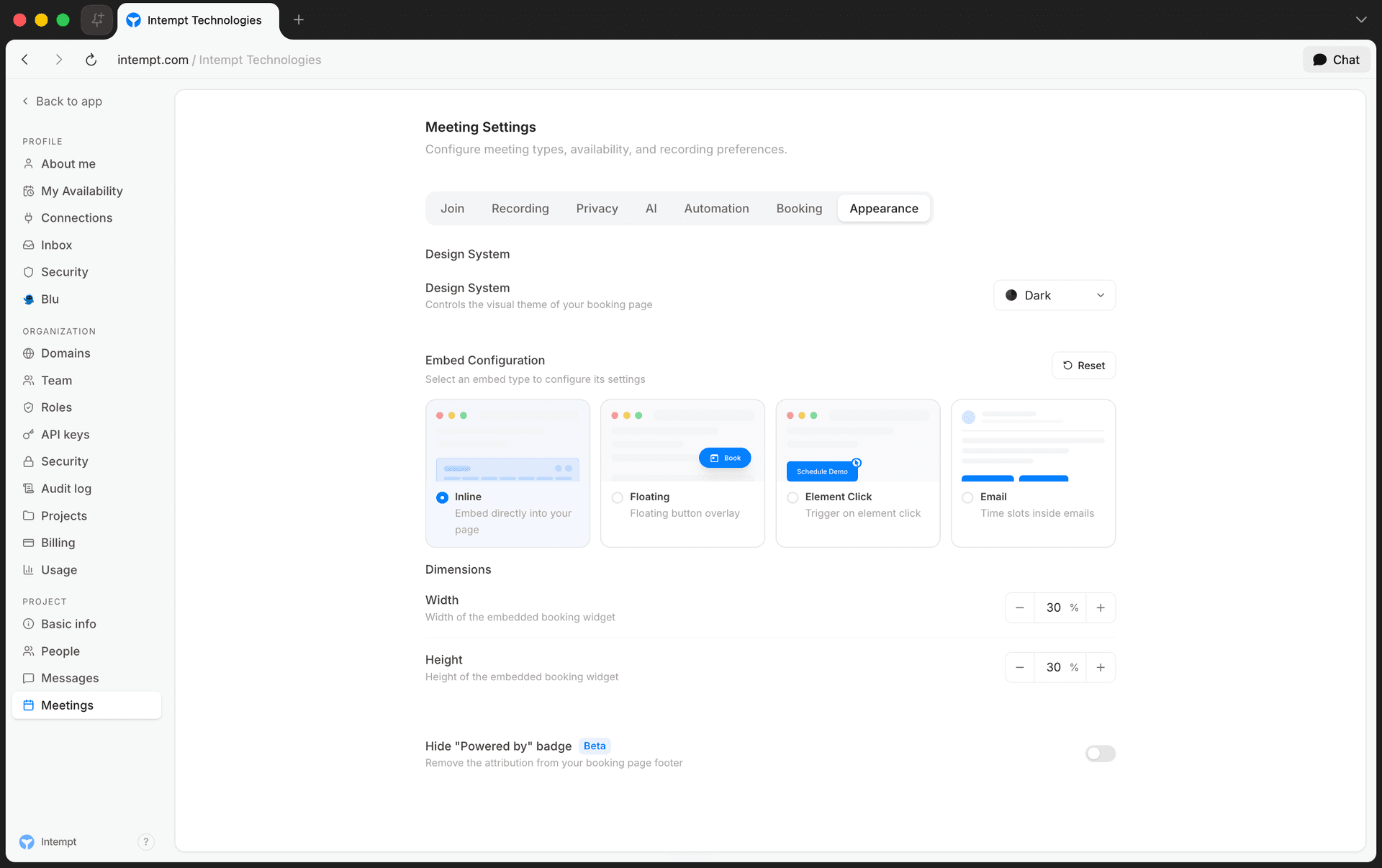
- Design System. Choose Auto, Light, or Dark for the public page's color scheme.
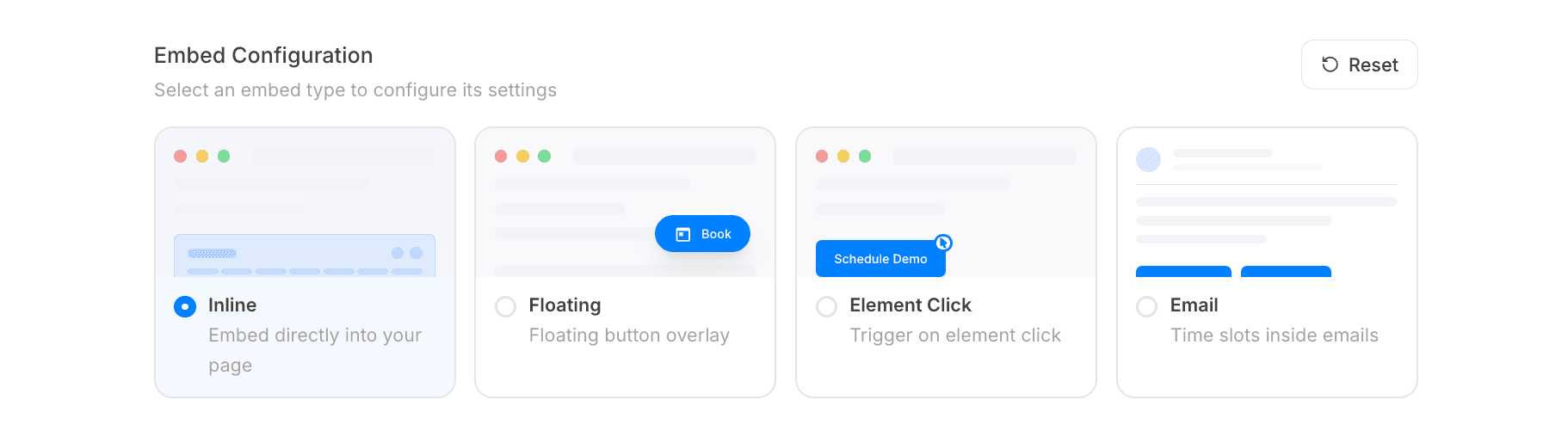
- Embed Configuration. Set defaults per embed type: dimensions for Inline; button text for Floating and Element Click, plus a position selector for Floating only; and the number of time slots shown for Email. Select Reset to restore all of these to their defaults.
- Hide "Powered by" badge (Beta). Removes the Intempt attribution from your public booking page.
Share your booking page
From the meeting type's row, open the ⋯ menu:
- Copy link puts the public booking link on your clipboard, ready to paste into an email or message.
- Embed opens a variant picker: Inline, Floating, Element Click, or Email. Inline and Floating each generate an HTML and a React snippet; Element Click gives you 3 code options (a built-in button, a custom CSS-selector trigger, or a headless open/close API); Email generates an HTML-only snippet with one button per selected time slot.
Toggle a meeting type's Visible switch to control whether its booking link is live at all, independent of whether you've shared it yet.
Where to go next
See Custom Domains to serve your booking page under your own domain instead of a shared Intempt URL.
Scheduling
Scheduling is Intempt's booking-link system: create a meeting type on the Schedule page and Intempt turns it into a public booking page and embeddable widgets prospects use to book time with you.
Calendar Integration (Google & Outlook)
Connect Google Calendar to Scheduling so your booking links check real availability and new bookings sync automatically.