
Scheduling
Scheduling is Intempt's booking-link system: create a meeting type on the Schedule page and Intempt turns it into a public booking page and embeddable widgets prospects use to book time with you.
Overview
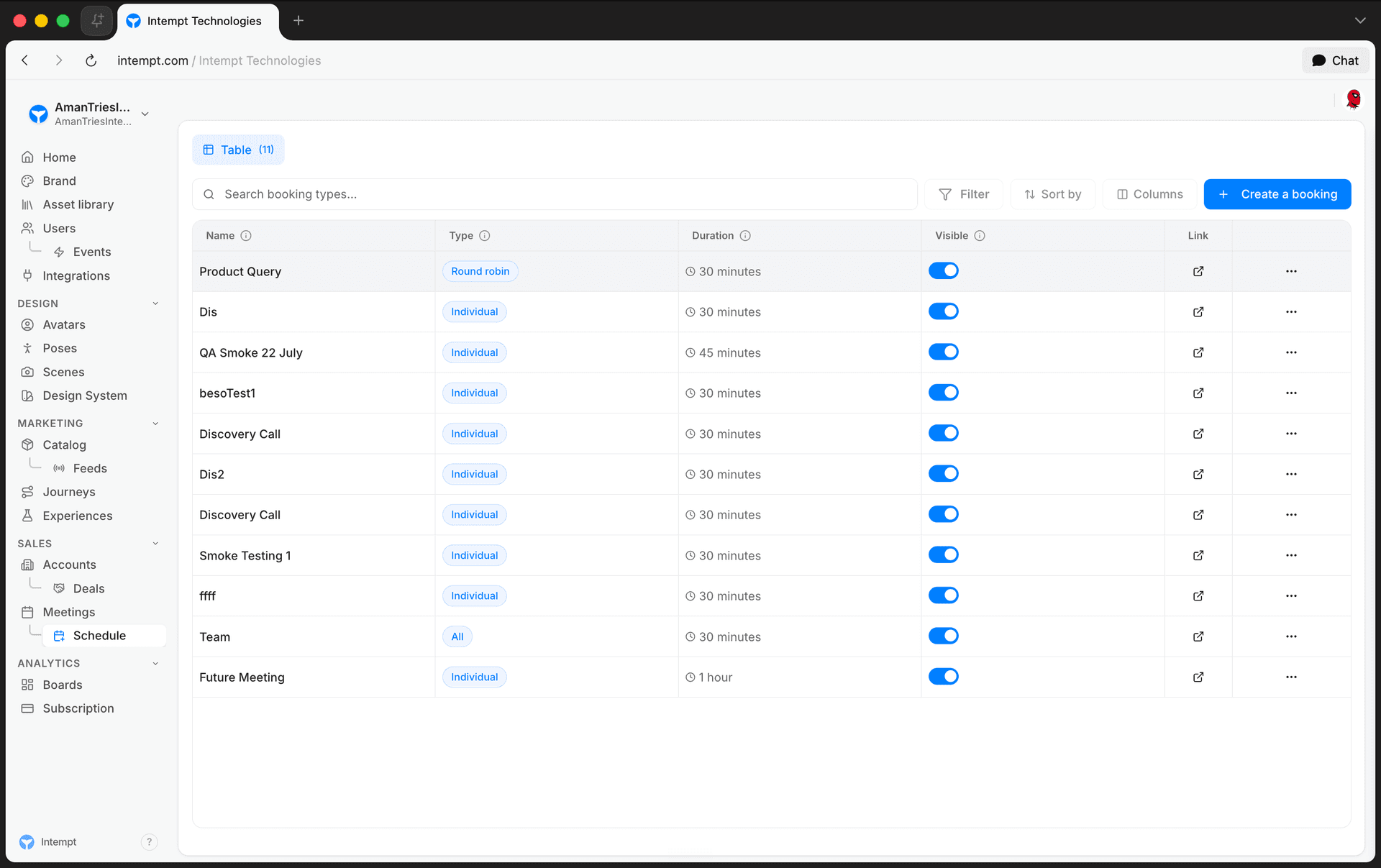
Scheduling is Intempt's booking-link system, at Meetings → Schedule. You create a reusable meeting type, and Intempt turns it into a public booking page (plus embeddable widgets) that prospects and customers use to pick a time, book, cancel, or reschedule a real meeting, without anyone touching a calendar back and forth. Meeting-type creation, availability configuration, and the entire public booking flow are UI-driven end to end, so Scheduling works without connecting Blu.
How it works
Meeting types
A meeting type is the reusable template a booking page is built from: a title, a duration, an availability window, and a routing rule. Routing sends every booking to one person (Individual), rotates bookings across a team (Round Robin), or requires an entire team to attend (Collective). Round Robin and Collective both need a team selected; Individual doesn't.
Each meeting type produces a public booking link and four embeddable widget variants (Inline, Floating Button, Element Click, Email), so the same meeting type can be shared as a URL or dropped into an external page, popup, or email.
Two connected surfaces
Scheduling configuration lives in two places that share the same underlying data:
- Meetings → Schedule is where you create, edit, and manage individual meeting types, and connect the Google Calendar your bookings check against.
- Settings → Project → Meetings has a Booking tab (weekly availability hours, date overrides, holidays, minimum notice, buffer time, and booking-frequency limits) and an Appearance tab (the public page's design system and per-embed-type defaults) that apply project-wide, across every meeting type.
A meeting type inherits these project-wide hours by default, and can override them with its own weekly schedule instead.
The public booking app
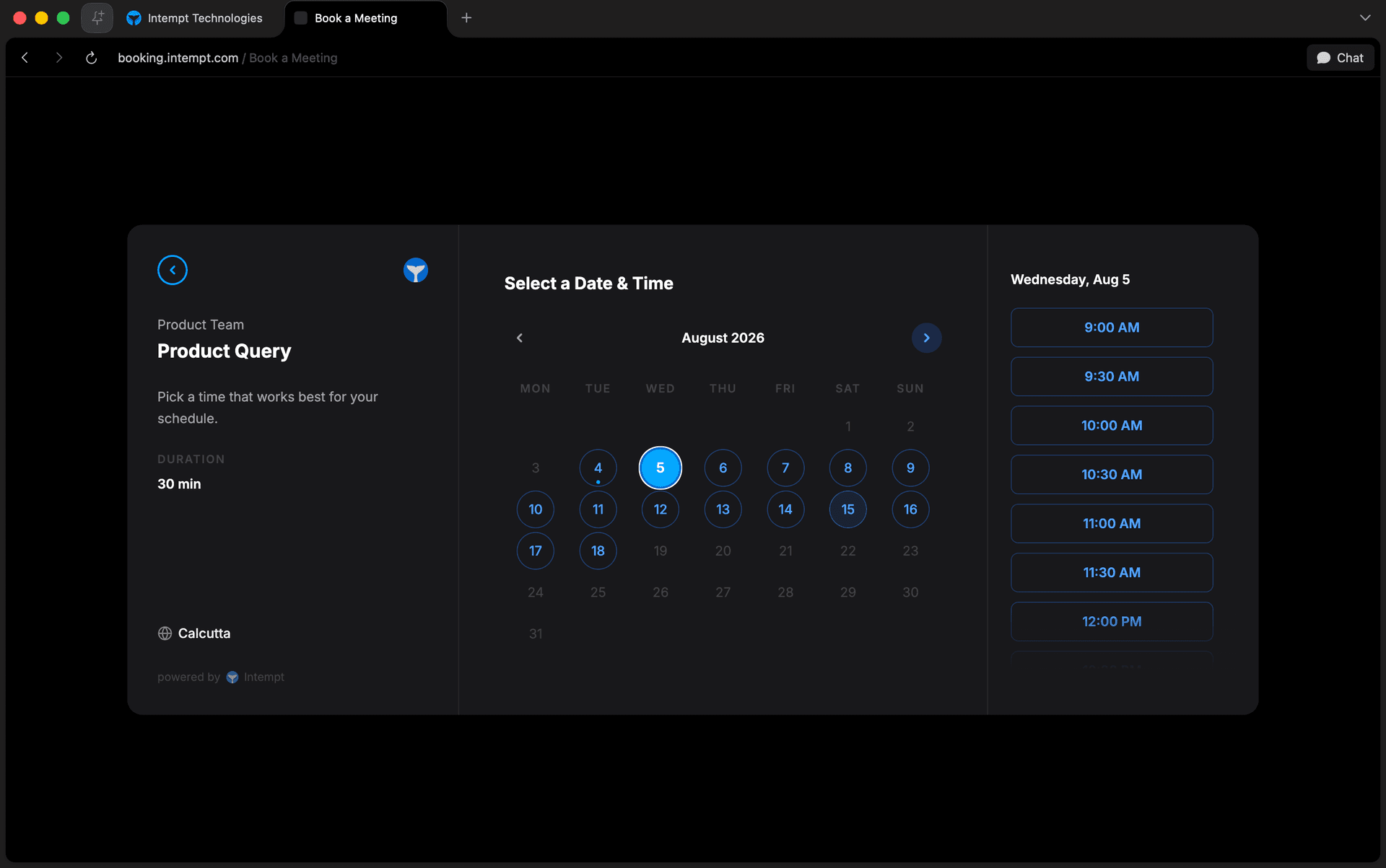
Invitees book against a separate, unauthenticated public page, not the console. It shows a month-grid calendar and a time-slot list for the meeting type being booked; selecting a slot needs a second tap to confirm. The booking form collects the invitee's email, up to 5 optional guests, and an optional description. After booking, invitees can return to the same link to cancel or reschedule, and the page automatically resolves to a canceled or rescheduled state without any extra login step.
Blu touchpoints
Blu adds one optional capability on top of the UI-driven flow above: per-meeting-type Blu Codewords, trigger words that let Blu recognize which meeting type someone means from natural-language conversation in an email thread. It isn't required to create or use a meeting type.
Use cases
-
Letting prospects self-book a demo. Share a meeting type's public link in an email or LinkedIn message so a prospect picks a slot directly, without a back-and-forth to find a time.
-
Routing inbound requests across a team. Set a meeting type to Round Robin so bookings rotate across your SDR team instead of piling up on one rep's calendar.
-
Requiring a full deal team on a call. Use a Collective meeting type when every stakeholder (AE, SE, manager) needs to join the same booking.
-
Embedding a calendar in your own site. Use the Inline embed variant to render a meeting type's booking calendar directly inside a landing page instead of linking out.
-
Adding a booking button to an email. Use the Email embed variant to generate an HTML snippet with a button per available time slot, so recipients book straight from their inbox.
-
Giving one meeting type different hours than the rest. Override a single meeting type's weekly hours instead of changing your project-wide availability.
-
Keeping a public page on brand. Set the design system and embed defaults once in Settings → Project → Meetings → Appearance instead of configuring each meeting type separately.
-
Letting Blu catch scheduling requests in a thread. Configure Blu Codewords on a meeting type so Blu can recognize and act on a scheduling request mentioned in conversation.
Where to go next
-
Setting Up Your Booking Page to walk through connecting a calendar, creating a meeting type, and sharing the resulting booking page step by step.
-
Meetings for what happens once a booked meeting starts: recording, transcription, and AI summaries.
-
Custom Domains to serve your booking page under your own domain instead of a shared Intempt URL.
CRM Integration
Connect HubSpot to sync contacts, companies, and deals into Intempt, map fields in both directions, and keep your Sales pipeline current automatically.
Setting Up Your Booking Page
Create a meeting type, connect your calendar, and share a public booking page prospects can use to schedule time with you.