
Email Deliverability Guide
How to read and act on the Deliverability check in Email Preflight, the score that predicts your inbox placement odds before you send an HTML email.
Overview
Deliverability is one of the checks inside Email Preflight, the pre-send review panel in Studio's email editor. It analyzes your email's content and predicts your placement odds before you send: whether the email is likely to land in the inbox, in Promotions, or somewhere worse.
Deliverability runs alongside six other Preflight checks (Inbox preview, Device previews, CSS Compatibility, Link validator, Grammar & content, and Visual design). Each check is its own tab in the Preflight panel, and together they drive the panel's overall Ship, Hold, or Reject gate badge.
How it works
Preflight, including the Deliverability check, runs automatically:
- Whenever you open a previously saved HTML email in the editor.
- Whenever you save an HTML email (create or update).
You don't have to trigger it by hand. By the time you open the Preflight panel, a result is usually already there. Use the refresh icon in the panel header to re-run every check, including Deliverability, against your latest edits without saving first.
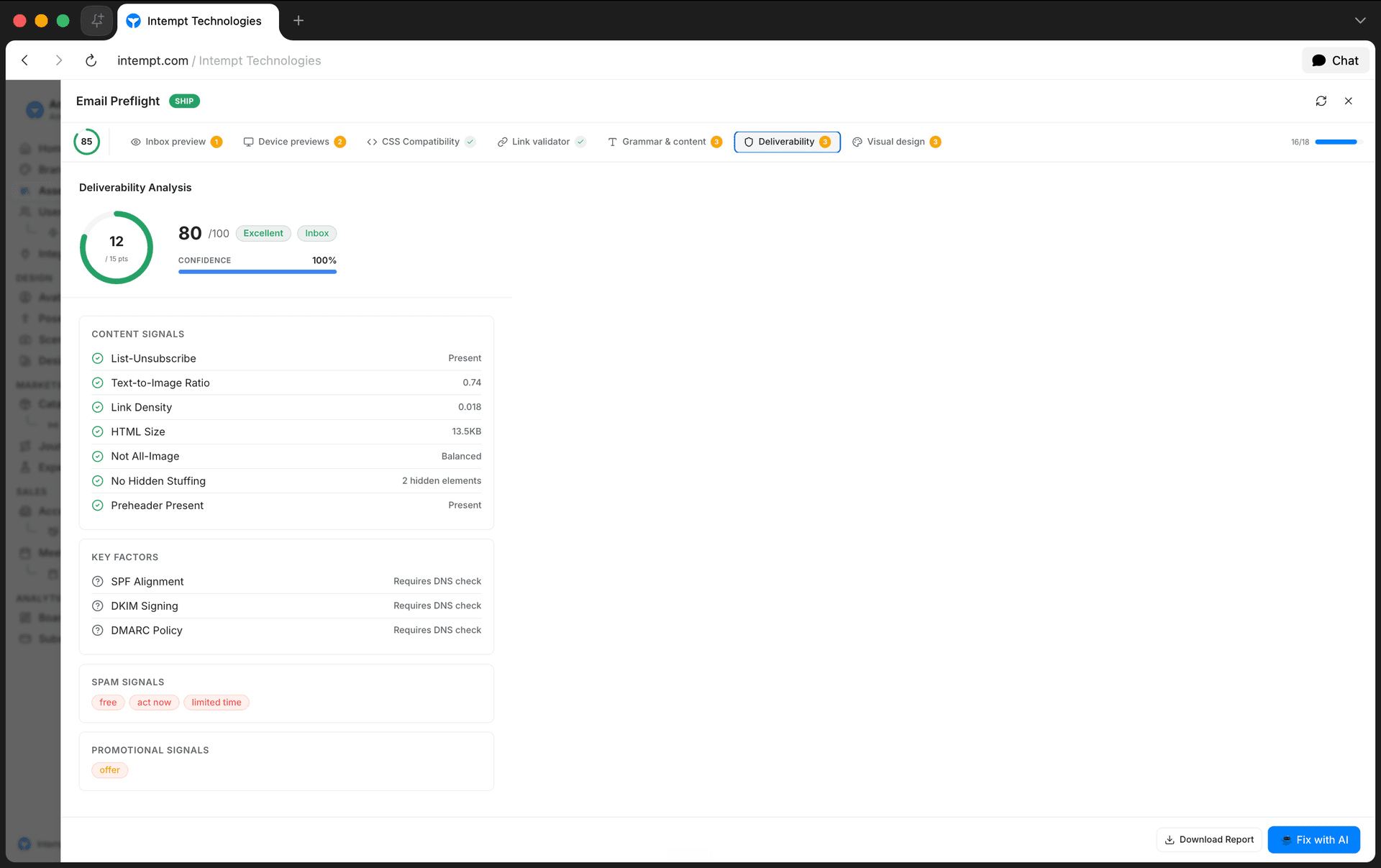
The Deliverability tab shows:
- A score, out of a maximum point value (15 by default), shown as a donut and rolled into the panel's overall score.
- A raw score out of 100, next to a verdict badge: Excellent, Good, or Fair, colored green, blue, or amber. Any other verdict is shown in red.
- A placement prediction: Inbox (green) or Promotions (amber). Any other predicted outcome is shown in red.
- A confidence percentage, shown as a progress bar.
- Content Signals, a checklist of deliverability checks, each marked pass, warning, fail, or unknown.
- Key Factors, a second checklist of what's driving the score.
- Spam Signals, specific words or phrases from your email flagged as spam triggers, shown as red tags.
- Promotional Signals, words or phrases that read as promotional, shown as amber tags.
If none of these are flagged, the tab shows "No deliverability issues detected" instead.
📘 Good to know
Deliverability only runs on the HTML Email content type. The Plain Email type in Studio's content picker is labeled "max deliverability" in its own description, but Preflight itself doesn't run against it, since Preflight only appears for HTML Email.
Getting started
- In Studio, open an HTML email in the editor.
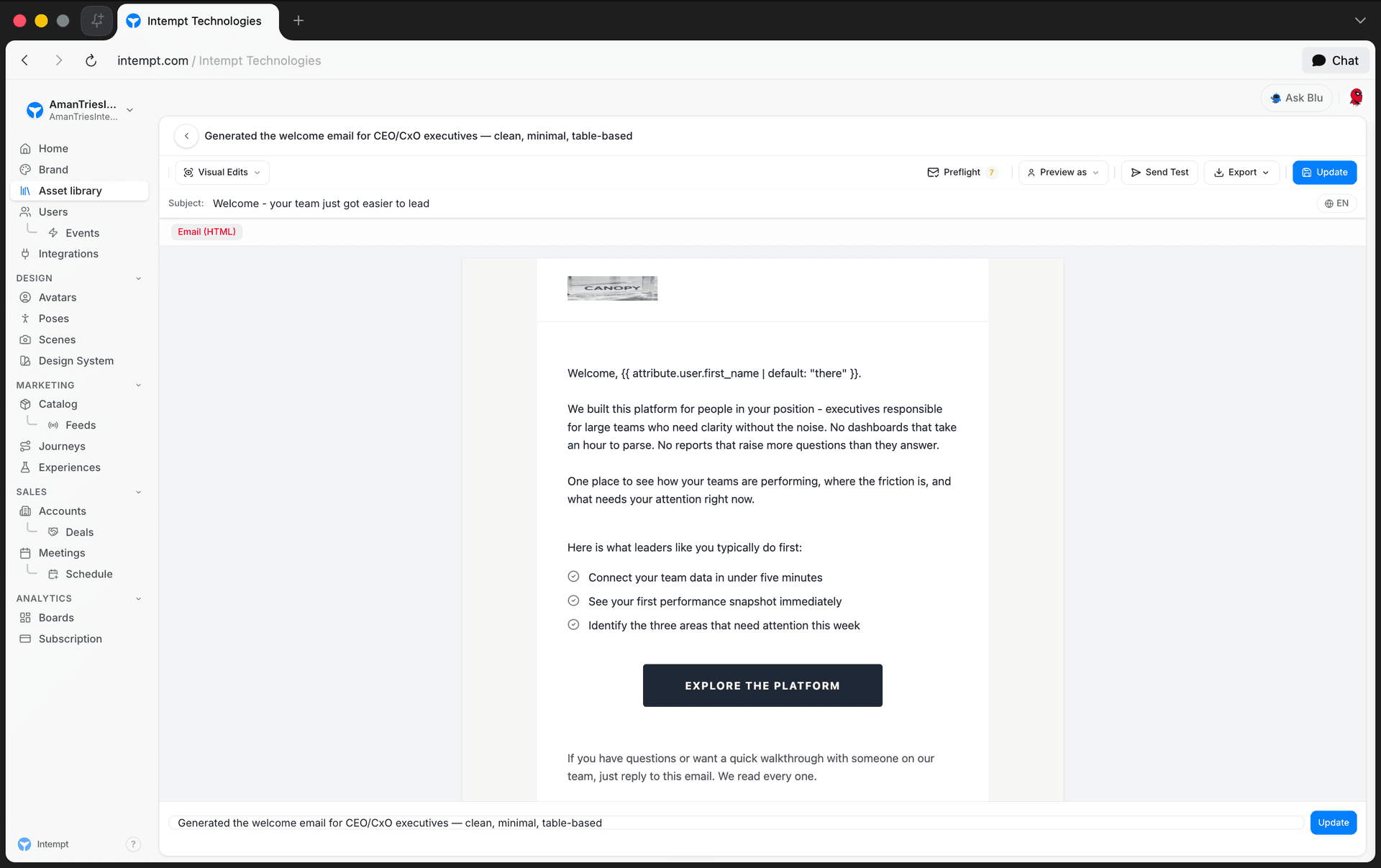
- In the toolbar, click Preflight. The button shows an amber badge with the total issue count across every check, or a green checkmark once every check is clear.
- In the Email Preflight panel, click the Deliverability tab.
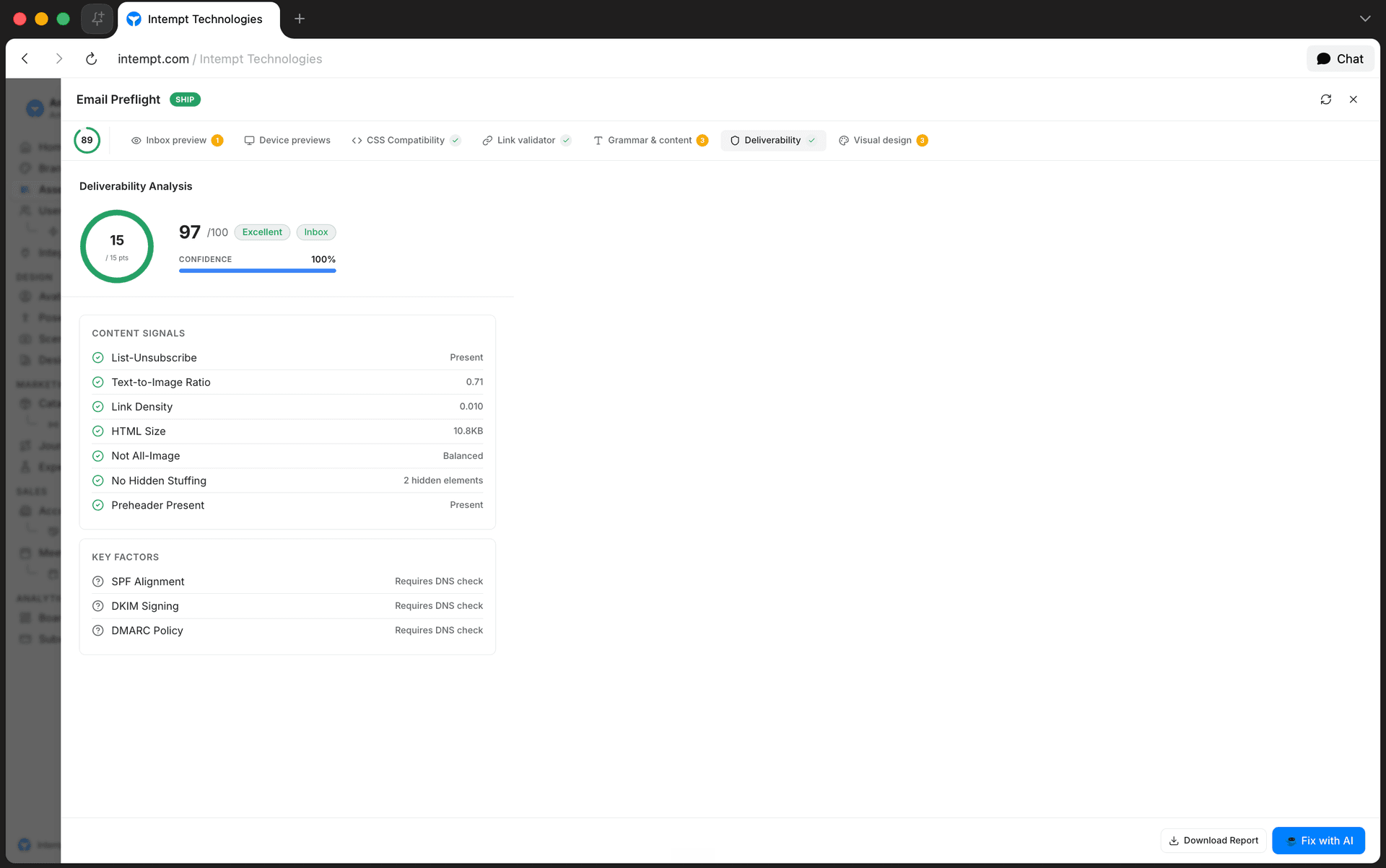
- Review the score, verdict, placement prediction, and any flagged content, spam, or promotional signals.
Acting on a low score
Click Fix with AI in the panel footer to open Blu with a fix prompt already built from the current report, including anything flagged under Deliverability. See Using AI Assist in Studio for the full Fix with AI flow.
Once you've made changes, click the refresh icon to re-run Preflight and confirm the Deliverability score actually improved, instead of assuming it did.
Use cases
- Catching spam trigger words before a promotional send. Check the Spam Signals list before sending a discount campaign.
- Checking inbox-versus-Promotions odds for a re-engagement email. Review the placement prediction before scheduling a win-back journey.
- Verifying deliverability before a journey's "Send email" step goes live. Open Preflight on the message itself, not just the journey.
- Rewriting flagged copy without leaving the editor. Use Fix with AI to address spam or promotional signals directly from the Deliverability tab.
- Confirming a fix actually worked. Refresh checks after editing, rather than trusting that a rewrite raised the score.
- Deciding between HTML and plain-text for a deliverability-sensitive send. Weigh Studio's "max deliverability" framing for Plain Email against the richer, but Preflight-checked, HTML Email type.
Where to go next
- Studio Overview – where the email editor and Preflight live inside Studio.
- Using AI Assist in Studio – the full Fix with AI flow for a flagged email.
- Creating emails with the email editor – build the email that Deliverability analyzes.
- Custom Domains – authenticate your sending domain, a separate factor in deliverability from email content.
- Deliverability – configure journey-level sending limits and timing, a different, complementary setting from the content-based check described here.
Scheduling Rules & Availability
Set your weekly availability hours, block off specific dates and holidays, and cap how often people can book you, all from Settings → Project → Meetings.
Landing Page Builder Tutorial
Build a landing page in Studio: launch the Page content type, generate a first draft with Blu, fine-tune it visually or in code, then save and export the HTML.