
AI Call Summaries & Key Moments
Switch between Intempt's 9 AI summary templates, edit and expand summary bullets, and tag key moments in a call's transcript for later follow-up.
Overview
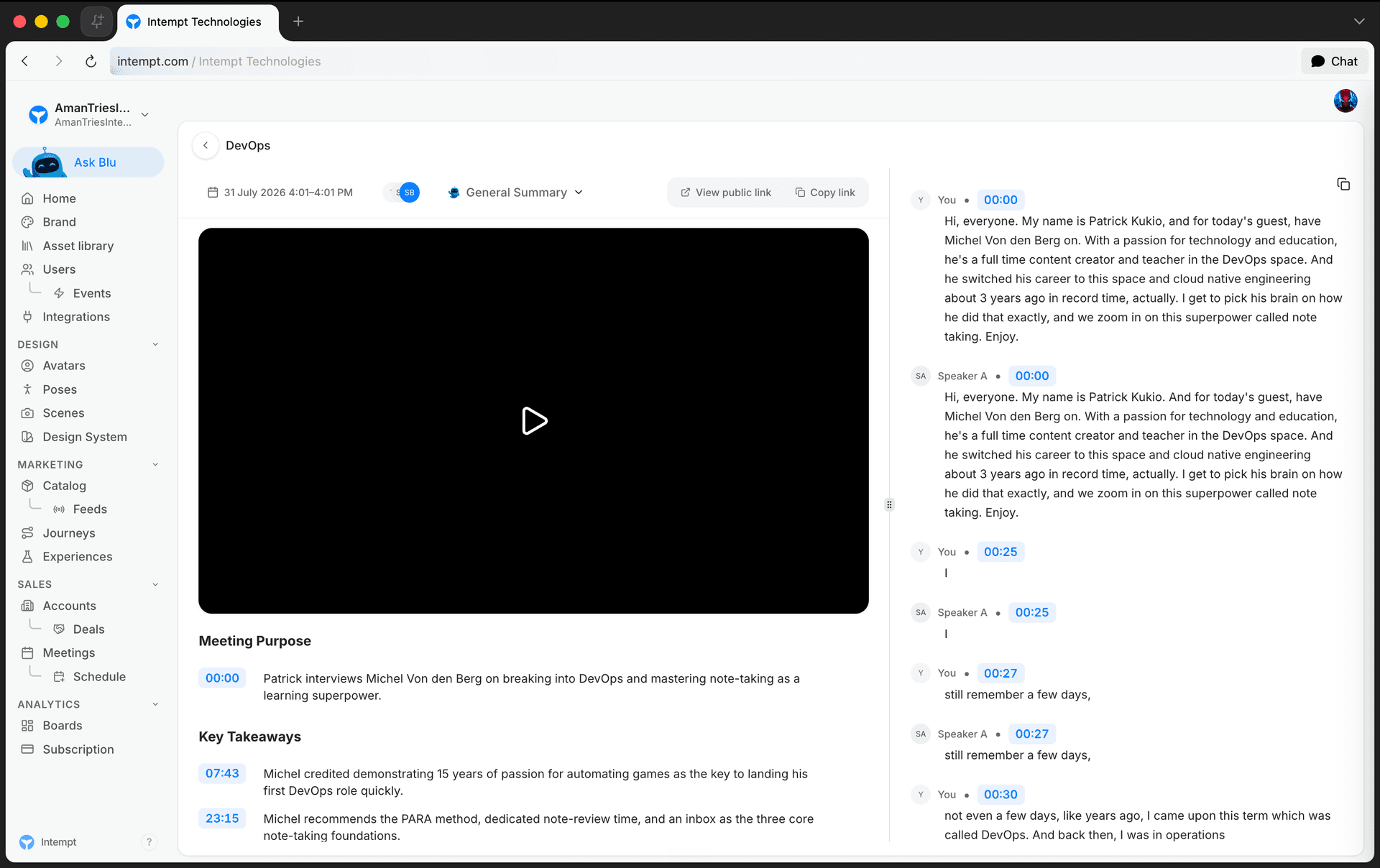
Every meeting Intempt records gets an AI-generated summary: a set of titled sections, each with bullets you can click to jump straight to that moment in the recording. You can switch between 9 summary templates depending on what you need from the call, edit a bullet, or ask the AI to expand it using the full transcript. On the transcript itself, you can tag individual rows as key moments with a star, a thumbs up or down, or a note, so you can find them again without re-listening to the whole call.
How it works
A summary generates the first time you open its template. General is the default, so it's usually the one already generated by the time you open a meeting's Details page. Selecting any of the other 8 templates for the first time shows a loading skeleton while that template's summary generates; selecting a template you've already generated during the session displays it instantly, with no new request. Reloading the page always resets the selector back to General, regardless of which template you were last viewing.
Getting started
Choose a summary template
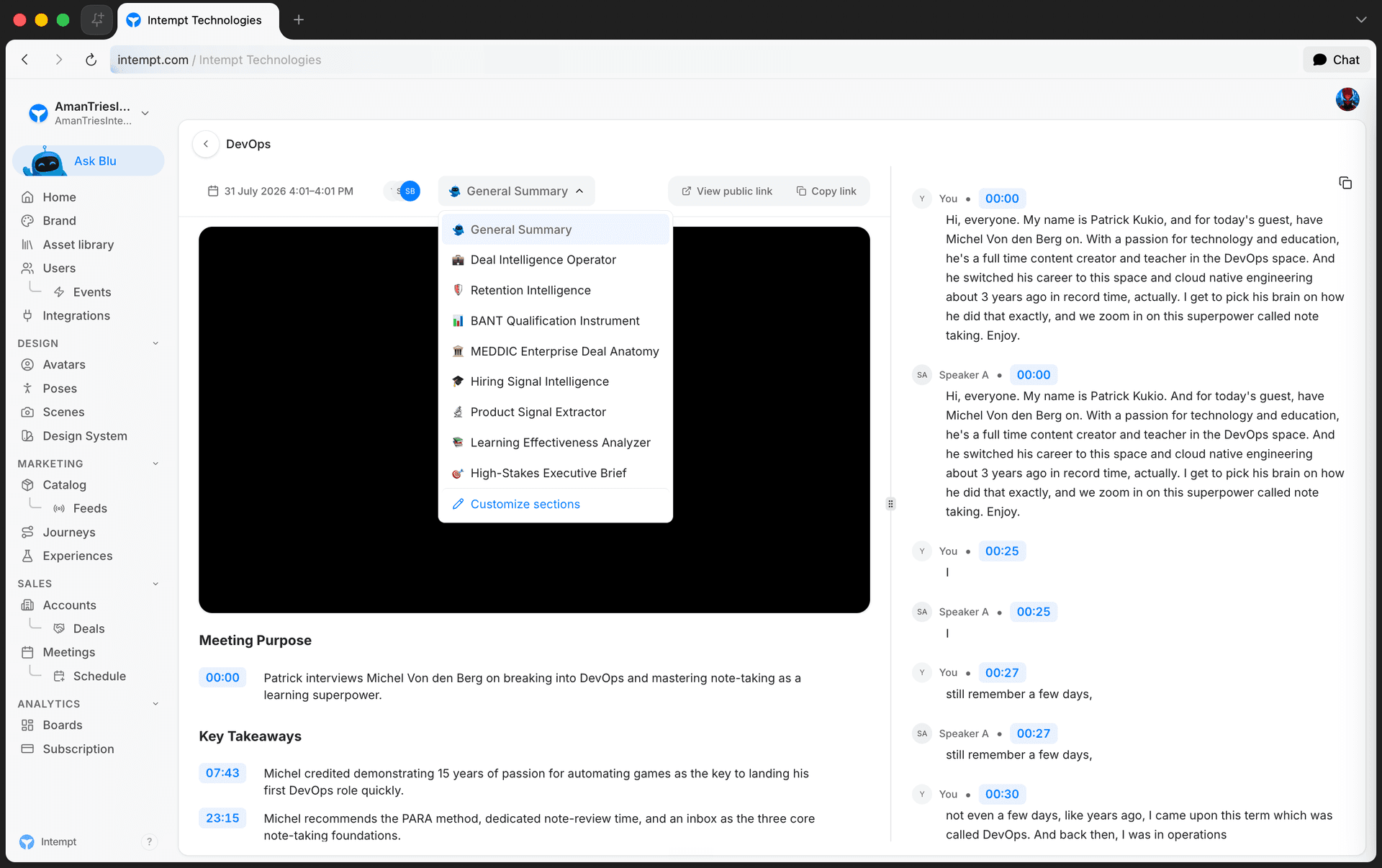
Open a meeting's Details page and use the summary-type dropdown above the summary panel. It lists all 9 templates:
| Template | Best for |
|---|---|
| General Summary | A default, general-purpose recap of the call |
| High-Stakes Executive Brief | Summarizing for executive stakeholders |
| Deal Intelligence Operator | Deal-focused analysis for sales follow-up |
| Retention Intelligence | Customer success and renewal signals |
| BANT Qualification Instrument | Budget, Authority, Need, Timeline qualification |
| MEDDIC Enterprise Deal Anatomy | Structured enterprise deal qualification |
| Hiring Signal Intelligence | Recruiting and hiring-related calls |
| Product Signal Extractor | Product feedback and feature requests |
| Learning Effectiveness Analyzer | Training and educational sessions |
Read and navigate a summary
Each summary section contains a bulleted list. Click a bullet's timestamp to seek the video player to that exact point in the recording. Some top-level bullets have nested sub-bullets, indented under a chevron toggle you can collapse or expand. A top-level bullet with no sub-bullets shows an Expand by AI button instead: click it to have the AI elaborate that specific bullet using the transcript. You can expand more than one bullet at a time; each shows its own loading indicator independently while its request is in flight.
To correct a bullet, hover it and click the pencil icon that appears. The bullet becomes an editable text field, cursor at the end of the existing text. Click elsewhere to save, or press Escape to revert to what the bullet said before you started editing.
Customize which sections a summary includes
Open the summary-type dropdown and choose Customize sections at the bottom. A sidebar lists every available section for the active template as a selectable card. Use Select all to include everything, or deselect the sections you don't need. Click Save to regenerate the summary with only the sections you selected, or Cancel to discard your changes and keep the summary as it was.
Copy a summary
Hover a section header to reveal a copy control. Choose to copy that one section, or copy the entire summary at once. Both copy the text to your clipboard.
Tag key moments in the transcript
Hover any row in the transcript panel to reveal five icons: star, sticky note, thumbs up, and thumbs down, plus a link icon. Star or thumbs-up/down a row to mark it as a key moment for later; thumbs up and thumbs down are mutually exclusive, so selecting one clears the other. Click the sticky-note icon to open a note editor and attach a written note to that row. Click the link icon to copy a deep link straight to that row's timestamp, so anyone who opens it lands on the Details page with the video already seeked to that moment. All of these tags persist the next time you or anyone else on the project opens the meeting.

📘 Good to know
On a meeting's public share link, the transcript's copy-timestamp-link action isn't available, since that view is read-only. Star, thumbs, and note tags you added before sharing still show.
Use cases
-
Qualifying a deal without re-listening to the call. Switch the summary to the BANT or MEDDIC template to get a structured read on budget, authority, need, and timeline straight from the transcript.
-
Prepping for an executive update. Switch to the High-Stakes Executive Brief template to get a summary shaped for a leadership audience instead of a full call recap.
-
Flagging a key moment for later. Star or thumbs-up a transcript row during playback so you can find it again without scrubbing through the whole recording.
-
Building a follow-up automation. Tag rows as key moments during the call so they're easy to reference when setting up CRM or task follow-ups afterward.
-
Correcting an inaccurate summary bullet. Edit a bullet inline before it gets referenced in a deal review or shared with a teammate.
-
Getting more detail on one point. Use Expand by AI on a bullet that's too brief, instead of regenerating the whole summary.
-
Trimming a summary to what matters. Use Customize sections to drop sections you don't need before sharing a summary with someone else.
-
Leaving context for a teammate. Add a note to a specific transcript row so the next person to open the meeting sees your context right where it applies.
Where to go next
-
Meetings for how to capture, browse, and share a call.
-
Setting Up Call Recording to configure what gets recorded before summaries and transcripts can be generated.
Setting Up Call Recording
Choose what Intempt's meeting bot records, how long recordings are kept, and which calls it joins automatically or on demand.
Sharing Calls & Coaching Teammates
Generate a public share link for a call, control who can see recaps inside the project, and point a teammate at the exact moment worth coaching.