
Meeting Notifications
Turn on email confirmations for bookings, reschedules, and cancellations, and set a custom-lead-time reminder before each meeting.
Overview
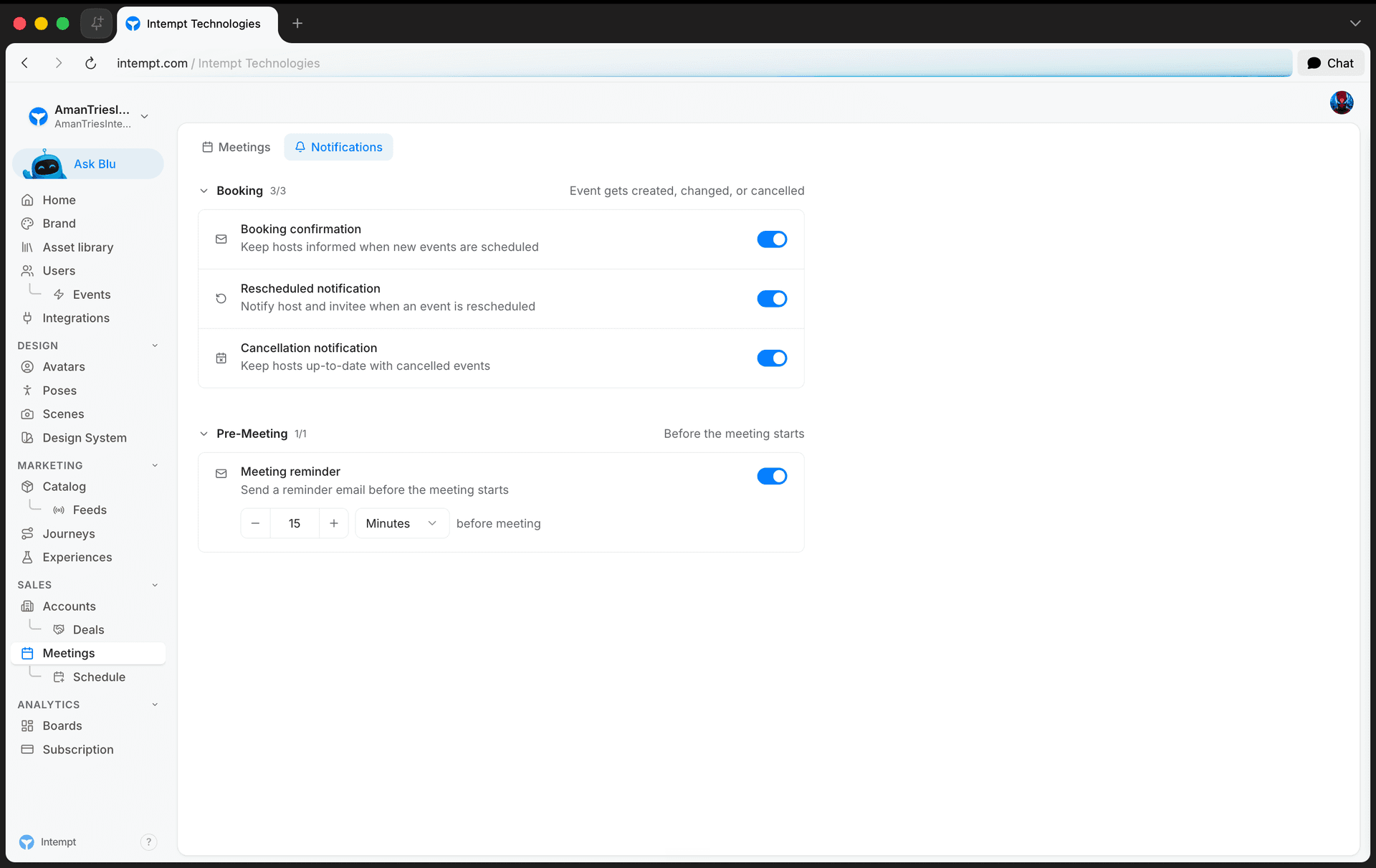
The Notifications tab on the Meetings page controls the emails you get at every stage of a meeting's lifecycle: when one is booked, rescheduled, or canceled, and a reminder before it starts. Each notification has its own on/off toggle, and the pre-meeting reminder has a configurable lead time, so you decide exactly what lands in your inbox and when.
How it works
The page is titled Meeting & Booking Notifications and splits into two sections.
Booking covers events that change a meeting's schedule:
- Booking confirmation. Keeps hosts informed when new events are scheduled.
- Rescheduled notification. Notifies host and invitee when an event is rescheduled.
- Cancellation notification. Keeps hosts up to date with canceled events.
All three are on by default.
Pre-Meeting has one control, Meeting reminder, which sends a reminder email before the meeting starts. It's off by default. Turning it on reveals a lead-time input: a number plus a unit (Minutes or Hours), defaulting to 30 minutes.
📘 Good to know
Booking confirmation, rescheduled notification, and cancellation notification ship enabled. The pre-meeting reminder ships disabled until you turn it on.
Each toggle saves on its own. While a save is in flight, only that row's toggle is disabled, so you can still change the others. If a save fails, the toggle reverts to its previous state and an error toast appears telling you to try again. Editing the lead-time number debounces rapid clicks or keystrokes into a single save; changing the unit (Minutes/Hours) saves immediately.
Getting started
Open the Notifications tab
Go to Meetings, then hover the Meetings item in the sidebar and select Notifications from the submenu. This opens the Meetings page with the Notifications tab active.
Turn booking notifications on or off
Under Booking, use the switch on each row to enable or disable Booking confirmation, Rescheduled notification, and Cancellation notification independently.
Set up the pre-meeting reminder
Under Pre-Meeting, turn on Meeting reminder. Two controls appear:
- Lead time. Enter a number, or use the stepper to adjust it.
- Unit. Choose Minutes or Hours.
Turning the reminder on for the first time defaults the lead time to 30 minutes.
Where to go next
-
Meetings for how the notetaker captures, transcribes, and summarizes your calls.
-
Setting Up Your Booking Page for how a meeting type turns into the bookings these notifications track.
Sharing Calls & Coaching Teammates
Generate a public share link for a call, control who can see recaps inside the project, and point a teammate at the exact moment worth coaching.
Experience types
Four types, two stored fields. What each one is, which SDKs can serve it today, and what its numbers let you conclude.