
Sharing Calls & Coaching Teammates
Generate a public share link for a call, control who can see recaps inside the project, and point a teammate at the exact moment worth coaching.
Overview
Every meeting Intempt captures can be shared two ways: as a public link that renders a read-only version of the call for anyone outside the project, or internally, by setting who on the project can already see a recap without a link at all. Use the public link to send a call to someone without console access, and the internal recap-visibility setting to give your team standing access to review and coach on real calls.
How it works
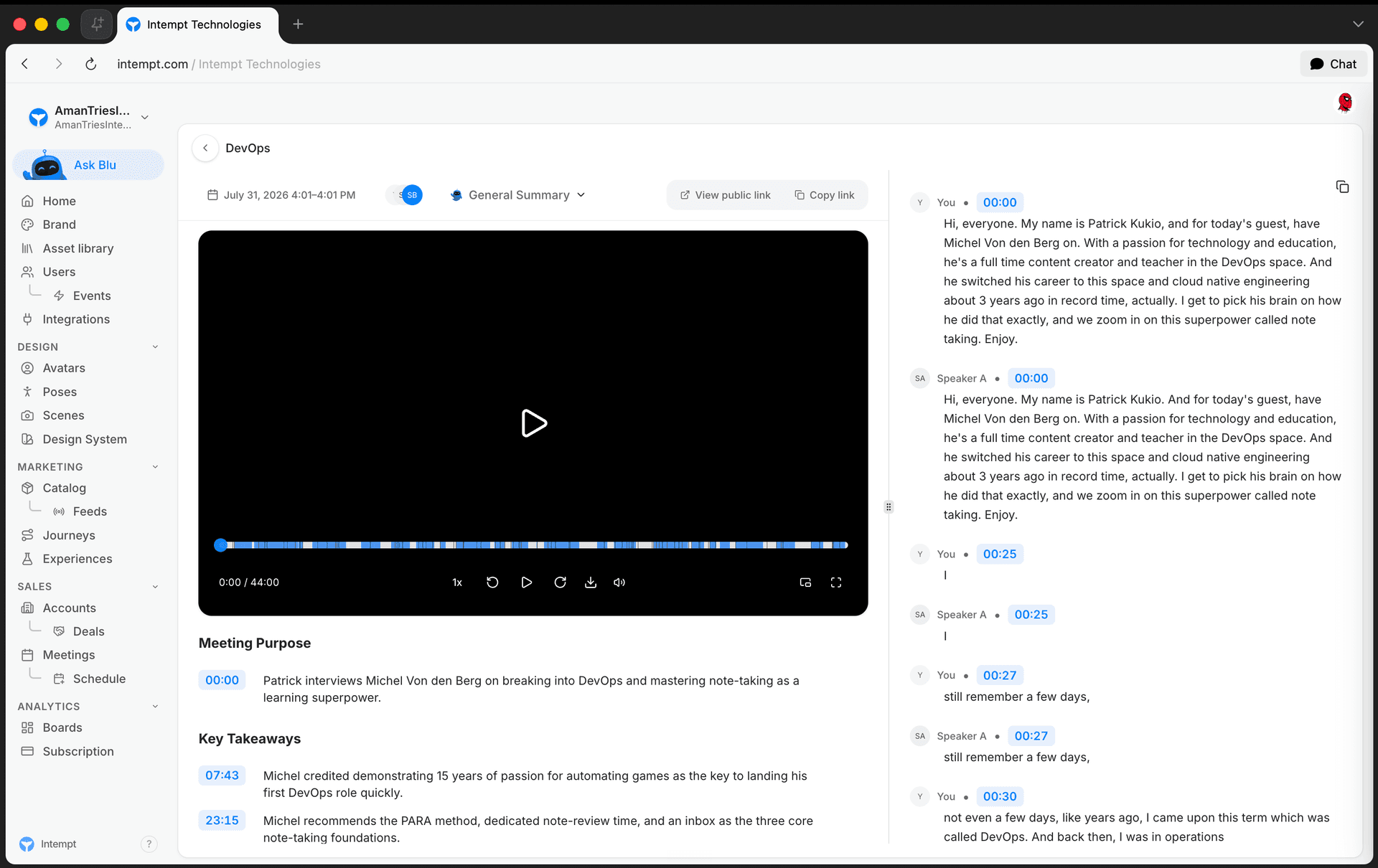
The public share link lives on a meeting's own Details page and only exists once someone generates it. Who can see a recap without that link is a separate, project-wide setting: recap visibility, configured once for every meeting captured in the project rather than per meeting.
Getting started
Generate and copy a public share link
Open a meeting's Details page. In the header, click the icon-only button to generate a public link; it shows a loading state while the link is being created. Once ready, the button becomes a truncated link you can click to open the public page in a new tab, plus a separate copy icon next to it.
📘 Good to know
Copying the link doesn't show a confirmation toast, so check your clipboard rather than waiting for an on-screen message.
What the public view shows
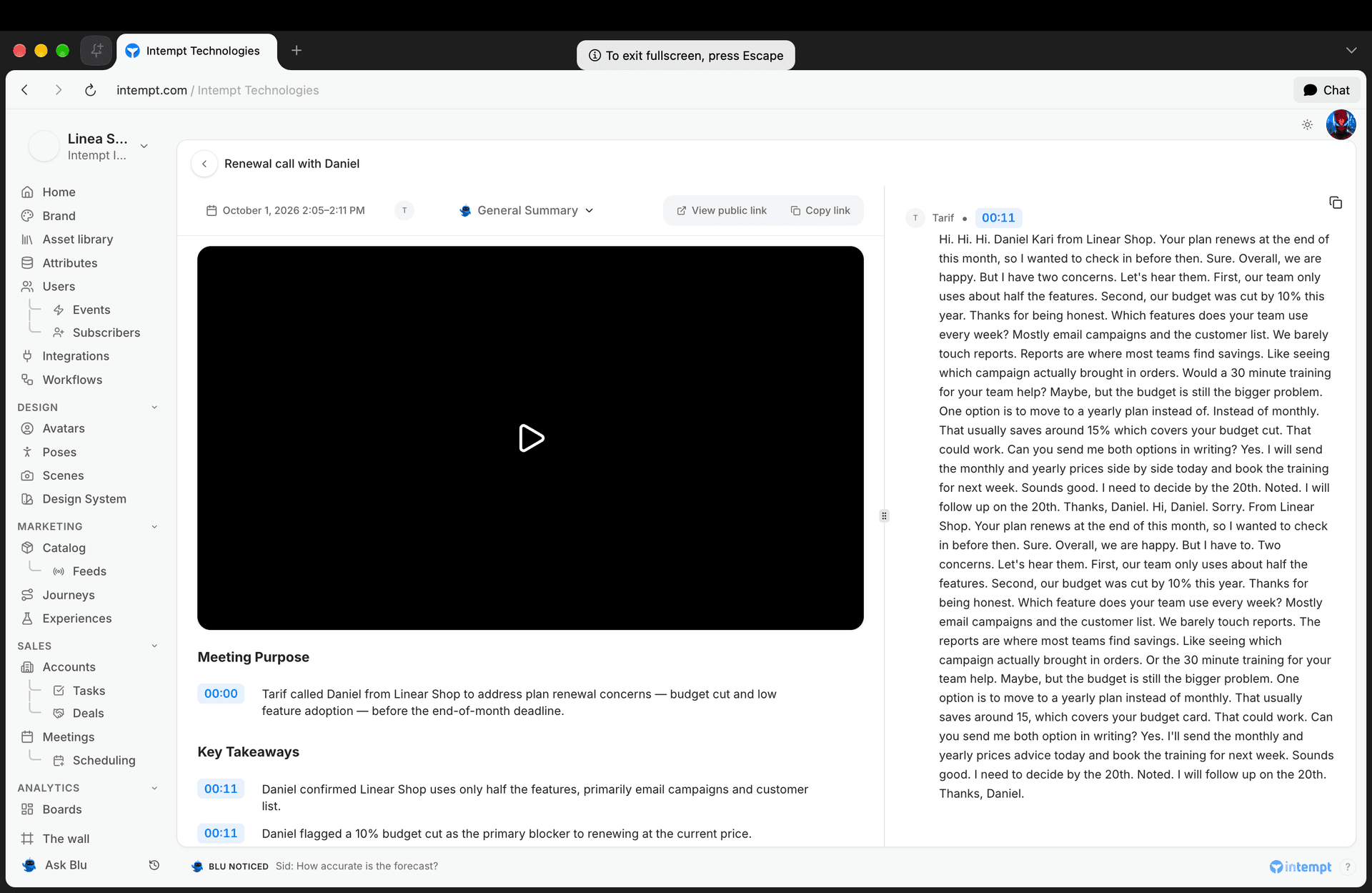
The public page is read-only and unauthenticated: anyone with the link can watch the recording, read the AI summary, and follow the transcript, without signing in. It also includes a per-speaker breakdown of the recording, showing how long each person talked and letting you play just their segments, a view that only exists on the public page, not on the authenticated Details page. A Download button saves the recording, and a Share button copies the public page's own link.
Any star, thumbs-up, thumbs-down, or note tags already on the transcript still show to a public viewer, but they can't add new ones, and the copy-timestamp-link action isn't available in this read-only view. See AI Call Summaries & Key Moments for how those tags work.
Set who can see a meeting recap
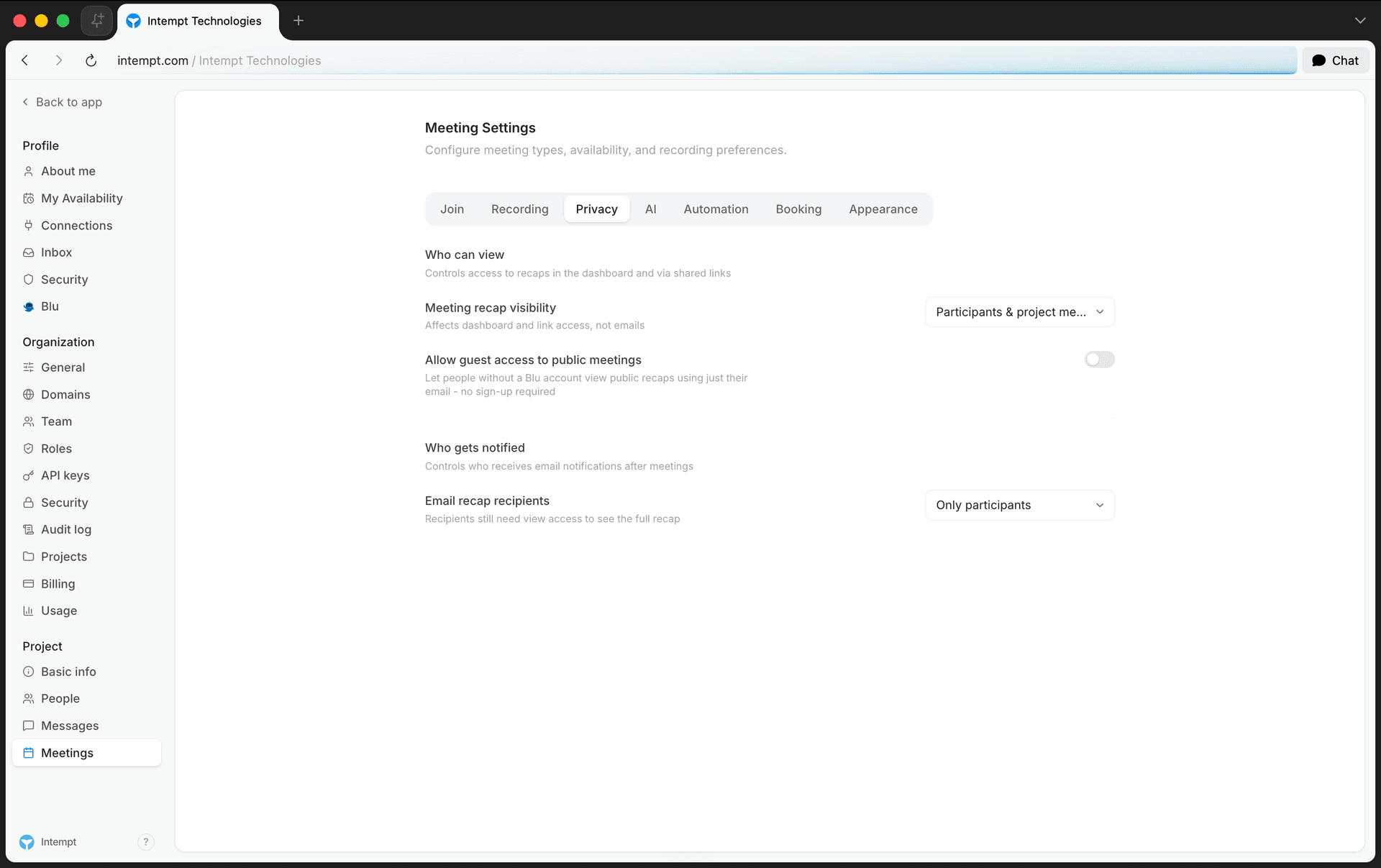
Go to Settings -> Project -> Meetings -> Privacy. Meeting recap visibility controls who can open a recap from the dashboard or a link, without changing anything about email notifications:
- Only me
- Only participants
- Only project members
- Participants & project members
- Project members & anyone with link
- Anyone with link (public)
Turn on Allow guest access to public meetings to let people without a Blu account view a public recap using just their email, no sign-up required.
Email recap recipients, further down the same tab, is a separate setting that only controls who gets the post-meeting email: Only me, Only participants, or Only project members. Recipients still need view access from the recap-visibility setting above to open the full recap from that email.
Give teammates standing access to coach on a call
Instead of generating a public link for every call you want reviewed, set recap visibility to Only project members or Participants & project members. Anyone on the project can then open the meeting straight from the Meetings list, no link needed. Use the list's type filter to switch between My Meetings and Shared with Me to separate your own calls from the ones made visible to you this way.
To point someone at the exact spot worth coaching, hover the transcript row and click its link icon to copy a deep link to that timestamp, or attach a written note to the row so it's there the next time anyone opens the meeting.
Use cases
-
Reviewing a call with a manager who doesn't have console access. Generate a public share link from the Details header and send it directly, no login required on their end.
-
Giving the whole team standing access to a call. Set recap visibility to Participants & project members so any project member can open it from the Meetings list without a link.
-
Pointing a teammate at the exact moment to coach. Hover the transcript row that needs feedback and copy a deep link to that timestamp, so whoever opens it lands with the video already seeked there.
-
Keeping recaps inside the project. Turn off guest access and set recap visibility to Only project members, so calls stay behind a login even when generated.
-
Letting a prospect or partner watch a recap without an account. Turn on guest access so someone without a Blu account can view a public recap using just their email.
-
Separating who sees a recap from who gets emailed about it. Leave recap visibility open for dashboard and link access, but set email recap recipients to Only project members to keep the email itself internal.
-
Finding calls a teammate shared with you. Filter the Meetings list to Shared with Me instead of scanning every call captured across the project.
-
Leaving written feedback for a rep to review later. Attach a note to a transcript row, alongside a star or thumbs rating, so it's waiting for them the next time they open the meeting.
Where to go next
-
Meetings for how to capture, browse, and open a call in the first place.
-
AI Call Summaries & Key Moments for the full set of transcript tagging actions referenced above.
AI Call Summaries & Key Moments
Switch between Intempt's 9 AI summary templates, edit and expand summary bullets, and tag key moments in a call's transcript for later follow-up.
Meeting Notifications
Turn on email confirmations for bookings, reschedules, and cancellations, and set a custom-lead-time reminder before each meeting.