
Setting Up Call Recording
Choose what Intempt's meeting bot records, how long recordings are kept, and which calls it joins automatically or on demand.
Overview
Intempt records calls with a bot that joins a Google Meet, Zoom, or Microsoft Teams link and captures audio, video, or both. What gets recorded, how long it's kept, and which calls the bot joins on its own are all project-wide settings, configured once for everyone on the project rather than per call.
How it works
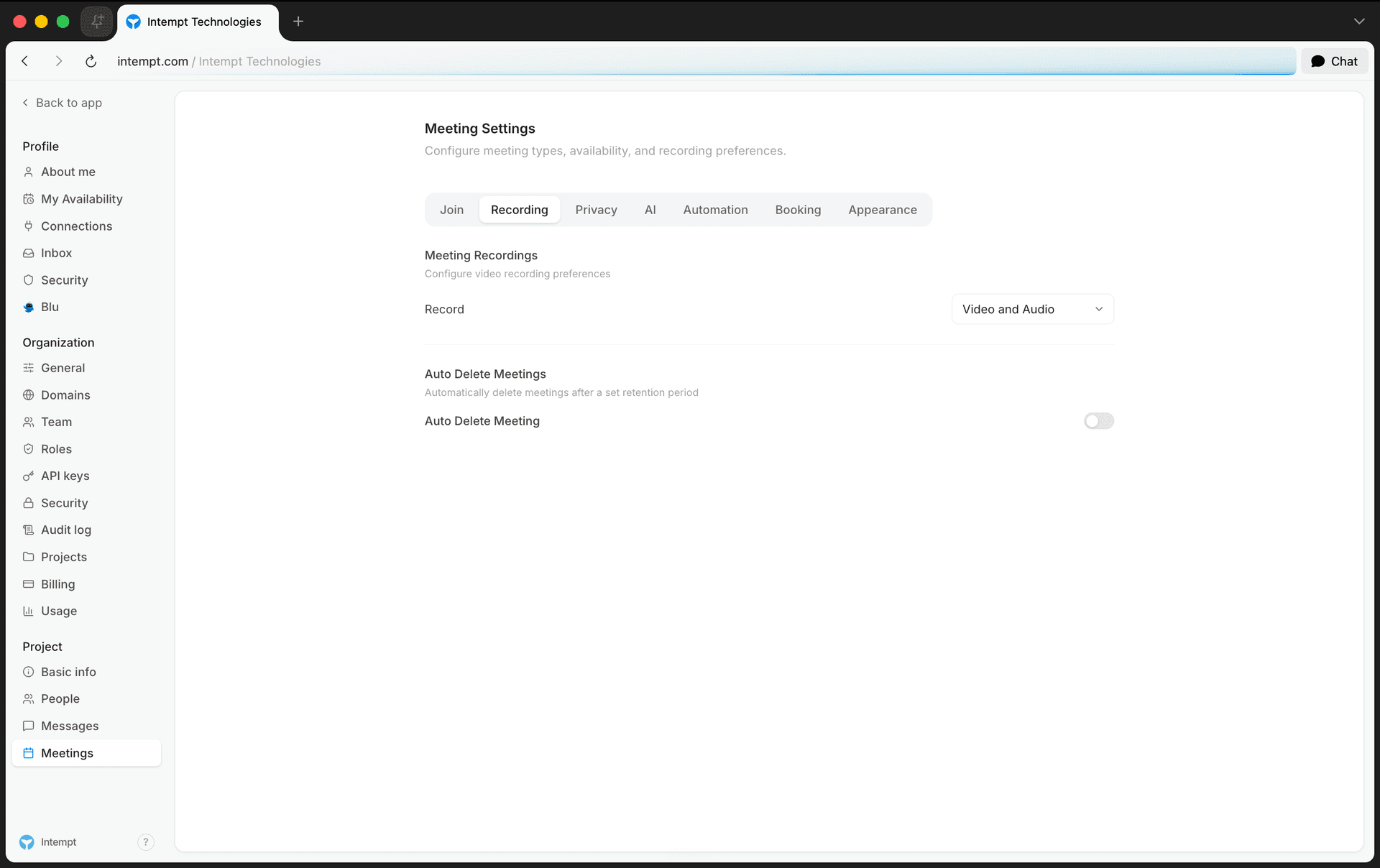
Two settings control recording: the Record mode (Disabled, Only Audio, or Video and Audio) and an optional auto-delete retention period, both on Settings → Project → Meetings → Recording. Separately, the Join tab decides whether the bot joins calls by itself. Turn on Meetings Intempt Blu will join and pick which calendar events qualify, or leave it off and start each recording by hand from the Capture menu.
Getting started
Choose what gets recorded
Go to Settings → Project → Meetings → Recording. Under Meeting Recordings, set Record to one of three options:
- Disabled. The bot doesn't capture a recording at all.
- Only Audio. Captures audio only.
- Video and Audio. Captures both video and audio.
Set a retention period (optional)
Still on the Recording tab, under Auto Delete Meetings, turn on Auto Delete Meeting to have recordings removed automatically after a set period.
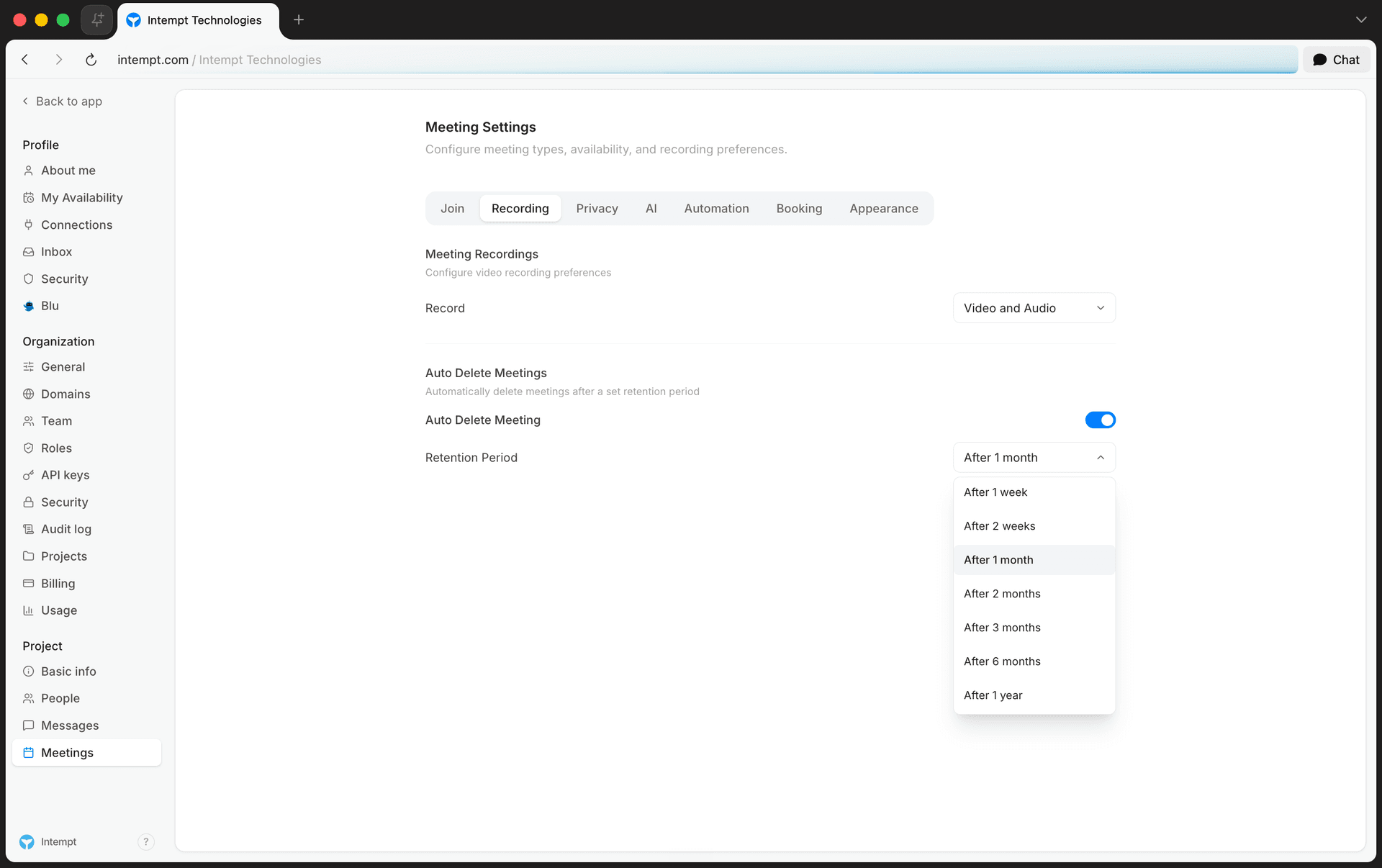
Pick a Retention Period: after 1 week, 2 weeks, 1 month, 2 months, 3 months, 6 months, or 1 year. Leaving Auto Delete Meeting off keeps recordings indefinitely.
Turn on auto-join so the bot joins calls by itself
Go to Settings → Project → Meetings → Join. Under Meeting Rules, turn on Meetings Intempt Blu will join, then choose which calendar events qualify under Auto-join calendar events:
- All meetings
- Only meetings that I own
- Only meetings with @intempt.com participants
- Only meetings with non-@intempt.com participants
- Only meetings with teammates
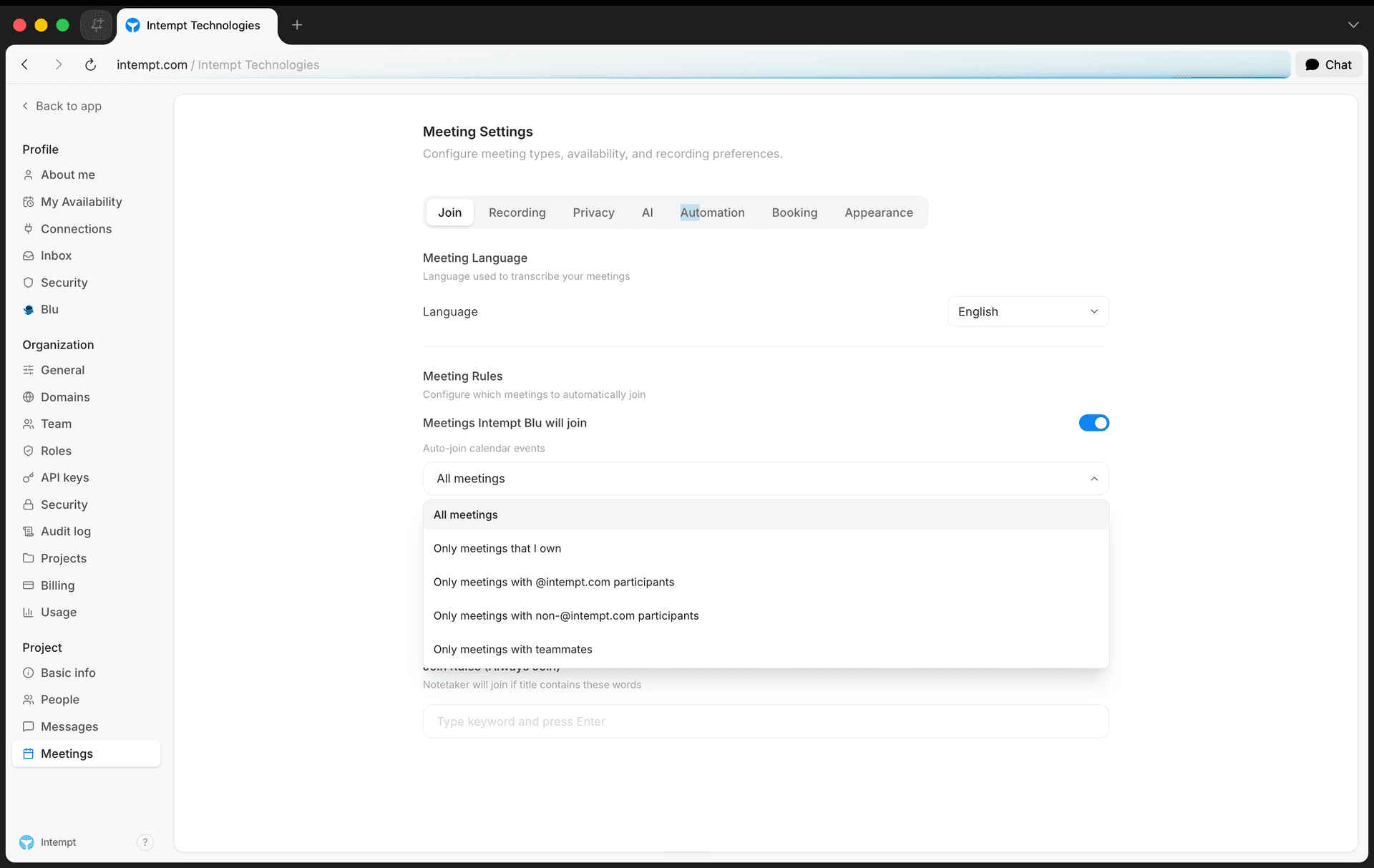
Below that, Bar Rules (Don't Join) and Join Rules (Always Join) let you add keywords: if a calendar event's title contains a Bar Rule keyword, the bot skips it even if auto-join would otherwise include it; a Join Rule keyword joins the bot regardless of the auto-join setting.
📘 Good to know
Auto-join decides which calendar events the bot joins. It doesn't retroactively apply to a call already in progress, so use Capture for that instead.
Capture a call manually
For a call the bot didn't auto-join, open Capture on the Meetings list or on a meeting's Details page, then choose Add to live meeting.
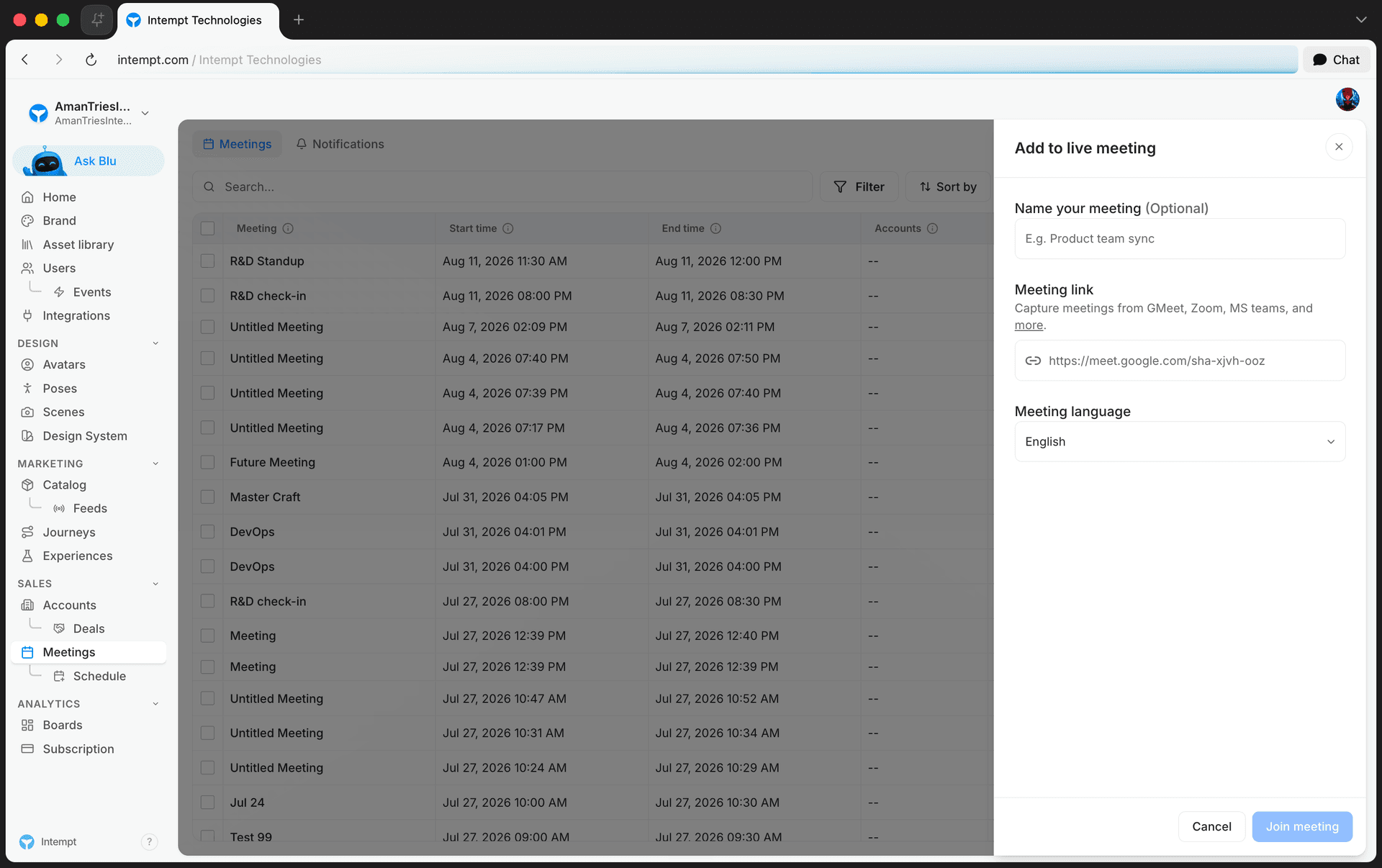
- Name your meeting (optional). A label for the meeting, for example "Product team sync."
- Meeting link. Paste the Google Meet, Zoom, or Microsoft Teams link. Required.
- Meeting language. Pick the call's spoken language from the list, or leave it on Automatic detection.
Select Join meeting. The bot joins the call and the meeting appears in your list with status In Progress, recorded according to the project's Record mode.
Where to go next
See Meetings for how to browse captured calls, read AI summaries, and share a recording once it's done.
Meetings
Meetings is Intempt's AI notetaker in the console: it joins your sales calls, transcribes them live, and generates an AI summary you can read, edit, and share with a public link.
AI Call Summaries & Key Moments
Switch between Intempt's 9 AI summary templates, edit and expand summary bullets, and tag key moments in a call's transcript for later follow-up.