
Meetings
Meetings is Intempt's AI notetaker in the console: it joins your sales calls, transcribes them live, and generates an AI summary you can read, edit, and share with a public link.
Overview
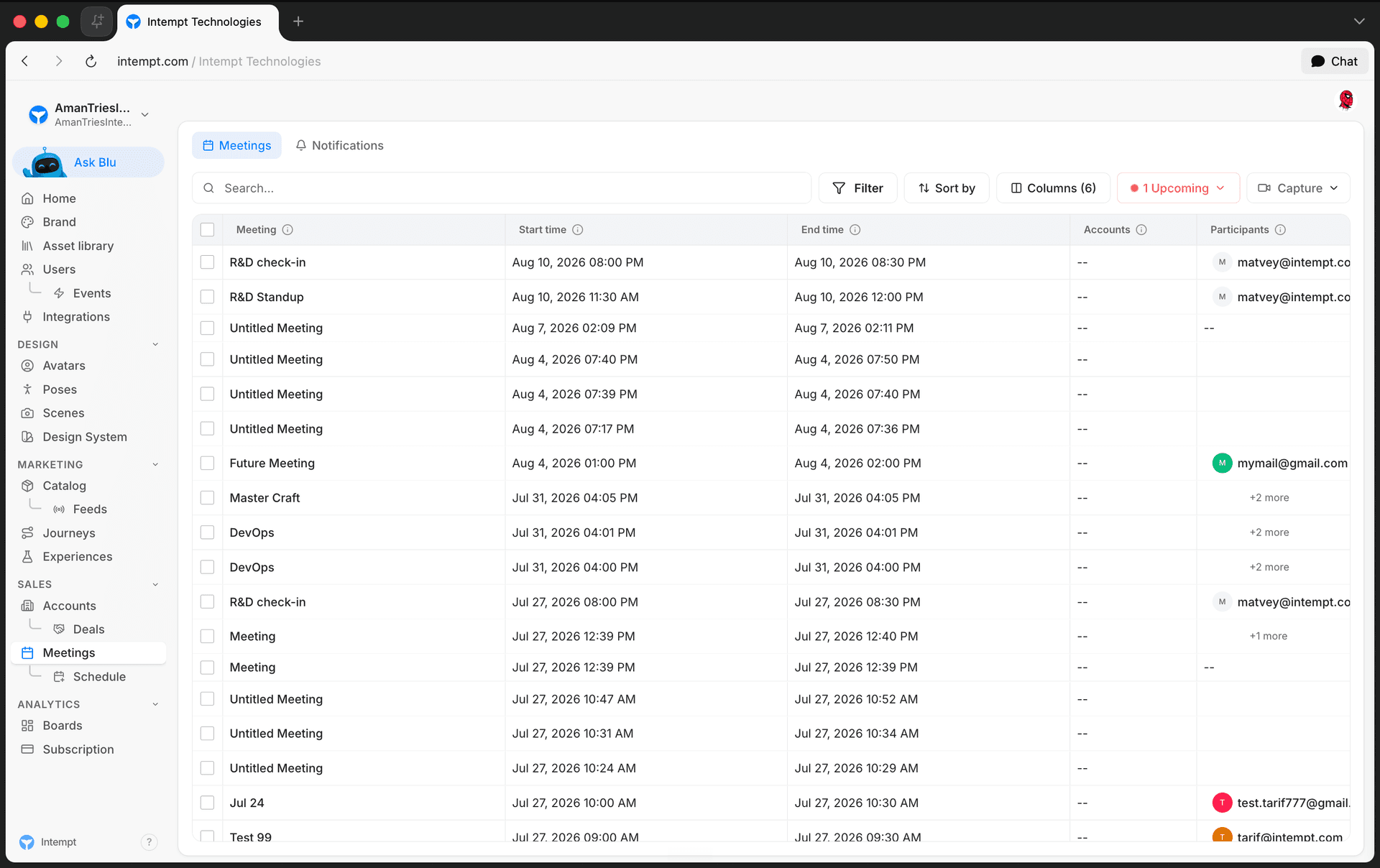
Meetings is Intempt's AI meeting notetaker and call inbox in the console, at /meetings. A bot joins a live call on a pasted Google Meet, Zoom, or Microsoft Teams link, then the meeting shows up in a searchable list alongside every other call you've captured or scheduled. Open any meeting to play back its recording, read an AI-generated summary, and follow a speaker-attributed transcript that updates live while the call is still in progress. A meeting can also be shared through a public link that renders a read-only version of the same content for anyone without console access.
How it works
Capturing a meeting
Open Capture on the Meetings list or on a meeting's Details page, then choose Add to live meeting. Give the meeting an optional name, paste the meeting link, and pick the meeting's spoken language from a list of 39 options. Submitting sends a bot into the call, and the meeting appears in your list with status In Progress.
Browsing your meetings
The Meetings list shows six columns: Meeting, Start time, End time, Participants, Status, and Accounts. Search by title, sort any column, and filter by status (Scheduled, In Progress, Completed, Canceled, Denied Entry, Unable to Join, Not Allowed In, Skipped) or by type (My Meetings, Shared with Me). Four quick-view segments narrow the list at a glance: All meetings, Upcoming meetings, Past meetings, and Recorded meetings.
Meeting Details
Opening a meeting takes you to its Details page: a header with a breadcrumb back to the list, the meeting's date, time, and duration, and a button to generate a public share link. The video player supports play and pause, seeking 10 seconds forward or back, a speaker-colored scrubber, a cycling playback-speed control, volume, fullscreen, and picture-in-picture. The transcript panel lists every utterance by speaker, follows along during playback, and lets you click a timestamp to seek to that point. You can tag any row with a star, a thumbs up or down, or a note.
AI summaries
Every meeting gets an AI-generated summary made of sectioned bullets, each with its own timestamp you can click to jump to that point in the recording. Switch between 9 summary templates depending on what you need from the call: General, High-Stakes Executive Brief, Deal Intelligence Operator, Retention Intelligence, BANT Qualification Instrument, MEDDIC Enterprise Deal Anatomy, Hiring Signal Intelligence, Product Signal Extractor, and Learning Effectiveness Analyzer. You can customize which sections a summary type includes, edit a bullet inline, or ask the AI to expand one bullet using the full transcript.
Sharing a meeting
Generate a public share link from the Details header to send a meeting to someone without console access. The shared page is read-only and unauthenticated, and includes the recording, summary, and transcript, plus a per-speaker breakdown of the recording not shown on the authenticated Details page.
Notifications and project settings
Your own booking confirmation, reschedule, cancellation, and pre-meeting reminder emails are controlled from the Notifications tab on the Meetings page, including a configurable reminder lead time. A project admin configures how the notetaker behaves for the whole project, transcription language, auto-join rules, recording mode and retention, recap visibility, and industry tuning for the AI, from Settings -> Project -> Meetings.
Use cases
-
Capturing a discovery call. Paste the Zoom, Meet, or Teams link before a call starts so the bot joins automatically, without anyone on the team manually starting a recording.
-
Qualifying a deal without re-listening to the call. Switch the summary to the BANT or MEDDIC template to get a structured read on budget, authority, need, and timeline straight from the transcript.
-
Coaching a rep after a call. Generate a public share link and send it to a manager so they can review the recording, summary, and transcript without needing a console login.
-
Catching up on a call you missed. Scroll through the transcript by speaker or jump between the AI summary's timestamped bullets instead of watching the full recording.
-
Flagging a key moment for later. Star or thumbs-up a transcript row during playback so it's easy to find again when writing up the deal.
-
Planning your day around upcoming calls. Switch the Meetings list to the Upcoming segment to see only what's on the calendar next.
-
Setting the right transcription language. Configure the project's default transcription language in Settings -> Project -> Meetings -> Join so calls in the team's primary language transcribe accurately by default.
-
Following up before your next call. Turn on the pre-meeting reminder in your notification preferences and set a lead time that fits the team's schedule.