
Access management
How organization and project roles control who can invite members, edit settings, and access data in Intempt, and how to build a custom role for either scope.
Overview
Intempt controls access with two independent role systems: organization roles, which govern org-wide settings like billing, members, and API keys, and project roles, which govern the data and features inside a single project. Every person has one role per organization and one role per project they belong to. If a preset doesn't fit, you can build a custom role scoped to either level.
Organization roles
Manage organization membership from Org Settings > Team. Open the org/project selector at the top of the sidebar, select Settings, then the Team tab.
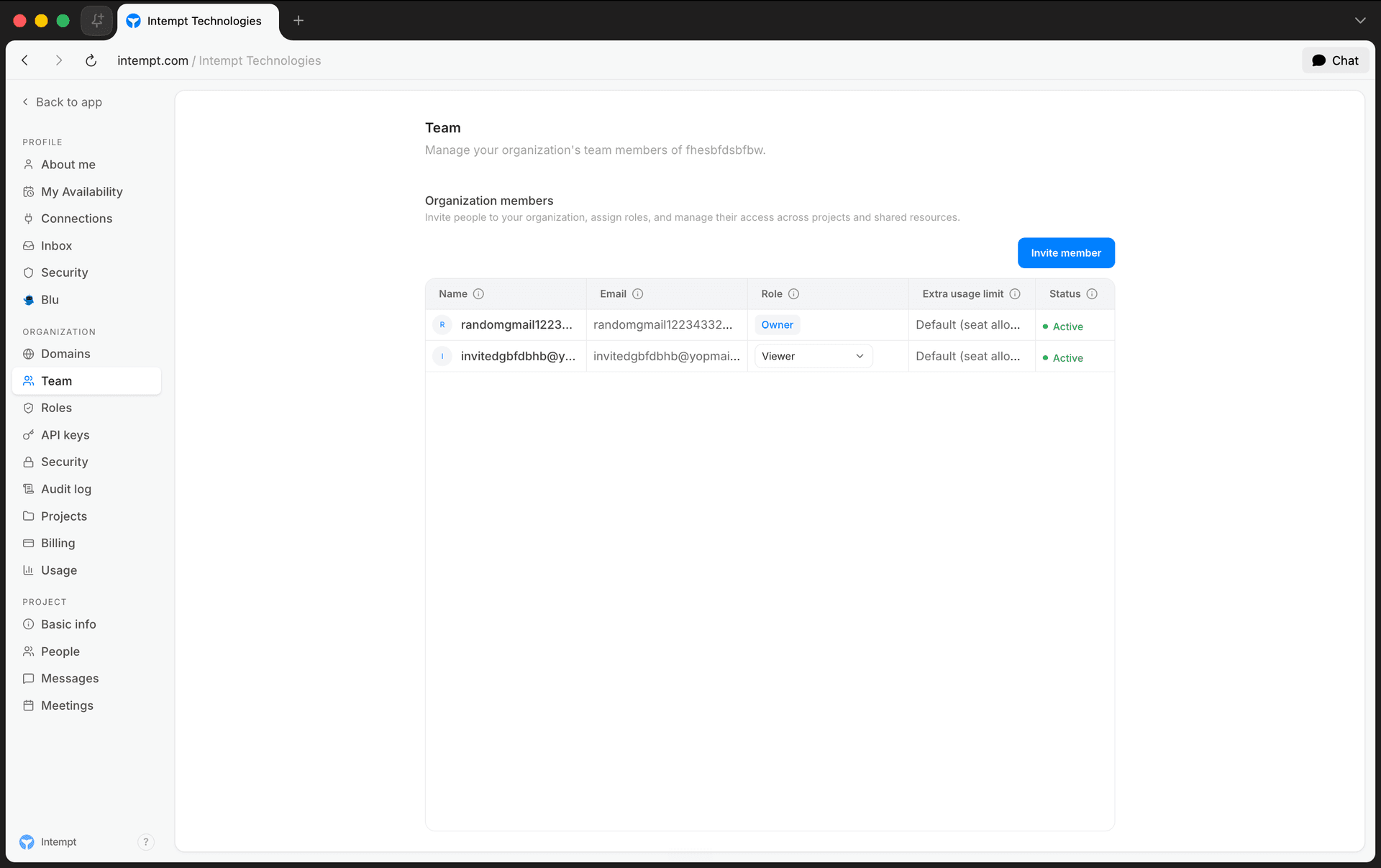
The organization's creator becomes its Owner automatically. Owner isn't offered as an invite option; every other org role is:
| Role | Access |
|---|---|
| Org admin | Full view and edit access across the organization, including members, roles, and org settings. |
| Billing admin | Manages billing, plans, and invoices. No access to other org settings. |
| Org member | Can access the organization and its projects. Can't change org settings. |
| Org viewer | Can view the organization. No edit rights and no access to change org settings. |
📘 Good to know
Whether you can change a member's role or remove them depends on your own role. If you don't have permission to edit org roles, the member table shows each row's role as a plain badge instead of an editable dropdown. Nobody, regardless of role, can change their own role or remove themselves.
Inviting an organization member
Select Invite member on the Team tab.
- Email. Enter the invitee's email address.
- Access level. Pick one of the four invitable org roles above.
- Project access. Choose at least one project and a role for each one. An invite can't be sent without at least one project selected, and every selected project needs a role.
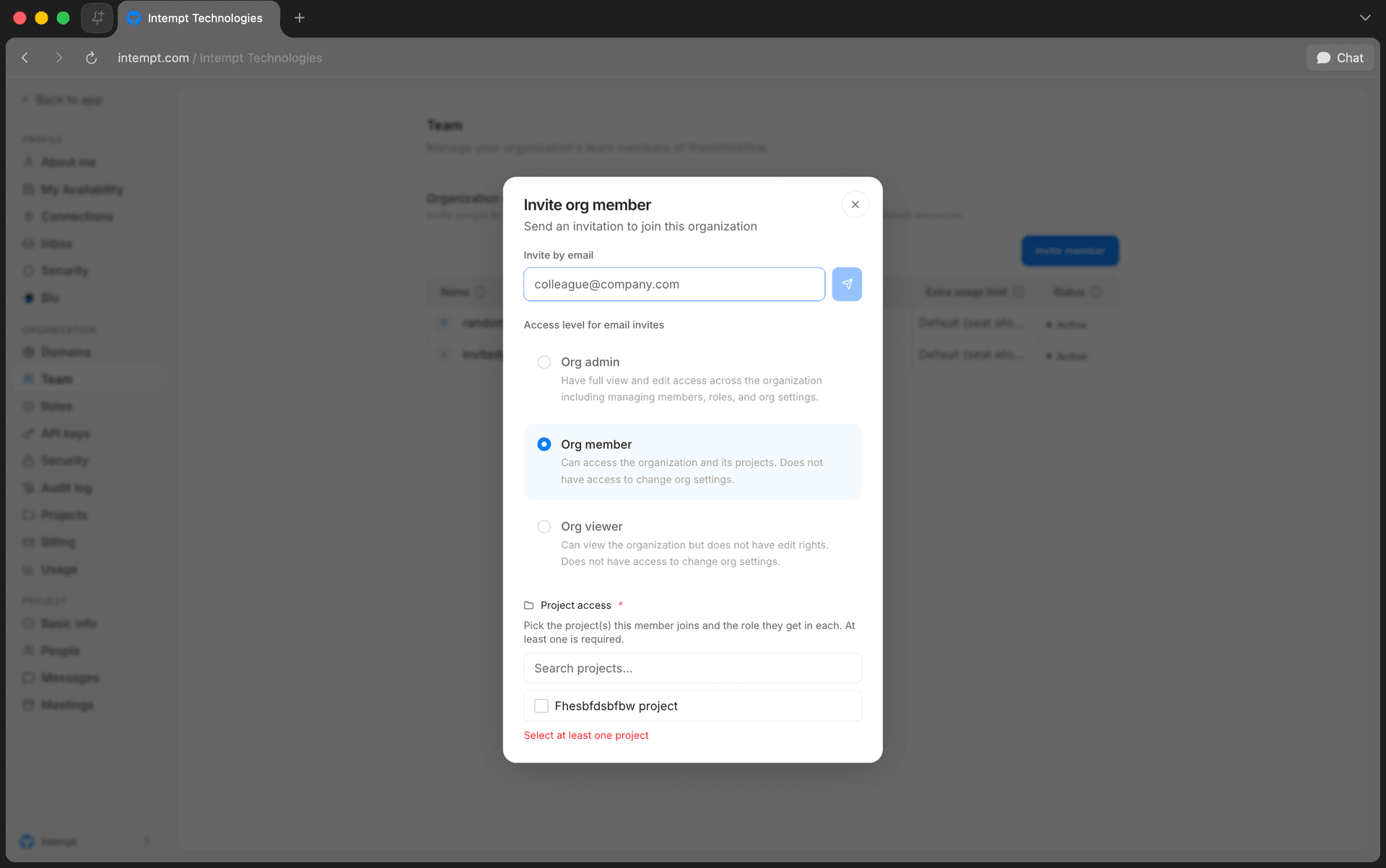
A pending invitation shows a Pending badge in the member table and can be revoked from there. Once accepted, the row shows Active.
Project roles
Every project has its own set of member roles, assigned either during an org invite's project access step, or later from the project's own People tab in Project Settings.
| Role | Access |
|---|---|
| Project admin | Full view and edit access to all features, including changing project settings and inviting new team members. |
| Project member | Can view and edit project resources. Can't change project settings. |
| Project viewer | Can view project resources. No edit rights and no access to change project settings. |
Project Owner isn't offered as an invite option either, the same as at the organization level.
Custom roles
The Roles tab (Org Settings > Roles) is the source of truth for every role available in the organization, shown as three sub-tabs: Org roles, Project roles, and Custom. Standard and custom roles defined here are available to assign in every project.
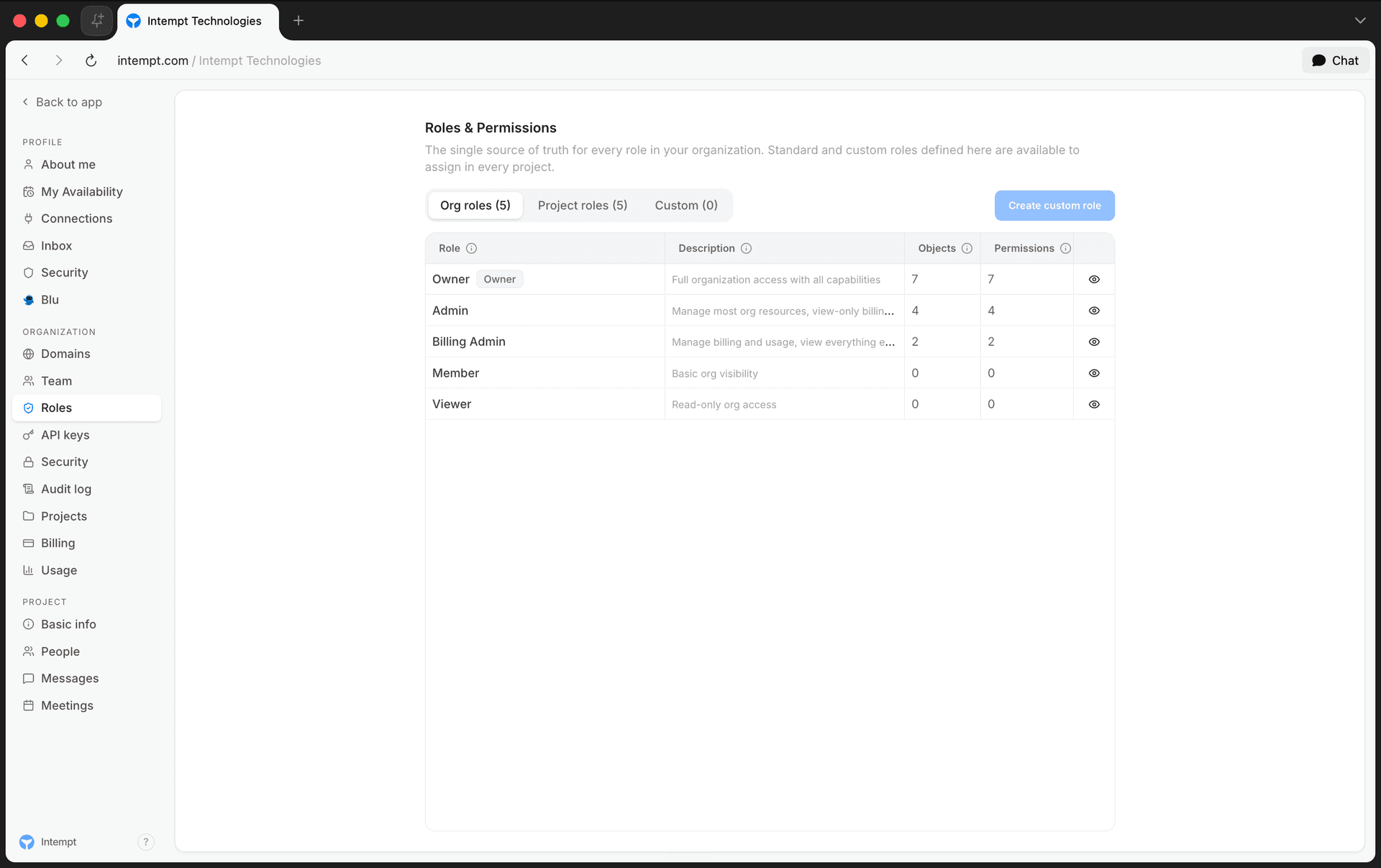
Each role's row shows how many objects it's granted, how many it can fully manage, and its total permission count. Select View permissions on any row to see its full grant, read-only.
Creating a custom role
Select Create custom role.
- Name and description. Give the role a name, for example "Marketing Manager", and an optional description of what it does.
- Scope. Choose where the role can be assigned. Organization grants on members, billing, API keys, and domains. Project grants on records, builders, and config, and is the more common choice.
- Permissions. What you set here depends on the scope you picked:
For an Organization-scoped role, toggle any of these switches on:
| Permission | Grants |
|---|---|
| Invite members | Send invitations to join the org or project. |
| Edit roles | Create, edit, and assign custom roles. |
| Modify billing | Change plan, payment method, and invoices. |
| Manage API keys | Create and revoke API keys. |
| Export data | Export records and reports as files. |
| Impersonate user | Sign in as another user for support. |
For a Project-scoped role, optionally start from a preset, then adjust the matrix. Presets are Marketer, Seller, Creative, Analyst, and Blank, which leaves every cell at None. Each object in the matrix takes one of four access levels: None, View, Edit, or Full.
| Section | Objects |
|---|---|
| Sales | Users, Accounts, Deals, Tasks, Conversations, Sales Agent / SDR |
| Marketing | Journeys, Experiences, Workflows, Content, Brand |
| Analytics | Boards, Attributes & data |
Some objects carry a mandatory minimum access level or a dependency on another object. Users and Accounts can't go below View. Deals requires Users and Accounts to be at View or above. Tasks and Conversations require Users to be at View or above. Sales Agent / SDR requires both Users and Attributes & data to be at View or above.
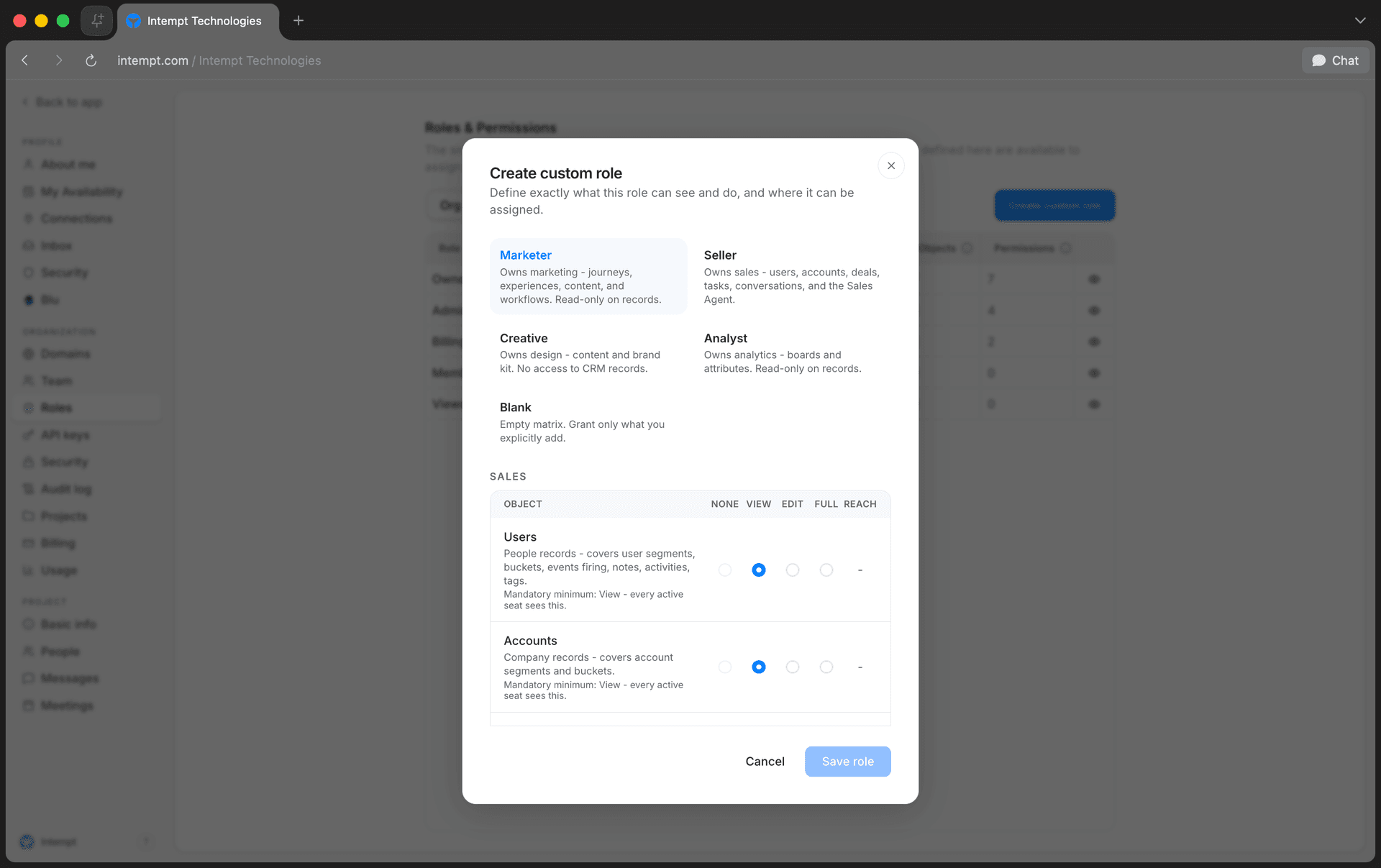
- Select Save role. The role appears under the Custom sub-tab and becomes assignable from that point on, wherever its scope applies.
Use cases
- A support lead who only handles billing. Assign the Billing admin org role so they can manage invoices without touching org settings, roles, or members.
- A contractor who should only see, not edit. Assign Org viewer or Project viewer, depending on whether they need visibility across the whole org or just one project.
- A marketing-only teammate. Create a custom Project role starting from the Marketer preset, which grants full access to journeys, experiences, content, workflows, and brand while keeping Users and Accounts at View.
- An analyst who shouldn't touch CRM records. Start from the Analyst preset: full access to Boards and Attributes & data, View-only on Users and Accounts.
- Restricting who can invite people or manage API keys. Build a custom Organization-scoped role with only the Invite members or Manage API keys switch on, instead of granting full Org admin.
- Checking what a role can actually do before assigning it. Find any role's row and select View permissions to see its exact grant, read-only, before you assign it to someone.
Where to go next
See Organizations & projects for how the Team, Roles, Domains, API keys, Security, and Audit log tabs fit together, and API Keys for another org-level setting managed from Org Settings.