
API keys
Create and manage public, private, and admin API keys for your organization from Org Settings, and assign each key to one or more projects.
Overview
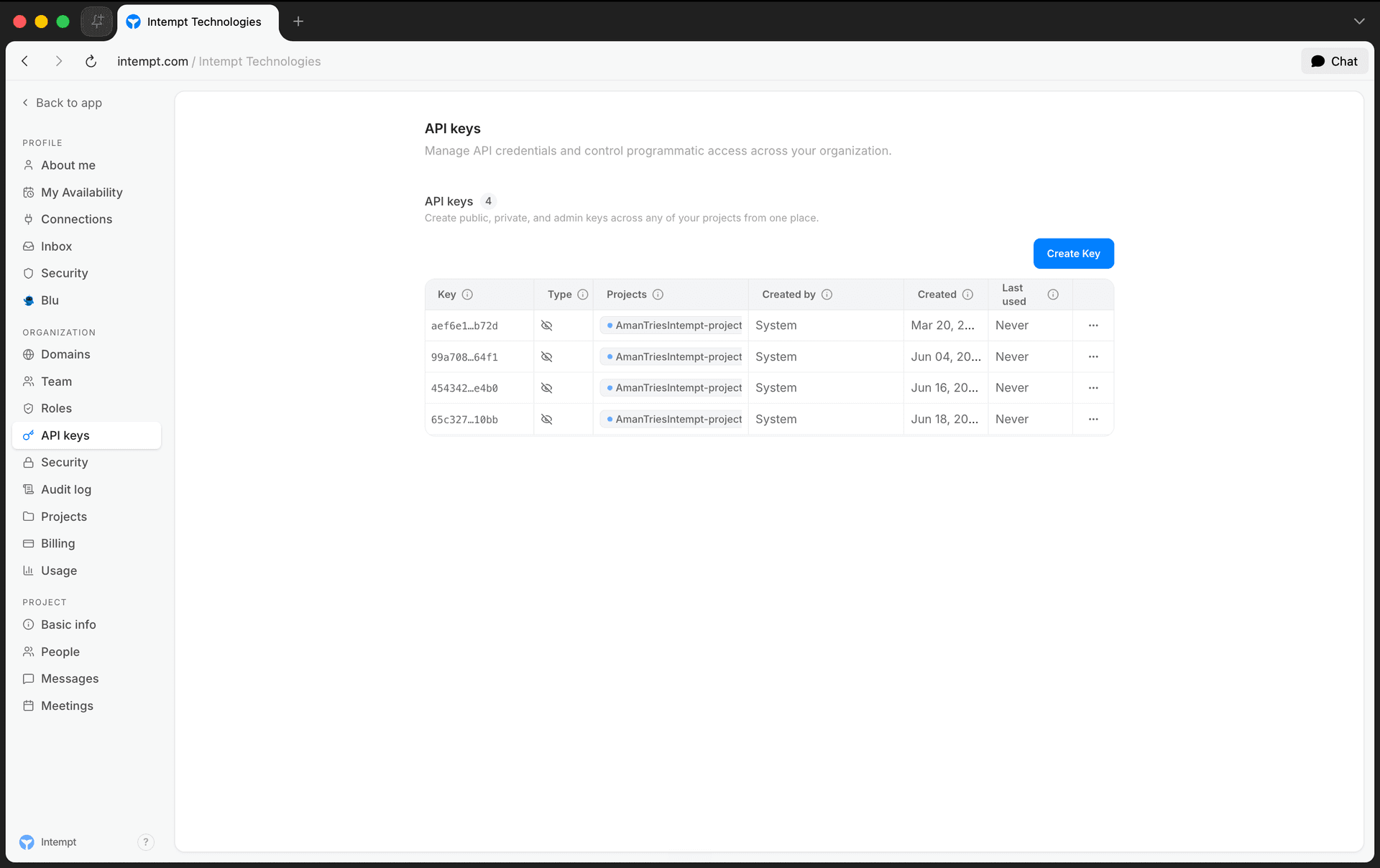
API keys authenticate requests to the Intempt API. You create and manage them from Org Settings → API keys, where you can view, create, edit, regenerate, disable, and delete keys across all your projects in one place.
How it works
Org Settings has six tabs: Team, Roles, Domains, API keys, Security, and Audit log. API keys live at the organization level, not the project level. A single key can be assigned to one or more projects within your organization.
Every key has one of three types:
| Type | Description |
|---|---|
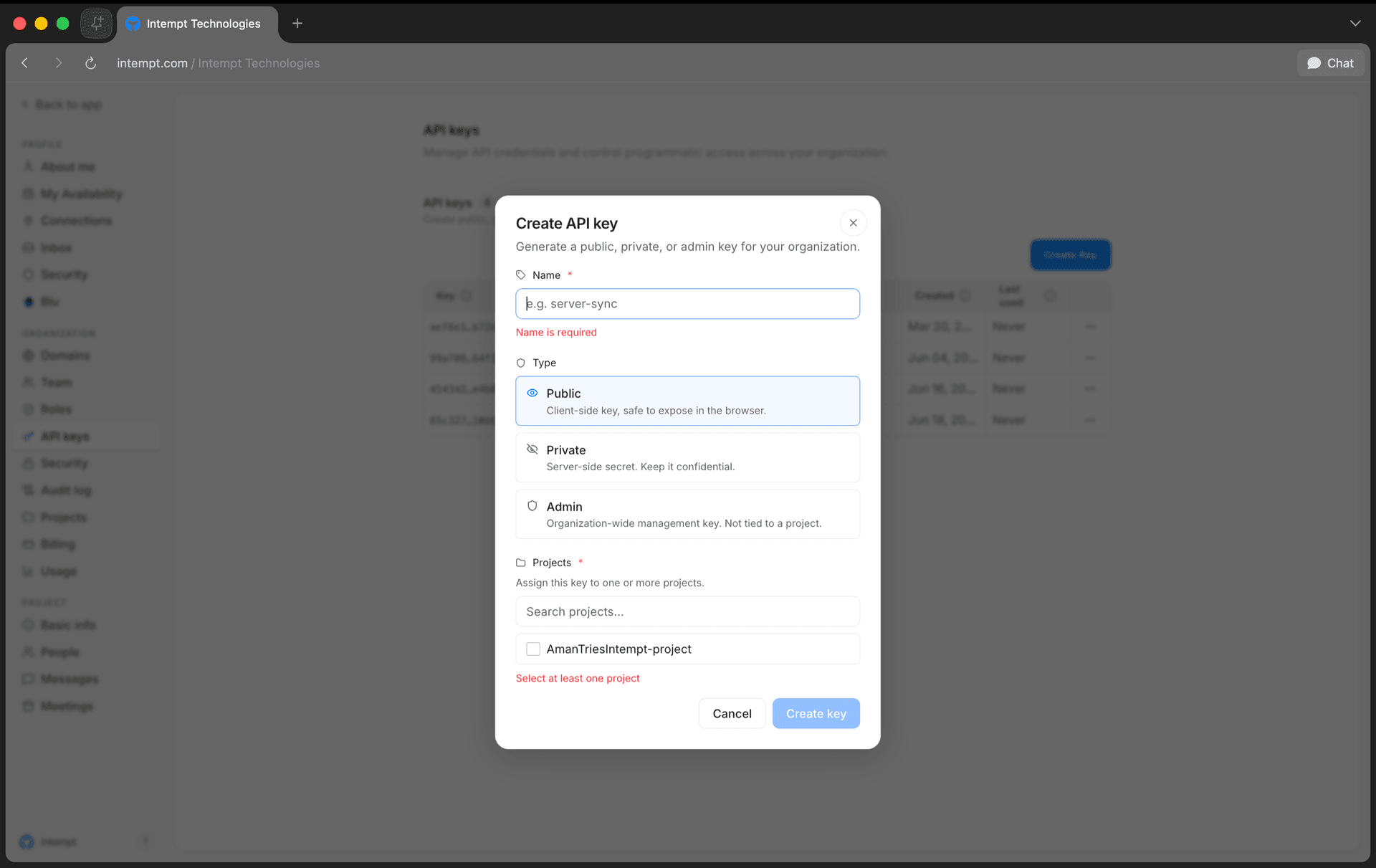
| Public | Client-side key, safe to expose in the browser. |
| Private | Server-side secret. Keep it confidential. |
| Admin | Organization-wide management key. Not tied to a project. |
Public and private keys must be assigned to at least one project. Admin keys are organization-wide and skip project assignment entirely.
📘 Good to know
Who can reach Org Settings is governed by your organization role. See Access management for how roles are assigned.
Getting started
Create an API key
- Go to Org Settings → API keys.
- Select Create Key.
- Enter a Name for the key (for example,
server-sync). - Choose a Type: Public, Private, or Admin.
- If you chose Public or Private, select at least one project to assign the key to. Admin keys skip this step.
- Select Create key.
Once created, the full key is shown exactly once in a dialog. Copy it and store it somewhere safe. Intempt doesn't display the full key again after you close this dialog.
Reveal an existing key
The list view only ever shows a masked prefix of each key (for example, abc123…WxYz). To see the full key again:
- Open the row's action menu (⋯) and select Reveal key.
- Confirm in the dialog. Revealing a key is recorded in the audit log.
Edit a key
- Open the row's action menu and select Edit.
- Update the Name or the assigned Projects.
The key's type cannot be changed after creation. Create a new key instead if you need a different type.
Regenerate a key
Regenerating rotates a key's secret without changing its name, type, or project assignments.
- Open the row's action menu and select Regenerate.
- Confirm. The current secret stops working immediately, so update any integration using it with the new key.
The new full key is shown once, the same way it is on creation.
Disable or enable a key
Open the row's action menu and select Disable (or Enable for a disabled key). A disabled key shows a Disabled badge in the list and stops authenticating requests without deleting it, so you can re-enable it later.
Delete a key
Open the row's action menu and select Delete, then confirm. Deleting a key permanently revokes it. This can't be undone.
Where to go next
- Organizations & Projects for how Org Settings fits into your overall account structure.
- Access management for how organization and project roles are assigned.
Access management
How organization and project roles control who can invite members, edit settings, and access data in Intempt, and how to build a custom role for either scope.
Brand Kit
The Brand Kit centralizes all brand assets and identity elements in one place. It helps teams maintain brand consistency across every channel — messages, experiences, visual editor, and analytics. ...