
Behavioral Segmentation Guide
Build a segment from what users or accounts did, not just who they are, using event conditions in the filter builder.
Overview
Behavioral segmentation groups users or accounts by what they did: which events they performed, how often, and in what timeframe. This is different from segmenting on static properties like plan or industry. It uses the same filter builder used everywhere else on the Users and Accounts lists, just with Events as the condition type instead of attributes.
📘 Good to know
If you haven't built a segment before, start with Creating a segment for the full editor walkthrough. This guide focuses specifically on event-based (behavioral) conditions.
How it works
Every condition row in the filter builder starts with a property. Choosing an event as the property changes the row's controls:
- Did / didn't. A toggle sets whether the condition matches users who performed the event or who did not.
- Operator. How many times the event must occur to match: at least once, equals, greater than, less than, greater than or equal, or less than or equal.
- Frequency. The exact number of times, when the operator needs one.
- Timeframe. The window the event must fall inside: anytime, a fixed date range, since a specific date, or a relative window like "the last 30 days." Segments are evaluated in real time, so a relative window covers at most the last 90 days of behavior.
You can combine multiple event conditions with AND/OR inside the same group, and choose AND/OR between groups too when you add a separate group. These are the same condition-group mechanics used for any other filter.
Getting started
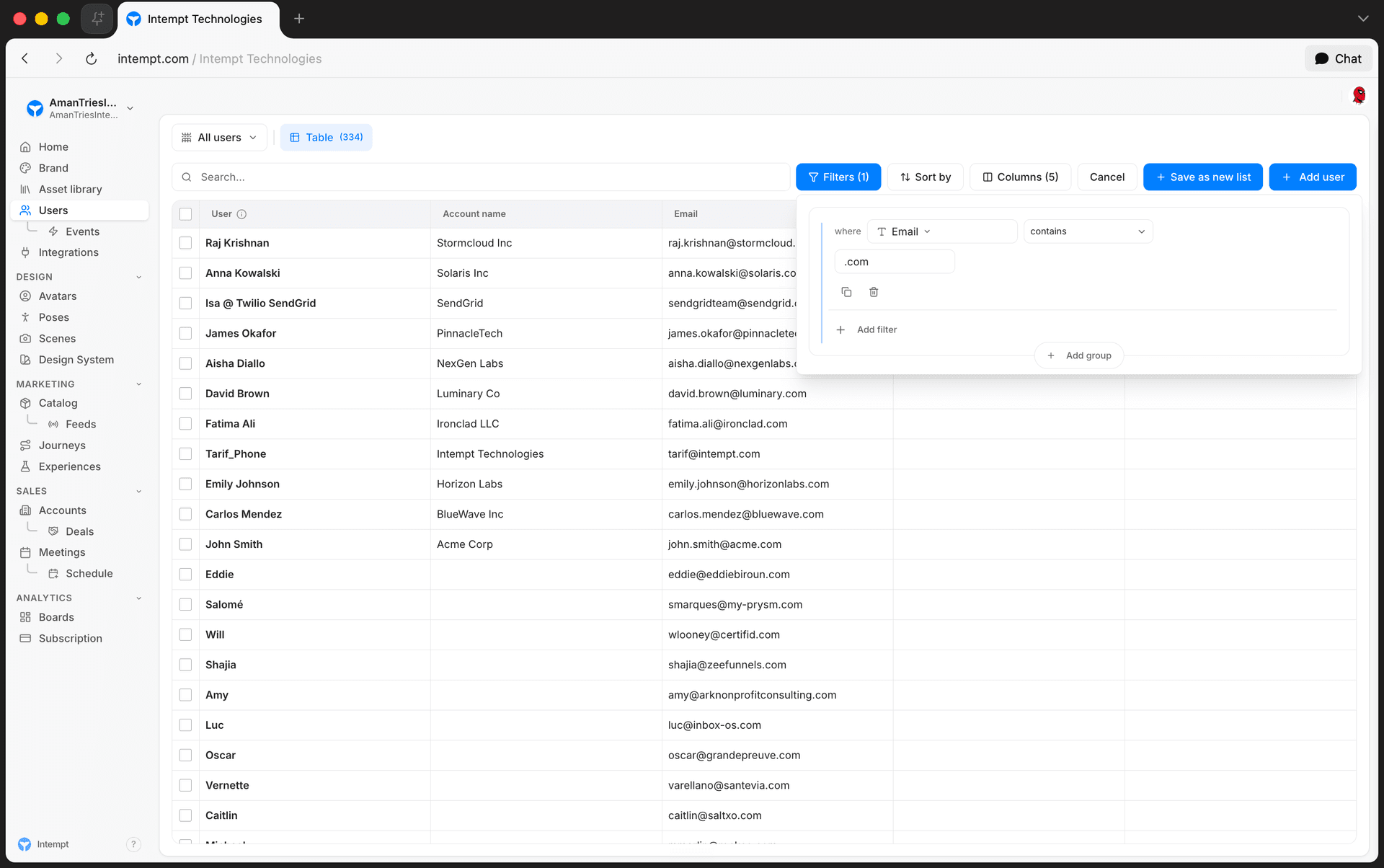
- Go to the Users list (or Accounts, for account-level behavior).
- Click Filters in the toolbar. A panel opens with your condition groups.
- Add a condition and pick an event from the property list, for example "Placed order."
- Set did (to match users who performed it) or didn't (to match users who did not).
- Choose an operator, for example "greater than or equal," and enter the frequency, e.g.
3. - Set the timeframe next to the condition, for example the last 30 days.
- Add more conditions to the same group (AND) or a new group (OR) if your behavior needs more than one event.
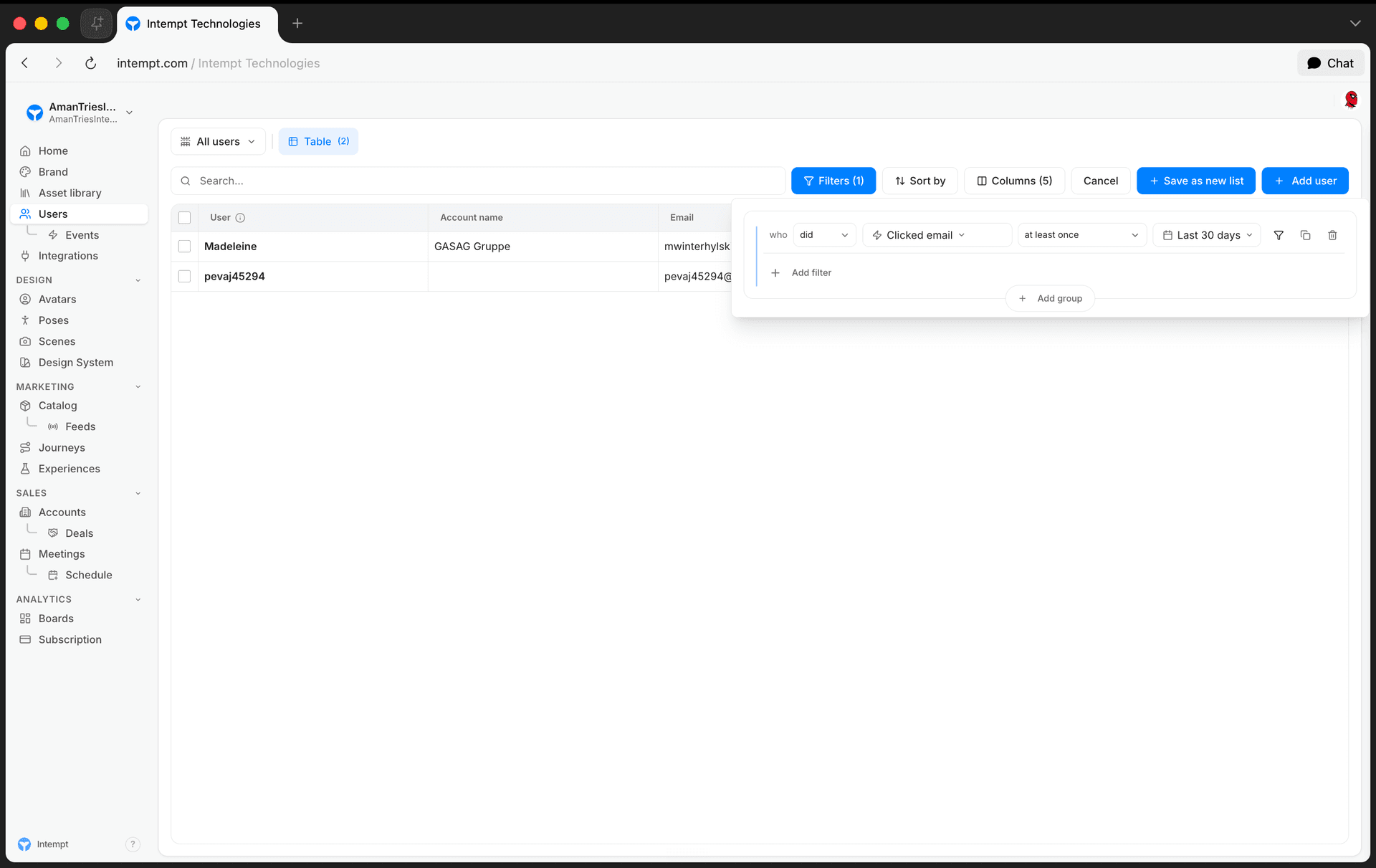
- Close the filter panel. The toolbar button now reads Filters (1) (or however many conditions you added), and a Save as new list button appears.
- Click Save as new list. A sidebar opens: Save as new view, with the note "Save the current filters, sort, and columns as a reusable view of your users."
- Enter a name, for example "Frequent purchasers, last 30 days," and click Save view.
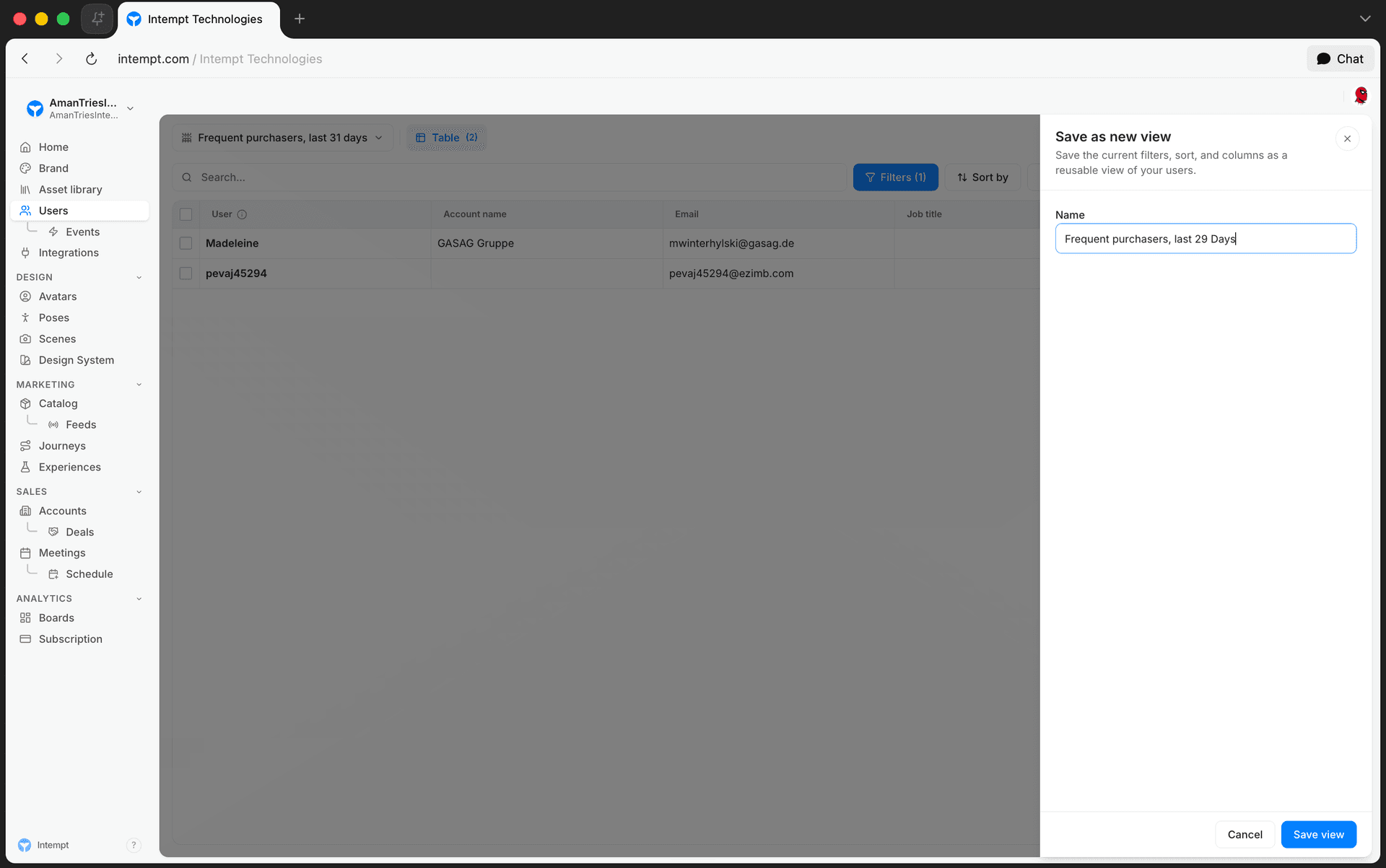
Once saved, a toast confirms the view was created with the name you entered, and the new entry appears in the Users list's header selector alongside your other saved segments.
📘 How far back a relative timeframe looks
A relative timeframe ("the last N days") in a segment covers at most the last 90 days: up to 90 days, 12 weeks or 3 months. The filter won't accept a longer window. To match older behavior, use a fixed date range or "since" a date instead.
📘 Good to know
A segment built this way re-applies its filter conditions each time you open it. It isn't a frozen snapshot of who matched when you saved it. For a static, one-time snapshot of a manual selection instead, see Creating a segment.
Use cases
- Repeat purchasers. Did "Placed order" greater than or equal to 3 times in the last 30 days.
- Recently inactive users. Didn't perform any core event in the last 14 days. Useful for win-back targeting.
- Feature adopters. Did a specific in-app event at least once, ever, for example enabling two-factor authentication.
- Cart abandoners. Did "Added to cart" AND didn't do "Placed order" in the last 7 days. Combine a "did" row with a "didn't" row in the same group.
- High-frequency engagers. Did a core action greater than 10 times in the last 90 days.
- New trial activity. Did "Signed up" since a specific date, combined with an attribute condition in a second group (like a plan attribute equal to "Trial").
- Multi-step behavior. Did event A AND did event B in the same group, to represent a two-step sequence like "viewed pricing" then "started checkout."
- Account-level behavior. On the Accounts list, did "Renewed subscription" at least once in the last 90 days, combined with an account attribute like industry. For a longer lookback, use "since" a date.
Where to go next
Generating Meeting Summaries
Intempt's meeting bot joins and records your calls, and Blu generates an AI summary from the recording that you can customize, switch types, or regenerate section by section.
Complete guide to audience segmentation
The value of customer segmentation can lend to everything from decreasing CAC to increasing customer loyalty, all while building better, more personalized customer experiences. In our full...