
User & Account details page
How to open a user's or account's details page in the console, read their attributes, and use the Overview, Activity, Tasks, Emails, and Privacy tabs.
Overview
Every user and account in Intempt has a details page: one place to see its attributes, activity, tasks, emails, and (for users) privacy consent. You open it by clicking any row in the Users or Accounts list. This guide covers what's on each tab and how to get there.
How it works
Opening a user's details page
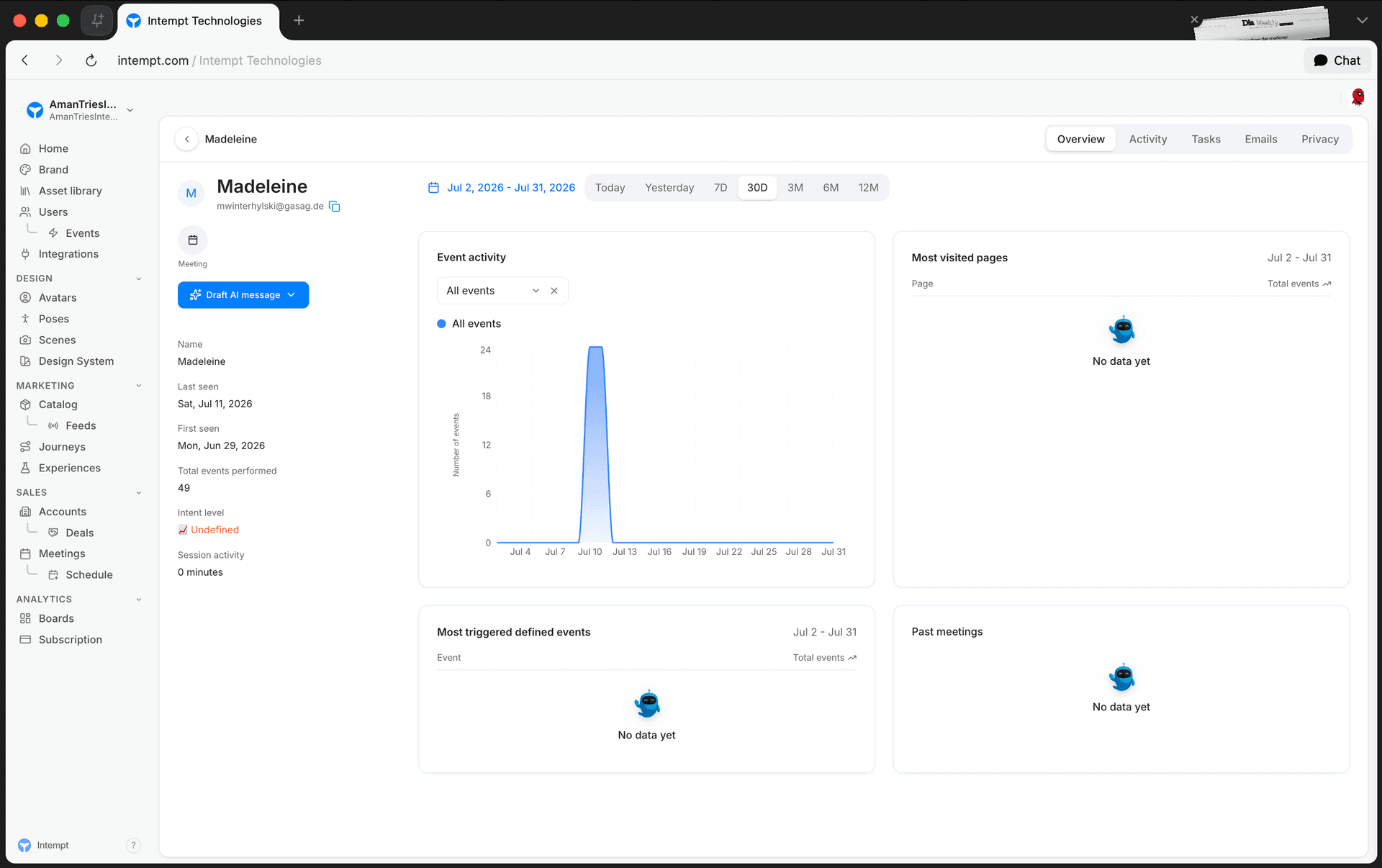
From the Users list, click any row to open that user's details page. The page has three parts: a header with the user's name and a tab bar, a fixed sidebar with their attributes, and the main content area for whichever tab is active.
User header and quick actions
The header shows the user's avatar, name, job title, company, and email, with a button to copy the email. A Draft AI message dropdown opens a panel for Email, LinkedIn, SMS, or Cold call script. Agent Blu drafts the message from the selling style and sales methodology configured on your profile's Blu tab, plus the outreach step you pick and any additional context you add, with a button to copy the result. A Meeting shortcut appears next to it only when the user has an email on file and your project has a connected Google Calendar integration.
User attributes sidebar
The sidebar lists a fixed set of attributes, whichever of these are present on the user: tags, owner, account owner, name, website, industry, employee count, country, city, first seen, last seen, total events, intent level, score, session activity, and time zone.
User tabs
Five tabs sit below the header:
- Overview. An AI-generated summary of the user, their recent event feed, their three most recent past meetings, and their open tasks.
- Activity. A day-by-day timeline of every event the user has triggered, filterable by date range, with a details panel for the event you select.
- Tasks. A filterable table of tasks tied to this user, with the same filters and bulk actions (start, reschedule, assign, mark complete, skip, delete) as the main Tasks module.
- Emails. The email thread history between your team and this user, with AI-assisted reply drafting.
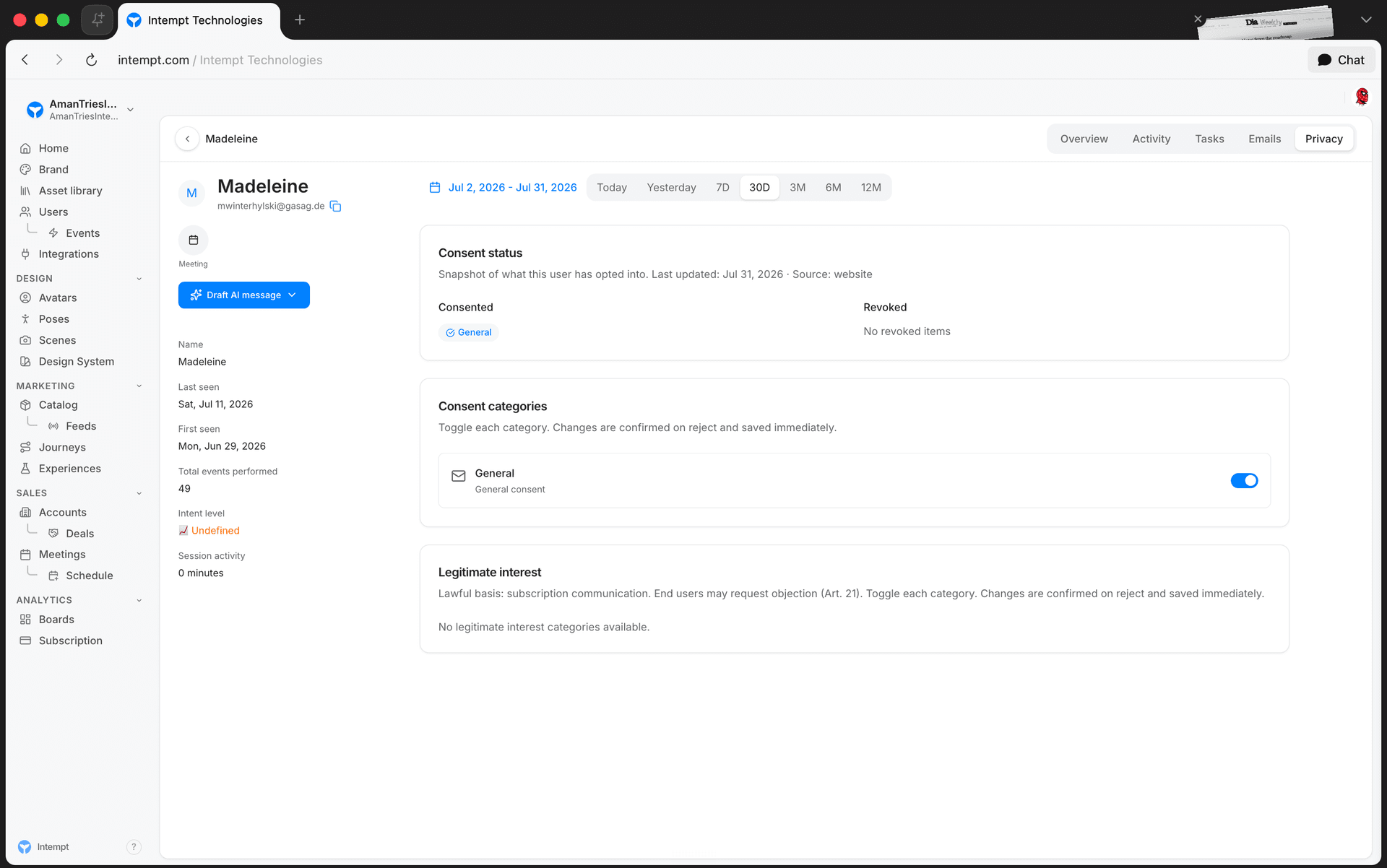
- Privacy. The user's consent status by category (consented vs. revoked), toggles for standard consent categories, and any legitimate-interest basis recorded for processing their data. Turning off a consent asks for confirmation first.
Opening an account's details page
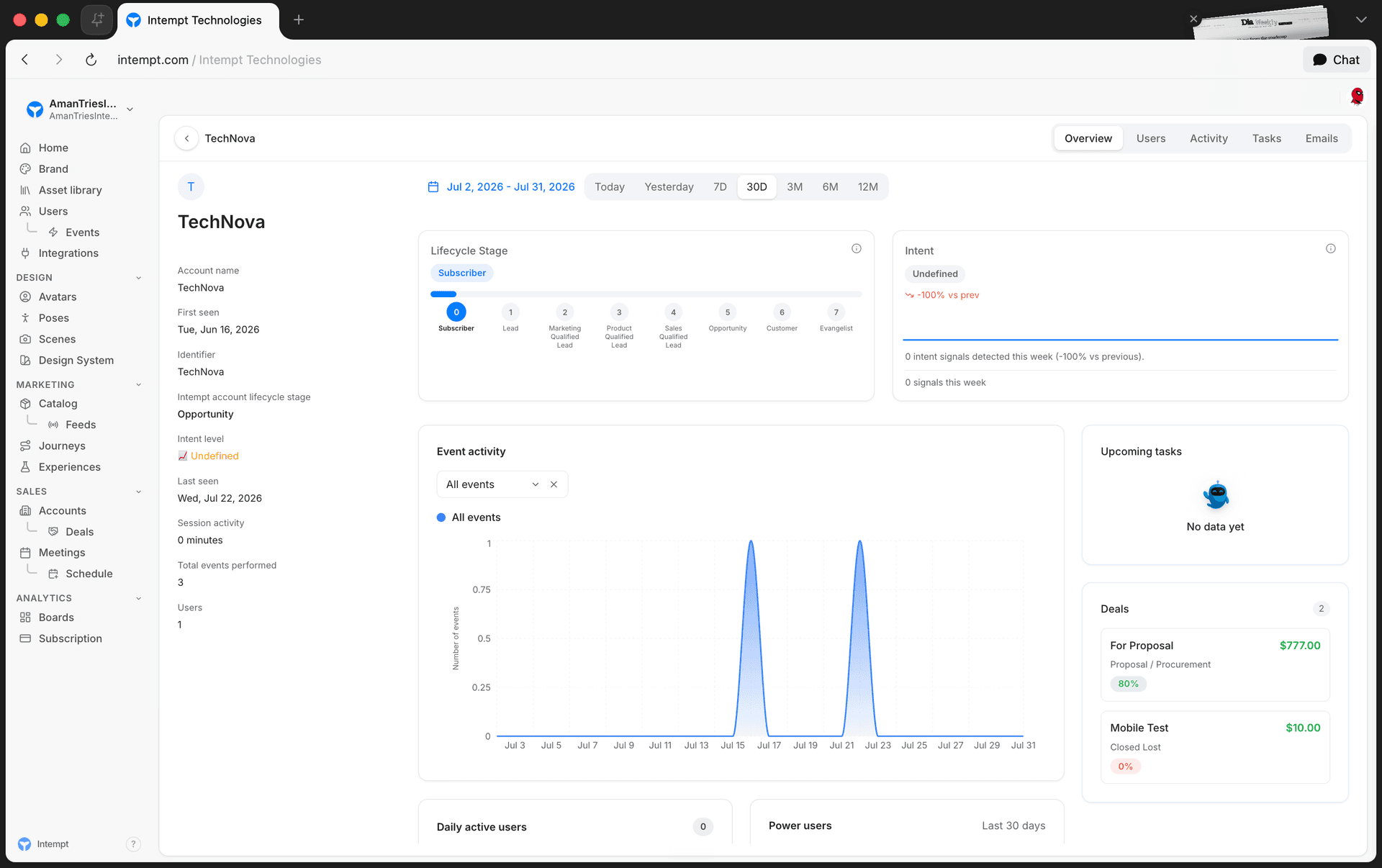
From the Accounts list, click any row to open that account's details page. It uses the same header, sidebar, and tabs layout as a user's page.
Account attributes sidebar
Unlike the fixed list on a user's page, an account's sidebar shows every attribute present on the account, sorted alphabetically. Attributes titled "Untitled" and the internal current-invoice field are hidden. The header itself only shows the account's avatar, name, domain, and a copy button. It has no quick-action buttons.
Account tabs
- Overview. Lifecycle stage and intent cards, an AI-generated summary, the account's event feed, daily-active-users and power-users cards, open tasks, and linked deals.
- Users. The same Users table used on the main Users list, scoped to this account, so you can see and manage every user that belongs to it.
- Activity. A day-by-day timeline of every event triggered by any user in the account.
- Tasks. Tasks tied to the account.
- Emails. The email thread history with the account.
Accounts don't have a Privacy tab. Consent is tracked per user, not per account.
Getting started
- Open Users or Accounts from the sidebar nav.
- Click any row to open its details page.
- Use the tab bar next to the name to switch tabs. The active tab is also reflected in the page URL, so you can link directly to one.
- Check the sidebar for the entity's attributes before acting on it. For a user, check the Privacy tab's consent status before sending marketing email.
Use cases
- Prepping for a call. Open the user's Activity tab and narrow the date range to see what they've done recently.
- Confirming a user can be emailed. Check the Privacy tab before sending marketing email, so you don't reach someone who's revoked consent.
- Drafting first-touch outreach. Use Draft AI message on a user's page to get an Agent Blu-generated email, LinkedIn message, SMS, or cold-call script.
- Booking a follow-up meeting. Use the Meeting shortcut in the header when it's showing, instead of leaving the page to schedule one.
- Checking account health before a renewal conversation. Review the account's Overview tab for its lifecycle stage, intent level, and recent event feed.
- Managing every user in an account from one place. Open the account's Users tab instead of filtering the main Users list by account.
- Triaging open work on a profile. Check the Tasks tab to see what's due against a specific user or account.
- Catching up on a thread before replying. Open the Emails tab to read the full history with a user or account before drafting a reply.
Where to go next
- Users for how the Users list itself works: browsing, creating, bulk actions, and saved views.
- Users & Accounts for how users and accounts fit into Intempt's event-driven data model.
- Identity resolution for how events get matched to the right user profile.
- Managing consents for how the consent categories shown on the Privacy tab are configured.
- Enrichment for filling in missing user or account data before outreach.
- Tasks for the task fields and bulk actions shared by the Tasks tab.
Tasks
The Task feature enables you to create simple reminders for actions that users need to take on the platform. A task can be created manually or automatically through a Journey flow.
Creating a journey
Journeys is a campaign and workflow planning-execution tool in Intempt. It empowers you to design and automate flows, guiding customers through interactions with your brand.