
User roles & permissions
Every org role, project role, permission switch, and entity access level in Intempt, and how they combine into preset and custom roles.
Overview
Intempt controls access with two independent role systems: organization roles, which govern org-wide settings like billing, members, and API keys, and project roles, which govern the data and features inside a single project. Every person has one role per organization and one role per project they belong to. The Roles tab in Org Settings is the single source of truth for every role available in the organization: org roles, project roles, and any custom roles you've built.
The Roles tab
Open Org Settings > Roles. It's organized into three sub-tabs: Org roles, Project roles, and Custom.
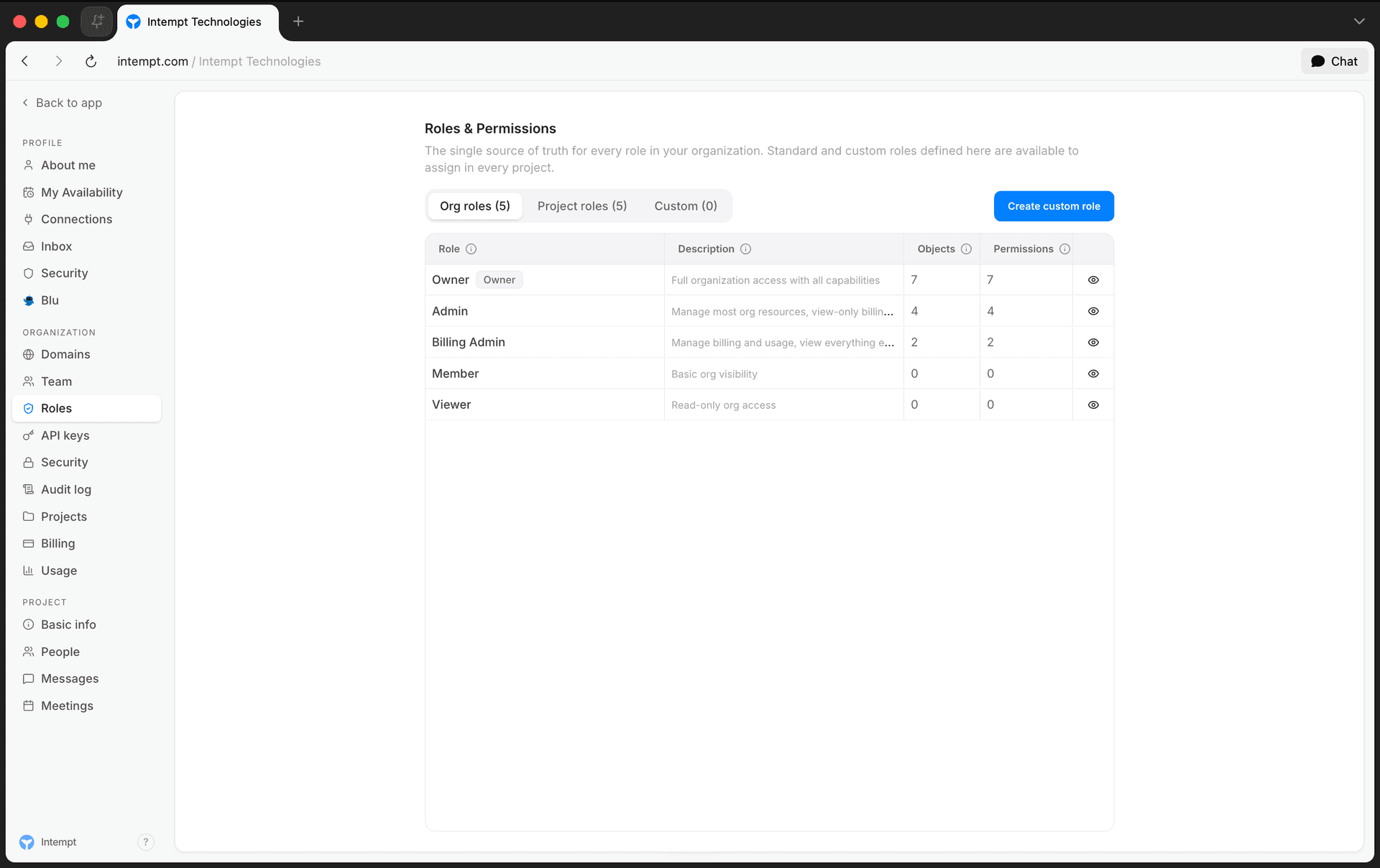
Each role is shown as a row with two stats:
| Stat | What it counts |
|---|---|
| Objects | For an org role, the number of org permission switches it turns on. For a project role, the number of entities granted View access or higher. |
| Permissions | The total number of granted permission entries behind the role. |
A row also shows an Owner badge if the role is the organization's or project's built-in Owner role, and a Custom badge if it isn't one of the built-in presets. Select the eye icon on any row to see its full grant, read-only.
Org roles
| Role | Invitable | Access |
|---|---|---|
| Owner | No. Assigned automatically to the org's creator. | Full access across the organization. |
| Org admin | Yes | Full view and edit access across the organization, including managing members, roles, and org settings. |
| Billing admin | Yes | Manages billing, plans, and invoices for the organization. No access to other org settings. |
| Org member | Yes | Can access the organization and its projects. Can't change org settings. |
| Org viewer | Yes | Can view the organization. No edit rights and no access to change org settings. |
Project roles
| Role | Invitable | Access |
|---|---|---|
| Owner | No. Not offered as an invite option. | Full access to the project. |
| Project admin | Yes | Full view and edit access to all features, including changing project settings and inviting new team members. |
| Project member | Yes | Can view and edit project resources. Can't change project settings. |
| Project viewer | Yes | Can view project resources. No edit rights and no access to change project settings. |
Org permission switches
Custom Organization-scoped roles are built from six independent on/off switches:
| Permission | Grants |
|---|---|
| Invite members | Send invitations to join the org or project. |
| Edit roles | Create, edit, and assign custom roles. |
| Modify billing | Change plan, payment method, and invoices. |
| Manage API keys | Create and revoke API keys. |
| Export data | Export records and reports as files. |
| Impersonate user | Sign in as another user for support. |
Project entity access matrix
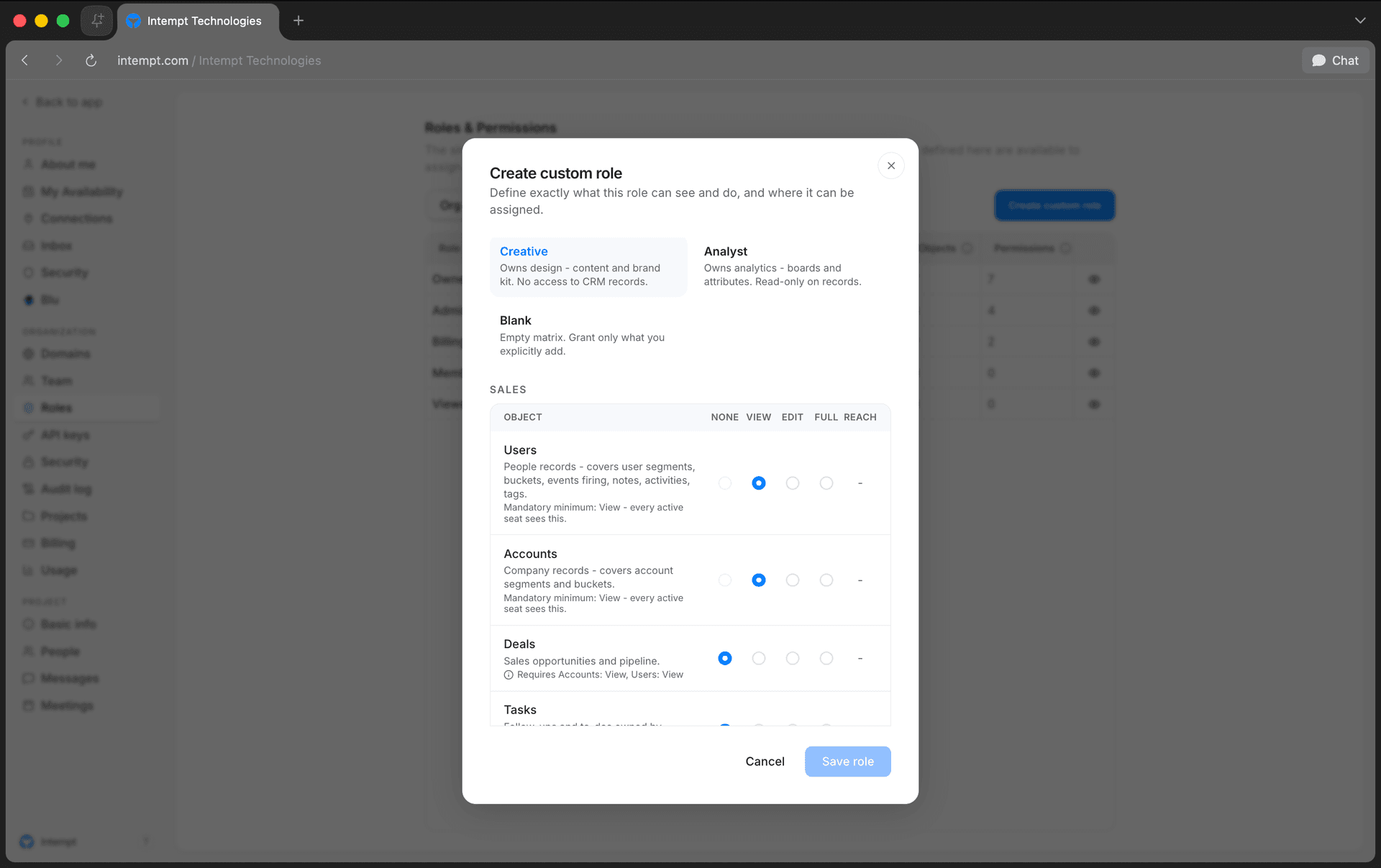
Custom Project-scoped roles are built from a matrix of entities, each set to one of four access levels:
| Access level | Meaning |
|---|---|
| None | No access to the entity. |
| View | Read-only access to the entity's records. |
| Edit | View and modify the entity's records. |
| Full | Complete access to the entity. |
The matrix also shows a Reach column (Own / Team / All), but it isn't selectable yet. Every custom project grant currently applies at the broadest reach, so it behaves as if set to All.
Entities are grouped into three sections:
| Section | Entity | Description | Minimum access | Requires |
|---|---|---|---|---|
| Sales | Users | People records, covering user segments, buckets, events, notes, activities, and tags. | View | None |
| Sales | Accounts | Company records, covering account segments and buckets. | View | None |
| Sales | Deals | Sales opportunities and pipeline. | None | Accounts: View, Users: View |
| Sales | Tasks | Follow-ups and to-dos owned by sellers. | None | Users: View |
| Sales | Conversations | Inbox, calls, meetings, chatlogs, messages. | None | Users: View |
| Sales | Sales Agent / SDR | Customer-facing AI that qualifies leads, answers questions, and routes to reps. | None | Users: View, Attributes & data: View |
| Marketing | Journeys | Automated, multi-step customer journeys. | None | None |
| Marketing | Experiences | On-site and in-app experiences. | None | None |
| Marketing | Workflows | Backend automation workflows. | None | None |
| Marketing | Content | Content blocks, templates, and assets. | None | None |
| Marketing | Brand | Brand kit, design system, and guidelines. | None | None |
| Analytics | Boards | Analytics boards and dashboards. | None | None |
| Analytics | Attributes & data | Attributes, schema, and data definitions. | None | None |
A dependency (for example, Deals requiring Users and Accounts at View) means the matrix won't let you set the dependent entity's access above None until the entities it requires are raised to at least the listed level.
Custom role presets
When you create a custom Project-scoped role, you can start from a preset that pre-fills the matrix, then adjust it:
| Preset | Description | Full access | View access |
|---|---|---|---|
| Marketer | Owns marketing: journeys, experiences, content, and workflows. Read-only on records. | Journeys, Experiences, Workflows, Content, Brand | Users, Accounts |
| Seller | Owns sales: users, accounts, deals, tasks, conversations, and the Sales Agent. | Users, Accounts, Deals, Tasks, Conversations, Sales Agent / SDR | None |
| Creative | Owns design: content and brand kit. No access to CRM records. | Content, Brand | Users, Accounts |
| Analyst | Owns analytics: boards and attributes. Read-only on records. | Boards, Attributes & data | Users, Accounts |
| Blank | Empty matrix. Grant only what you explicitly add. | None | None |
Custom Organization-scoped roles don't use a preset. You toggle the six permission switches directly.
Use cases
- Checking what a role can do before assigning it. Open any role card on the Roles tab and select View permissions to see its exact grant, read-only.
- A support lead who only handles billing. Assign the Billing admin org role instead of Org admin, so they can manage invoices without touching org settings, members, or roles.
- A contractor who should only see, not edit. Assign Org viewer or Project viewer, depending on whether they need visibility across the whole org or just one project.
- A marketing-only teammate. Create a custom Project role starting from the Marketer preset, which grants full access to journeys, experiences, content, workflows, and brand while keeping Users and Accounts at View.
- An analyst who shouldn't touch CRM records. Start from the Analyst preset: full access to Boards and Attributes & data, view-only on Users and Accounts.
- Restricting who can invite people or manage API keys. Build a custom Organization-scoped role with only the Invite members or Manage API keys switch on, instead of granting full Org admin.
- Granting sales access without exposing marketing tools. Use the Seller preset, which grants Users, Accounts, Deals, Tasks, Conversations, and the Sales Agent without touching Journeys, Experiences, or Content.
- Understanding why a role can't drop below View on Users. Users and Accounts carry a mandatory minimum of View, since most other entities depend on at least View access to them.
Where to go next
- Access management for the invite workflow and the custom role builder walkthrough.
- Organizations & projects for how the Team, Roles, Domains, API keys, Security, and Audit log tabs fit together.
Platform Overview & Architecture
Intempt is agentic software for GTM teams: one customer context, five products, and the agents that work inside each one.
Security & Trust Center
Reference for how Intempt authenticates users, enforces access control, and records an audit trail: authentication methods, MFA, SSO/SCIM, encryption at rest, log retention by plan tier, support escalation, and security monitoring.