
Creating a custom catalog source
Connect a product feed hosted at any URL so Intempt can sync your catalog for recommendations, feeds, and personalization.
Overview
A custom catalog source connects a product feed (JSON or XML) hosted at a URL to Intempt. Use it when your store isn't on one of Intempt's built-in integrations, such as Shopify. Once connected, Intempt reads the feed on a schedule and keeps your product catalog in sync.
📘 Good to know
Intempt discovers the fields in your feed automatically when you connect it, so you don't need to pre-format the file to an exact schema. Every product should still include an id, title, description, link, image, and price so recommendations and feeds have enough data to work with.
Requirements
Before you start, confirm your feed meets these requirements:
- Format: JSON or XML.
- Hosting: Reachable at a public URL. If the URL requires authentication, you'll enter credentials when you connect it.
- Required fields: every product needs at least the fields below, or equivalent fields serving the same purpose.
| Field | Type | Description |
|---|---|---|
id | String | Unique, stable identifier for the item (for example, a SKU). |
title | String | Customer-facing product name. |
description | String | Short copy summarizing the product. |
link | String | Canonical URL of the product page. |
image_link | String | Direct URL to the product's primary image. |
price | Number | Current selling price, as a decimal number. |
Creating a catalog source
Step 1: Connect your feed
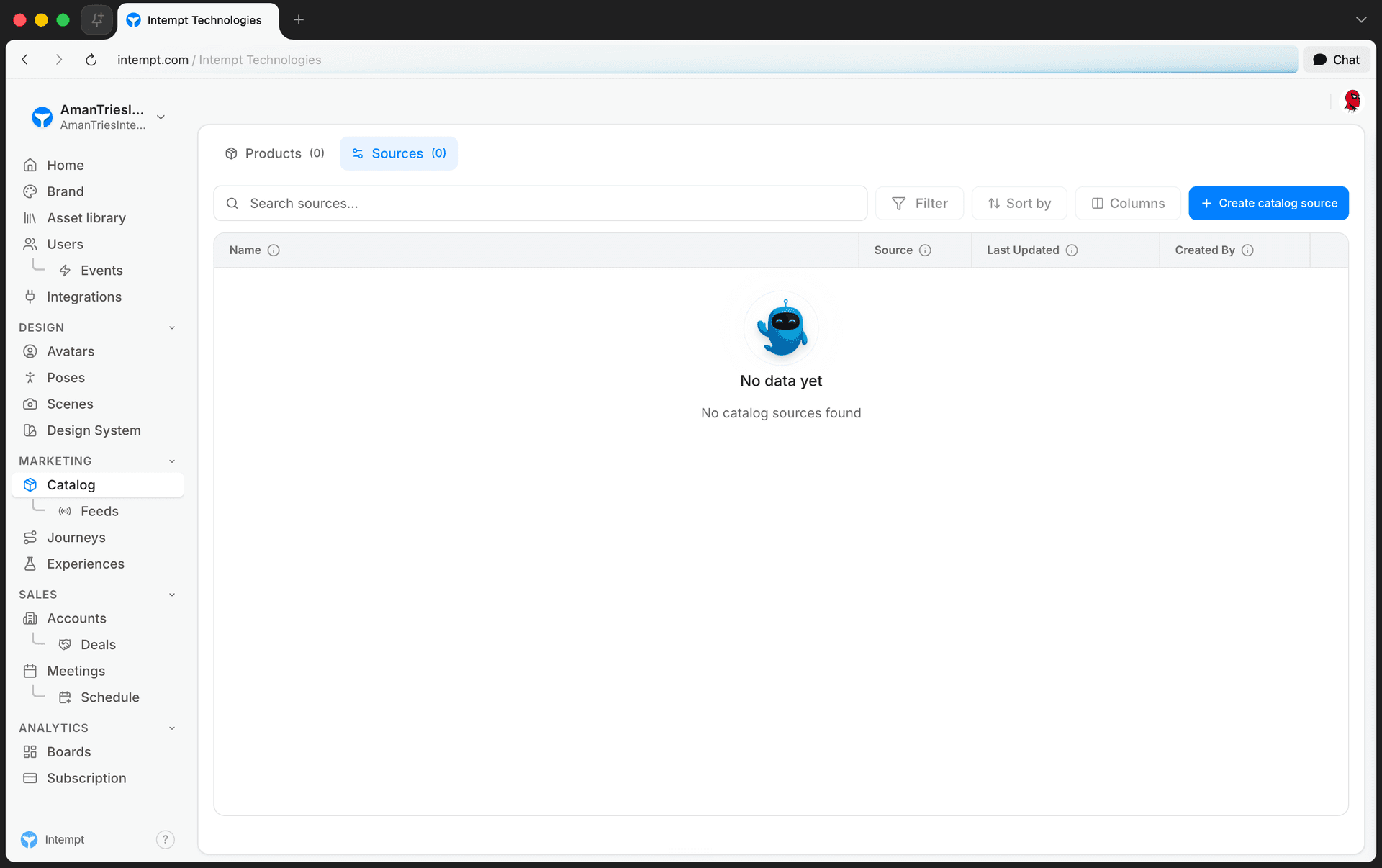
- Go to Catalog in the left navigation, then open the Sources tab.
- Click Create catalog source.
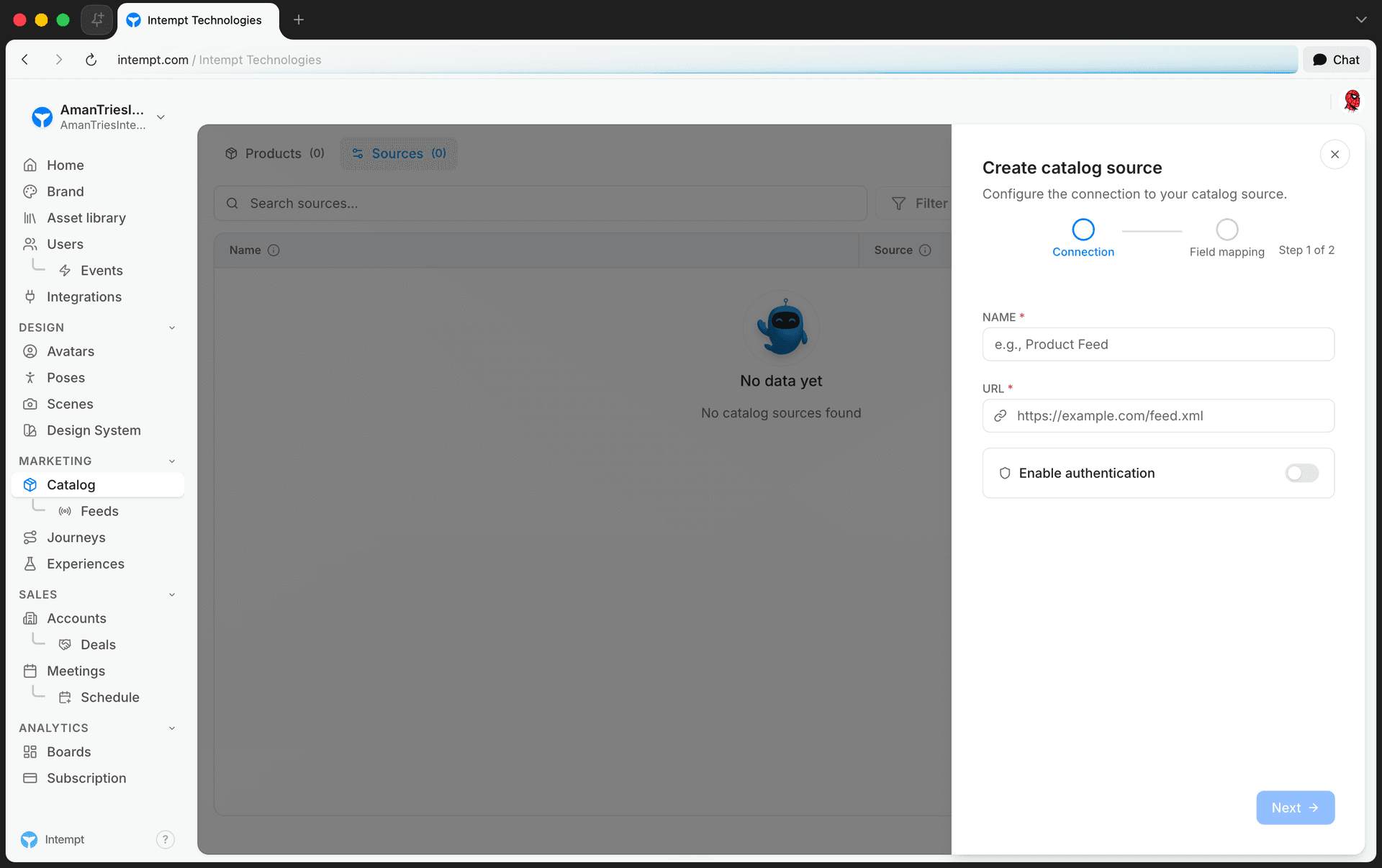
- Enter a Name for the source.
- Enter the feed URL (for example,
https://example.com/feed.xml). - If the feed requires authentication, turn on Enable authentication, then enter a Username / API Key and Password / Secret.
- Click Next.
Step 2: Map your fields
Intempt connects to the URL and lists every field it found in your feed under Feed field.
- For each feed field, select the matching Intempt field in the dropdown next to it. Fields whose names already match an Intempt field are pre-selected for you.
- Turn on the toggle in the last column for every field you want Intempt to store and keep updated.
- If any required field (id, title, description, link, image_link, or price) isn't mapped and turned on yet, it appears in a Missing required fields banner at the top. Map it and turn on its toggle to clear the warning.
- Click Create source.
📘 Media pending
Screenshot of the field mapping step hasn't been captured yet.
Managing your catalog source
From the Sources tab, open the actions menu (⋯) next to a source to:
- Edit: update its name, URL, or field mappings.
- Delete: remove the source. If a product feed or other item depends on it, Intempt asks you to confirm before deleting both.