
Setting up product recommendations
Create a recommendation feed from your product catalog, choose an algorithm, and use it in your campaigns.
Overview
A recommendation feed pulls from your product catalog and an algorithm you choose (best sellers, recently viewed, similar items, and so on) to decide which products to show a given visitor or subscriber. Once a feed exists, you can use it in emails, web experiences, and push notifications. This guide walks through creating your first feed.
Before you begin
Product recommendations need a product catalog to draw from. Confirm this first:
- Your store's products are synced into Intempt. This happens automatically for supported integrations like Shopify, or through a custom catalog source if you're on a different platform.
- You can see your products under Catalog in the left sidebar. See Catalog for how to view and manage them.
Create a recommendation feed
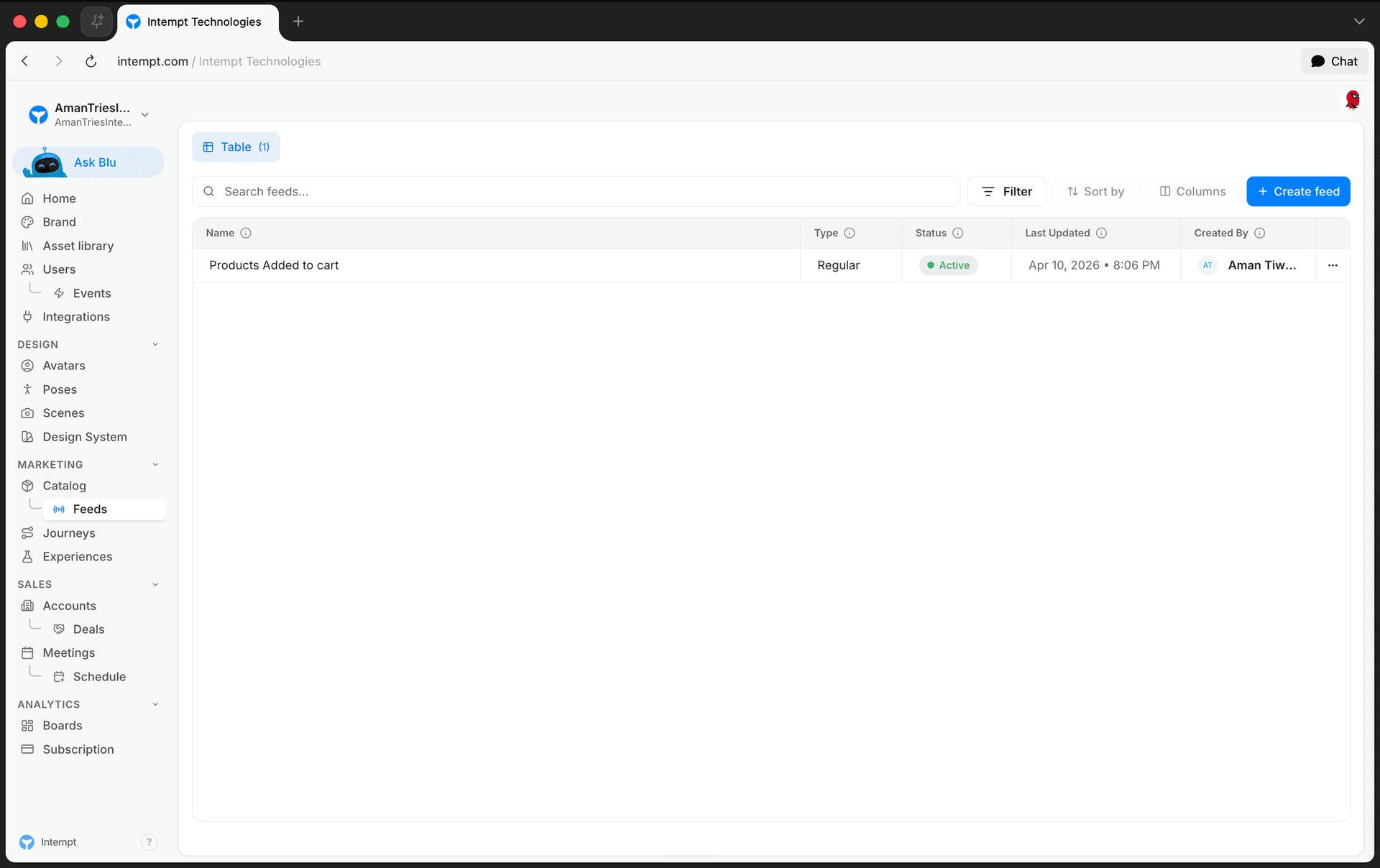
- In the left sidebar, go to Catalog, then open Feeds.
-
Click Create feed, then choose Merchandising feed from the dropdown. The other option, Ad feed, renders per-SKU creative for ad networks and isn't part of this guide.
-
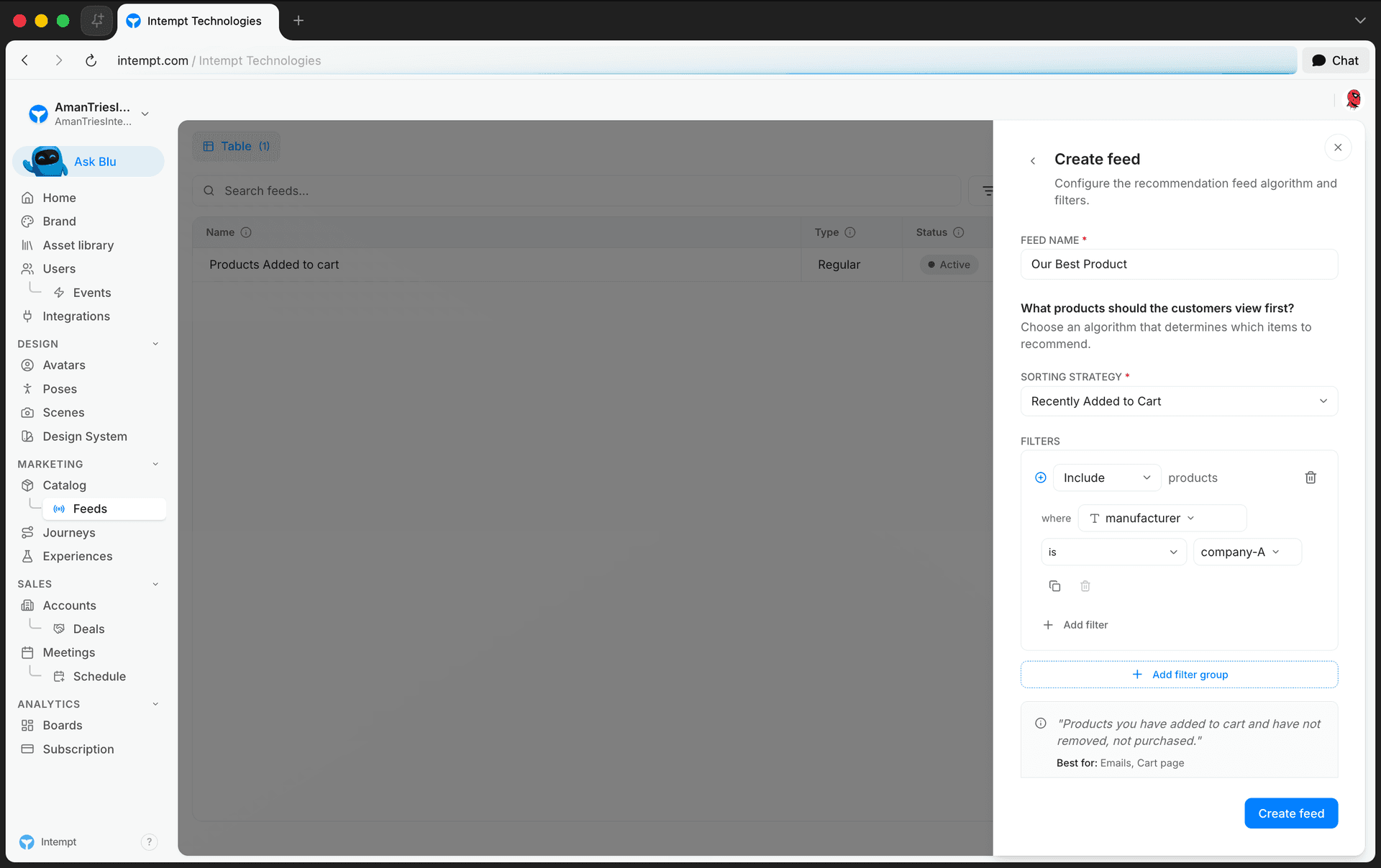
In the panel that opens, enter a Feed name (for example, "Most Popular Products").
-
Under Sorting strategy, pick the algorithm that decides which products the feed recommends. The dropdown is searchable and lists options such as Best Sellers, New Arrivals, Recently Viewed, People Also Viewed, and Recommended for You. Selecting one shows an info card with example customer-facing copy, where the algorithm works best, and its fallback behavior if it can't find enough products.
📘 Good to know
Some algorithms show extra fields once selected: Best Sellers (Purchase) adds a time range (in the last N days, or a specific date range); Similar to What You Bought Before adds a list of product attributes to match on; and Recommended for You (Visitor Recommendations), You May Also Like (Best Alternatives), and Recommended for You (Based on Similar Users) each add a list of customer events (added to cart, viewed, purchased) to base the recommendation on.
See How to use product feeds and recommendations for the complete list of algorithms and their fallback logic.
-
Add filters if you want to narrow which products the algorithm can recommend. For example, only products above a price, or pinning a specific product to always appear first. See How to use product feeds and recommendations for what each filter type does.
-
Click Create feed.
If your filters narrow the catalog down to one product or none, Intempt blocks creation and shows an error asking you to adjust your filters. A feed needs more than one product to recommend from.
📘 Good to know
Once a feed is created, its sorting strategy can't be changed. To use a different algorithm, create a new feed.
Managing your feeds
Your feed appears in the Feeds list with its status (Active or Disabled), when it was last updated, and who created it. Use the search box or the All / Regular / Ad filter to find a specific feed.
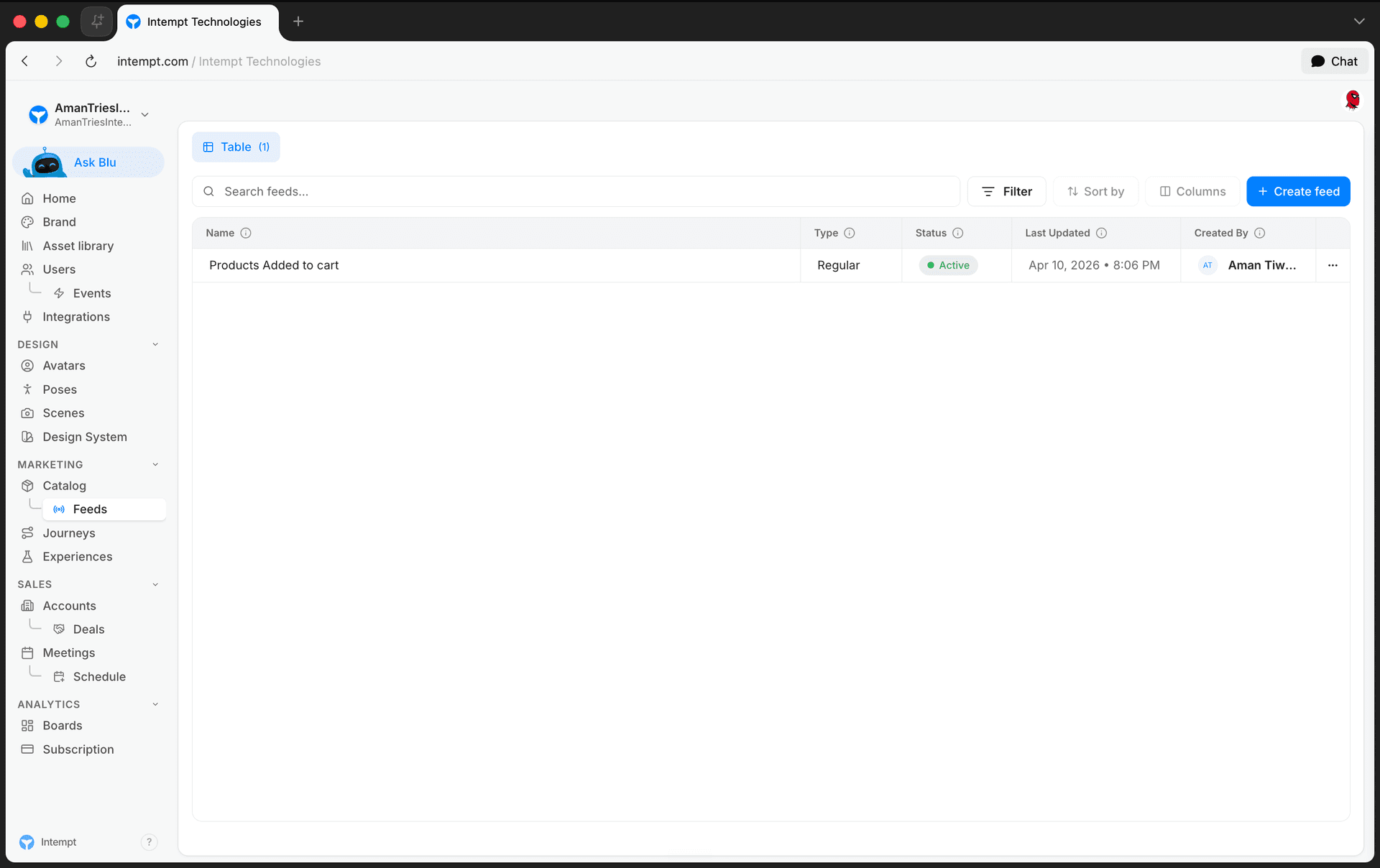
Open the row actions menu on a feed to edit its name, filters, or time range, or to delete it.
Where to go next
- How to use product feeds and recommendations for the full algorithm and filter reference, plus pulling recommendations by API.
- Creating a product feed for using your feed in the email, visual, and push notification editors.
- Catalog for viewing and managing the products your feeds draw from.
Recommendations overview
Recommendations combines your product catalog and customer behavior into ranked feeds you can show in email, the visual editor, and push notifications.
Privacy overview
How privacy responsibilities split between you and Intempt, and where each control lives: consent, data subject requests, opt-out, access control, and retention.