
Creating a product feed
Set up a merchandising feed that combines your product catalog and customer behavior into ranked product recommendations.
Overview
A product feed combines your product catalog with customer behavior, such as the products a customer viewed or purchased, and ranks products into a recommendation list. You can then pull that list into emails, the visual editor, and push notifications.
📘 Good to know
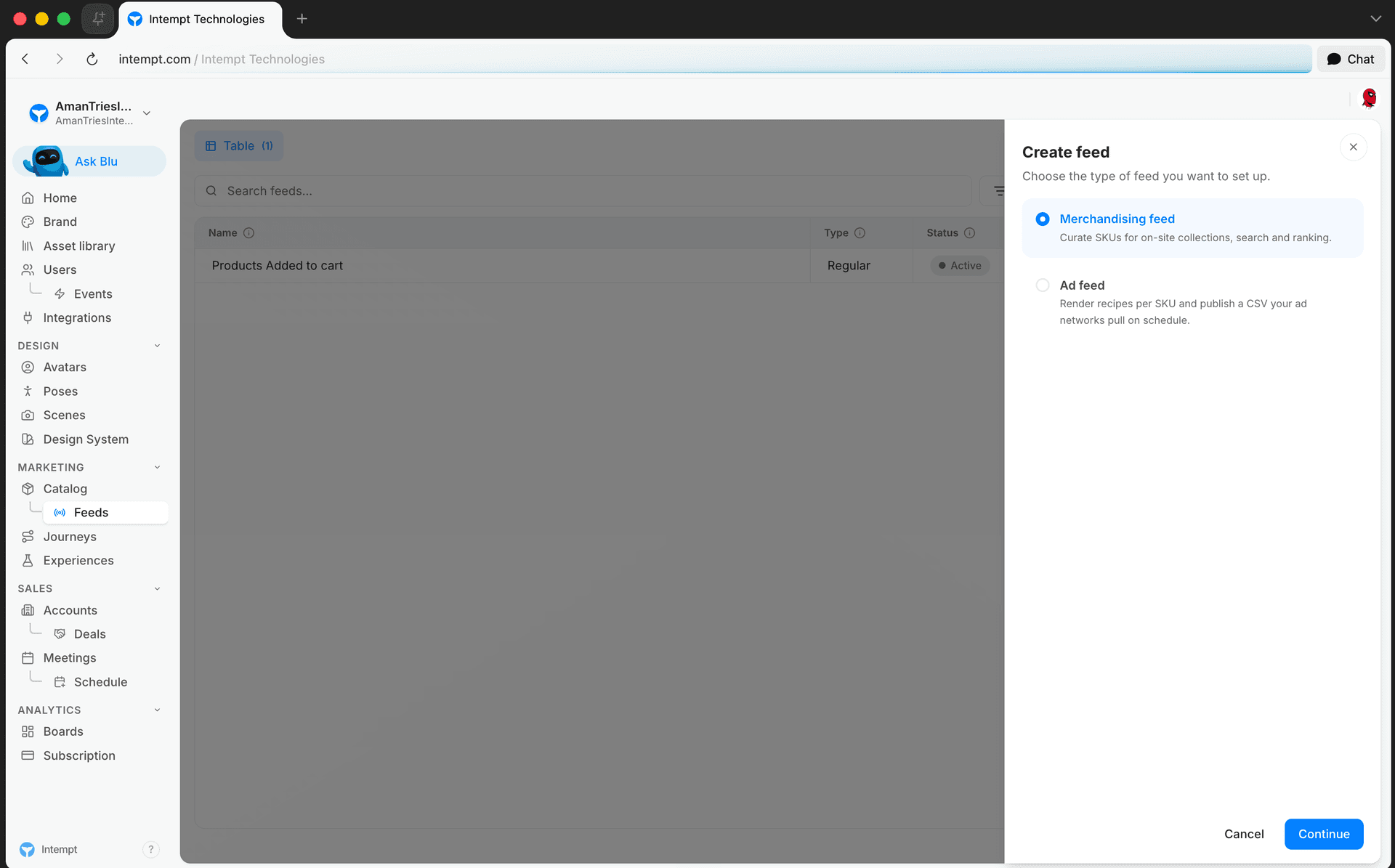
The Create feed button offers two feed types: Merchandising feed and Ad feed. This guide covers the merchandising feed, the type used for on-site and in-message product recommendations. Ad feed renders per-SKU recipes and publishes a CSV that your ad networks pull on a schedule; it's a separate workflow.
Before you begin
A feed needs a product catalog to draw from. Connect one of the following before creating a feed:
-
Shopify, which syncs your catalog automatically.
-
A custom catalog source, if you use a platform without a built-in integration.
You'll also want customer behavior events (views, purchases, cart adds) flowing in so algorithms like "Recently Viewed" or "Best Sellers" have data to rank against. If you're not already tracking these events, see:
How to create a feed
Open the Feeds page
-
In the Marketing workspace sidebar, click Catalog.
-
Click Feeds in the secondary navigation under Catalog.
-
Click Create feed, then choose Merchandising feed from the panel that opens.
Configure the feed
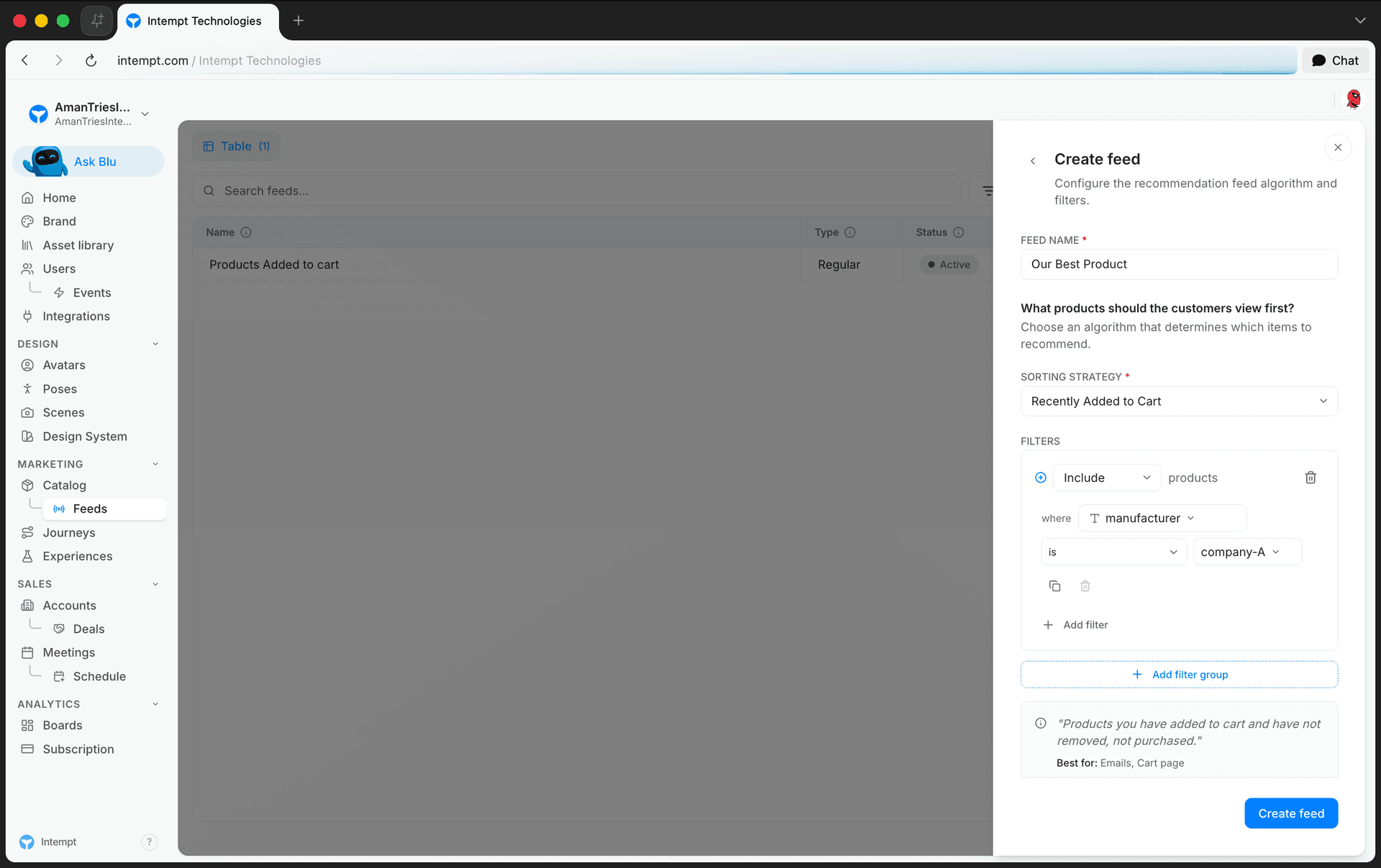
A side panel opens with the following fields:
-
Feed name (required). Give the feed a descriptive name, for example "Most Popular Products."
-
Sorting strategy (required). A searchable dropdown of 17 algorithms that determine which products the feed ranks first, for example "Best Sellers (Purchase)," "Top Picks in Your Favorite Categories," or "Recently Added to Cart." For the full list with descriptions and fallback behavior, see How to Use Product Feeds and Recommendations.
-
Filters (optional). Click Add filter to create your first filter group, then choose its type:
-
Include only products matching the conditions you set.
-
Exclude products matching the conditions.
-
Pin specific products to always appear first.
Add attribute-based conditions inside the group, and click Add filter group to add more groups.
-
-
Once you pick an algorithm, some show extra fields:
-
Best Sellers (Purchase) adds a Time range control. Choose "In the last" (defaults to 10 days) or "Between" two specific dates.
-
Similar to What You Bought Before adds an Attributes picker, a searchable multi-select of your product attributes.
-
Recommended for You (Visitor Recommendations), You May Also Like (Best Alternatives), and Recommended for You (Based on Similar Users) add Events checkboxes: Added to cart, Viewed, Purchased.
-
-
Once you choose an algorithm, Intempt shows an info card with a short example of the recommendation copy, where the algorithm works best, and its fallback behavior if there aren't enough matching products. For "Top Picks in Your Favorite Categories," for example, the card shows "Since you explore this category often, here are recommended picks," with Homepage, Category Pages, and Screener listed as the best placements.
-
Click Create feed.
📘 Good to know
When you create a new feed, Intempt checks that your product catalog has more than one product. If it doesn't, the save is blocked with an error asking you to add more products to your catalog.
Managing feeds
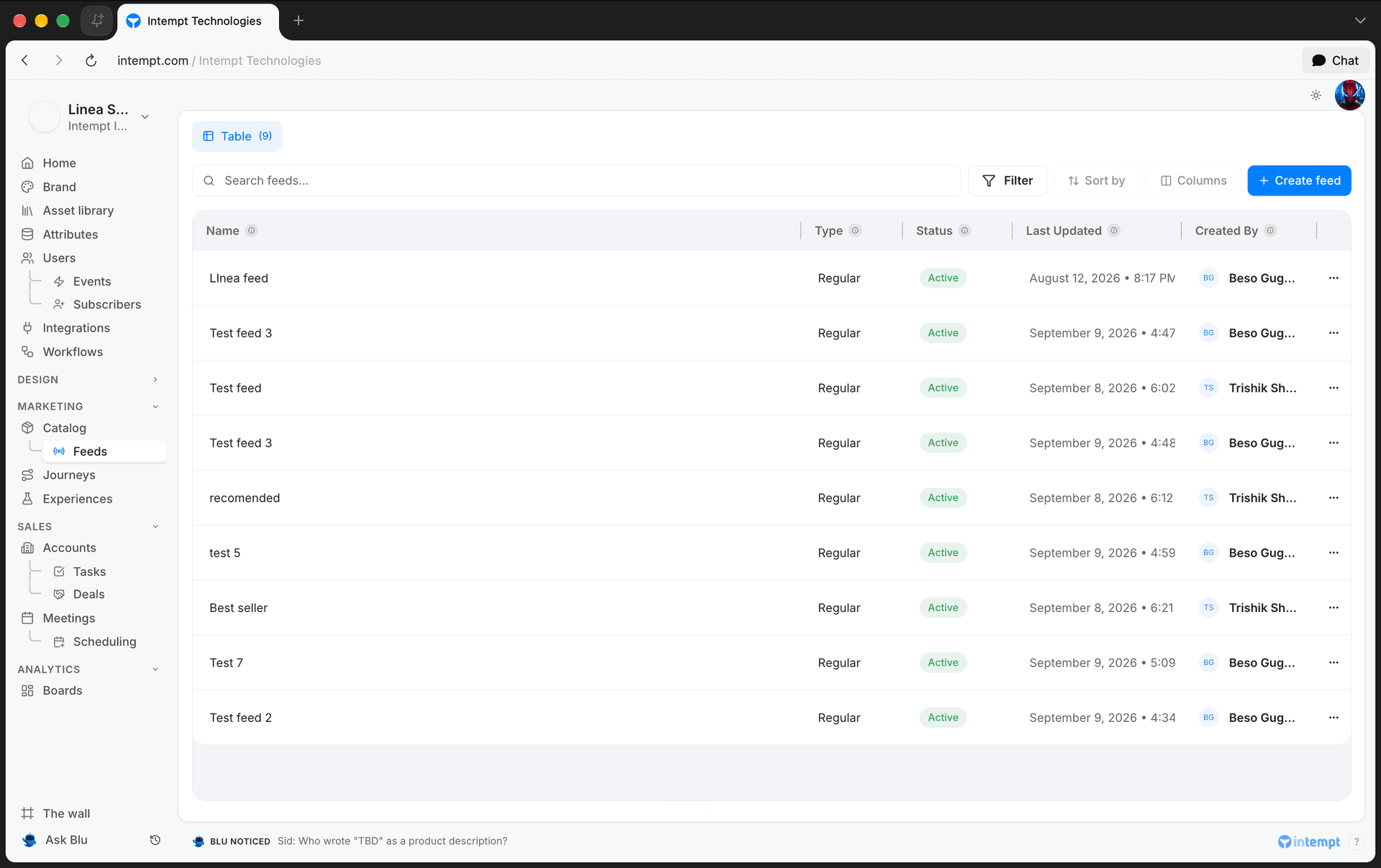
The Feeds page lists every merchandising and ad feed together. You can:
-
Search feeds by name, or filter the list to All, Regular (merchandising), or Ad.
-
See each feed's Type, Status (Active or Disabled for merchandising feeds), Last Updated date, and Created By.
-
Click a merchandising feed row, or use its row-action menu, to Edit it. The sorting strategy can't be changed once a feed is created; the algorithm field is locked on edit.
-
Delete a feed from its row-action menu. You'll be asked to confirm before it's removed.
Using your feed
Once a feed exists, you can pull it into:
-
Emails, by dragging a Product block into the Email editor and selecting the feed for its dynamic content.
-
Visual editor experiences, by dragging a Product block (Grid or Carousel) into a variant.
-
Push notifications, where a feed can supply the dynamic product image shown in the notification.
Where to go next
-
How to Use Product Feeds and Recommendations: the full algorithm and filter reference.
-
Creating a Custom Catalog Source: connect a catalog if you don't use Shopify.
-
Catalog: browse and inspect the product data your feeds draw from.
Creating a custom catalog source
Connect a product feed hosted at any URL so Intempt can sync your catalog for recommendations, feeds, and personalization.
How to use product feeds and recommendations
Product feeds rank and recommend products using one of Intempt's built-in algorithms, plus optional filters, then serve that ranked list to your site, emails, and push notifications.