
Catalog
Browse the product data Intempt syncs from your eCommerce integration or custom catalog sources, and inspect any single product's details.
Overview
Catalog is where you browse the product data Intempt has synced, whether it came from an eCommerce integration like Shopify or a custom catalog source. This is the same product data your feeds and recommendations draw from.
In the Marketing workspace sidebar, click Catalog. The page has two tabs:
- Products: every product synced into Intempt, in a searchable, customizable table.
- Sources: the connections feeding your catalog, such as a Shopify integration or a custom feed URL.
📘 Good to know
Catalog also has a Feeds page in the secondary navigation, for creating merchandising and ad feeds from this product data. See Creating a product feed.
Viewing your products
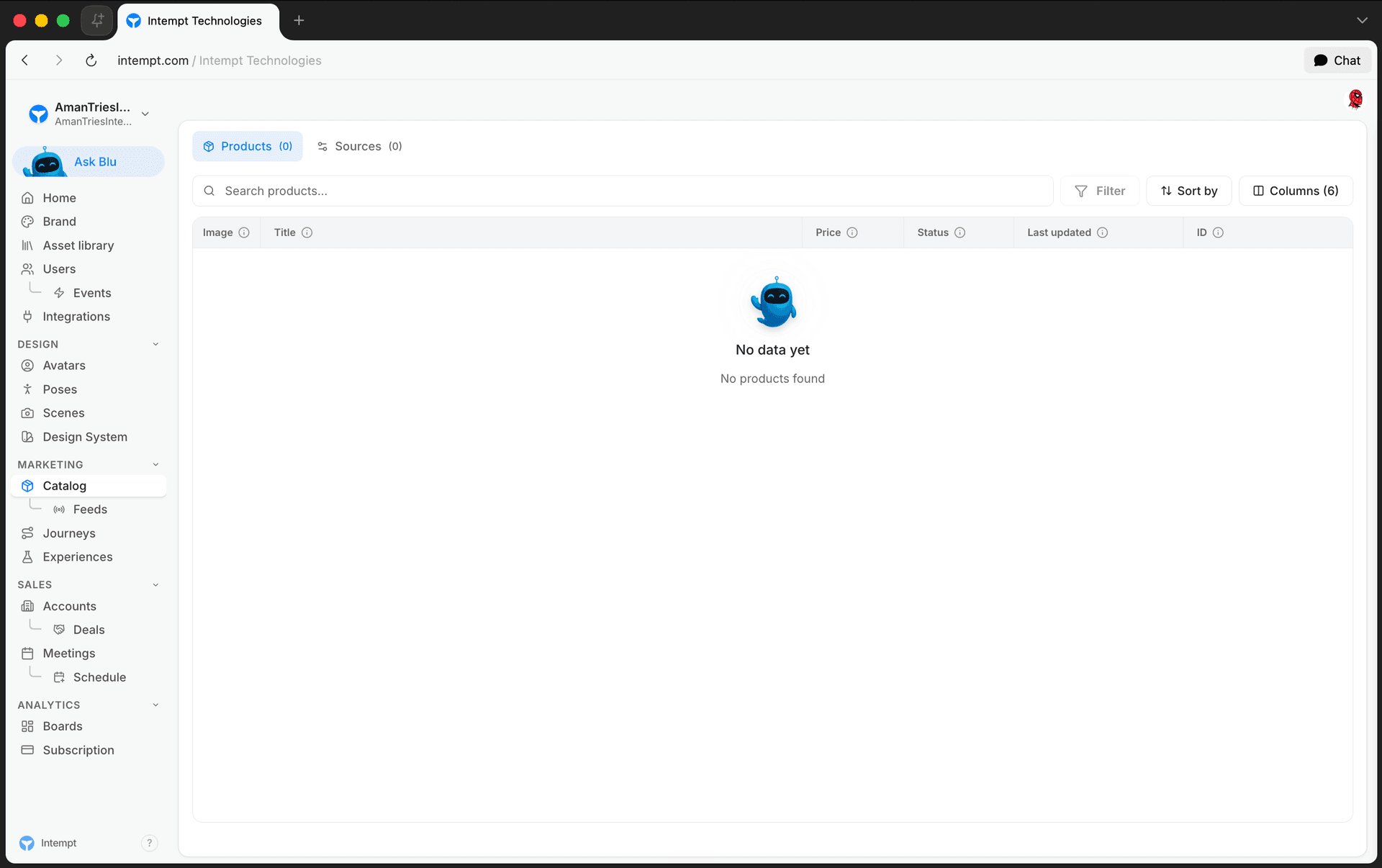
The Products tab lists every product in your catalog. By default, the table shows Image, Title, Price, Status, Last updated, and ID.
- Search products by name using the search field above the table.
- Click Columns to add, remove, or reorder columns. Any product attribute you've defined is available as a column, not only the defaults.
- The Status column shows Active or Draft, based on whether the product is published.
Viewing your catalog sources
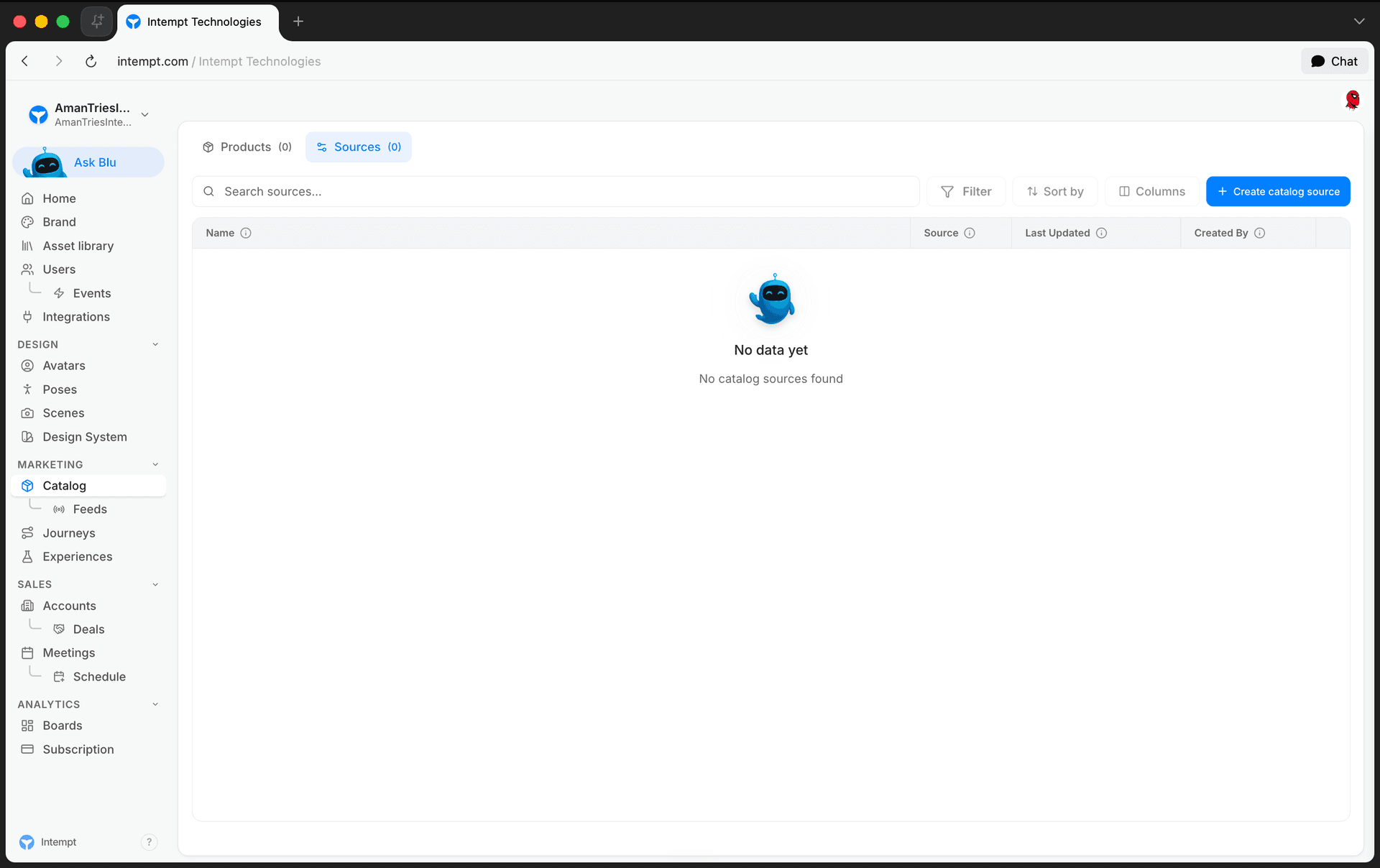
The Sources tab lists every connection your catalog data comes from: a Shopify integration, a custom JSON/XML/CSV feed, or any other source you've added. For each source, the table shows its Name, Source type, Last Updated date, and who created it.
Click Create catalog source to connect a new one. See Creating a custom catalog source for the full setup flow.
To edit or remove a source, open its row-action menu (⋯):
- Edit: update its connection details or field mappings.
- Delete: remove the source. If a product feed or other item depends on it, Intempt asks you to confirm before deleting both.
Viewing a product
Click any row in the Products tab to open that product's detail page.
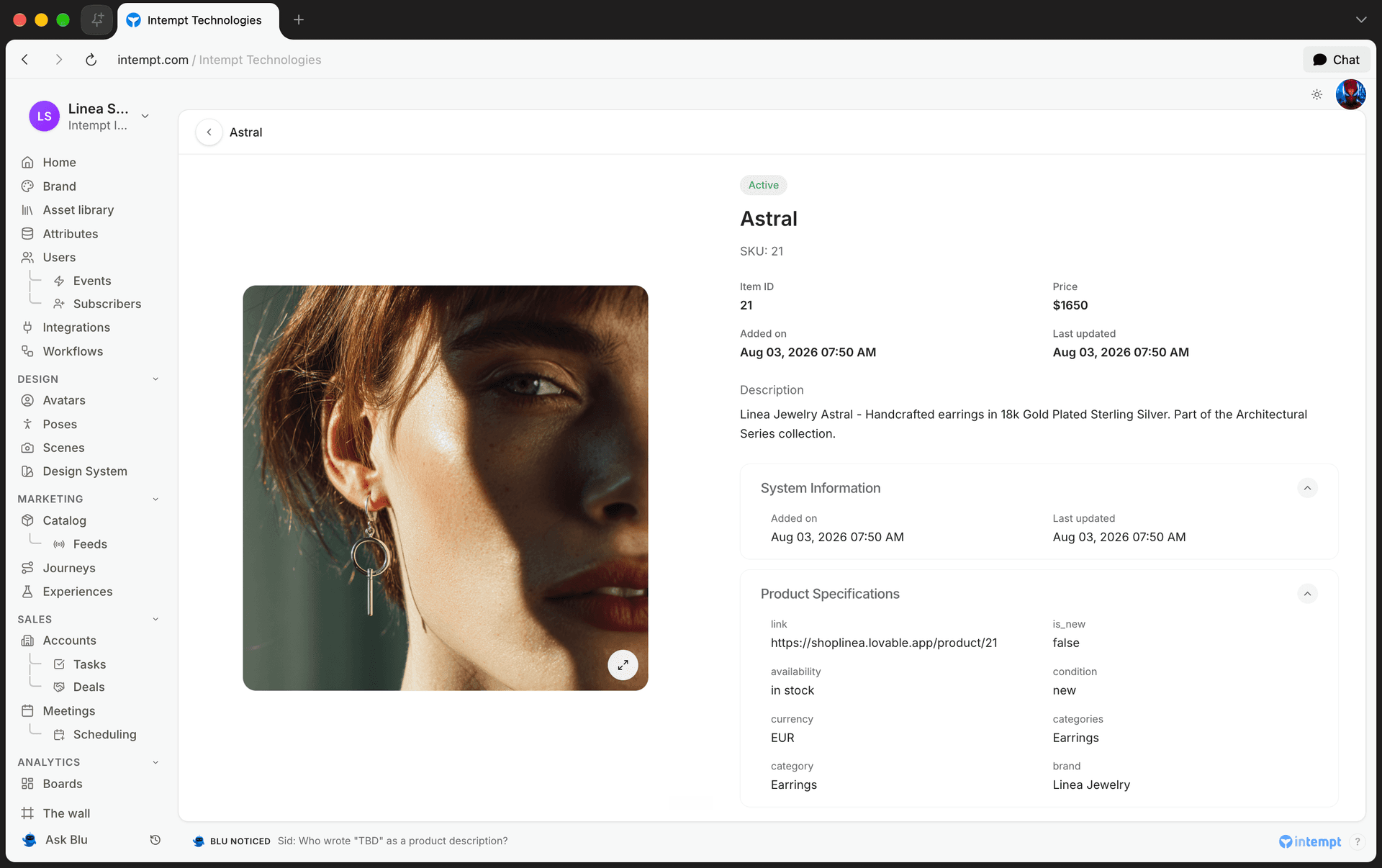
The top of the page shows:
- The product's image, title, and a PUBLISHED or DRAFT badge.
- SKU, Item ID, and Price.
- Added on and Last updated dates.
- Description, if the product has one.
Below that, two sections group the rest of the product's data:
- System Information: Added on and Last updated, the same dates shown above.
- Product Specifications: every other attribute synced onto this product, shown as a raw field name and its value. What appears here depends entirely on the fields your catalog source syncs, since this section lists whatever attributes the product has beyond the core fields above.
Where to go next
Traffic, Revenue, and Engagement boards
Three built-in boards that come pre-populated from data you already track, no connection to set up, no report to build.
Creating a custom catalog source
Connect a product feed hosted at any URL so Intempt can sync your catalog for recommendations, feeds, and personalization.