
Scenes Library Overview
Scenes is Intempt's library of photo-studio recipes: saved lighting, camera, and environment combinations you apply for a consistent backdrop across every product shot.
Overview
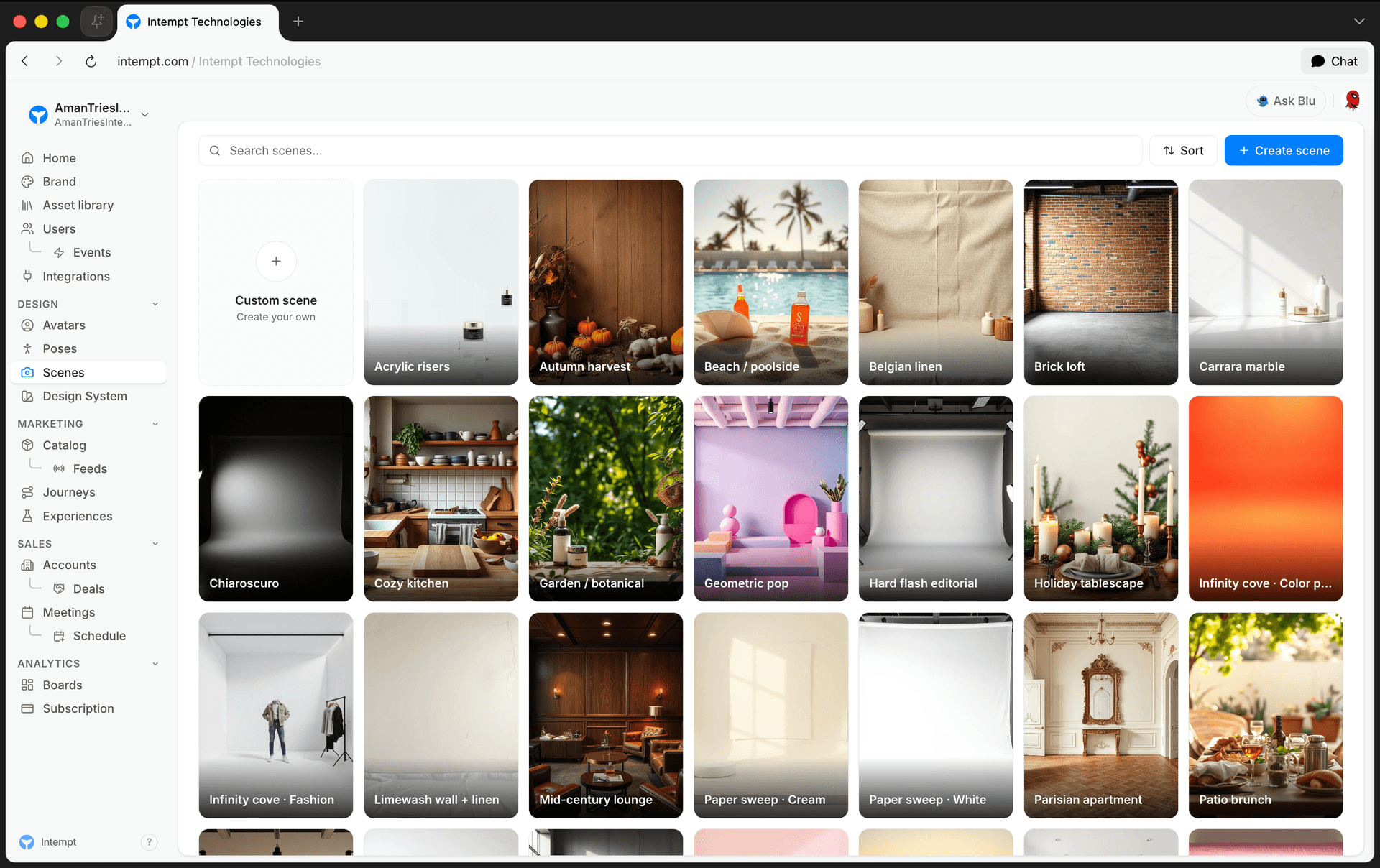
Scenes lives under Design in the console sidebar, at /scenes. It's Intempt's library of photo-studio recipes: saved combinations of lighting, camera, background, and a handful of other blocks that render as a consistent visual backdrop. Built-in presets and your own custom scenes live side by side in the same library, and both work the same way once you're inside one.
Scene fields
Every scene is a composition of up to ten blocks. The editor treats four as required and the rest as optional; Category isn't part of the block editor at all.
| Field | Editor requirement | Description |
|---|---|---|
| Lighting | Required | The lighting setup applied to the shot. |
| Camera | Required | The shot type and composition. |
| Background | Required | The environment behind the subject. |
| Surface | Required | The surface or ground the subject sits on. |
| Color Palette | Optional | A color scheme. When set, its color renders as a swatch gradient on the detail page. |
| Style | Optional | The overall visual style or treatment. |
| Film Type | Optional | The simulated film or camera stock. |
| Scene | Optional | The location or setting shown in the backdrop, for example a rooftop or a kitchen. This is one of the nine block fields inside a scene composition, not the scene record itself. |
| Pose | Optional | A body pose reference applied to the subject. |
| Props | Optional, up to 4 | Objects composited into the shot, picked from a fixed list of 12: monstera, flowers, books, fabric drape, geometric, candles, water droplets, smoke/mist, ingredients, seasonal props, ice condensation, and perspex risers. |
| Category | Not editable in the block editor | A style classification (Minimalist, Natural, Dramatic, Colorful, Luxury, Vertical, or Seasonal) set when the scene is created. It's shown on the detail page, but the block editor has no picker for it. |
📘 Good to know
Optional fields show a "None" option in the block editor; required fields don't, so you can clear an optional block back to empty but you can't clear Lighting, Camera, Background, or Surface.
Browsing the library
The list page combines built-in presets and your custom scenes into one card grid. You can:
- Search by name.
- Sort by "My scenes first" (default), "Presets first," "Recently updated," or "A → Z."
There's no filter option or view switcher on this page currently. Every scene, preset and custom alike, shows in the same grid, and values like Category, Lighting, Environment, and Shot type are only visible once you open a scene's detail page.
If nothing matches your search, the page shows "No scenes match" with "Try clearing your search."
Creating a scene
There's no blank form for building a scene block by block from a cold start. Every creation path opens Blu, Intempt's AI chat panel, scoped to the scene skill:
- The "Create scene" button offers "Generate with Blu" (opens chat with no pre-filled text) or "Upload file" (accepts
.md,.txt, or.jsonfiles describing the setup). - In Feature and List views, a "Custom scene" tile or row opens chat with the prompt already filled in: "Create a new scene from scratch. I'll describe the visual style I want." Table view doesn't offer this shortcut.
Either way, you describe the setup in chat and Blu generates the scene record, including a reference image, once the conversation produces one.
The scene detail page
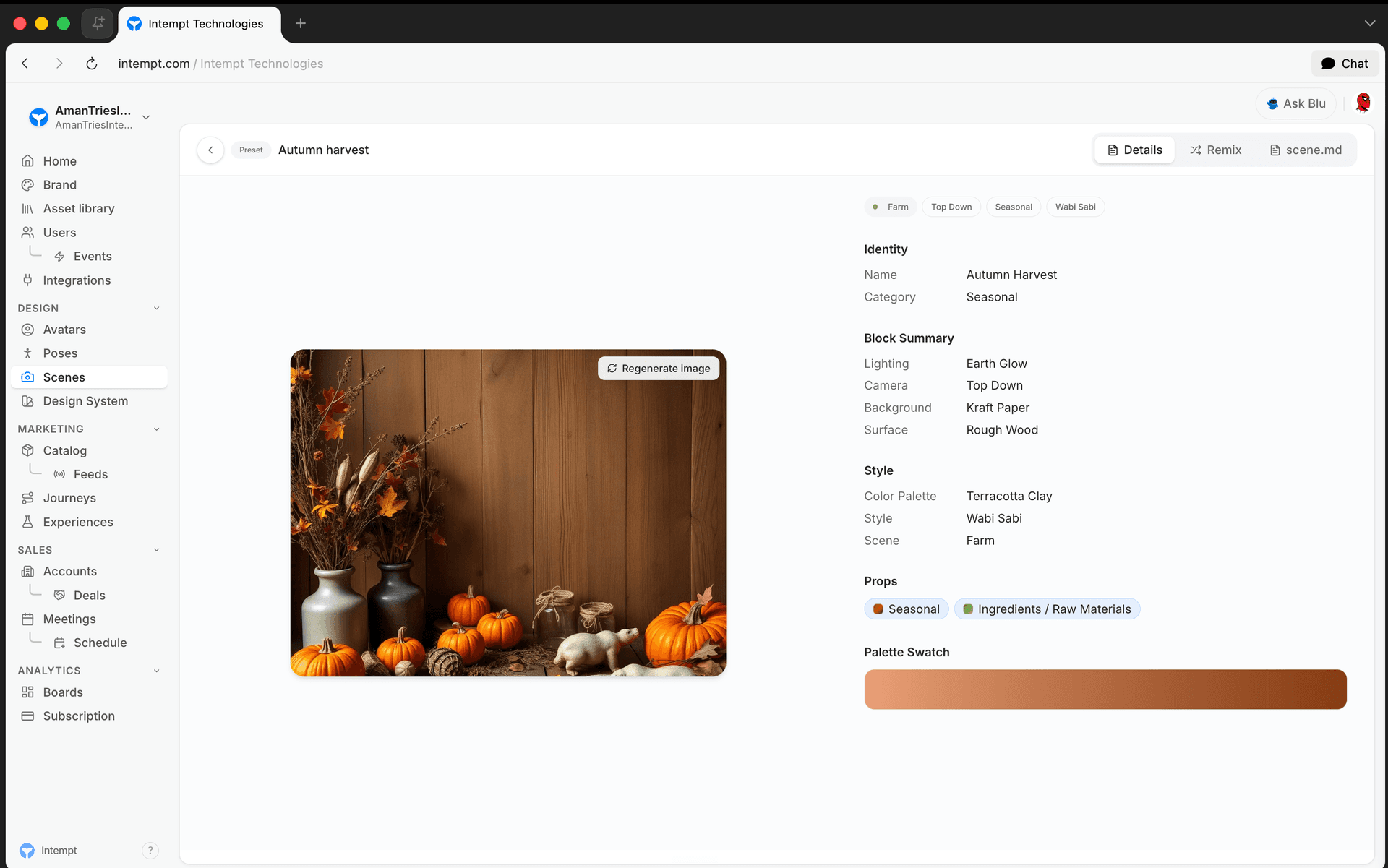
Opening any scene shows three tabs at the top: Details, Remix, and scene.md.
Details (the default tab) splits the page into two sides:
- Reference image, on the left. If one exists, it's shown with a "Regenerate image" button. If not, a generated preview stands in, with a "Generate image" button instead.
- Read-only info, on the right: a row of chips (Scene, Camera, Category, and Style values, when set), followed by Identity (Name, Category), Block Summary (Lighting, Camera, Background, Surface), Style (Color Palette, Style, Film Type, Scene, Pose), Props (a row of chips, when any are set), and Palette Swatch (a gradient preview, when Color Palette has a color). Any field with no value is left out rather than shown empty.
Remix isn't a panel you stay on. Clicking it hands off straight to Blu, Intempt's AI chat, with a pre-filled prompt to create a variation of the scene, and the tab snaps back to Details.
scene.md opens a slide-out side panel with the scene's full markdown brief (which includes a Compiled Prompt section written into the markdown text) and a button to copy it. It's a separate overlay, not an alternate view of Details. Closing it returns you to Details.
Editing vs. remixing
What you can do with a scene depends on whether it's a preset or one of your own.
| Action | Preset | Custom scene |
|---|---|---|
| View block info | Yes | Yes |
| Edit block fields | No | Yes |
| Remix into your own copy | Yes | Not offered; it's already yours |
| Delete | No | Yes |
| Regenerate the reference image | Yes | Yes |
Presets skip the block editor entirely. Remixing hands off to Blu chat instead, which generates a new custom scene from the conversation. Editing a custom scene works differently: an Edit button (shown only on your own scenes) opens a dialog with a "Block Categories" picker. Pick a category on the left to see its available blocks, select one, and the preview and a live Compiled Prompt update as you go. A bottom bar lists every currently selected block as a chip, with a running count. Editing this way updates the scene in place; once a remix creates a new custom scene, you can open its own Edit button the same way to fine-tune it.
📘 Good to know
Because remixing always creates a new record, a remixed preset never overwrites the original. You can remix the same preset as many times as you want.
Use cases
- Standardizing a product-shoot backdrop. Reuse the same Lighting, Camera, and Background combination across every product photo instead of redefining it each time.
- Starting from a preset instead of a blank composition. Remix a built-in scene into your own editable copy rather than picking all nine block fields from scratch.
- Checking a scene's mood classification. Open a scene's detail page to see its Category chip (Minimalist, Natural, Dramatic, Colorful, Luxury, Vertical, or Seasonal). There's no Mood filter on the list page to browse by it directly.
- Finding scenes by environment or shot type. Search by name or sort by "Recently updated" or "A → Z" and scan the grid. There's no Environment or Shot type filter on the list page currently.
- Building a scene from a description. Use "Generate with Blu" to describe the visual style you want in chat and let Blu compose the blocks.
- Bringing in an existing scene brief. Upload a
.md,.txt, or.jsonfile describing the studio setup instead of typing it into chat. - Sharing a scene's brief with a teammate. Copy the scene.md markdown from the detail page instead of re-describing the setup by hand.
- Refreshing a scene's reference image. After changing blocks, regenerate the reference image so the preview matches the new composition.
- Adding props for a themed shoot. Select up to 4 props, for example candles and seasonal props, to layer onto a scene for a seasonal campaign.
- Auditing what's built-in vs. custom. Sort by "Presets first" or "My scenes first" to group them, since there's no separate Source filter on the list page currently.
Where to go next
- Avatars Overview, the character library you shoot against a scene.
- Creating Custom Poses, the body-pose library that pairs with Scenes for on-model shots.
- Brand Kit Overview, the brand identity Blu draws on when generating a scene.
Remixing a Scene
Remix turns one of Intempt's built-in Scene presets into a custom scene you can edit, by handing off to a Blu chat conversation that creates the copy for you.
Design Systems Overview
Design System is Intempt's reusable visual style library: seed color, typography, corner radius, elevation, and component styling, previewed live and applied wherever a design is picked.