
Adding nodes
The workflow node picker, the nine node categories, and the node guide's shape and colour vocabulary.
Overview
Nodes are the steps of a workflow. You add them from the node picker, place them on the canvas, connect them, and configure each one from its own panel.
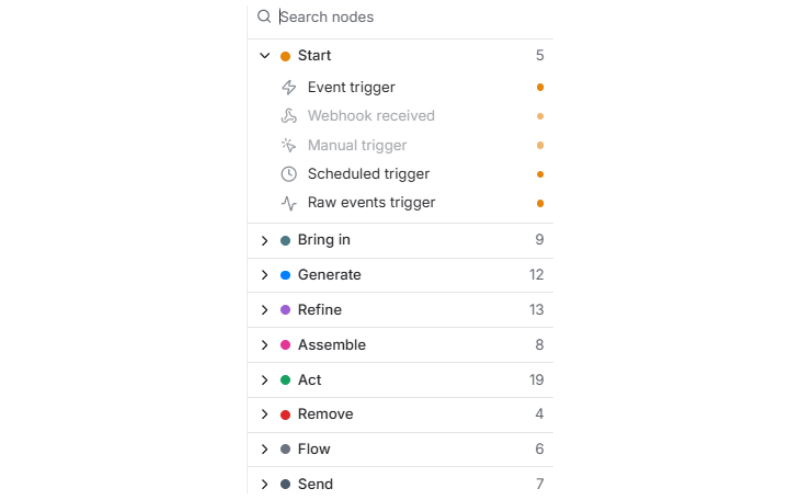
The picker lists every node the product intends to offer, grouped into nine categories. Nodes that are built are selectable; nodes that are not are shown greyed out with the hint "Not available yet - this node has not been built." Nothing you build breaks when a greyed node ships: it simply becomes selectable.
Opening the node picker
There are two ways in, and both open the same menu:
- Click Add node in the top-left corner of the canvas. The menu opens anchored under the button.
- Right-click anywhere on empty canvas. The menu opens at your cursor.
Press Escape to close it. Focus returns to whatever opened it.
Using the picker
The picker is a single card with a search field at the top and the nine categories below it, each showing a coloured dot and the number of nodes it contains.
- Search matches a node's name and its description. Typing filters across every category at once, and empty categories drop out of the list.
- Click a category to expand it. Start is expanded by default.
- Sub-rows appear inside a category that spans more than one medium. A category with records, image, video, audio and text nodes groups them under those headings rather than listing them flat. Nodes that are variations of one idea collapse under a shared parent row.
The nine categories
The categories follow the arc a run travels, from what starts it to what it hands off at the end.
| Category | What it covers |
|---|---|
| Start | Fires the run. Always the leftmost node on the canvas. |
| Bring in | Looks data up or pulls it in. Never changes anything in your workspace. |
| Generate | Costed AI inference. These nodes make something new and draw from your AI Pass. |
| Refine | Deterministic image, video and audio transforms. Not AI-generated. |
| Assemble | Puts finished creative together or fans it out into variants, merges and templates. |
| Act | Creates or updates records in your workspace: CRM, calendar and commerce writes. |
| Remove | Deletes or cancels. Cannot be undone without replaying from an earlier step. |
| Flow | Logic and waits. Decides where a record goes next without leaving the graph. |
| Send | Hands the result to a system outside the graph: export, publish or notify. |
📘 Good to know
The Raw events trigger narrows the picker. After one is on the canvas, only True/false branch, Delay and Publish to Kafka can follow it, and no other trigger can be added to the same workflow. The picker refuses anything else with a short message saying why. See Streaming raw events.
The node guide
The Node guide button in the canvas toolbar opens a reference panel explaining the visual vocabulary. Two things about a node card carry meaning, and they never mix:
- Shape shows where the wire can go.
- Colour shows what the step does to your records, assets or messages.
Shapes
| Shape | What it means | Ports |
|---|---|---|
| Start cap | The workflow begins here. A trigger wakes the run when something happens outside the graph. | Output only. No input port is drawn. |
| Step card | A normal step: takes one input, does one job, passes the result on. | One input, one output. |
| Hexagon | The wire forks here. Each record or asset leaves through exactly one labelled path. | One input, two or more labelled outputs. |
| Capsule | A bead on the wire. The run pauses, but nothing about the data changes. | One input, one output. |
| Hazard card | Irreversible. A record is deleted, a link is broken, or a commitment is cancelled. | One input, one output. |
| End cap | A sink. The result leaves the graph and the branch stops. | Input only. No output port is drawn. |
Colours
Each of the nine categories has its own hue, and a node's coloured left rail on the canvas matches the category it came from in the picker.
Where to go next
- The workflow builder - the canvas, the toolbar and the node card anatomy.
- Publishing and versions - what has to be valid before a workflow can go live.
- Monitoring workflow runs - seeing what each node actually did.
The workflow builder
The workflow canvas, its header bar, the Build and Measure surfaces, the node toolbar, the zoom controls and every canvas gesture.
Publishing and versions
How a workflow draft becomes a live version, what blocks publishing, how Pause and Discard behave, and how to view, restore and roll back a published version.