
Publishing and versions
How a workflow draft becomes a live version, what blocks publishing, how Pause and Discard behave, and how to view, restore and roll back a published version.
Overview
Editing a workflow and publishing it are two separate things. The canvas saves every gesture as you make it, but nothing you draw affects a running workflow until you publish it.
That gives a published workflow two graphs at once: the published version, which is what runs, and the draft, which is what you are editing. There is one draft at a time.
The draft pill
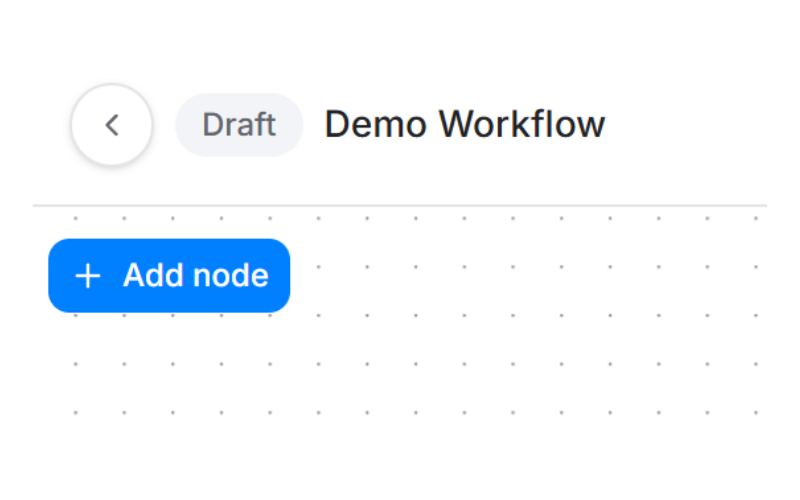
Once an unpublished edit exists over a published version, a pill appears in the header next to the workflow name:
| Pill | What the canvas is showing |
|---|---|
| Editing draft | The draft. The published version keeps running until you publish. |
| Unpublished changes | The published graph, while a draft sits behind it. |
On a plain draft or a plain live workflow the status badge already says everything there is to say, so no pill appears.
Publishing
The Publish button sits at the far right of the canvas toolbar. Its label depends on the workflow's state:
- Publish on a workflow with no live version yet. Publishing takes it live and it starts taking runs.
- Publish changes on a workflow that already has a live version. Publishing brings the live version up to date.
Publishing is one click. There is no confirmation step, because it is reversible in one click: Pause appears in the same toolbar the moment the workflow goes active.
When publishing is blocked
The Publish button turns off when something would stop the workflow running, and its tooltip names the reason. In the order they are checked:
| Message | What to do |
|---|---|
| "Add a node first - the workflow is saved on your first change." | The workflow row does not exist yet. Place a node. |
| "This workflow is stopped. Resume it before publishing changes." | Resume it first. |
| "This workflow is already published and has no changes waiting. Edit the canvas to publish again." | Nothing is pending. |
| "Add a trigger node to publish this workflow." | Every workflow needs a trigger. |
| "Add at least one action node to publish this workflow." | A trigger on its own does nothing. |
| "Connect N nodes to the rest of the workflow - an unlinked node never runs." | Wire the stranded node in, or delete it. |
| "Fix N node errors before publishing." | Open each node carrying an Error pill and fix its config. |
The reasons are checked in that order, so the most useful next step is the one you see.
Errors on a raw events workflow
A workflow that starts with a Raw events trigger has its own node errors. Each one counts toward "Fix N node errors before publishing."
| Error on the node | What to do |
|---|---|
| "Pick at least one source or collection: the trigger can't fire until it knows which events to take." | Select a source, a collection, or both in the trigger's panel. |
| "Remove the sources that aren't enabled for raw events: this trigger only takes events from enabled sources." | Remove every source that isn't an Events only source. It's marked "Not enabled for raw events." |
| "This step can't run after a raw events trigger. Only True/false branch, Delay and Publish to Kafka can." | Delete the step, or move it to a separate workflow. |
| "A raw events trigger can't share a workflow with other trigger types. Remove one kind." | Keep either the Raw events trigger or the other triggers, and build the rest in a second workflow. |
| "Raw events have no user or account, so remove the attribute, user and account variables from this message." | Take the user, account and attribute variables out of the Publish to Kafka message. |
Where these errors show up. The node with the problem carries an Error pill, and Publish stays disabled with the tooltip "Fix N node errors before publishing." Open the node to see which of the errors above it has.
Publishing with warnings
A warning is a cost, not a refusal. When a node reports one, Publish stays enabled and the tooltip says what you are about to accept, for example "Publishes with 2 warnings. They are costs, not blockers."
📘 Good to know
Publishing a paused workflow publishes your edits and leaves it paused. The confirmation says so: "The workflow stays paused - use Resume to make it take runs again." Publishing does not resume a workflow.
Pausing and resuming
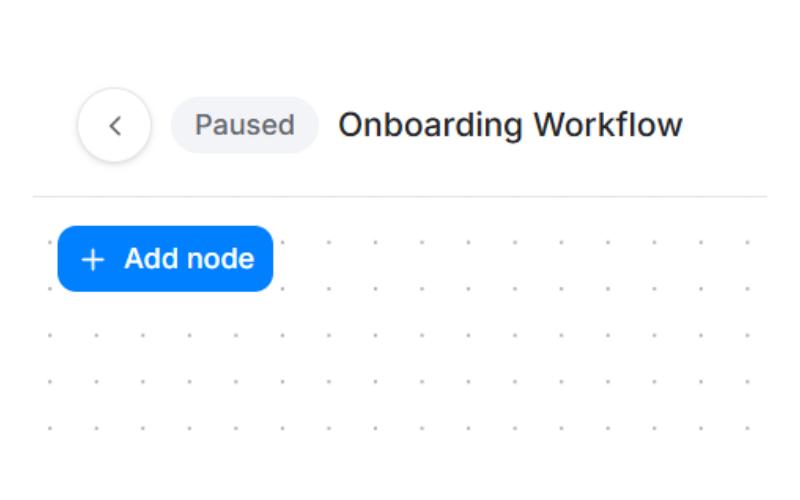
Pause appears in the toolbar on any workflow that is active, paused or stopped.
Pausing does two things: the workflow stops taking new runs, and every run already in flight is held where it stands until you resume. Because the second half is easy to miss, Pause asks first and tells you the cost:
- "The workflow stops taking new runs, and 3 runs already in flight are held until you resume."
- "The workflow stops taking new runs. Nothing is in flight right now."
- "The workflow stops taking new runs, and any runs already in flight are held until you resume. The number in flight could not be counted."
When there is something in flight, the dialog adds: "Runs held long enough can expire before you resume."
Confirm with Pause workflow, or dismiss with Keep running.
Resume is one click with no dialog. It takes the workflow back to taking runs and un-parks exactly what the pause parked.
Discarding changes
Discard changes appears in the toolbar only when an unpublished draft sits over a published version. It throws the draft away and puts the published graph back on the canvas.
It asks first, because nothing undoes it: "The draft and every edit in it are deleted, and the canvas goes back to the published version. This cannot be undone."
On a workflow that has never been published there is no Discard button, because the draft is the workflow.
Version history
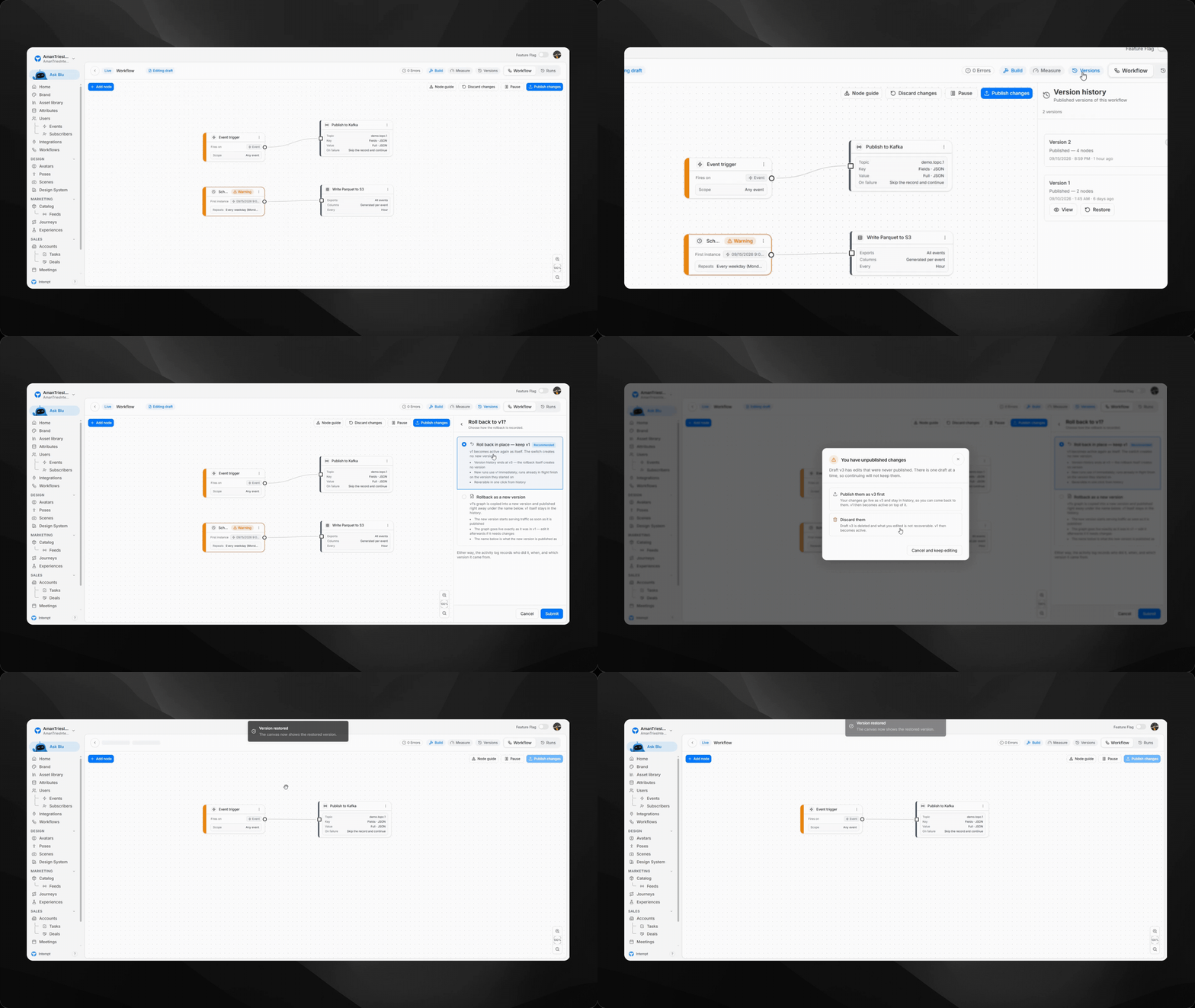
Click Versions in the header to open the version history panel on the right. It lists every published version of this workflow, newest first, with a count at the top.
Each row offers:
- View - loads that version onto the canvas, read-only.
- Restore - makes that version active again.
The version currently serving traffic is marked Current. The version on screen is marked In view. A version with nothing published yet shows "No versions yet" and the hint "Publish the workflow to record its first version."
Viewing a published version
While the canvas is showing a published version rather than the live graph, an amber banner sits directly under the header: Viewing v3 (read-only).
The canvas is genuinely read-only in this mode. Nothing drags, nothing connects, nothing selects and nothing deletes, and the toolbar's Discard, Pause, Resume and Publish buttons are hidden, because they would act on the live workflow while the screen shows a different graph.
The banner has two buttons:
- Back to Active - returns to the live canvas.
- Restore this version - makes the version you are looking at active again.
How versions are named
Publishing from the toolbar does not ask for a name. The version is recorded as "Version N", one past the highest version already in the history.
A name field appears in one place only: when a rollback interrupts you to deal with an unpublished draft and you choose to publish that draft first. That prompt is covered below.
Rolling back
Restoring an older version asks how the rollback should be recorded. Two options:
Roll back in place, keep vN (recommended)
- vN becomes active again as itself. The switch creates no new version.
- Version history ends where it already ended; the rollback itself creates no version.
- New runs use vN immediately. Runs already in flight finish on the version they started on.
- Reversible in one click from history.
Rollback as a new version
- vN's graph is copied into a new version and published right away under a name you choose. vN itself stays in the history.
- The new version starts serving traffic as soon as it is published.
- The graph goes live exactly as it was in vN. Edit it afterwards if it needs changes.
Either way, the activity log records who did it, when, and which version it came from.
Rolling back with an unpublished draft
Roll back in place stops and asks what to do with an open draft first, because there is only one draft at a time:
- Publish them as vN first - your changes go live and stay in history, so you can come back to them. Choosing this opens a version name field, defaulting to "Version N". The version you are restoring then becomes active on top of that.
- Discard them - the draft is deleted and what you edited is not recoverable. The version you are restoring then becomes active.
- Cancel and keep editing - nothing changes.
📘 Good to know
Rollback as a new version does not ask. It already carries its own name field, so it publishes straight away, and an open draft is replaced by the copied graph without being kept as a version first. If the draft matters, publish it before rolling back this way.
Where to go next
- The workflow builder - the canvas and its toolbar.
- Monitoring workflow runs - watching what a published version actually does.
- Adding nodes - the node configuration that has to be valid before you can publish.