
Apache Kafka
Connect your own Kafka cluster as a destination, then publish one message per record from a workflow with the Publish to Kafka node.
Overview
Intempt streams records to a Kafka cluster you own. Nothing is hosted for you: you bring the brokers, the credentials and the topics, and Intempt produces messages onto them.
Two pieces have to exist before a single message lands.
| Piece | Where you set it up | What it holds |
|---|---|---|
| Kafka connection | Integrations, Connections tab | Bootstrap servers, security protocol, credentials, certificates, and the topics workflows are allowed to publish to |
| Publish to Kafka node | A workflow on the canvas | The topic, the message key and the message value |
The split is deliberate, and the node's own footer states it: broker lists, certificates and SASL credentials live on the connection, not on the node. The node only decides what a message says and where it goes.
📘 Good to know
Topics are never created for you. Whatever a node's topic resolves to has to already exist on the cluster, and it has to be declared on the connection. A workflow publishing to a name that is not there fails rather than inventing the topic.
Before you start
- Bootstrap servers for your cluster, as
host:portpairs. - The topics you want to publish to, already created on the cluster.
- Credentials for the security protocol your cluster uses.
- On
SSLorSASL_SSL, the broker's CA certificate as a PEM.
Step 1: connect your Kafka cluster
Go to Integrations, open the Connections tab, click + Add integration, and pick Apache Kafka under Destinations. The panel is titled Configure Apache Kafka.
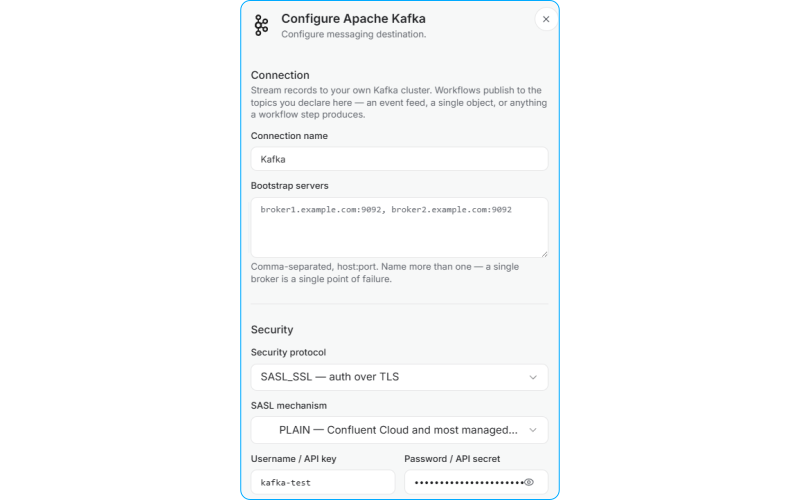
The panel runs top to bottom through Connection, Security and Topics, then the connection test.
Connection
| Field | Required | Notes |
|---|---|---|
| Connection name | Yes | Shown wherever the connection is picked. It has to be unique: a destination that already uses the name is rejected. |
| Bootstrap servers | Yes | Comma-separated host:port. The panel reports how many it recognised as you type. Name more than one, since a single broker is a single point of failure. |
Security
Security protocol defaults to SASL_SSL, which is what Confluent Cloud and most managed clusters use.
| Protocol | What it gives you |
|---|---|
PLAINTEXT | No encryption, no auth. Records cross the network in the clear, so this is only appropriate inside a private network you control. |
SSL | Encrypted, broker verified only. |
SASL_PLAINTEXT | Auth, no encryption. |
SASL_SSL | Auth over TLS. |
SASL mechanism appears on the two SASL protocols and defaults to PLAIN.
| Mechanism | Use it for |
|---|---|
PLAIN | Confluent Cloud and most managed clusters |
SCRAM-SHA-256 | Clusters configured for SCRAM |
SCRAM-SHA-512 | Clusters configured for SCRAM |
AWS_MSK_IAM | Amazon MSK in IAM mode |
OAUTHBEARER is listed in the dropdown but disabled. It is not supported yet, and it is shown rather than hidden so you find that out before filling in the rest of the form.
What each protocol requires
The panel disables Connect Kafka and names what is still missing until every required field for the chosen protocol is filled.
| Protocol and mechanism | Username | Password | CA certificate | IAM role ARN |
|---|---|---|---|---|
PLAINTEXT | Required | |||
SSL | Required | Required | ||
SASL_PLAINTEXT with PLAIN or SCRAM | Required | Required | ||
SASL_SSL with PLAIN or SCRAM | Required | Required | Required | |
SASL_PLAINTEXT with AWS_MSK_IAM | Required | |||
SASL_SSL with AWS_MSK_IAM | Required | Required |
Bootstrap servers and at least one topic are required on every protocol.
The IAM role ARN has to be a role ARN, not a user ARN. It is a role Intempt assumes to sign the handshake, so no password is stored. It needs kafka-cluster:Connect, WriteData and DescribeTopic on the cluster and on the topics you declare, and its trust policy has to name Intempt's AWS account.
📘 The username is required on protocols that have no SASL at all
Username / API key is required on every security protocol except AWS_MSK_IAM, including PLAINTEXT and SSL. The cluster identifies the connection by it, and a connection saved without one is rejected with username.empty. This surprises people who expect the field to belong to SASL alone.
Certificates
CA certificate is required on SSL and SASL_SSL. It is the broker's certificate authority, so the client can verify the handshake. Paste exactly one certificate: a chain is rejected, because the server reads a single X.509 PEM and would otherwise take whichever came first.
Client certificate is optional, and only for a cluster that requires mutual TLS. It is a separate identity from the username and password above, and either one alone is a complete configuration. The certificate and the Private key are a pair, so supplying one without the other is refused. A Key passphrase is optional. Paste the PEM with or without its BEGIN and END lines.
Both certificate fields read the expiry date out of the PEM and show it back to you, including a warning when the certificate has expired or is close to it. Replacing an expiring certificate does not mean rebuilding the connection: the connection stays, only the certificate changes.
Verify broker hostname is on by default and checks the certificate matches the address you dialled. Turn it off only for a cluster reached through a proxy or tunnel where the names differ by design. With it off the connection is still encrypted, but a broker impersonating the address would be accepted.
📘 Three fields are write-only
The password, the client private key and the key passphrase are stored and never read back. They do not appear in the connection when you reopen it, and they do not appear in a log or an error. You replace them rather than read them. The client certificate itself is a public document and does stay visible.
Topics
List the topics workflows may publish to, one per line. A comma-separated paste works too, and the panel reports how many it counted.
Test connection
Test opens a producer, lists cluster metadata and closes it again. It publishes nothing. On success it reports how many brokers it reached. If the broker rejects the credentials, the panel says so rather than leaving you to find out on the first workflow run.
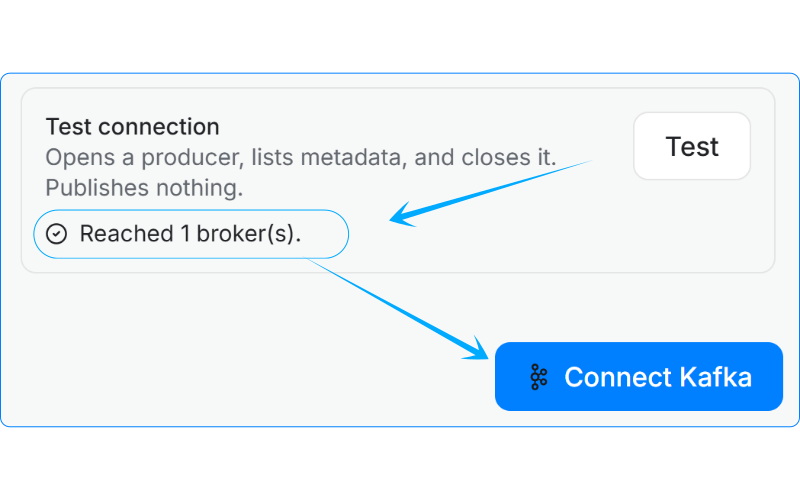
Click Connect Kafka to save.
Step 2: add the Publish to Kafka node
Open Workflows, open or create a workflow, and add a node. Publish to Kafka is in the Send group.
It takes records from whatever is connected above it: a trigger on all events, a trigger on one named event, a Raw events trigger, or another action. It publishes one message per incoming record.
📘 Good to know
Publish to Kafka is the end of the line. Nothing continues after it, so anything that has to happen as well as the publish goes before it, not after.
Step 3: configure the node
Everything below the connection picker stays greyed out until a connection is selected, because there is nothing to publish to yet.
| Setting | Required | What it does |
|---|---|---|
| Connection | Yes | Which saved Kafka connection to publish through. |
| Topic | Yes | The one topic this node publishes to. Accepts Liquid, so {{ attribute.user.id }} derives it from the data. The workflow cannot be published until this is set. |
| Message key | No | Optional. Defaults to Nothing. |
| Message value | No | What each message carries. Defaults to Fields. |
There is no separate partition key field. A message key is the Message key half set to something other than Nothing, and the broker partitions on it. With no key, the broker partitions round-robin.
If this step fails is not exposed in the panel. Every Publish to Kafka node skips the record and continues, which leaves the run going and records which records were missed.
Choosing what each half publishes
Both halves offer the same three modes.
| Mode | What it publishes |
|---|---|
| Nothing | The half sends nothing. On the key, the message is keyless. On the value, the message is a null, which log compaction reads as a tombstone for the key. |
| Fields | A grid, one row per published field. You write a Liquid template on the left and the field name it publishes under on the right. |
| JSON | A JSON body you write yourself, published as written with Liquid resolved per message. |
A message needs a key or a value. Both halves set to Nothing is refused.
Switching a half between Fields and JSON converts rather than starts over, and the templates you typed survive both directions. Going from JSON to Fields asks first when the body is not a flat object, because nested keys become dotted field names and anything that is not a flat value is rewritten as text.
Liquid tags are inserted from the variable picker beside each field, and they are rooted at attribute, as in {{ attribute.user.first_name }}.
Format and schema
Each half declares its own Format, either JSON or Avro. An Avro value beside a JSON key is a normal configuration.
On a JSON half, a Send with schema toggle wraps the value in a schema and payload envelope instead of publishing it bare. It is offered on JSON only, since an Avro half already carries its schema by being Avro.
On an Avro half, leave the Avro schema box empty and the schema is generated from your field names. Paste one and yours is used instead. The panel shows the schema that will actually travel and gives you a Copy for the consumer button.
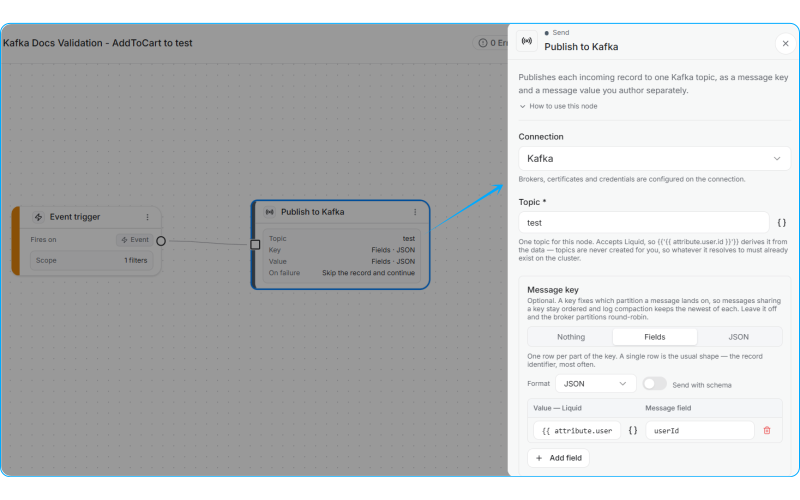
The node's card on the canvas carries the same four answers the sidebar sets: the topic, what each half publishes and how it is encoded, and what happens on failure. The Message value half sits below the fold of this screenshot, configured the same way.
What lands on the topic
The samples below are real messages from a node publishing an item_ordered event, configured with a JSON message value in Fields mode.
Sample message, schema off
With Send with schema off, the value is the flat object your field grid describes:
{
  "amount": 414.13,
  "brand": "Aurora Audio",
  "category": "Electronics",
  "currency": "EUR",
  "eventId": 4153465270755331507,
  "eventName": "item_ordered",
  "eventTime": "2026-09-15T14:04:50.934Z",
  "isFirstPurchase": true,
  "orderId": "ORD-995961",
  "paymentMethod": "paypal",
  "productId": "SKU-88213",
  "productName": "Aurora Wireless Headphones",
  "quantity": 1.0,
  "sourceId": 1862124753020723200
}
Sample message, schema on
With Send with schema on, the same value travels inside an envelope carrying a Kafka Connect style struct schema. The schema is built at publish time from your field names, each field is typed from the value the template resolved to, and every field is marked optional:
{
  "schema": {
    "type": "struct",
    "optional": false,
    "fields": [
      { "type": "double", "optional": true, "field": "amount" },
      { "type": "string", "optional": true, "field": "brand" },
      { "type": "string", "optional": true, "field": "category" },
      { "type": "string", "optional": true, "field": "currency" },
      { "type": "int64", "optional": true, "field": "eventId" },
      { "type": "string", "optional": true, "field": "eventName" },
      { "type": "string", "optional": true, "field": "eventTime" },
      { "type": "boolean", "optional": true, "field": "isFirstPurchase" },
      { "type": "string", "optional": true, "field": "orderId" },
      { "type": "string", "optional": true, "field": "paymentMethod" },
      { "type": "string", "optional": true, "field": "productId" },
      { "type": "string", "optional": true, "field": "productName" },
      { "type": "double", "optional": true, "field": "quantity" },
      { "type": "int64", "optional": true, "field": "sourceId" }
    ]
  },
  "payload": {
    "amount": 414.13,
    "brand": "Aurora Audio",
    "category": "Electronics",
    "currency": "EUR",
    "eventId": 4153465270755331507,
    "eventName": "item_ordered",
    "eventTime": "2026-09-15T14:04:50.934Z",
    "isFirstPurchase": true,
    "orderId": "ORD-995961",
    "paymentMethod": "paypal",
    "productId": "SKU-88213",
    "productName": "Aurora Wireless Headphones",
    "quantity": 1.0,
    "sourceId": 1862124753020723200
  }
}
The field names in both samples are the ones the author typed into the Fields grid. They are yours to choose, and they are the contract your consumer reads.
📘 Each value carries its own type
The producer types each published value rather than sending all of them as text. A whole number becomes int64, a number written with a decimal point becomes double, true and false become boolean, and anything else stays string. So "amount": 414.13 and "isFirstPurchase": true reach the topic as a number and a boolean rather than quoted strings, and the generated schema declares them that way. Every field is still marked optional.
The message envelope
Two rules decide the shape of the whole message, and both matter to a consumer:
- A keyless message has no
keyfield at all. When the Message key half is Nothing, the field is omitted rather than sent as null, and the broker partitions round-robin. - A valueless message has
valueset to null. That is the Kafka tombstone, which log compaction reads as "this key is gone". It is only useful with a key set.
Publishing as Avro
Leave the Avro schema box empty on a Fields half and the schema generated from your field names looks like this:
{
  "type": "record",
  "name": "KafkaPublishValue",
  "namespace": "com.intempt.journeys.publish",
  "fields": [
    { "name": "eventName", "type": ["null", "string"], "default": null },
    { "name": "productId", "type": ["null", "string"], "default": null },
    { "name": "orderId", "type": ["null", "string"], "default": null }
  ]
}
Field order follows the order you named the fields in, and Avro reads that order as the field order. Both halves use the same record name, so a key schema and a value schema generated this way are both called KafkaPublishValue.
Avro field names have to start with a letter or underscore and contain only letters, digits and underscores. A dotted name produced by flattening a nested JSON body is not a valid Avro field name, and the panel flags it.
Previewing one resolved message
The node's config panel has a One resolved message block showing the whole envelope, topic, key and value together, as one JSON object. Until you pick a profile it shows the templates as written. Pick one and the Liquid resolves against that real person, with any variable the profile has no value for left highlighted.
The schema slot in a Send with schema half is named rather than filled in the preview, because the schema is built by the producer at publish time. Avro is named rather than rendered for the same reason: it is binary, and there is no honest text version of an Avro record.
Here is a value half resolved for a real profile, with Send with schema on. Every template has become a literal, and the schema beside it declares the fourteen fields this node publishes:
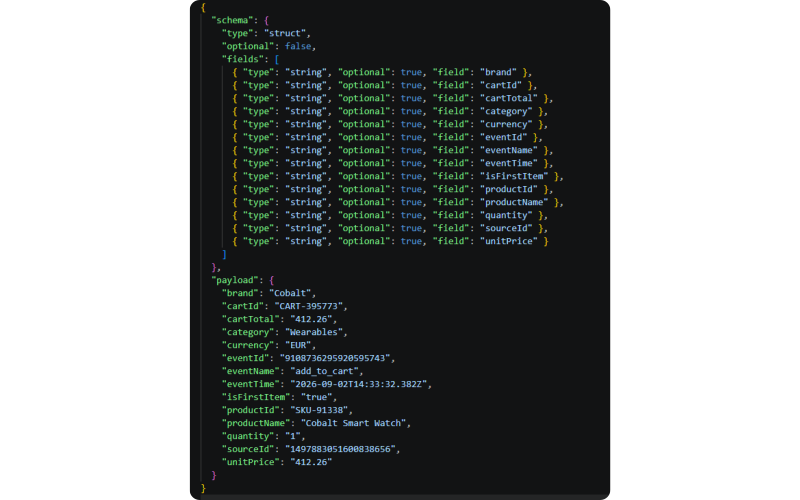
The field names are the author's, and the schema follows them. Add a field to the grid and it appears in both halves of this envelope on the next publish.
What the panel refuses to save
| Message | What to do |
|---|---|
| A message needs a key or a value: both cannot be Nothing. | Give at least one half something to publish. |
| Add at least one field, or publish nothing. | Add a row to the grid, or switch the half to Nothing. |
| Every field needs a name. | Name the row, or delete it. The name is what the consumer reads. |
| Every field needs a value. | Write a Liquid template for the row. |
| Two fields publish under the same name. | Rename one. A map keeps the later one and drops the earlier. |
| Avro field names must start with a letter or underscore and contain only letters, digits and underscores. | Rename the field. This most often follows flattening a nested JSON body. |
| The JSON body is required. | Write a body, or switch the half to Fields or Nothing. |
| An Avro schema is required when a JSON body is published as Avro. | Paste a schema. A JSON body has no field names to generate one from. |
| The Avro schema is not a readable record schema with a fields list. | Fix the schema so it parses as a record with a fields array. |
| The Avro schema does not declare every published field. | Add the missing fields to the schema. A field the schema does not declare cannot be encoded, so every record fails rather than one. |
The node also refuses to save without a connection and a topic, and the workflow cannot be published while either is unset.
Changing a message that is already publishing
There is no schema registry anywhere in this path, so a consumer decoding with the schema that was live when the workflow started keeps using it. Once a node has published, the panel warns you when an edit would stop publishing a field or change its type.
- Adding a field is safe. A consumer that does not know it ignores it.
- Removing, renaming or retyping a field is not. The consumer breaks inside your own system, and nothing in Intempt fails.
Add a new field rather than renaming the old one, and leave the old one publishing until the consumer has moved.
Streaming raw events
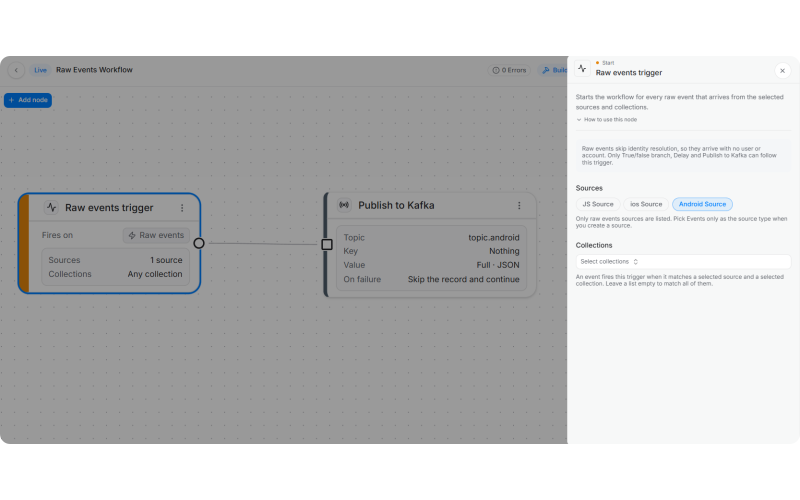
For high-volume events you only forward, such as clickstream or telemetry, send them from an Events only source and publish them with a Raw events trigger. The events skip identity resolution and create no user profiles, and each one becomes one message on your topic.
- Create an Events only source. On Integrations, add a source and pick Events only under What this source collects. See What a source collects. The choice can't be changed later.
- Install the SDK for that source and start sending events. The source's collections appear once its first event arrives.
- Add a Raw events trigger. In a new workflow, add Raw events trigger from Start, and pick the source and the collections to take events from.
- Add Publish to Kafka after the trigger and configure it as in Step 3. Leave user, account and attribute variables out of the topic and the message: a raw event has neither a user nor an account, so the workflow can't be published while one is referenced.
- Publish the workflow, then check the Runs tab and your topic.
📘 Good to know
A raw events workflow holds only a Raw events trigger and the steps allowed after it. To act on users as well, build that part in a second workflow on a users and events source.
Use cases
- Stream every event in a project onto one topic by pairing a trigger that watches all records with a single Publish to Kafka node.
- Publish a curated subset of an event's attributes instead of the whole record, so the topic carries the contract your consumer wants rather than the shape Intempt happens to store.
- Key messages by a record identifier so everything about one user stays in partition order and log compaction keeps only the newest.
- Emit a tombstone for a deleted record by setting the key to the record identifier and the value to Nothing.
- Publish to a topic derived from the data, using Liquid in the topic field, when the destination topic depends on the record.
- Turn Send with schema on for consumers built around Kafka Connect, which read the
schemaandpayloadenvelope directly. - Publish Avro to a consumer that already decodes Avro, using the generated schema copied out of the panel.
- Route different record types to different topics with a multi-split branch and one Publish to Kafka node per output.
- Mirror an event stream into a data platform your own team owns, without waiting on a batch export window.
- Forward high-volume raw events from an Events only source straight to a topic, without building user profiles for them.