
Workflows
Workflows is a canvas for automating what happens to your data: a trigger starts a run, and the nodes after it act on the record that started it.
Overview
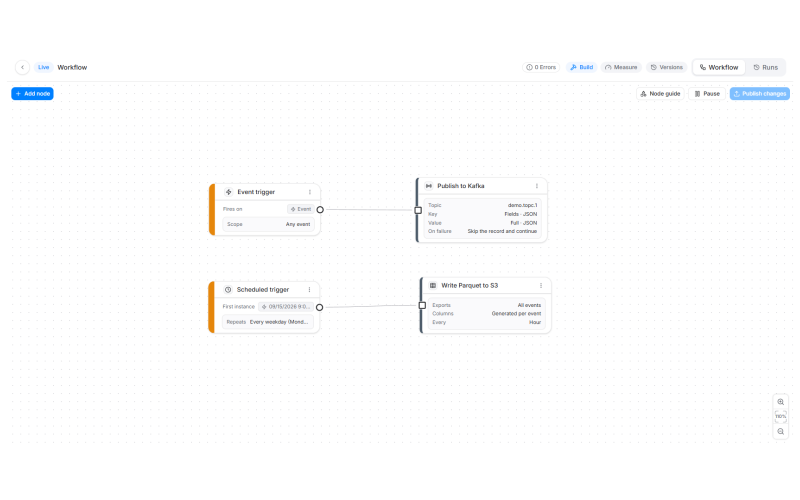
Workflows is a visual builder for automating what happens to your data. You draw a graph: a trigger node at the start, one or more action nodes after it, and connections between them. When the trigger fires, Intempt executes the graph once per matching record and records the result as a run.
A workflow is edited on a canvas, published as a version, and then monitored on its own Runs tab. Nothing runs until you publish, and a published workflow keeps running the version you published even while you edit a new draft over it.
Workflows and Journeys
Both products use a node canvas, and they solve different problems:
- Journeys orchestrate messaging to people. You enroll users into a flow and send email, SMS, push and in-app messages with waits and branches between them. See Journeys.
- Workflows move and act on data. The nodes available today start a run from an event, a raw event or a schedule and hand the result to a system outside Intempt.
If your goal is to reach a person, build a journey. If your goal is to get data somewhere or act on a record, build a workflow.
What you can build today
Workflows ships the canvas, the publishing model, the version history and the run monitoring in full. The node catalog is being filled in over time, so the node picker lists every node the product intends to offer and only lets you place the ones that are built.
Five nodes are available right now:
| Node | Category | What it does |
|---|---|---|
| Event trigger | Start | Starts a run when a matching event is recorded or an attribute changes |
| Scheduled trigger | Start | Starts a run on a repeating schedule |
| Raw events trigger | Start | Starts a run on every raw event from the Events only sources you pick |
| Publish to Kafka | Send | Publishes each record to a Kafka topic as a key and a value you author |
| Write Parquet to S3 | Send | Writes events, user records or failed events to Amazon S3 as Parquet files or an Iceberg table |
Every other row in the node picker is visible but greyed out, with the hint "Not available yet - this node has not been built." Those rows become selectable as the nodes ship; nothing about your existing workflows changes when one does.
📘 Good to know
A workflow needs at least one trigger and at least one action before it can be published, and every node on the canvas has to be connected to the rest of the graph. An unconnected node never runs.
Finding your workflows
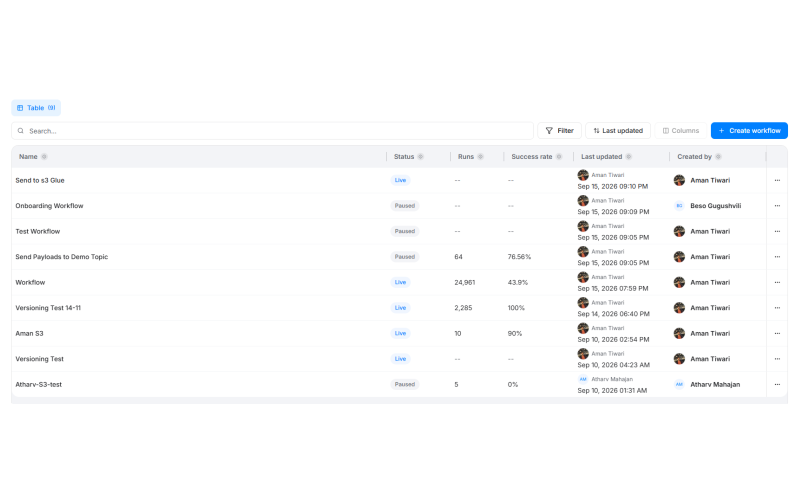
Click Workflows in the left navigation to open the workflow list. The table shows one row per workflow with these columns:
- Name - the workflow's name.
- Status - whether the workflow is a draft, running or stopped.
- Runs - how many times this workflow has run.
- Success rate - the share of runs that completed successfully.
- Last updated - who last changed it, and when.
- Created by - the team member who originally created it.
Click Create workflow to start a new one, or click any row to open it. The row's Actions menu has a Delete option.
Workflow status
The status badge sits next to the workflow's name in both the list and the builder header.
| Status | What it means |
|---|---|
| Draft | Never published. The canvas is the whole workflow and nothing is running. |
| Live | Published and taking new runs. |
| Paused | Published, but not taking new runs. Runs already in flight are held until you resume. |
| Stopped | Not taking runs and not resumable by publishing. Resume it before publishing changes. |
| Scheduled | Not yet published, and treated the same way a draft is. |
Where to start
- The workflow builder - the canvas, the header, the toolbar and the zoom controls.
- Adding nodes - the node picker, the node categories, and the nodes available today.
- Publishing and versions - drafts, publishing, pausing, and version history.
- Monitoring workflow runs - the Runs tab, filters, replays and run detail.
Multi-channel journey setup
A journey isn't limited to one channel. You can add a Send email step and a Send SMS step to the same workflow, then connect them with a Delay or a True/False condition so the journey carries a user from one channel to the other based on timing or behavior.
The workflow builder
The workflow canvas, its header bar, the Build and Measure surfaces, the node toolbar, the zoom controls and every canvas gesture.