
Using the Asset Library
How Blu drafts and edits every Asset library item: images, HTML and plain-text email, SMS, Push, Slack, and JSON, and fixes emails from their preflight report.
Overview
The Asset library's create flow supports seven content types: image, HTML email, plain-text email, SMS, Push, Slack, and JSON. Every type opens with a Blu Chat session scoped to that item: describe what you want, and Blu drafts it directly into the editor. One surface goes further and is built around Blu instead of a manual editor: Image Studio, for AI-generated images. Email preflight uses Blu to fix problems it finds in an HTML email rather than to create content from scratch.
This article covers generating and editing images with Blu, drafting HTML email, plain-text email, SMS, Push, and Slack content with Blu, working with JSON content items, and using "Fix with AI" on an email's preflight report.
How it works
Each surface connects to Blu differently
- Choosing Image as a content item's type opens Image Studio. It has its own Image tool for generating a fresh image from a prompt, plus a docked Blu Chat panel pinned to the same content item for further requests.
- Choosing HTML email, plain-text email, SMS, Push, Slack, or JSON opens a Blu Chat session scoped to that new item: describe what you want and Blu drafts it directly into the editor. Further messages in the same session revise what's there instead of starting over.
Generating and editing images
Image Studio's tool rail includes an Image tool: click it, describe the image in the Describe the image box, and click Generate image. The result lands directly on the canvas.
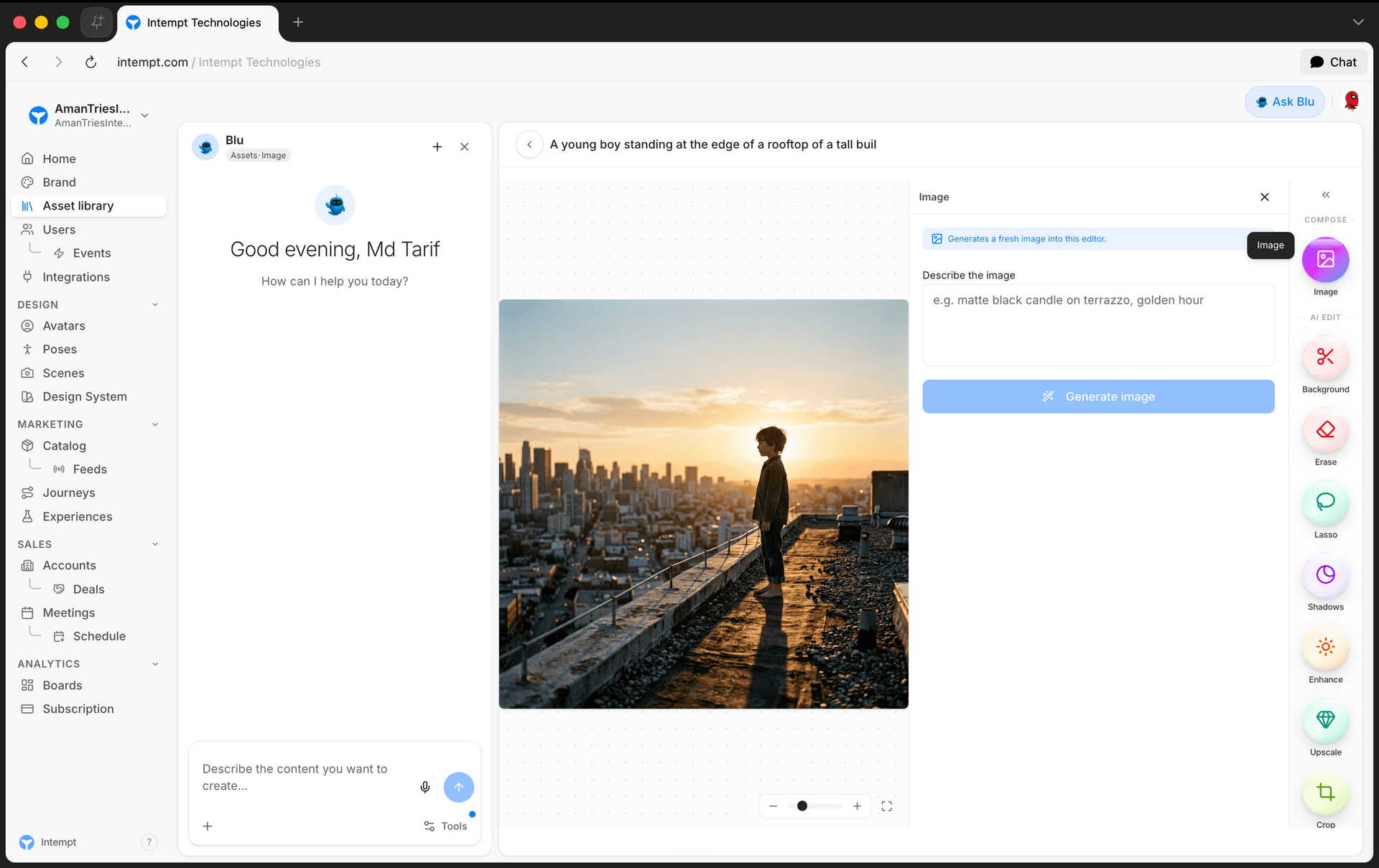
- Canvas. Shows the current image and, once you've generated more than one, lets you flip between variants.
- Tool rail. Image, Background, Erase, Lasso, Shadows, Enhance, Upscale, and Crop. Each opens a small panel for that operation.
- Chat panel. Docked on the right, pinned to this content item. You can also describe a change here directly; the canvas updates once Blu's response is ready.
Once an image exists, the rest of the tool rail edits it in place:
- Background removes or replaces the background.
- Erase removes whatever you paint over, using a fill prompt to describe what should appear instead.
- Lasso selects a region and edits just that area from a prompt.
- Shadows adds or removes drop shadows, contact shadows, or a blurred background.
- Enhance sharpens the image, with a content-type hint (general, people, product, text) and a strength setting.
- Upscale increases resolution by 2x or 4x.
- Crop crops, resizes, or expands the canvas, including an AI fill for expanded areas.
Each tool applies its operation to the current image and replaces the canvas once it's done.
Drafting an HTML email
Choosing Email HTML opens the visual email editor with a Blu Chat session scoped to the new item; describe the email and Blu drafts it directly into the editor. The editor has three view modes:
- Visual lets you click any element (text, image, link, or table cell) to select and edit it directly, with inline style controls. Clicking an image lets you swap it for another one.
- Code shows and edits the underlying HTML directly.
- Preview shows the email as it will actually render.
Beyond the initial draft, Blu also has a per-element assist in Visual mode: select any element and choose Improve with Blu to have just that element rewritten, without regenerating the rest of the email. An output-language picker on the editor sets which language Blu drafts and improves in.
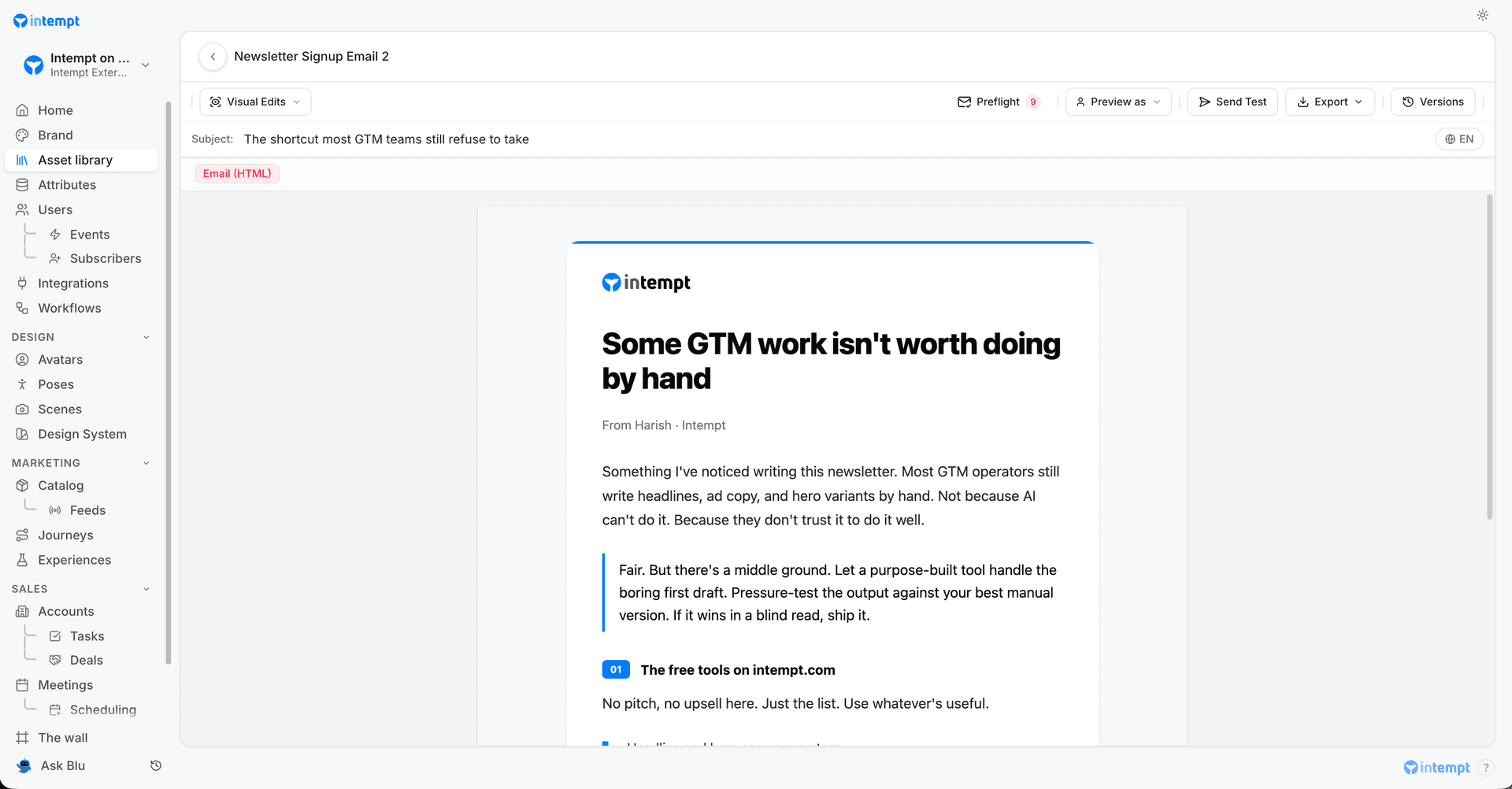
Once the email looks right, run it through email preflight to check how it holds up across devices and inboxes before you send it.
Drafting a plain-text email
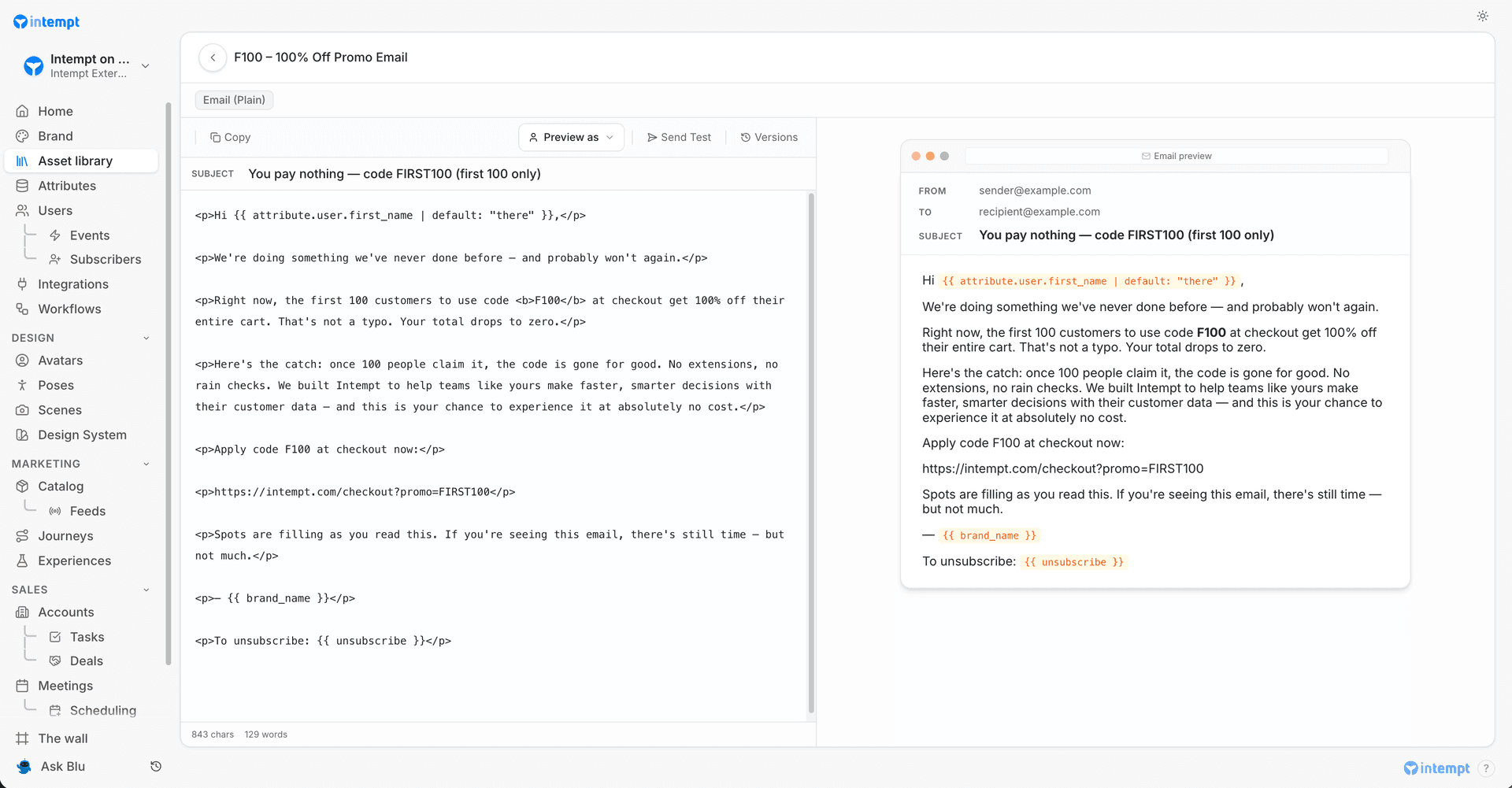
Choosing Email plain opens a split editor, a subject field and a monospace body, with character and word counts and a mocked inbox-chrome preview. The same Blu Chat session drafts the email into this editor on request.
Drafting SMS, Push, and Slack messages
Each of these opens with the same scoped Blu Chat session, drafting straight into an editor built for its channel:
- SMS shows a live segment counter as you type (GSM-7 gives you 160 characters per segment, UCS-2 70, if your message uses emoji or non-Latin characters), an emoji picker, an opt-out hint, and a phone-chrome preview.
- Push has separate Title (60 characters) and Body (240 characters) fields, plus optional icon, image, and action URL fields, previewed as a lock-screen notification.
- Slack has a formatting toolbar for Slack's own markdown (bold, italic, code, strikethrough, quote, link) over a plain text area, previewed in Slack's own message chrome.
Each channel keeps its own format once Blu drafts it, Blu doesn't reformat one type into another.
Working with JSON content items
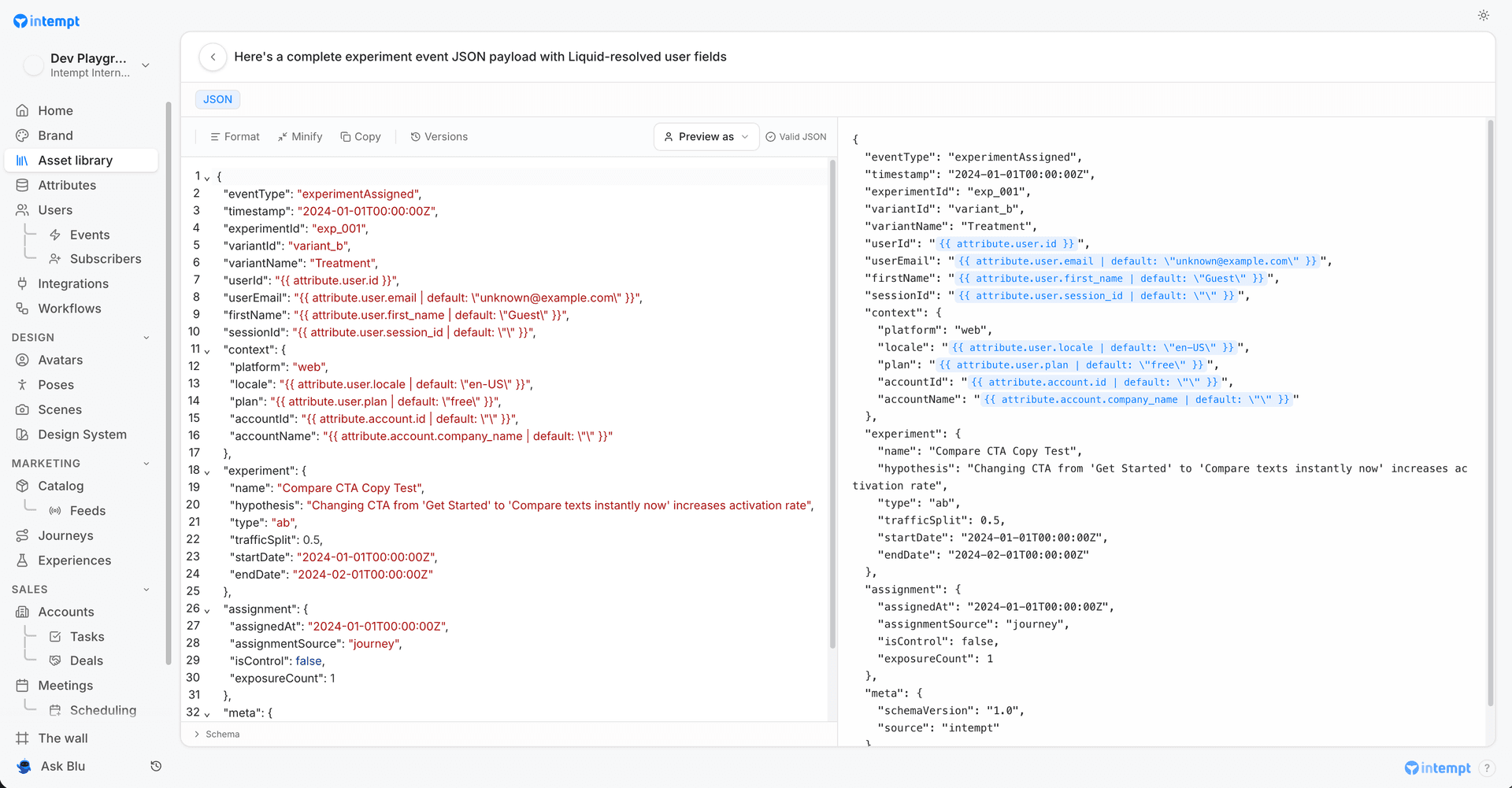
A JSON content item holds a structured payload, for example a webhook body a journey step sends onward, rather than a message a person reads. Opening one starts the same scoped Blu Chat session; describe the structure and data you need, and Blu drafts the JSON directly into the editor's code view, which also has manual Format and Minify actions and a live valid/invalid badge.
Fixing an email from its preflight report
Email preflight checks an HTML email before you send it, across seven tabs: Inbox preview, Device previews, CSS Compatibility, Link validator, Grammar & content, Deliverability, and Visual design. Open it from the Preflight button in the email editor's toolbar, which shows a count of open issues or a checkmark once there are none.
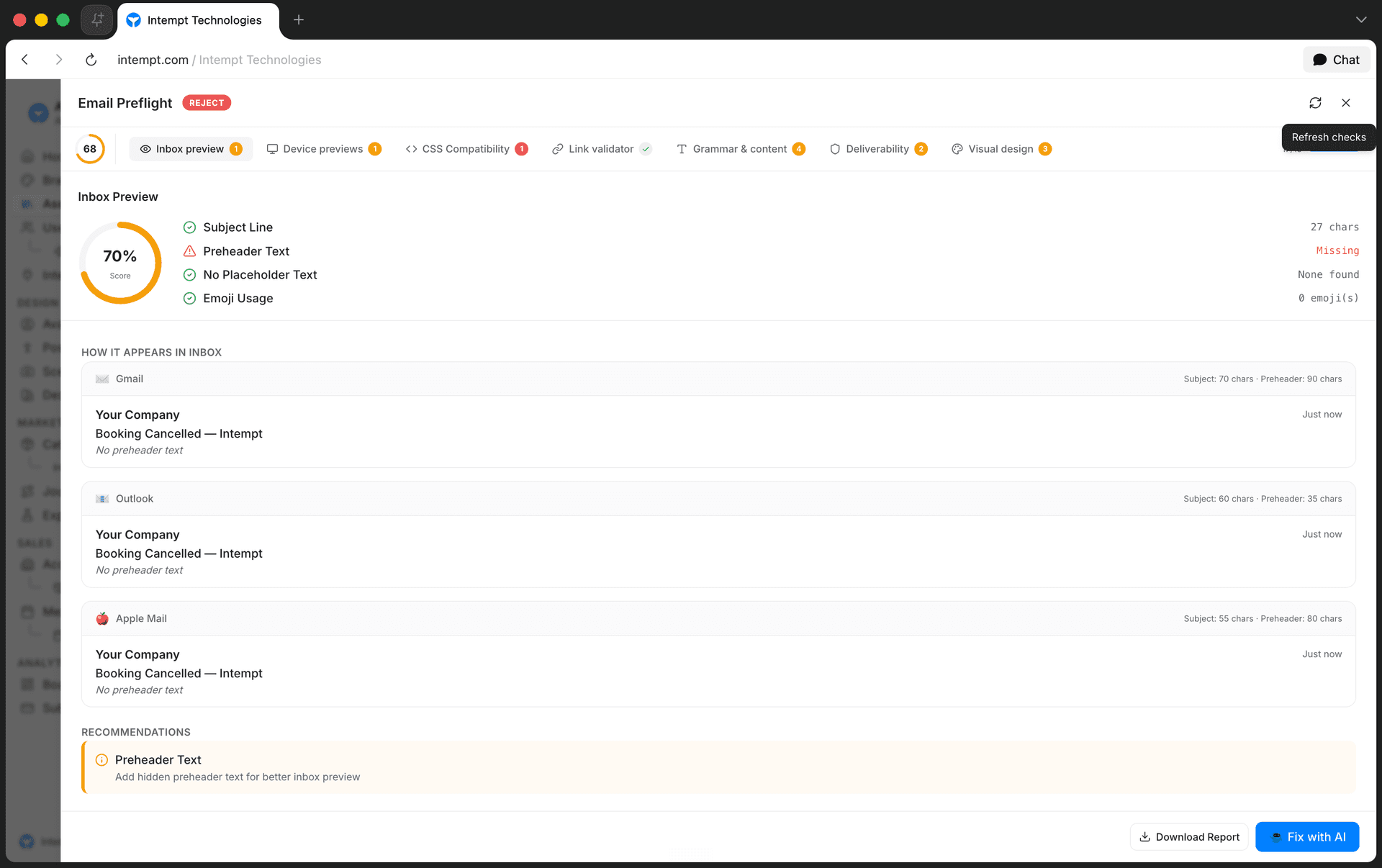
- Gate badge. Ship, Hold, or Reject, based on what the checks found.
- Section nav. Switches between Inbox preview, Device previews, CSS Compatibility, Link validator, Grammar & content, Deliverability, and Visual design.
- Fix with AI. Sends Blu a fix prompt built from the current report, opens the chat, and closes the preflight dialog so you land back on the email editor to watch the fix land.
💡 Good to know
Fix with AI only appears once a preflight run has produced a report to fix. Running the checks again (the refresh icon) re-generates that report against your latest edits.
Getting started
Generate an image
- Open the Asset library and click New.
- Choose Image as the content type. This opens Image Studio.
- Click the Image tool in the tool rail, describe the image in the prompt box, and click Generate image.
- The image lands on the canvas.
- Use the rest of the tool rail (Background, Erase, Lasso, Shadows, Enhance, Upscale, Crop), or the docked chat panel, to keep editing it without leaving the canvas.
Draft an email, message, or JSON item
- Open the Asset library and click New.
- Choose the content type: Email HTML, Email plain, JSON, SMS, Push, or Slack.
- In the Blu Chat session that opens, describe what you need: the email or message content, or the data a JSON payload should carry.
- Blu drafts it directly into the editor.
- Edit the draft by hand, or keep messaging the chat to revise it.
Fix an email with Blu
- With an HTML email open in the email editor, click Preflight.
- Review the flagged sections; the gate badge shows Ship, Hold, or Reject.
- Click Fix with AI.
- Blu Chat opens with a fix prompt already filled in from the report. Send it as-is or edit it first.
- Blu applies the fix to the email you're editing.
Use cases
- Generating a product image from a description. Open Image Studio, describe the shot (product, background, lighting), and let Blu generate it instead of sourcing or shooting one.
- Cleaning up a generated image. Use Erase to remove an unwanted object, or Background to swap a busy background for a plain one, without regenerating the whole image.
- Drafting a Push or Slack message from a one-line brief. Describe the message and its purpose to Blu instead of writing channel-specific copy from scratch.
- Rewriting one part of an email without touching the rest. Select a single element in the HTML email editor and choose Improve with Blu, instead of regenerating or hand-editing the whole layout.
- Swapping an image in a drafted email. Click the image in Visual mode and replace it, instead of asking Blu to regenerate the whole email over one picture.
- Checking the raw HTML before sending. Switch to Code mode to inspect or tweak markup directly, instead of trusting the visual editor alone.
- Drafting a JSON payload for a journey webhook. Describe the fields and structure a downstream step needs, instead of hand-writing the payload.
- Catching deliverability issues before sending. Run Preflight on an HTML email and check the gate badge before you send a campaign.
- Fixing flagged issues without leaving the editor. Use Fix with AI on a Hold or Reject result instead of manually resolving each flagged issue yourself.
Where to go next
Setting Up Company Knowledge
Configure the outreach methodology and reply grounding data Blu draws on to represent your company across outreach and replies.
Generating Brand Assets
Generate a reusable Avatar, Pose, Scene, and Design System with Blu, then reuse them to keep your image generations and brand content consistent.