
Task Management (within Accounts/Deals)
How tasks surface and get managed directly inside Account and Deal records, from the AI-assisted Deal Tasks tab to bulk actions on the Account Tasks tab.
Overview
Tasks aren't just managed from the standalone Tasks page. Every Account and every Deal has its own Tasks tab, scoped automatically to that record, so a rep can work follow-ups without leaving the account or deal they're working.
This article covers how tasks behave inside Accounts and Deals specifically. For task types, LinkedIn sub-types, Journey automation, and analytics, see Tasks.
How it works
The Tasks tab on a Deal
A Deal's detail page has seven tabs: Overview, Users, Activity, Tasks, Meetings, Calls, and Emails. The Tasks tab shows only the tasks tied to that deal, and opens with three summary cards above the table:
- Next task pick, the highest-priority, non-overdue task for this deal, with a Start now button.
- Urgent & overdue, the highest-priority overdue task, with a Clear overdue first button.
- Cadence fit, guidance on spacing follow-ups so outreach doesn't bunch up, with an Auto-spread due dates button.
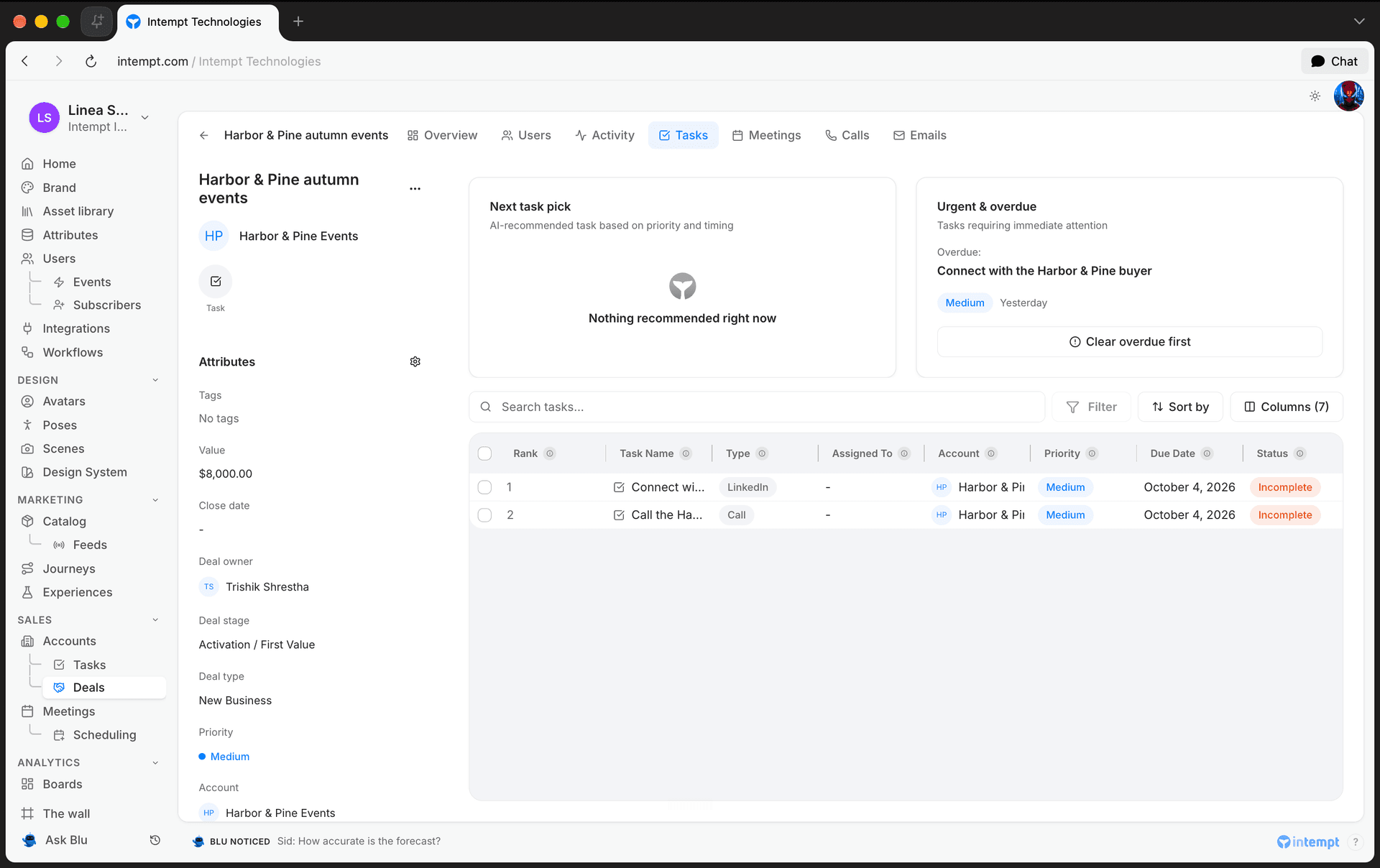
Below the cards, a search box, sort control, and column picker let you narrow and reorder the table. It uses the same columns as the standalone Tasks page (Task Name, Type, Assigned To, Account, Priority, Due Date, Status).
Bulk actions on the Account Tasks tab
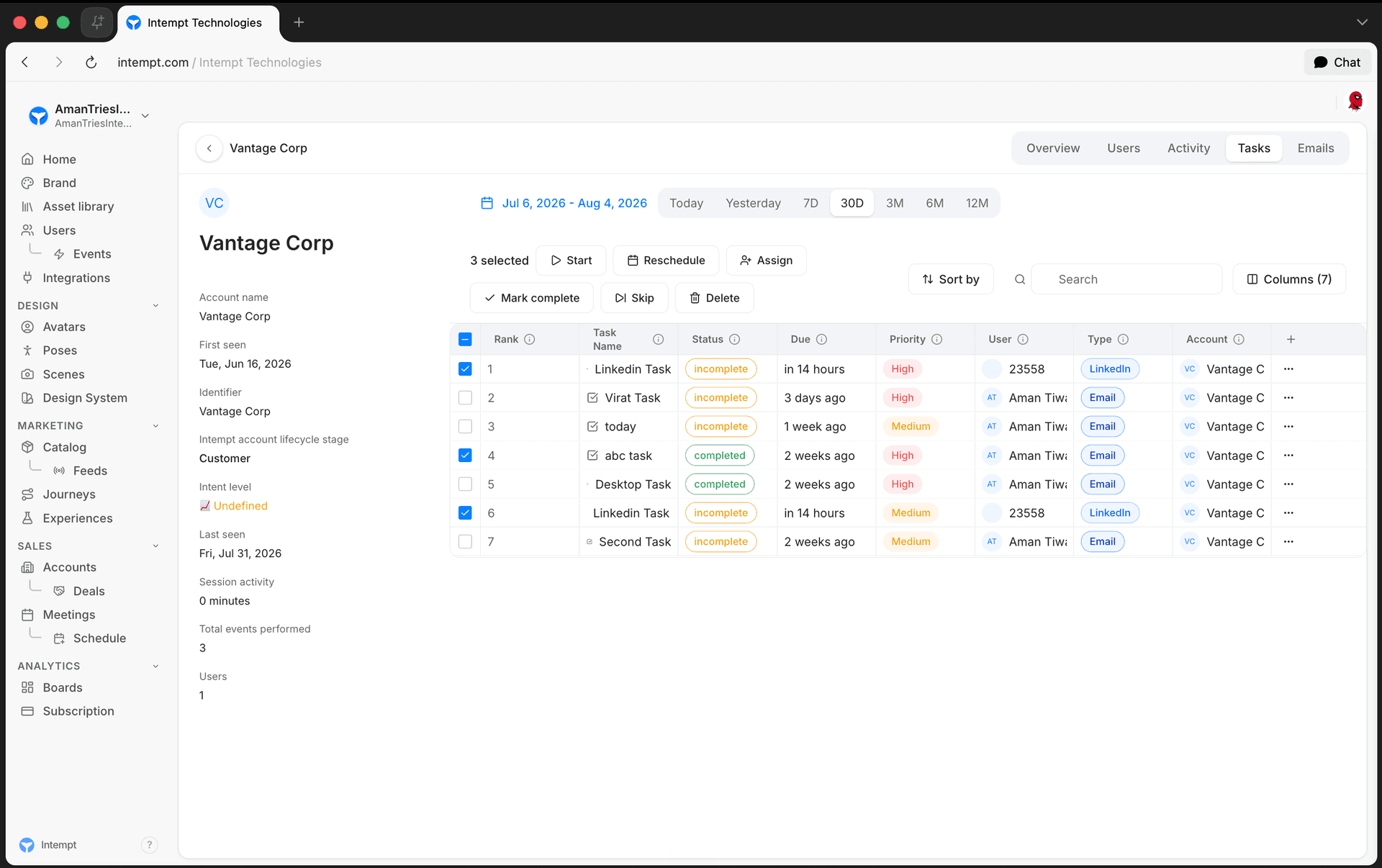
An Account's detail page has five tabs: Overview, Users, Activity, Tasks, and Emails. The Tasks tab lists every task tied to that account, with the same search, sort, and column controls as the Deal Tasks tab.
Selecting one or more rows replaces the search bar with a bulk-action bar:
- Start, opens a dialog to pick a destination, then starts the selected tasks against it.
- Reschedule, opens a dialog to pick a new due date (Today, or in 1/3/5 business days, or in 1/3/5 calendar days) plus a time.
- Assign, opens a dialog to reassign the selected tasks to a different project member.
- Mark complete, Skip, and Delete apply immediately, with no dialog.
Creating a task for a specific account or deal
Tasks aren't created from inside the Account or Deal Tasks tab itself. You create them from the Tasks page's Create task form, using the Deal or Associate with user field to attach the task to a record. Once created, the task appears automatically in that account's or deal's Tasks tab. See Tasks for the full creation steps.
Where tasks surface on the Overview tab
- Account Overview: an Upcoming tasks card shows up to three open tasks tied to the account, each with a priority badge and due date.
- Deal Overview: its own Upcoming tasks card shows a count badge plus up to 10 open tasks tied to the deal, each with a priority badge and due date.
📘 Good to know
Both Overview cards are read-only previews. To reschedule, reassign, complete, or skip a task, open the record's Tasks tab.
Use cases
- Prepping for a call. Open the deal and check its Tasks tab for the Next task pick and Urgent & overdue cards before you dial in.
- Clearing a backlog. On an account with several stale tasks, select them all on the Account Tasks tab and Mark complete in one action.
- Covering for an absent rep. Select that rep's open tasks on an account and use Assign to move them to a teammate.
- Pushing back a batch of follow-ups. Select several tasks and Reschedule them to the same relative due date instead of editing each one.
- Kicking off outreach. Select a set of tasks and use Start to send them to a destination.
- Spotting a stalled deal. Check the Deal Overview's Upcoming tasks count badge before opening the full Tasks tab.
- Triage across an account. Use the Account Tasks tab's search, sort, and column picker to find exactly the tasks that need attention.
- Skipping stale outreach. Select tasks that no longer apply and Skip them instead of leaving them overdue.
Where to go next
- Tasks: task types, LinkedIn sub-types, Journey automation, and analytics.
- Pipeline Overview: how Deals and Accounts work together.
- Deals: full reference for the Deal object and its detail tabs.
- User & Account details page: how account and user detail pages work.
Pipeline Reporting & Forecasting
Use the Deals page's Analytics tab to track value won against forecast, win rate, and pipeline health, filtered by date range and deal owner.
CRM Integration
Connect HubSpot to sync contacts, companies, and deals into Intempt, map fields in both directions, and keep your Sales pipeline current automatically.