
Drafting Emails and Replies with Blu
Blu triages your inbox, drafts replies for emails that need one, and generates outreach email you can send from a prospect's profile.
Overview
Blu handles two sides of email: it triages and drafts replies to mail you receive, and it drafts outreach email to prospects you're reaching out to.
💡 Good to know
This covers replying and outreach only, not drafting a new email content item in the Asset library, or the AI-assisted email editor inside a journey's "Send email" step. See Using the Asset Library and Creating emails with the email editor.
How it works
Replies: automatic triage and drafts
Turn on Enable inbox intelligence (Inbox tab) and every new email is sorted into one of eight categories, each set to Move to folder, Label & keep in inbox, or Don't categorize. ("To respond" and "FYI" can only be labeled or skipped.)
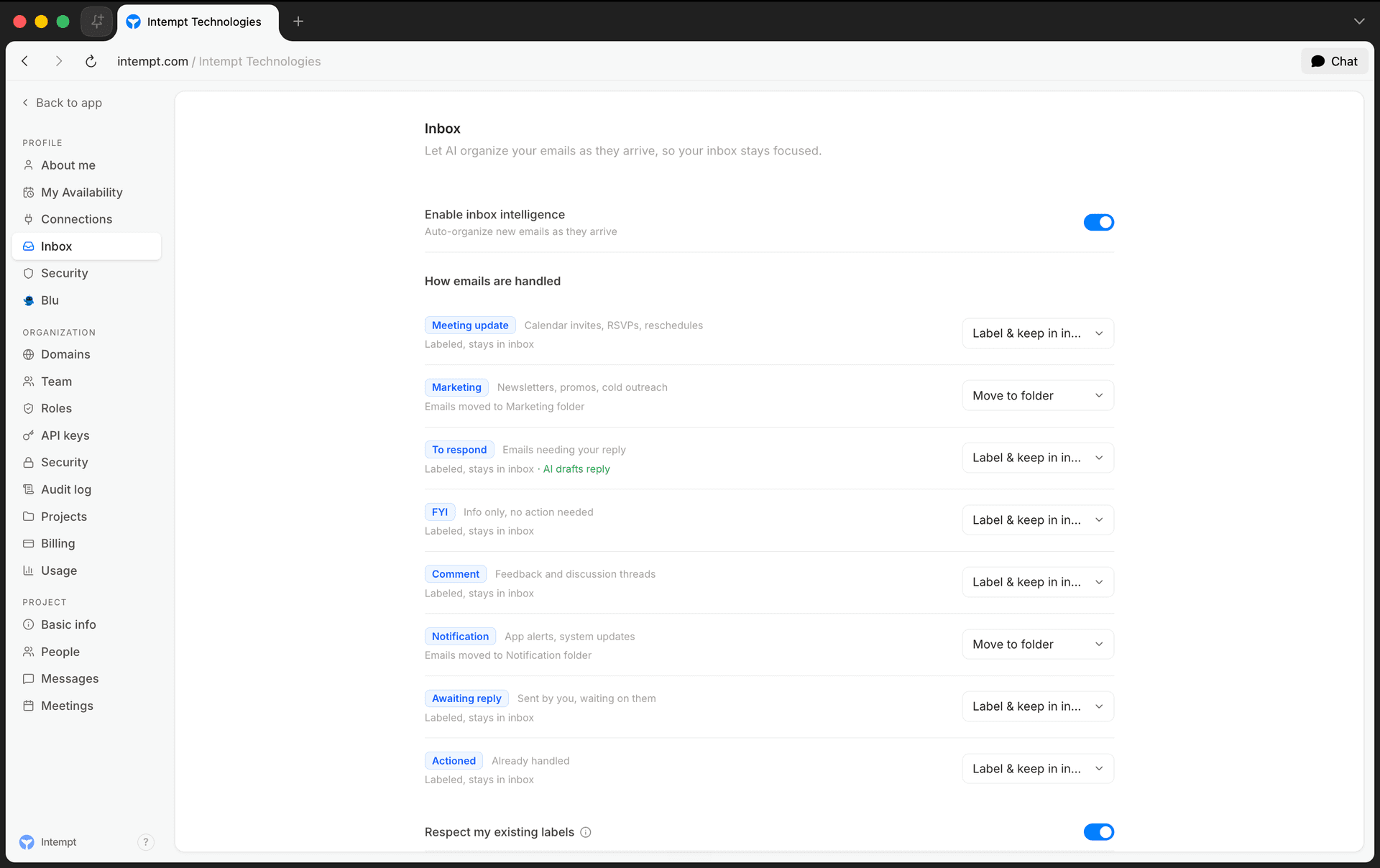
When a thread lands in To respond, Blu drafts a reply automatically if Enable draft replies is on (About Blu → Replies), and a follow-up nudge if the thread goes quiet and Enable follow-up drafts is also on. Reply grounding data (your pricing page, docs, booking link, and security URL) gets pulled into drafts when it's relevant.
💡 Good to know
Custom rules run before Blu's categorization model, so a rule matching a sender, domain, or subject decides the category without the AI step.
Replies: on demand
Click Reply or Reply All on any thread. Blu loads its saved draft if one already exists, or writes one live. Edit it directly, or use a refine chip, Shorter, More formal, Add urgency, Friendlier, to have Blu regenerate it. Toggle Cc: Blu to bring Blu into the thread for scheduling.
Outreach
From a prospect's profile, click Draft AI message, pick a sequence step, and generate. Blu writes from the prospect's CDP data plus your Outreach methodology (T.I.P.S., P.V.P., or P.A.S., set on About Blu → Outreach); inbound replies default to a separate framework, A.C.E.
Use cases
- Clearing inbox noise. Inbox intelligence files marketing and notification emails away, so only threads that need a response stay visible.
- Never missing a reply-worthy email. Draft replies means every "To respond" thread already has a starting draft waiting for you.
- Chasing a quiet prospect. Follow-up drafts prepare a nudge once a thread's gone unanswered.
- Answering a pricing question fast. Reply grounding data pulls your pricing link into drafts automatically.
- Softening a draft before sending. Click a refine chip instead of rewriting a generated reply from scratch.
- Kicking off a new sequence step. Generate the next outreach step for a prospect who replied positively to the last one.
- Matching outreach to a prospect. Switch between T.I.P.S., P.V.P., and P.A.S. to see which sequence fits.
Getting started
Turn on inbox triage and draft replies:
- Open your profile menu and go to Inbox.
- Toggle Enable inbox intelligence on, then set each category to Move to folder, Label & keep in inbox, or Don't categorize.
- Go to About Blu → Replies and turn on Enable draft replies (and Enable follow-up drafts, if you want those too).
Reply to a thread:
- Open a thread from a user's or account's Emails tab, and click Reply or Reply All.
- Edit the draft, or click a refine chip to have Blu regenerate it, then Send.
Draft an outreach message:
- Open a prospect's profile, click Draft AI message, choose a sequence step, and generate.
- Set the methodology behind these drafts on About Blu → Outreach.
Where to go next
Generating Brand Assets
Generate a reusable Avatar, Pose, Scene, and Design System with Blu, then reuse them to keep your image generations and brand content consistent.
Building a Custom Report with Blu
Ask Blu a question about your data that doesn't fit an existing report type, and it composes a new analysis for you, rendered inline as a chart, table, or metric.