
Mobile App Overview
What the Intempt mobile app covers, how its navigation is organized, and how it stays in sync with your web console workspace.
Overview
The Intempt mobile app is a companion to the web console: it gives you Journeys, Experiences, Accounts, Users, Deals, Tasks, Meetings, Reports, and Dashboards from your phone. You sign in with the same account, and you see the same organizations and projects you already have on the web.
How it works
Home and the product switcher
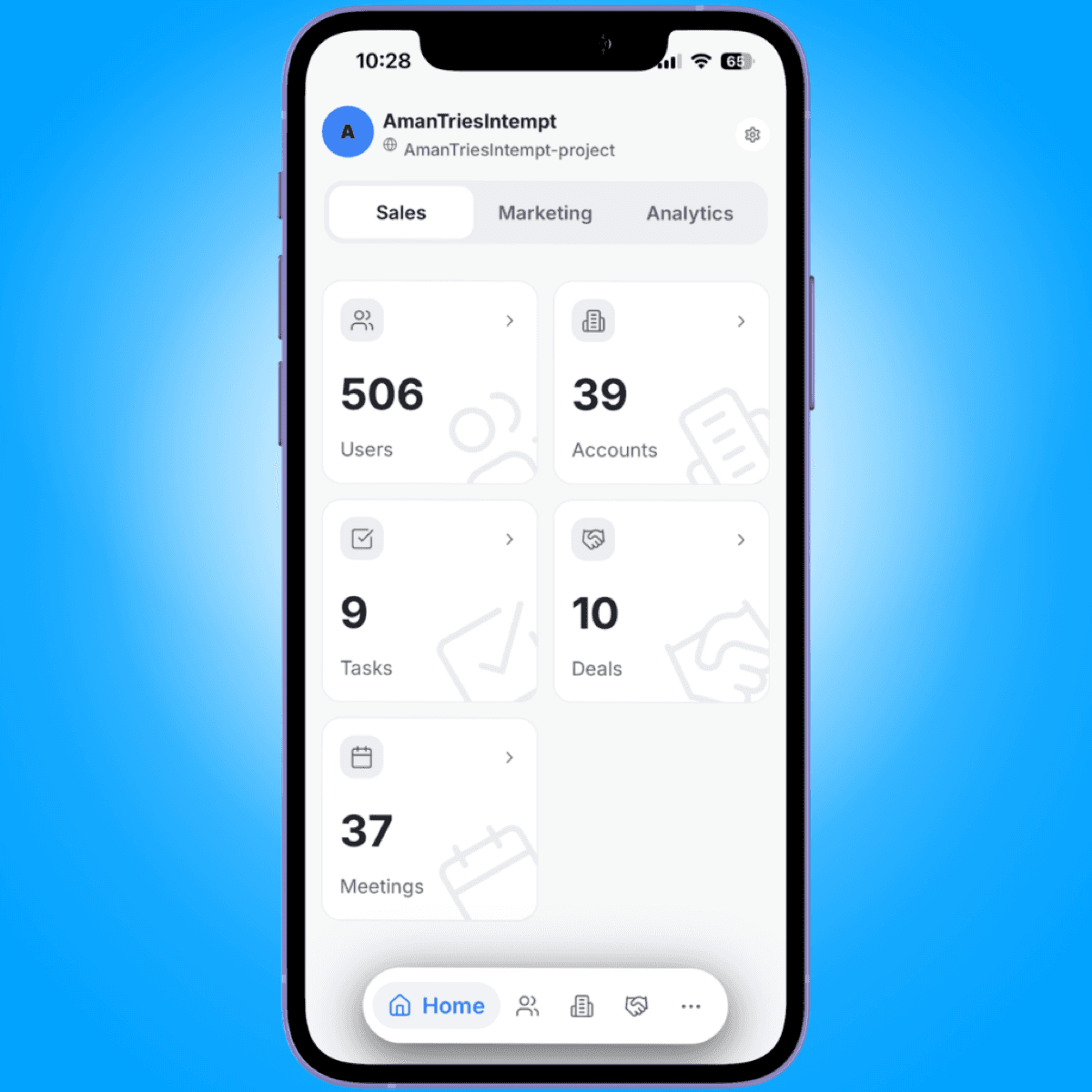
Home is split into three tabs: Sales, Marketing, and Analytics, each showing a dashboard built around that focus area. Switching tabs changes what Home shows. It doesn't move you to a different part of the app.
The bottom tab bar
The bottom bar always shows a Home tab, plus up to three of your own tabs. By default those three are Users, Accounts, and Deals. A fixed ••• button next to them opens the full menu.
The full menu (11 sections)
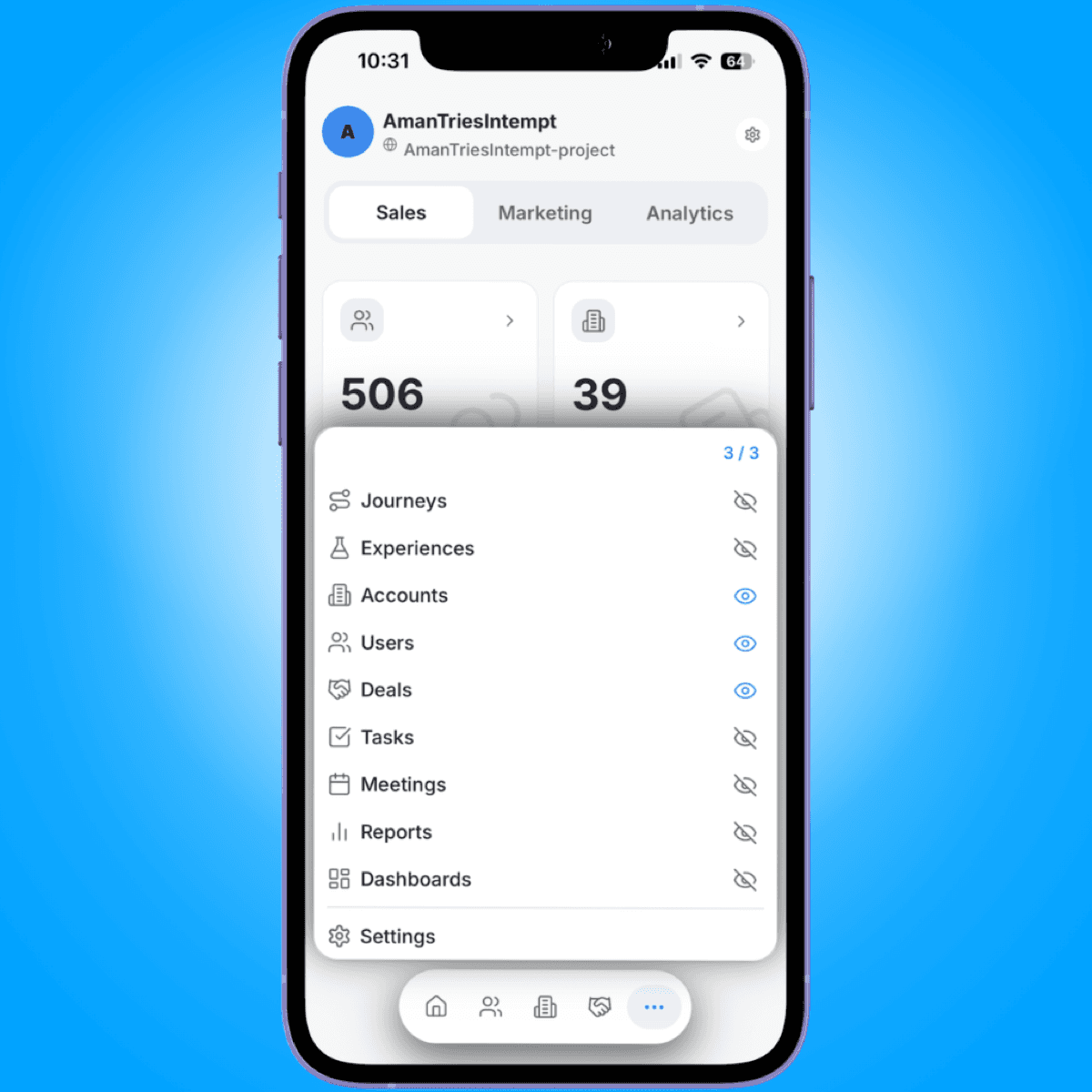
Tapping ••• opens a menu covering all 11 sections the app has: Journeys, Experiences, Accounts, Users, Deals, Tasks, Meetings, Reports, Dashboards, Settings, and Customize. Nothing on this list is hidden or dev-only. Whatever you see here is the same list every user gets in production. By default, Journeys, Experiences, Tasks, Meetings, Reports, and Dashboards sit in this menu rather than the bottom bar.
Customizing your tabs
From that same ••• menu, toggle any section on to pin it to one of your three open bottom-bar slots, or off to send it back to the menu, and drag to reorder what's pinned. Settings stays reachable from the menu no matter what you pin.
Messages
A separate Messages tab holds your inbox: replies, journey alerts, meeting updates, test results, and drafts, filterable by Sales or Marketing category.
Organizations and projects
Switching organization or project on mobile works the same way it does on the web console: pick a different one and every screen (Home, the menu sections, Messages) reloads against that workspace. You don't need to sign in again to switch.
Staying signed in
If your device supports it and you've turned it on, reopening the app after it's been backgrounded asks for Face ID, Touch ID, or your device passcode instead of a full sign-in.
Getting started
New to the app? Start with Installing the Mobile App (iOS) for the download, sign-in, and first-run setup steps.