
Sign Up, MFA & Onboarding
How to create an Intempt account on mobile, verify with two-factor authentication when it's required, and complete first-run onboarding.
Overview
This guide covers what happens the first time you open the Intempt mobile app: creating an account, verifying your identity if your organization requires two-factor authentication, and the setup screens between sign-up and your first look at Home.
Creating your account
The app opens straight to a combined sign-up and sign-in screen. There's no separate "create account" step to find first.
You can continue with Google or Apple, or scroll past the divider to continue with a work email address instead. There's no password anywhere in this screen.
If you continue with Google or Apple, a brief loading screen holds while the browser sign-in window is open, then returns you to the app once it's done.
If you continue with email instead, Intempt sends a 6-digit verification code to that address and shows a code entry screen. The code expires after 5 minutes; a countdown on that screen shows how much time is left. You can resend the code or go back and use a different email if needed.
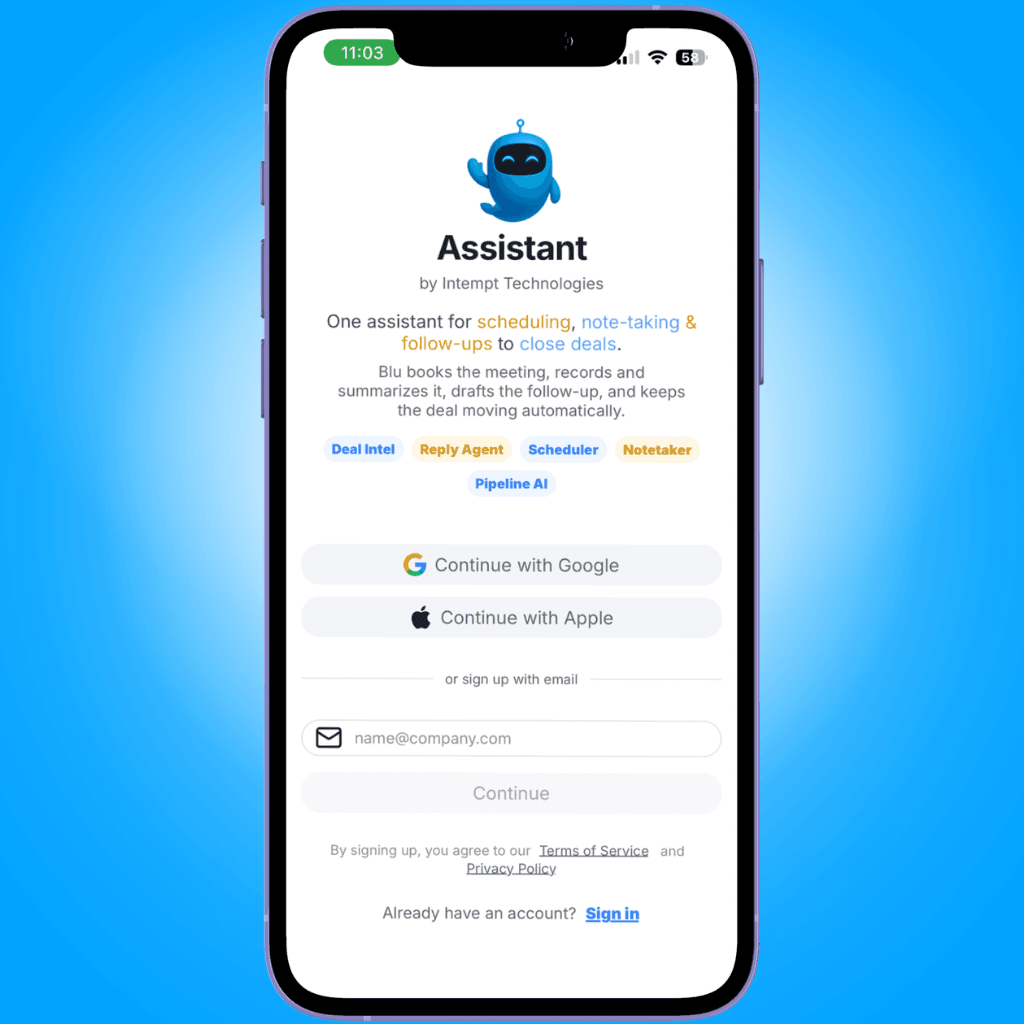
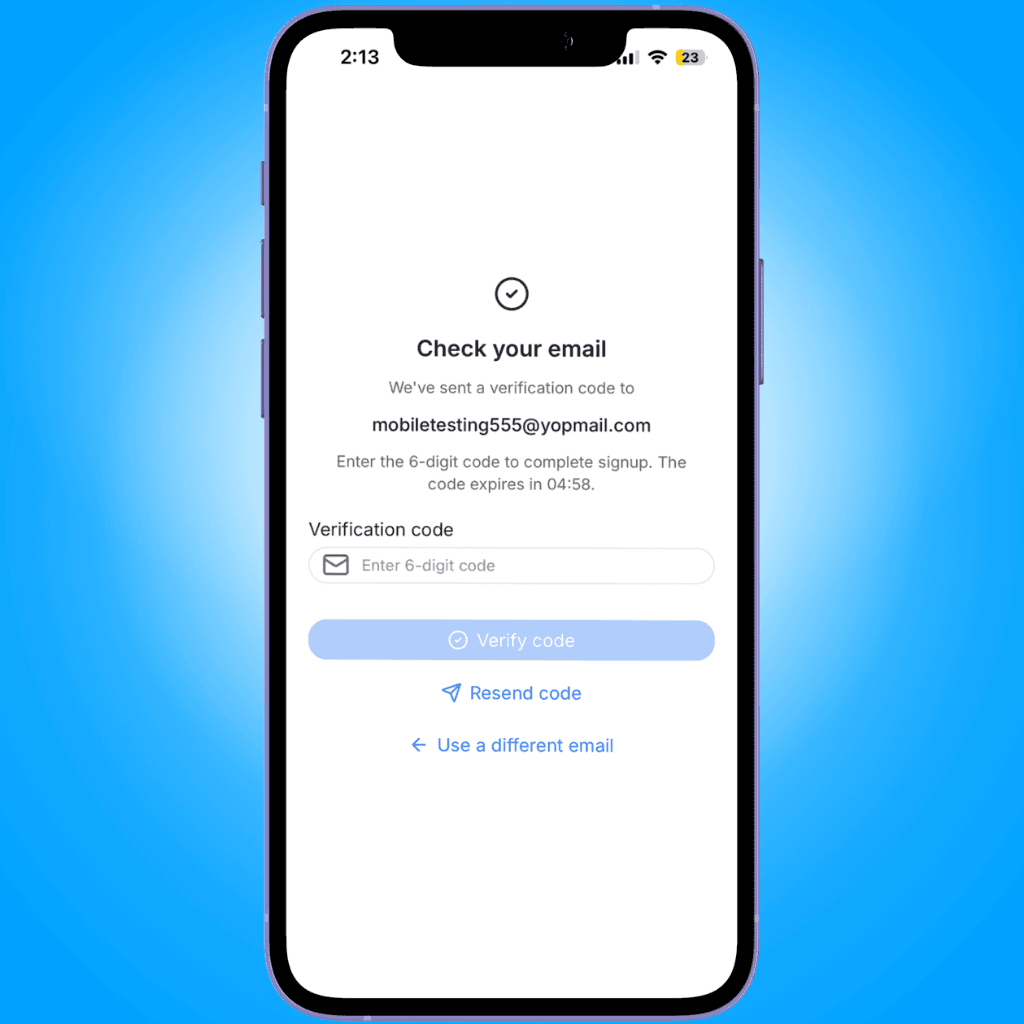
The screen also links out to Intempt's Terms of Service and Privacy Policy, which you agree to by signing up.
Two-factor verification
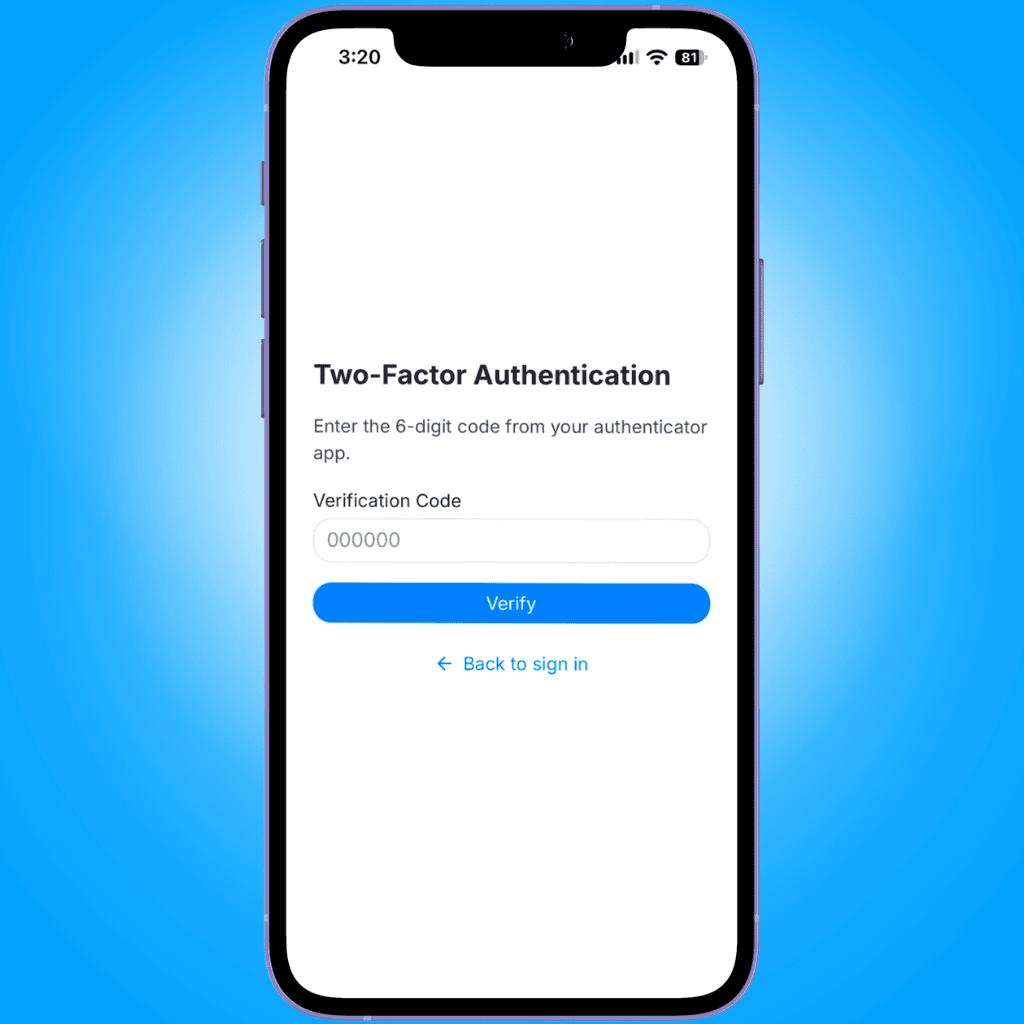
If your organization has two-factor authentication turned on, you'll see one more screen after your email code (or your Google/Apple sign-in) is accepted: a Two-Factor Authentication screen asking for the 6-digit code from your authenticator app.
Enter the code and tap Verify. An invalid or expired code shows an inline error so you can try again; if the underlying sign-in attempt itself has expired, you'll need to start sign-in again from the beginning.
Completing onboarding
Once you're signed in for the first time, a short setup runs before you reach Home. You can log out from any of these screens if you want to stop.
The walkthrough
A swipeable, 5-slide walkthrough introduces what the app's AI assistant (Blu) does day to day:
- Lives in your inbox. Blu categorizes incoming email and drafts replies automatically.
- Reply AI, built in. Blu drafts context-aware replies using your meetings, accounts, and conversation history, ready for you to review and send.
- Coordinates scheduling. Blu proposes and confirms meeting times directly inside email threads, without a separate booking link.
- Your AI meeting assistant. Pre-meeting research, live notes during the call, and a summary with action items afterward.
- Accounts, deals, and pipeline. Contacts, companies, and deals stay in sync automatically, and tasks are created from meeting action items.
Tap Continue to move through the slides, or Skip to jump ahead. The last slide's button reads Let's Go instead of Continue.
📘 Media pending
Screenshot of the onboarding walkthrough hasn't been captured yet.
Turn on notifications
Next, a Stay in the loop screen asks for permission to send push notifications, covering meeting summaries, deal stage changes, and priority inbox alerts. Tap Enable Notifications to allow them, or Not now to skip. If you've already granted notification permission on this device (for example, after reinstalling the app), this screen is skipped automatically.
📘 Media pending
Screenshot of the notifications screen hasn't been captured yet.
Set up your workspace
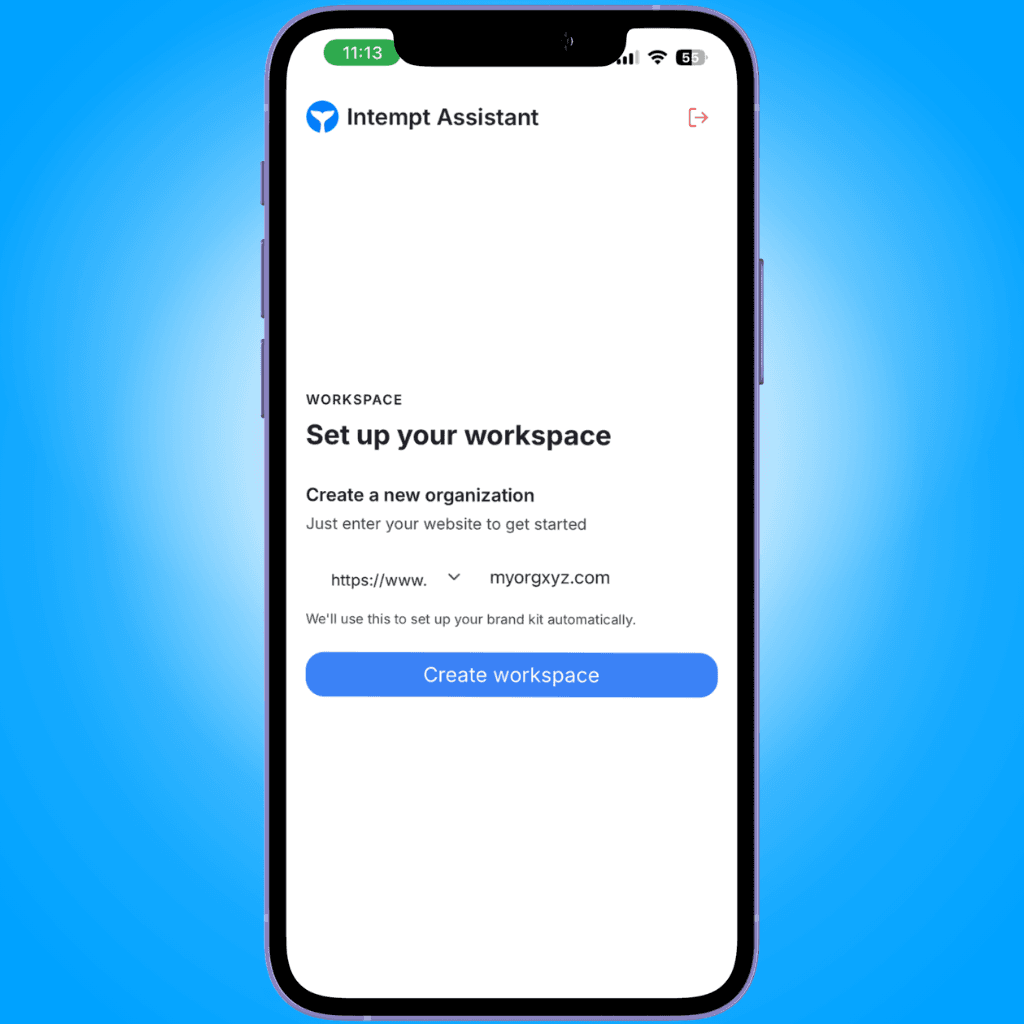
The next screen asks for your company's website domain (for example, example.com), with a protocol selector next to it. Intempt uses the domain to derive your organization name and to set up your brand kit automatically, so there's no separate "organization name" field to fill in.
This screen can also show a suggested existing team instead of a blank form, with that team's name, member count, and a Request to join button, plus a Not your team? Create a new organization instead option to bypass it. Enter your domain and tap Create workspace to continue.
Review your brand profile
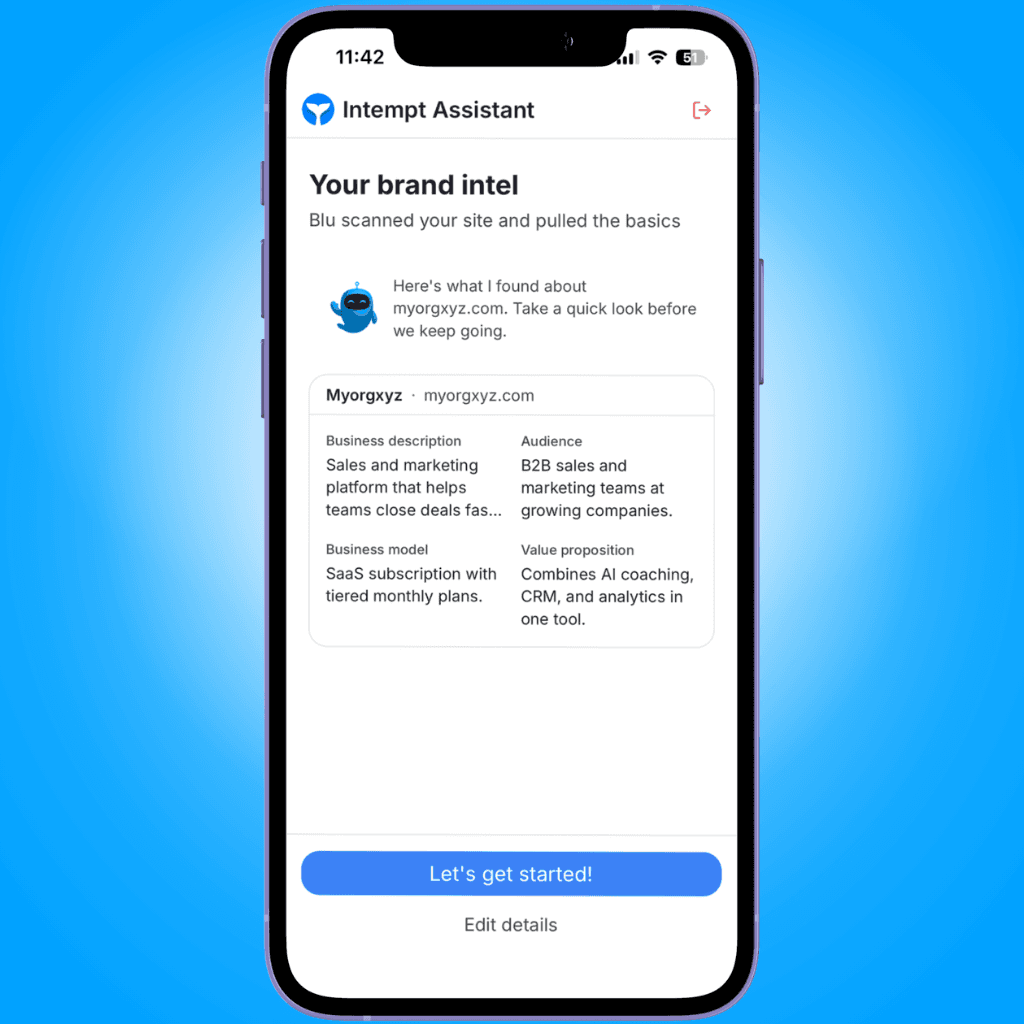
After your workspace is created, Intempt crawls the website you entered and shows what it found under four categories: business description, audience, business model, and value proposition. Each field shows a loading skeleton until its value comes back. Tap Edit details if you want to correct anything before continuing, or Let's get started! to finish onboarding and go to Home.
📘 Good to know
If you close and reopen the app later, you may see a quick unlock screen (Face ID, Touch ID, or your device passcode) instead of signing in again, depending on your device's security settings.