
Messages on Mobile
How to read a contact's email threads and reply with Blu from the Intempt mobile app.
Overview
The Intempt mobile app has two places for message-related activity. Messages, a tab of its own in the bottom navigation, is your cross-product notification feed: replies, journey completions, meeting reminders, A/B test results, Blu-drafted replies, and performance alerts all land here. Separately, opening a specific contact's record shows an Emails tab with every email thread tied to that person, where you can read the full conversation and reply with an AI-drafted response sent through your connected Gmail account. This guide covers both.
📘 Media pending
Screenshot for this section hasn't been captured yet.
The Messages tab
Tap Messages in the bottom tab bar. The header shows a count of unread items whenever you have any.
Each row represents one of six notification types, each with its own icon: a contact replying, a journey finishing, an upcoming meeting, an A/B test reaching significance, Blu finishing a drafted reply, or a journey's performance dropping. Every row shows a title, a short description, and a relative timestamp, with an unread item marked by a small dot and a slightly different background.
A filter at the top of the screen switches the view between All, Marketing, and Sales. Pull down on the list to refresh it. If there's nothing to show, the screen displays a "No notifications" message instead.
📘 Media pending
Screenshot for this section hasn't been captured yet.
Reading an email thread
Under Users, open a contact's record and switch to the Emails tab to see every email thread tied to that person. Use the dropdown in the top-right corner to filter by All, Unread, Received, or Sent, then tap a thread to open it.
The thread screen shows the subject line and a message count, with every message listed oldest to newest. Each message shows the sender's initial, their email address, an arrow icon marking whether it was received or sent, and a relative timestamp. A message with an HTML body is collapsed to three lines by default. Tap Tap to expand to read the whole thing, and Tap to collapse to shrink it back down.
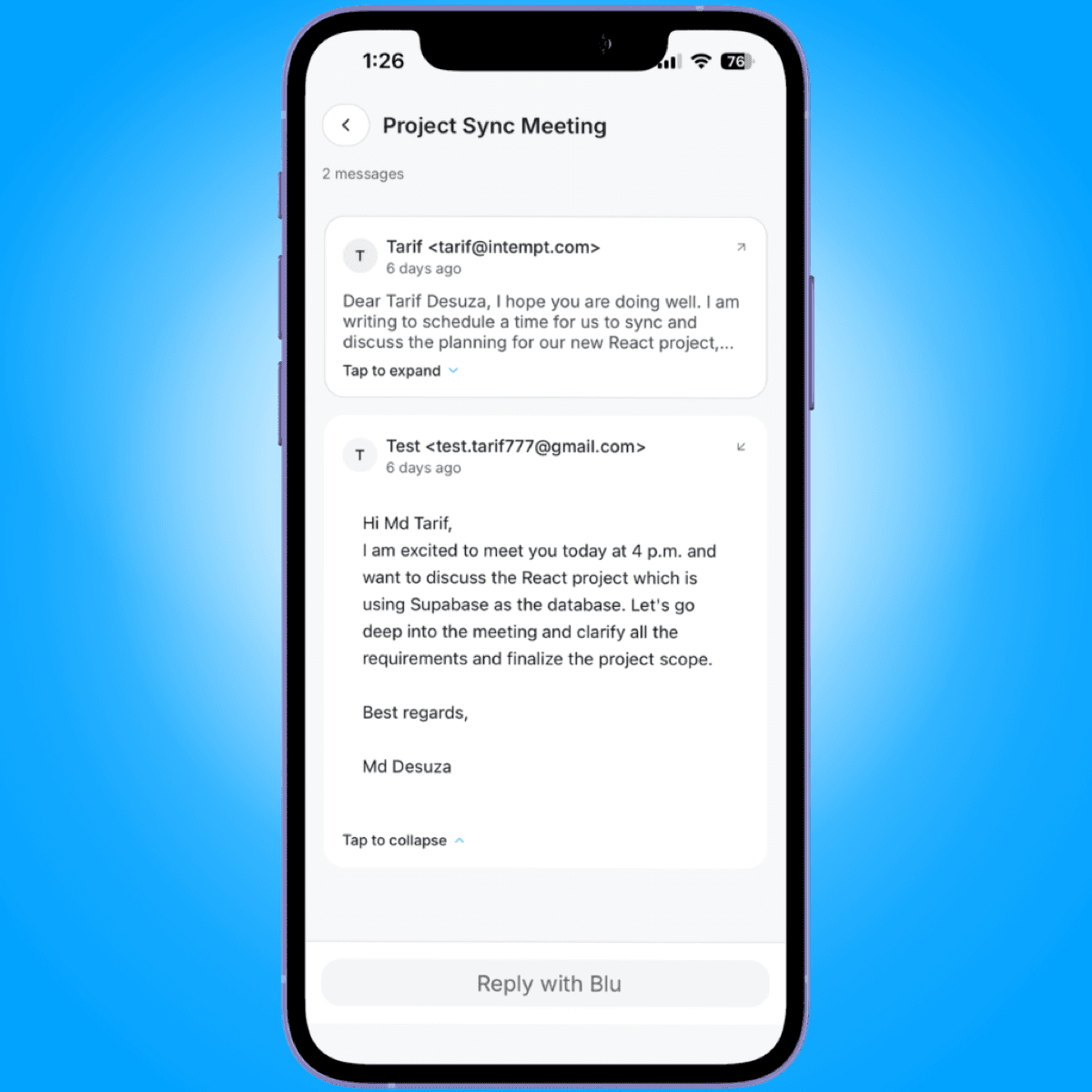
Replying with Blu
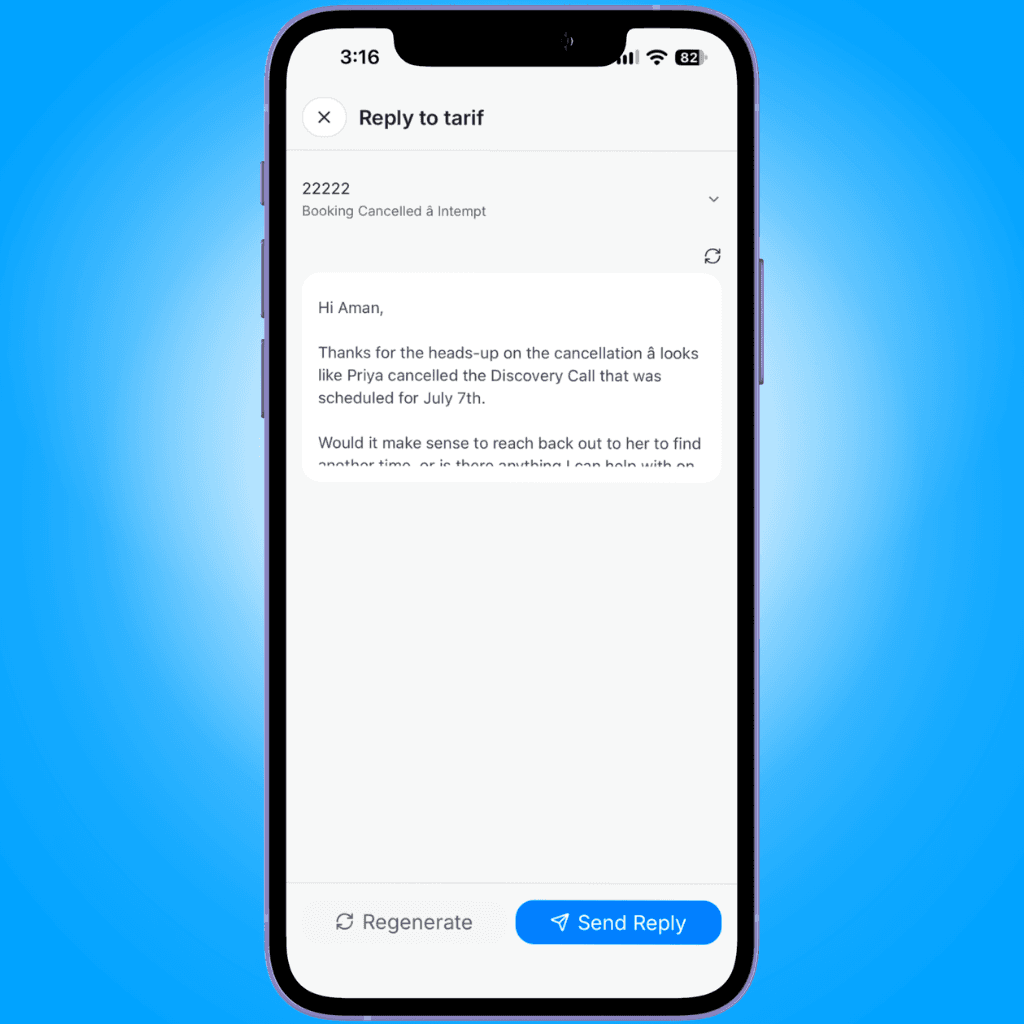
Swipe left on any message to reveal a reply action, or tap Reply with Blu at the bottom of the thread screen. Either one opens a reply screen that immediately asks Blu to draft a response. While it's working, the screen shows a "Generating reply..." state with the Blu mascot. Tap the subject line at the top to expand or collapse the original message you're replying to.
Once the draft arrives, it's yours to edit in the text box below it. Use Regenerate to discard the current draft and ask Blu for another one, or Send Reply to send it as-is or edited. Both buttons stay disabled while a draft is generating or a reply is sending, and Send Reply also stays disabled until there's text to send. Sending successfully closes the screen with a confirmation; a failed generate or send shows an error message and leaves the screen open so you can try again.
Where to go next
- Mobile App Overview - the full bottom-tab and menu layout Messages is part of.
- User & Account details page - the web console's Emails tab and its other tabs.
- Drafting Emails and Replies with Blu - how Blu's drafting works across email, LinkedIn, SMS, and call scripts.
Viewing Experiences on Mobile
Browse, filter, and open experiments and personalizations from the Intempt mobile app, and control their status while you're away from your desk.
Mobile Sales Workflow Guide
Create and work Accounts, Deals, Users, and Tasks from the Intempt mobile app, and move between linked records without a desktop.