
Mobile Settings & Customization
Manage your profile, workspace, and app preferences from Settings, and choose which sections show up in your bottom tab bar from Customize.
Overview
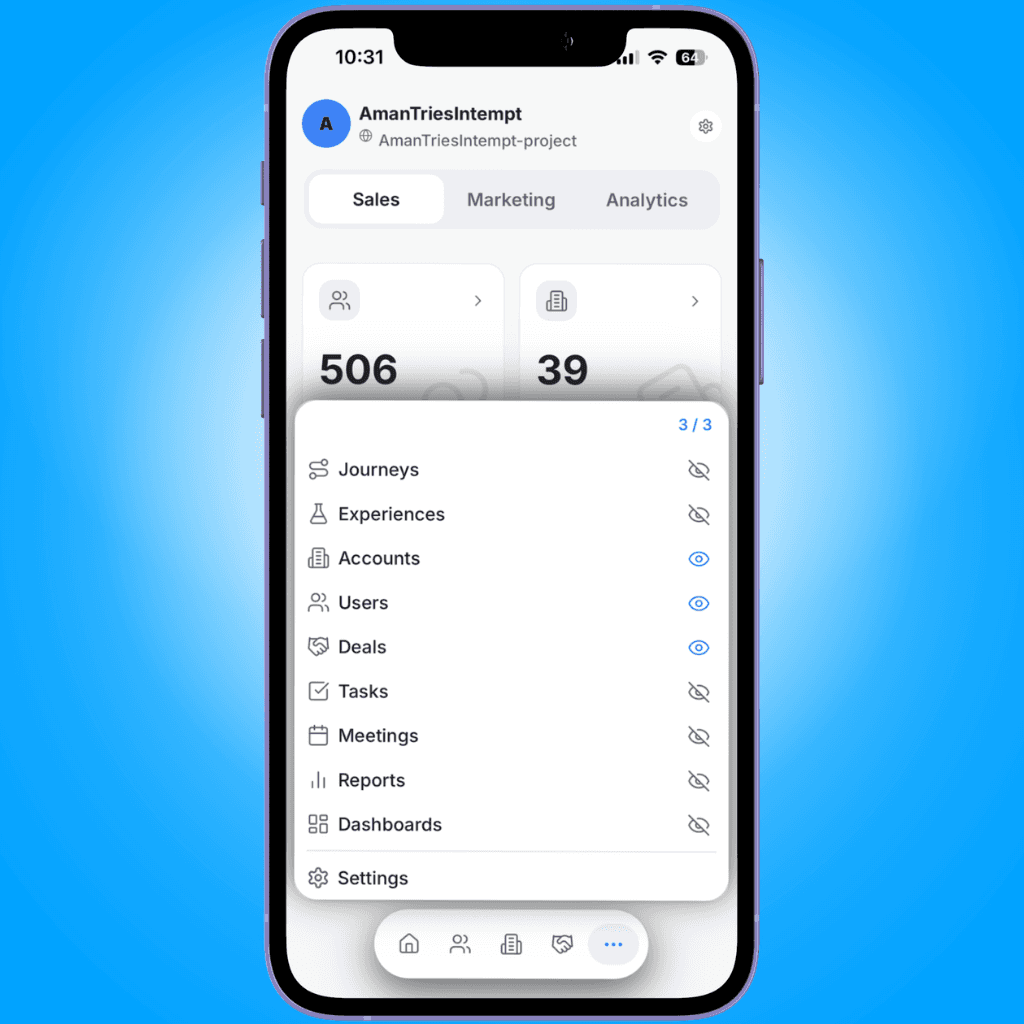
Settings and Customize are two of the mobile app's 11 menu sections. Customize is the fixed ••• button in the bottom tab bar: tapping it opens a menu covering all 11 sections and lets you pin up to three of the other nine to your bottom bar. Settings isn't one of the pinnable nine, so it doesn't get its own bottom-tab icon; it always stays reachable from that same ••• menu, and from a gear icon on Home's header. Settings holds your profile, workspace, and app preferences.
Opening Settings
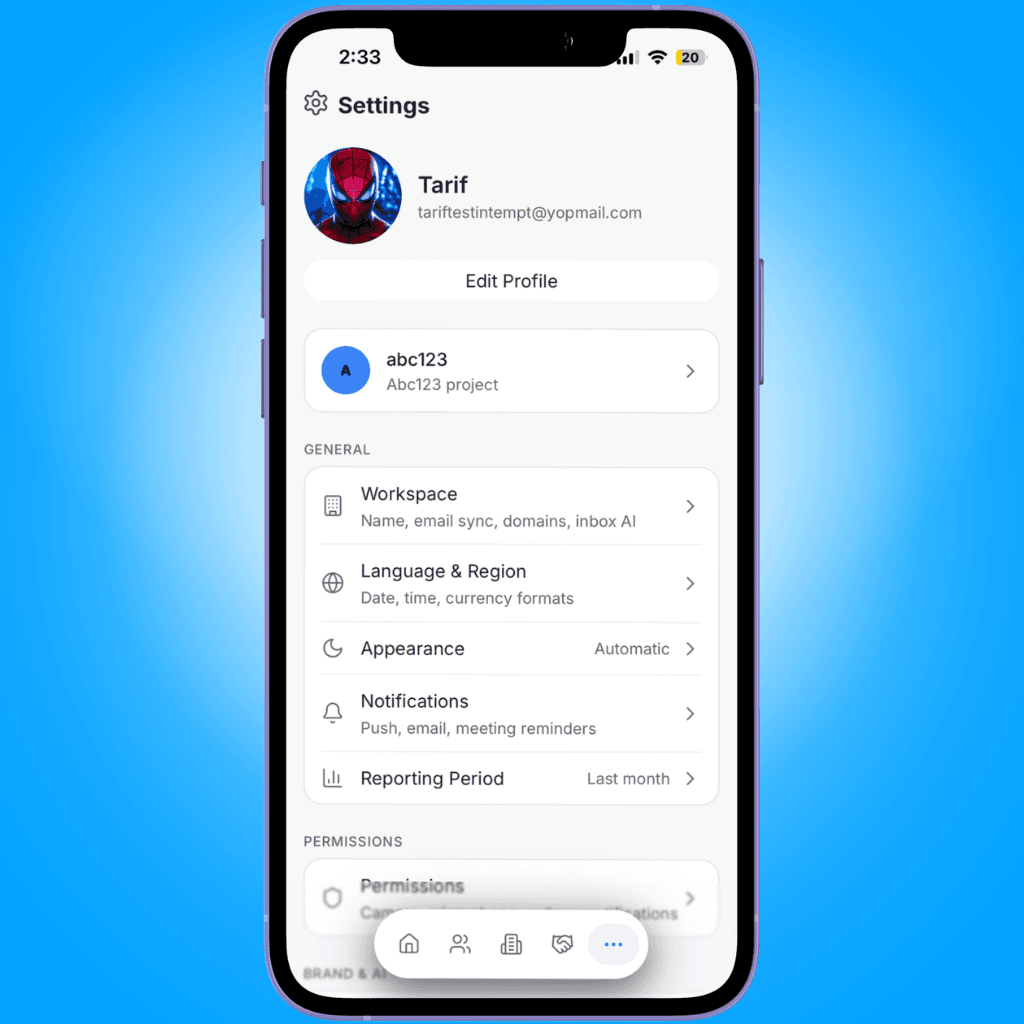
- From Home, tap the gear icon next to your organization name at the top of the screen.
- From any other screen, tap ••• in the bottom tab bar, then tap Settings at the bottom of the menu that opens.
- The Settings screen opens, scrollable from your profile at the top to Log out at the bottom.
Profile and workspace
At the top of Settings, a card shows your name, email, and avatar, with an Edit Profile button that opens your profile details.
Below it, the workspace card shows your current organization and project. Tap it to open a picker and switch to a different organization or project. Home and the menu sections reload against whatever you pick.
General preferences
The General section lists five rows:
| Row | What it opens |
|---|---|
| Workspace | Name, email sync, domains, and inbox AI settings for the current organization. |
| Language & Region | Locale, date and time formats, and number and currency formats. |
| Appearance | Light, Dark, or Automatic display mode. |
| Notifications | Push and email toggles, plus a meeting reminder time. |
| Reporting Period | The date range Home's dashboards use. |
Appearance
Tap Appearance for three modes:
- Light - always use light mode.
- Dark - always use dark mode.
- Automatic - follow your device's system setting.
A checkmark marks whichever mode is currently active.
Language & Region
Tap Language & Region for three groups: Locale (language and country), Date & Time (date format, first day of week, time format), and Numbers & Currency (number format, currency, and currency position). Each field opens a picker, and your choice applies immediately.
Notifications
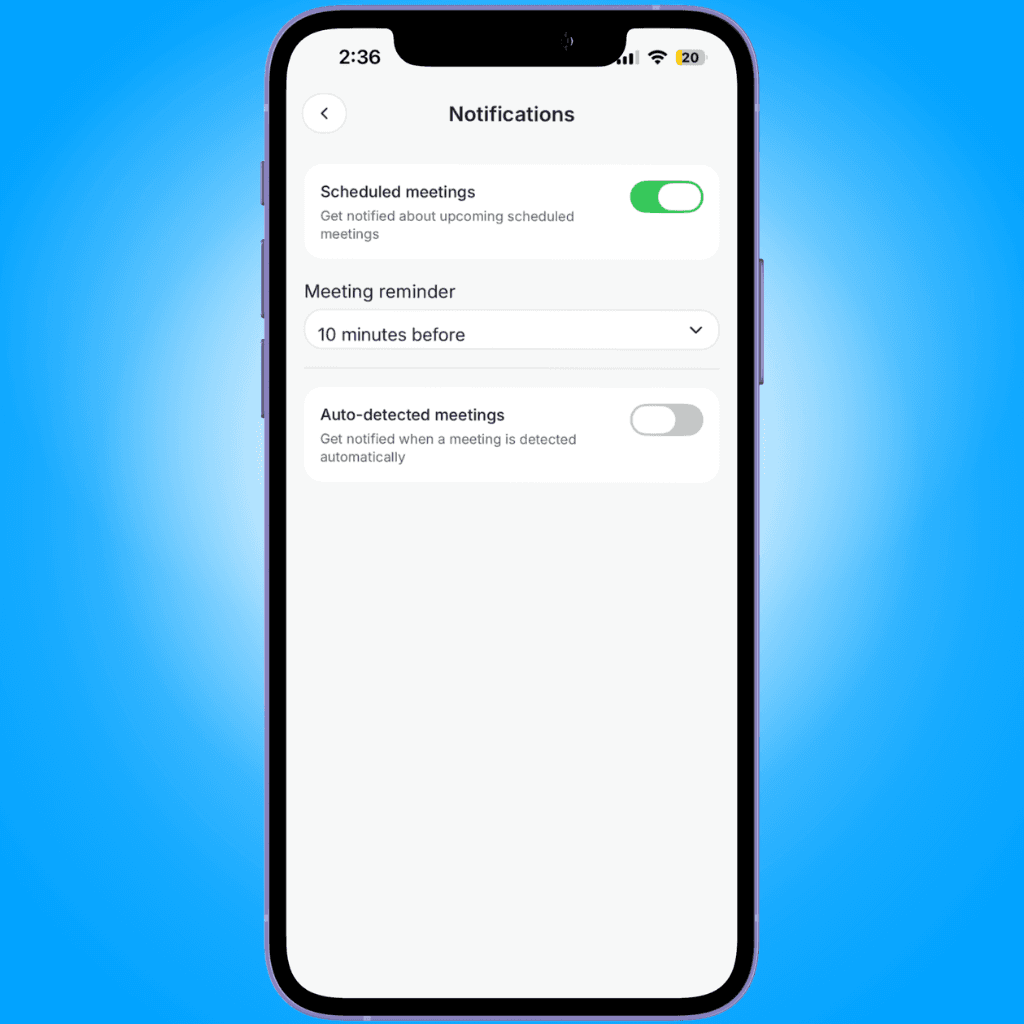
Tap Notifications for a Scheduled meetings toggle (on by default) that notifies you about upcoming scheduled meetings, an Auto-detected meetings toggle (off by default) that notifies you when a meeting is detected automatically, and a Meeting reminder dropdown that only appears while Scheduled meetings is on. It's set to 10 minutes before by default, with options of 0, 2, 5, 10, 15, or 30 minutes.
Permissions
Tap Permissions to see the status of the four device permissions the app uses: Camera, Microphone, Photo Library, and Notifications. Each row shows a badge, Allowed, Denied, or Not Set.
- Tap a permission that's Not Set to trigger the system prompt.
- Tap one that's already Allowed or Denied to jump to your device's Settings app. iOS and Android don't let apps re-prompt once you've answered, so changing your mind means changing it there.
Brand & AI, Meetings, and Connections
Three more rows sit below Permissions:
- Brand & AI - your brand voice, AI personas, and knowledge base.
- Meetings - booking, availability, and recording settings for the account. For how recording a call itself works, see Recording Meetings on Mobile.
- Connections - Gmail, Google Calendar, and other connected providers.
Support and your account
Under Support:
- Rate Intempt on the App Store
- Send Feedback - opens your email client addressed to Intempt support.
- Support - opens Intempt's help site.
- Privacy - opens Intempt's privacy policy.
Under Account:
- Account opens a screen showing your trusted device (the phone you're on, marked Current), a Log out everywhere button, and a Danger Zone with a Delete account button. Deleting confirms with a warning that it permanently removes your account and all associated data and can't be undone; deleting also removes your current project and organization along with it. If you're the owner of an organization with other members, you're asked to transfer ownership first instead.
- Log out signs you out of this device only.
Customizing your bottom tabs
Up to three of your own sections can sit in the bottom tab bar alongside the always-visible ••• button. To change which three:
- Tap ••• in the bottom tab bar. A panel opens over the current screen, listing every section except Settings and Customize, with a counter at the top showing how many you've pinned out of three.
- Tap the eye icon next to a section to pin or unpin it. If you're already at three and pin a new one, it swaps in for whichever section was pinned last.
- Tap a section's name, not the eye icon, to jump straight to it and close the panel.
- Tap Settings at the bottom of the panel to open Settings and close the panel.
Where to go next
- Mobile App Overview - how the mobile app's navigation and full menu are organized.
- Recording Meetings on Mobile - recording, capturing, and uploading meetings.
- Installing the Mobile App (iOS) - download, sign-in, and first-run setup.
Mobile Sales Workflow Guide
Create and work Accounts, Deals, Users, and Tasks from the Intempt mobile app, and move between linked records without a desktop.
Desktop App Overview
The Intempt desktop app is five native windows working together: the main app, a floating recording pill, a live-call HUD, a meeting notification popup, and a menu bar panel.