
Viewing Experiences on Mobile
Browse, filter, and open experiments and personalizations from the Intempt mobile app, and control their status while you're away from your desk.
Overview
The mobile app gives you a monitoring and lifecycle-control view of every experience in your project, the same object web calls Experiments and Personalizations. You can browse the list, drill into a single experience's setup and results, and start, pause, resume, or stop it. This guide walks through opening the Experiences screen, browsing and filtering the list, and reading a single experience's details.
📘 Good to know
Mobile has no creation or editing surface for experiences. There's no create dialog, variant editor, metric picker, or targeting editor. Every experience you see was set up on web or desktop; mobile can only view it and change its status.
Opening Experiences
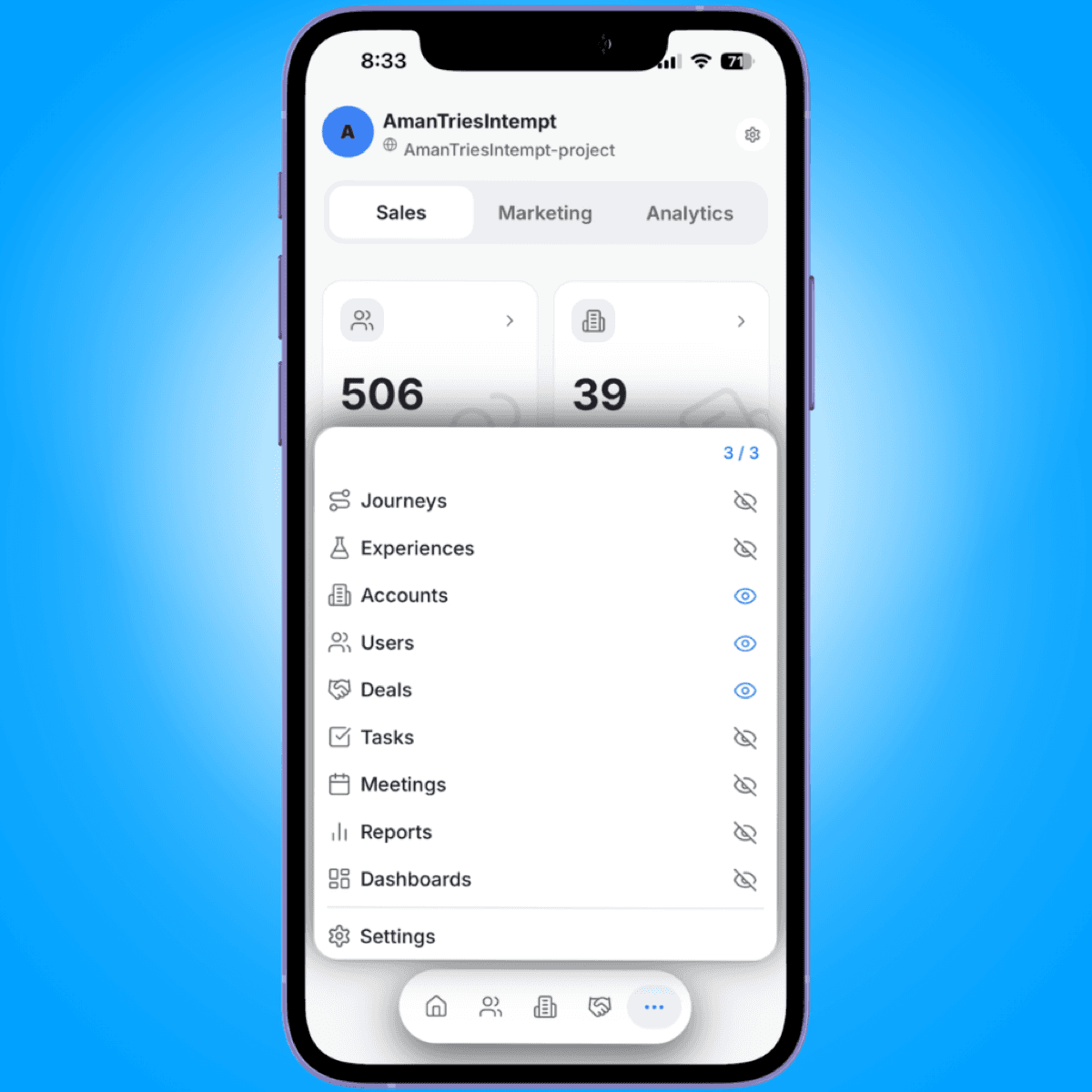
From Home, tap ••• in the bottom tab bar, then tap Experiences.
Browsing the list
Above the list, a revenue summary card shows Total Revenue with its lift percentage, Attributed revenue with its share of total, then a row with Experiments total (with count), Personalizations total (with count), and Active count. The card shows a skeleton placeholder while this data loads.
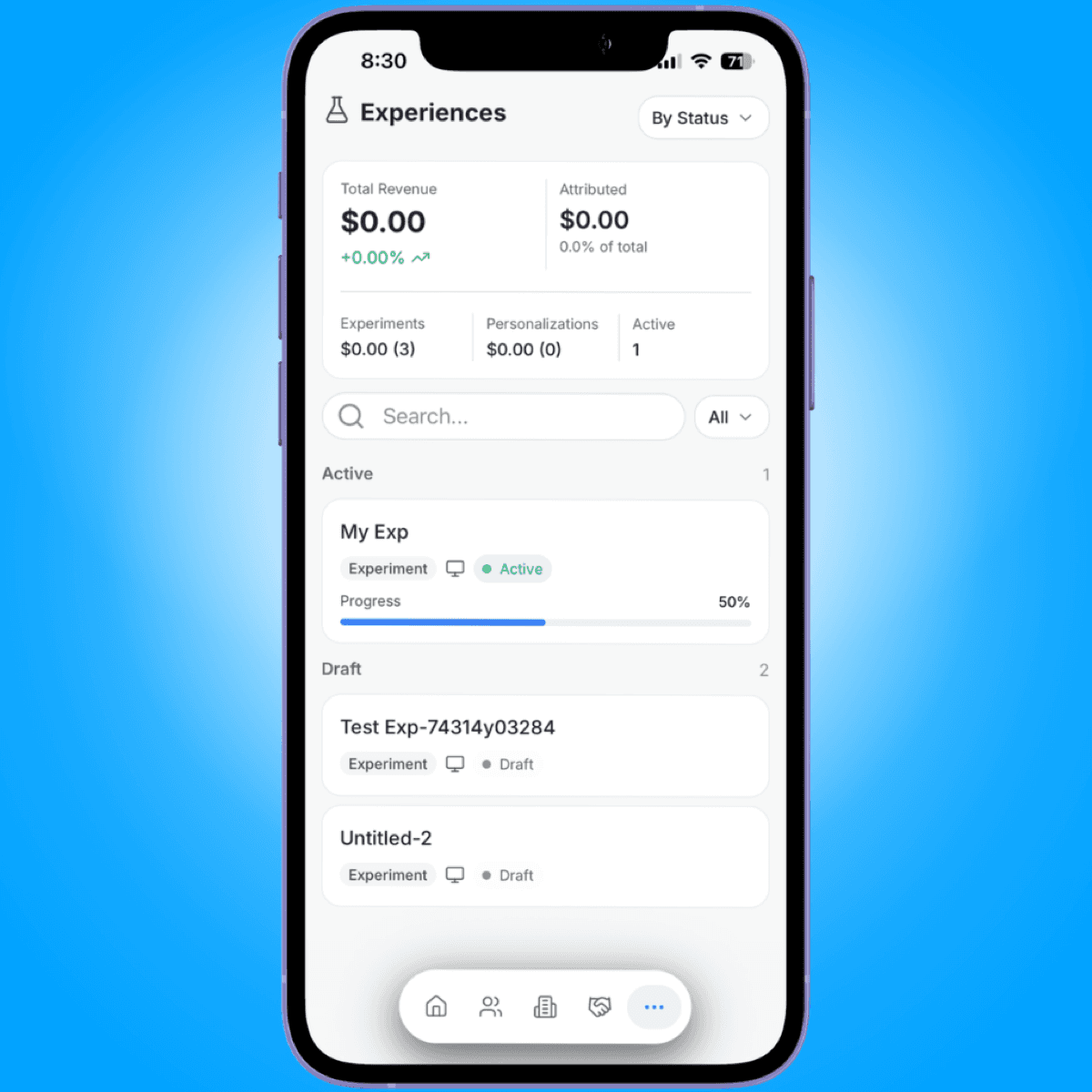
Tap the view selector next to the "Experiences" title to switch how the list is organized:
- All. A single flat "All Experiences" list.
- By Status. Groups results into up to five sections, in this order: Active, Stopped, Ready for Review, Completed, Draft. Only sections with results appear.
- By Type. Groups results into up to two sections: Experiments and Personalizations.
Each experience card shows its title, a type badge (Experiment or Personalization), a platform icon, a status badge, and, where it applies, an "N day(s) left" label. Experiments that are running (not in Draft or Ready for Review) also show a progress bar.
If there are no experiences yet, the screen shows "No experiences found" with a prompt to create one. If a search or filter returns nothing, it shows "No experiences match your filters" instead.
Filtering and searching
Use the search bar above the list to filter experiences by title as you type. A status filter dropdown next to it narrows the list to All, Active, Stopped, or Completed. This dropdown is hidden when you're using the By Type view.
Pull down on the list to refresh it.
Renaming and deleting an experience
Swipe a card to reveal a rename (pencil) action on one side and a delete (trash) action on the other. Long-pressing a card opens the same two actions in a menu instead.
Renaming opens a sheet pre-filled with the current title; Save is disabled until you enter a non-empty title. Deleting shows a confirmation asking: "Are you sure you want to delete '[experience name]'? This action cannot be undone." Deletion is permanent.
Opening an experience
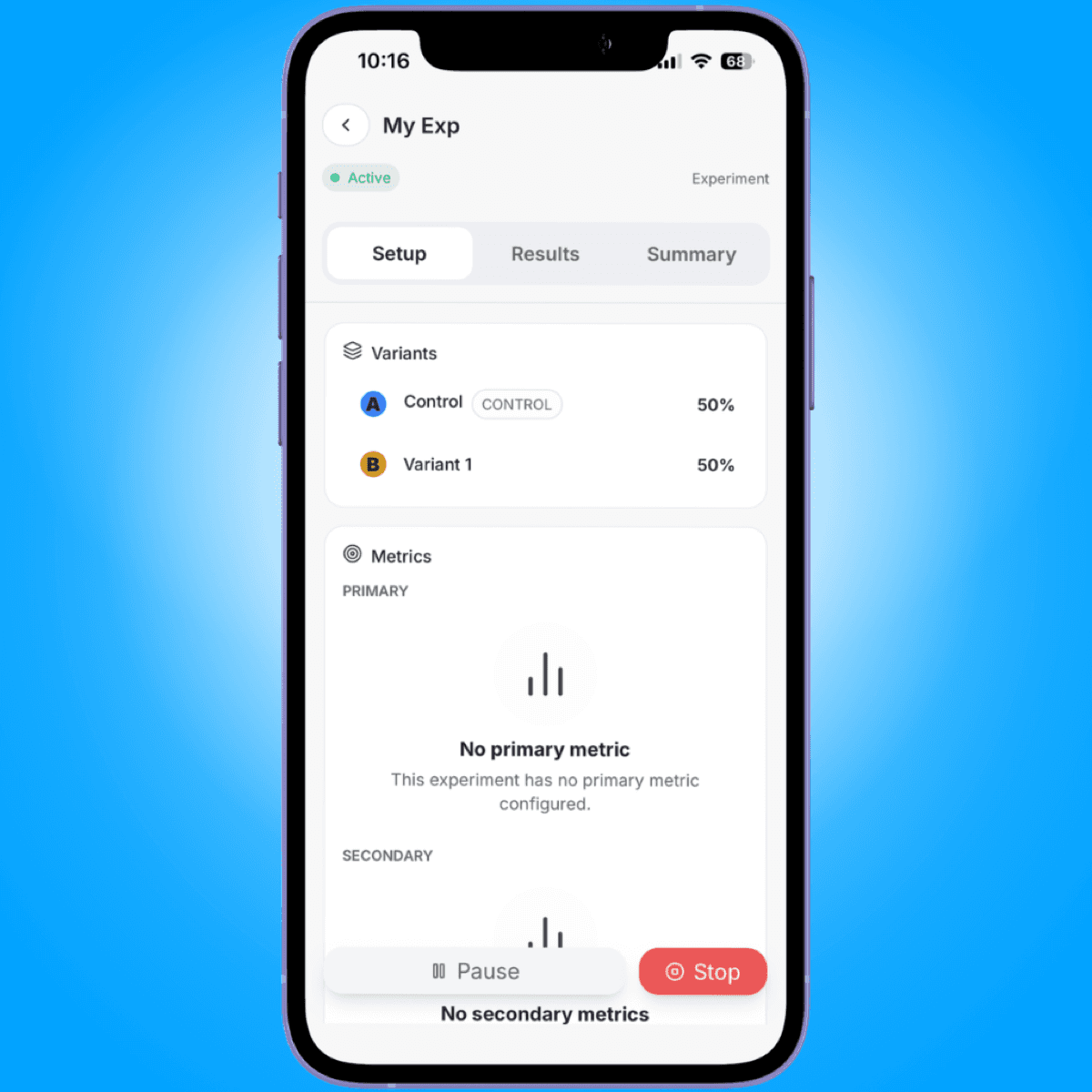
Tap a card to open its details. The header shows a back button, the experience's name, its status badge, and a secondary label: the test type for an Experiment, or the word "Personalization" for a Personalization.
Setup, Result, and Summary tabs
Every experience has three tabs:
- Setup. The variants, targeting, and schedule configured for the experience, view-only. This tab is hidden for Experiments in "Ready for Review" status, where Result opens by default instead.
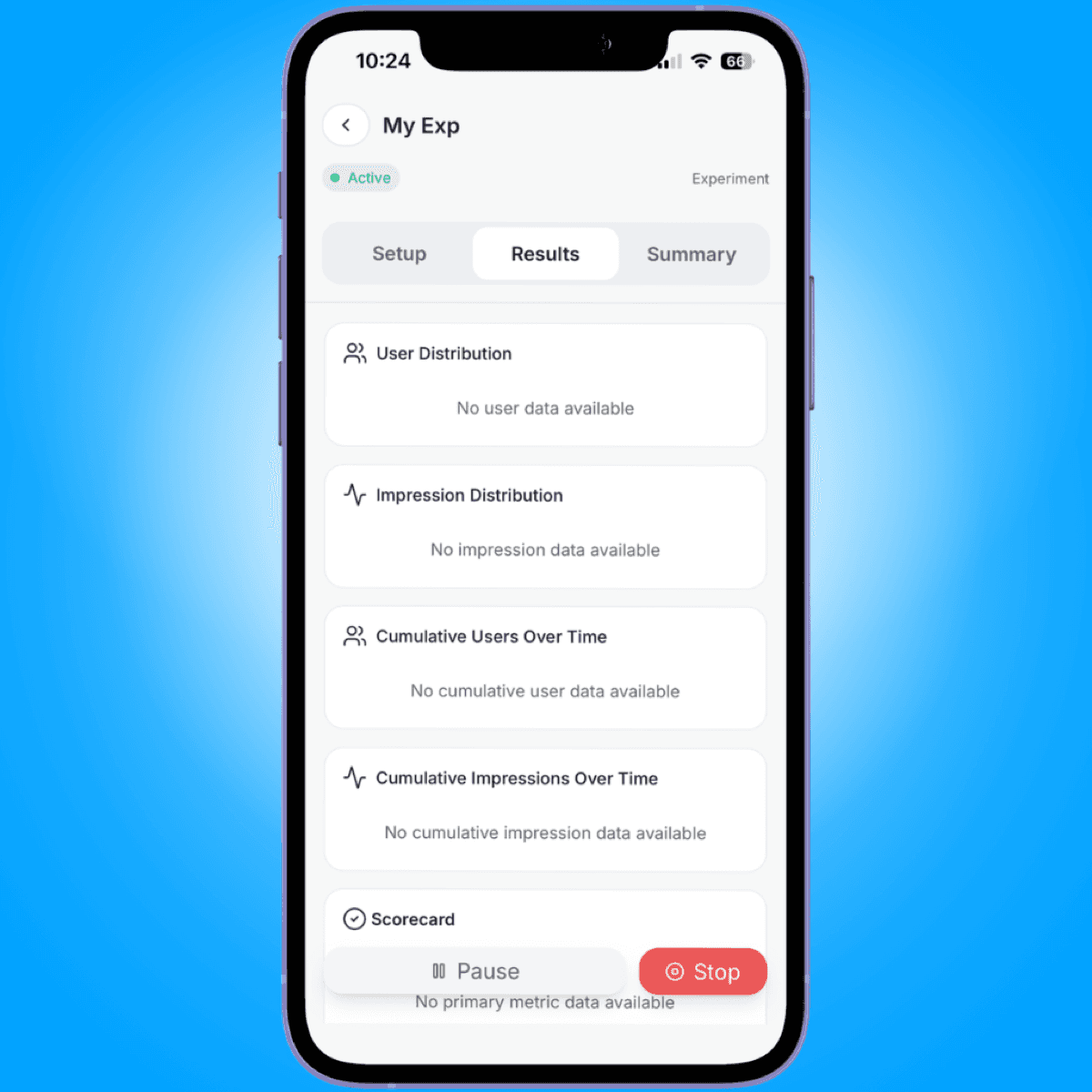
- Result. Exposure charts and per-metric results for each variant.
- Summary. Hypothesis, schedule, metrics, and statistical configuration (confidence level, CUPED, sequential testing, Benjamini-Hochberg) in one place. These settings are shown as read-only badges, not toggles.
Controlling status
A floating footer on the detail screen lets you change the experience's status:
- Start appears only for a Draft experience, and moves it to Active after you confirm.
- Pause appears only while the experience is Active, and moves it to Paused.
- Resume appears only while the experience is Paused, and moves it back to Active.
- Stop appears while the experience is Active or Paused, and moves it to Stopped permanently. The confirmation warns this can't be undone.
Once an experience is Completed, the footer shows a static "concluded" message instead of buttons. While it's Ready for Review, no action buttons show at all.
Where to go next
- Experiments - the full concept, creation flow, and configuration options on web.
- Experiment analytics - a deeper look at the results and metrics shown here.
- Mobile App Overview - how the mobile app's navigation and menu are organized.