
Viewing Journeys on Mobile
Browse, filter, and open journeys from the Intempt mobile app, check their status, and start, pause, resume or stop them on the go.
Overview
The mobile app lets you browse every journey in your project: its status, revenue, open and click rates, delivery health, and funnel performance. You can also rename, duplicate, or delete a journey from the list. This guide walks through opening the Journeys screen, browsing and filtering the list, managing a journey from the list, and reading a single journey's details.
Opening Journeys
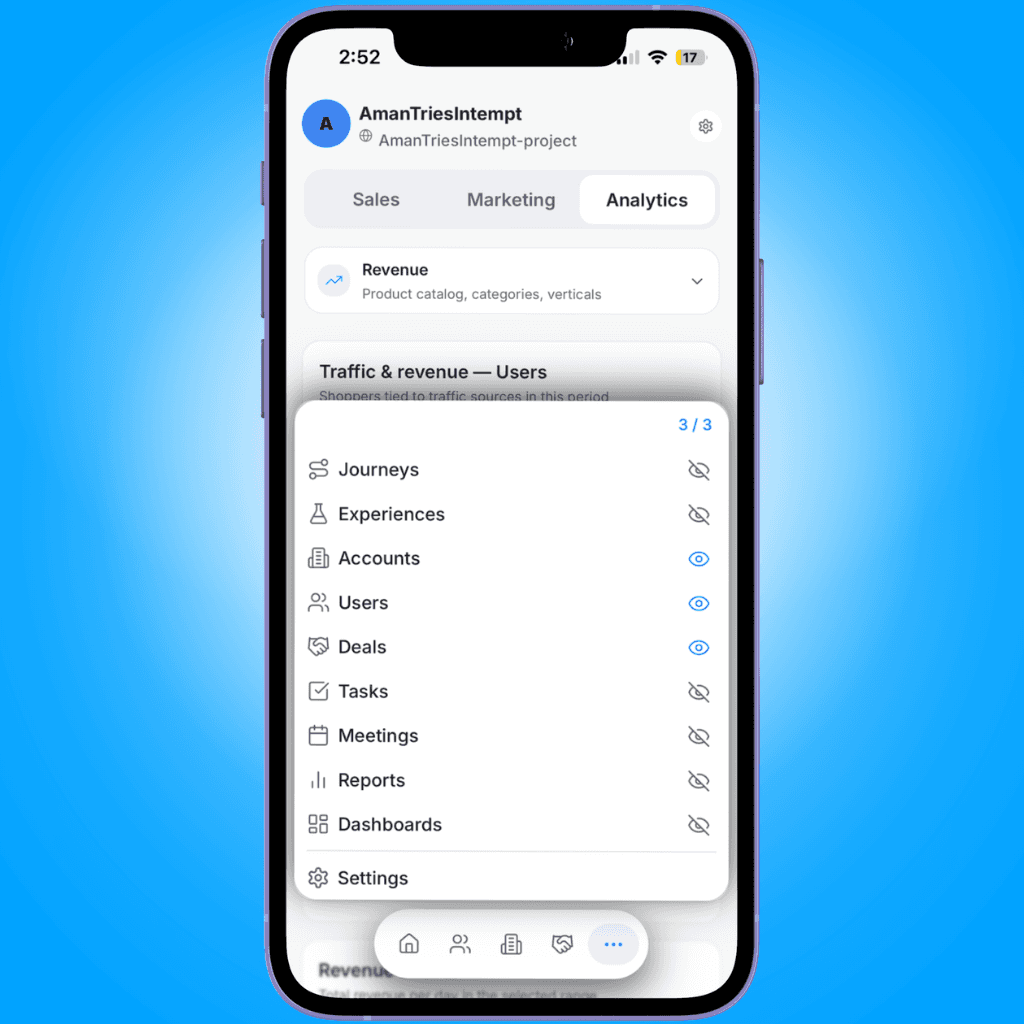
From Home, tap ••• in the bottom tab bar, then tap Journeys.
Browsing the list
The Journeys screen groups your journeys by status by default: Live, Stopped, Draft, and Paused, each as its own section with a count, showing only the statuses that have journeys in them. Every journey shows a colored status dot and its title.
Tap the view selector next to the "Journeys" title to switch how the list is organized:
- By Status. The default grouped view described above.
- By Type. Groups journeys as one-hop or multi-hop.
- Live Only. Shows only journeys currently running.
- All. A single flat list of every journey.
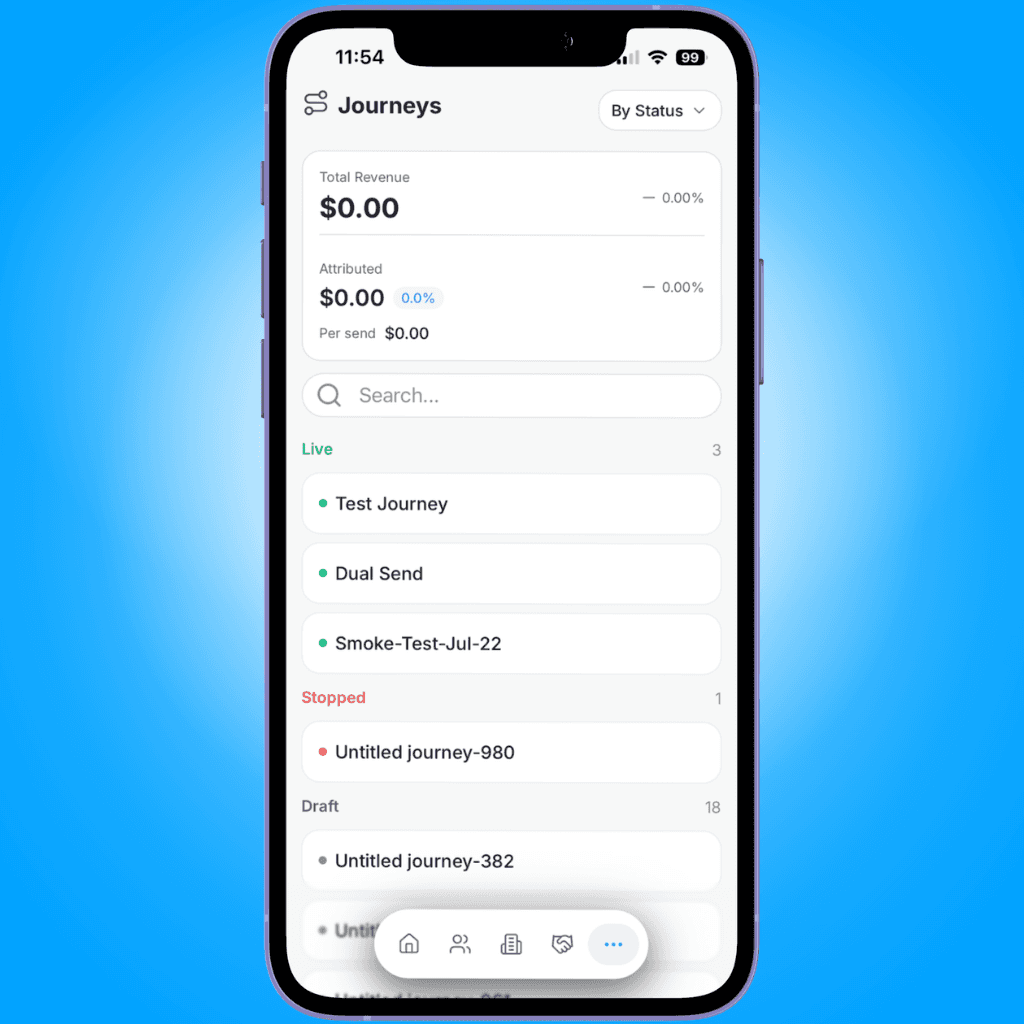
If there are no journeys yet, the screen shows "No journeys found" with a prompt to create one.
Filtering by type
When you switch to the By Type view, a row of filter pills appears above the list: All Types, One-hop, and Multi-hop. Tap a pill to narrow the list to that type.
Searching for a journey
Use the search bar above the list to filter journeys by name as you type.
Checking revenue at a glance
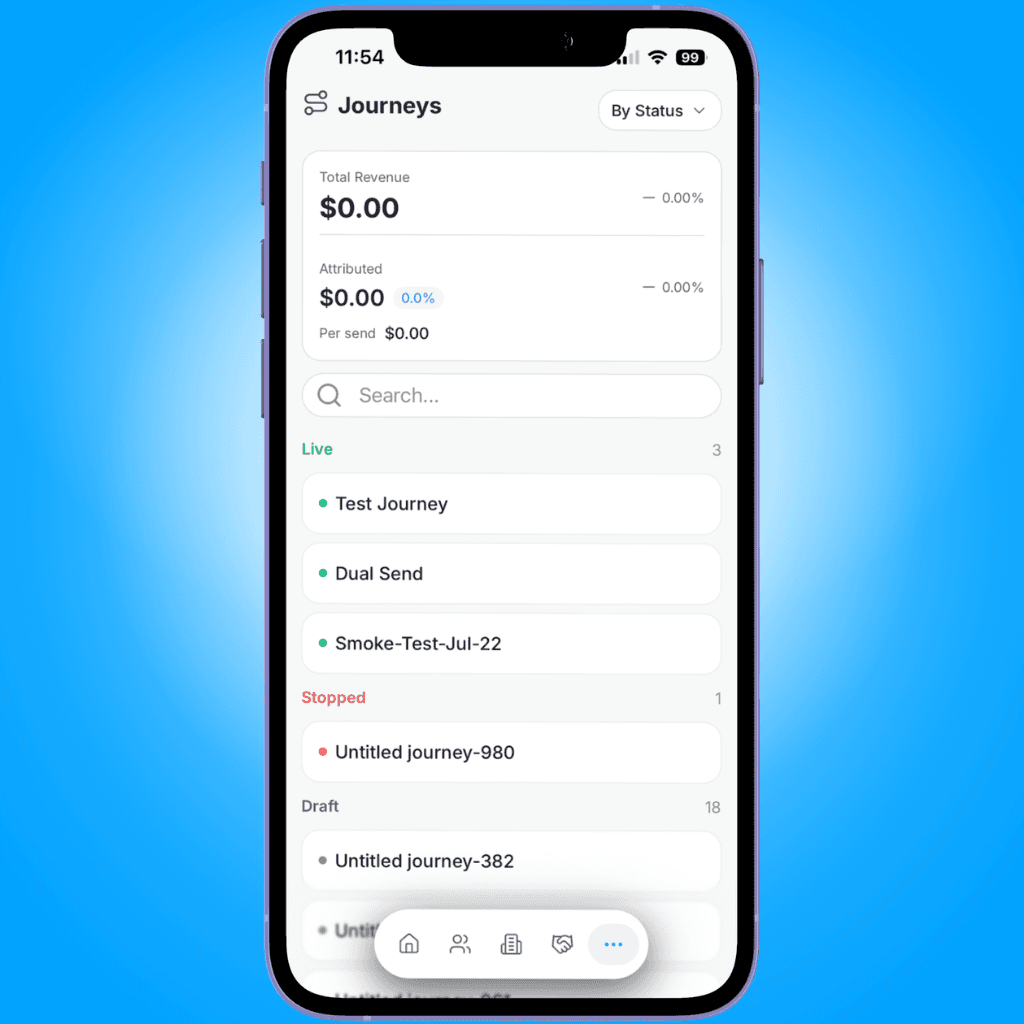
Above the search bar, a summary card shows Total Revenue across all journeys, with Attributed revenue (the portion tied to journeys) and its Per send value below it.
Renaming, duplicating, and deleting a journey
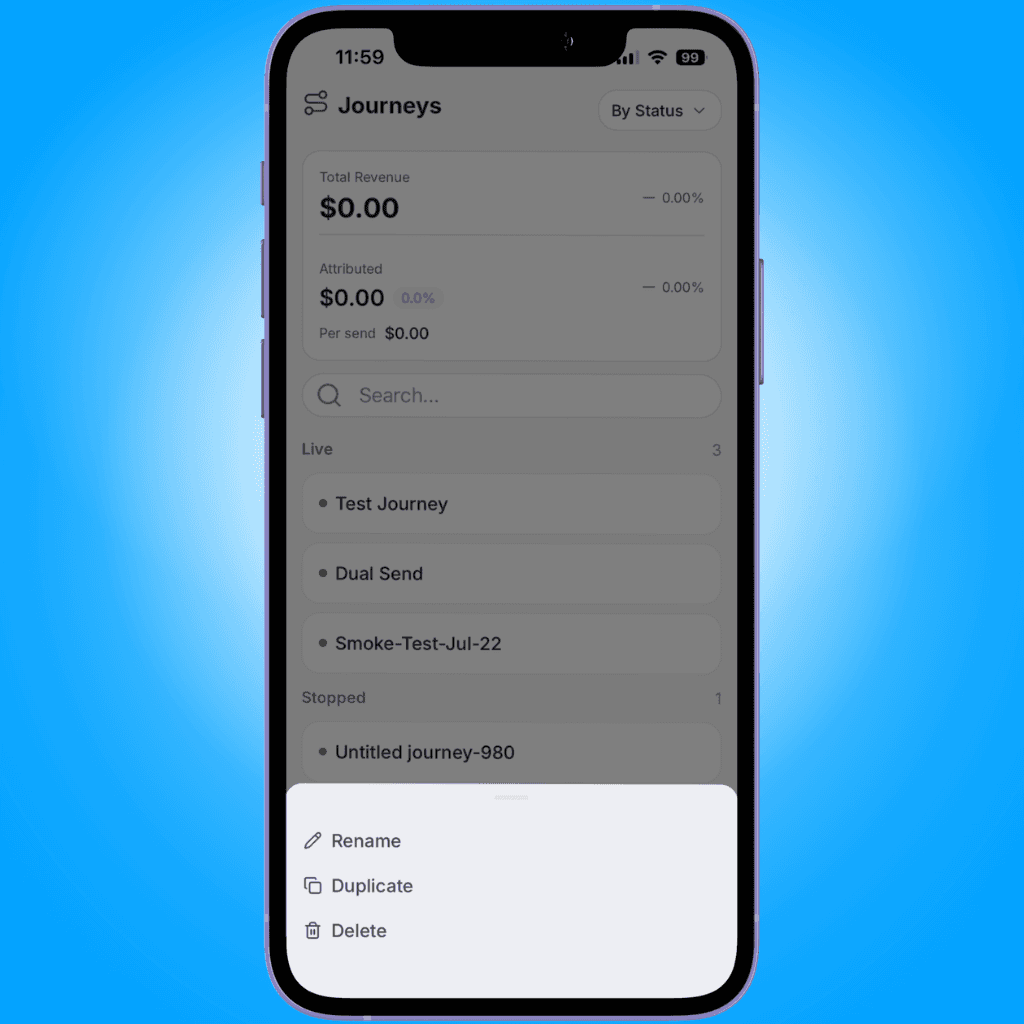
Swipe a journey card left to reveal a rename (pencil) action, or long-press the card to open a menu with Rename, Duplicate, and Delete.
Renaming opens a sheet pre-filled with the current title. Duplicating asks you to confirm first, then creates a copy. Deleting asks "Are you sure you want to delete '[journey name]'? This action cannot be undone." before removing it.
Opening a journey
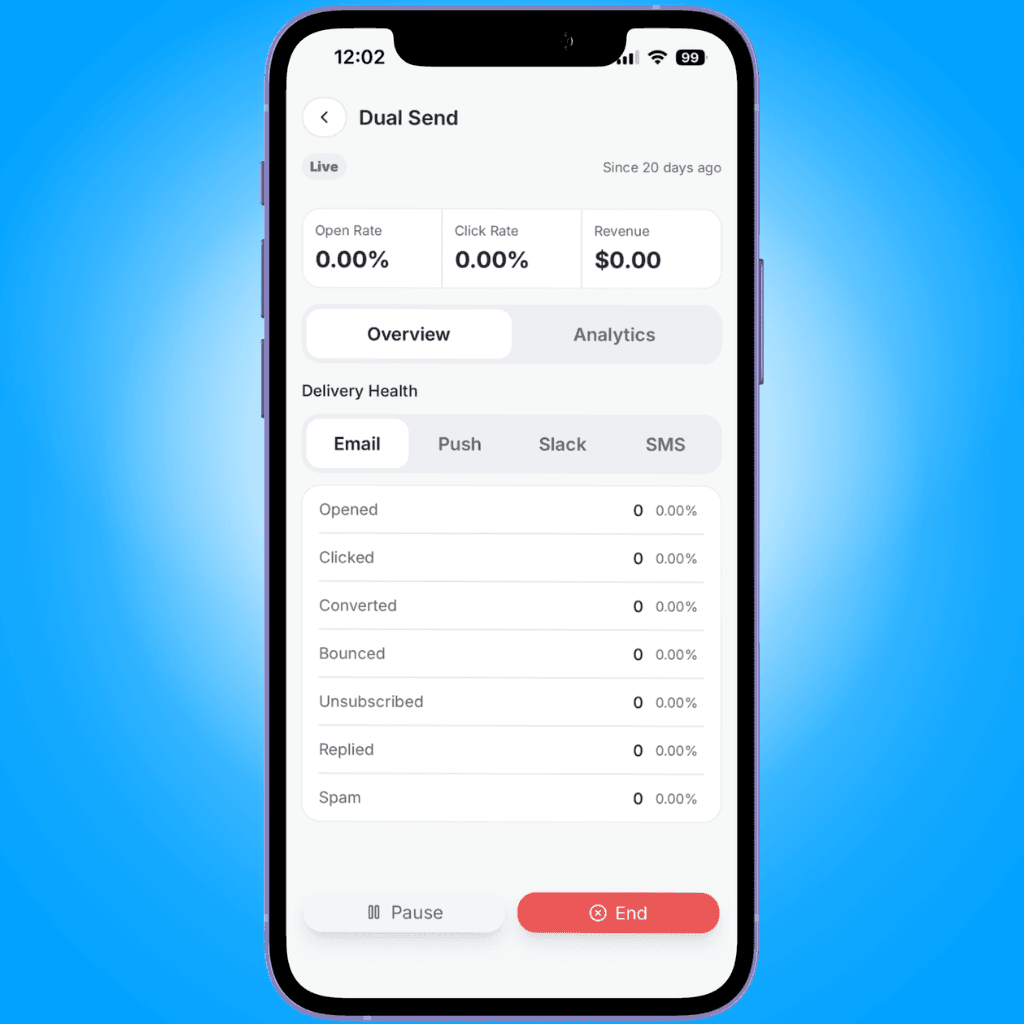
Tap any journey to open its details. The header shows the journey's title, its current status badge (Live, Draft, Paused, Stopped, or Completed), and either "Since [time]" if it's live or "Edited [time]" otherwise.
Below the header, three stat cards summarize the journey: Open Rate, Click Rate, and Revenue.
Overview and Analytics tabs
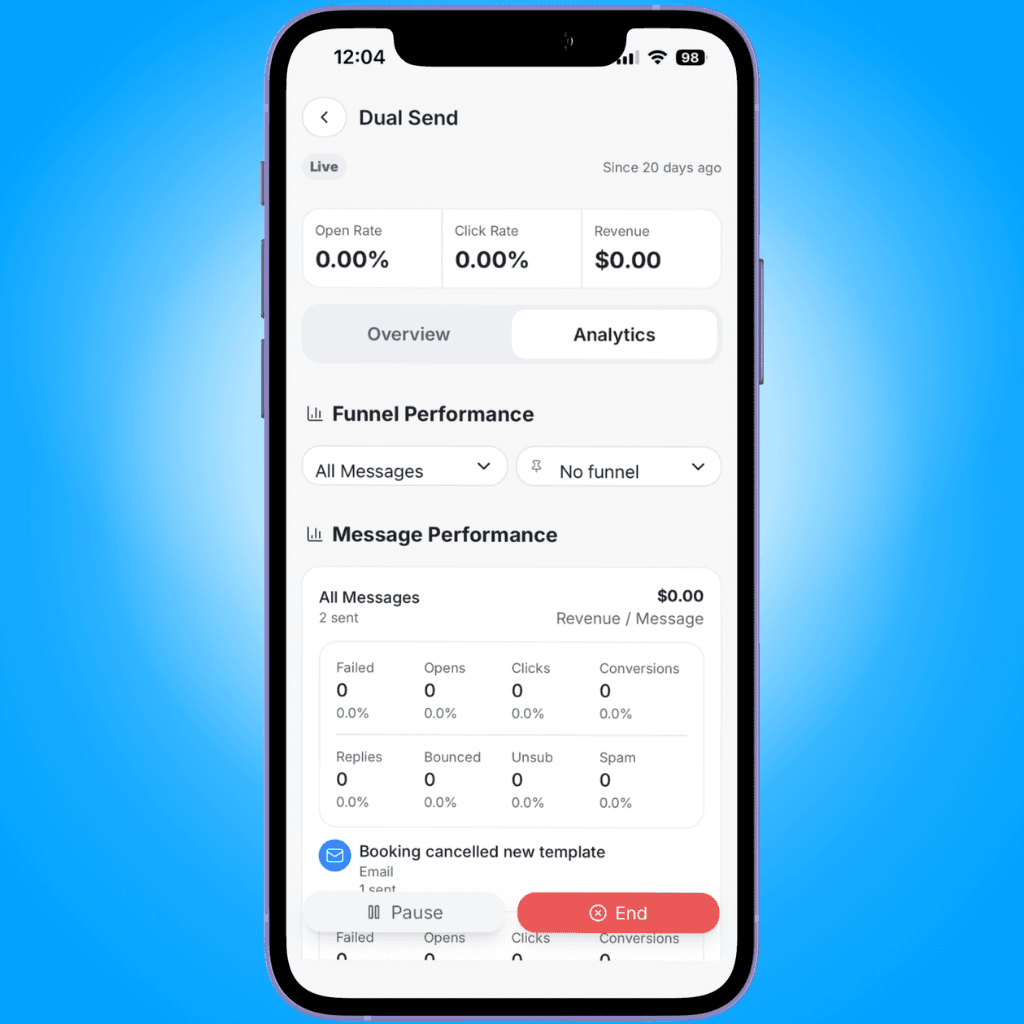
Each journey has two tabs:
- Overview. Shows a Delivery Health card. Switch between Email, Push, Slack, and SMS to see that channel's Failed, Opened, Clicked, Converted, Bounced, Unsubscribed, Replied, and Spam counts.
- Analytics. Shows a Funnel Performance section (step-by-step drop-off through the journey) and a Message Performance section (per-message stats).
A/B test journeys
Journeys running an A/B test show a leading-variant banner at the top of the detail screen instead of the standard stat cards. The Overview tab adds an A/B Performance card comparing opens, clicks, and conversions between variants, on top of the same Delivery Health card. The Analytics tab is unchanged.
Where to go next
- Journeys - the full concept and journey types on web.
- Journey analytics - a deeper look at the metrics shown here.
- Managing a journey - starting, pausing, and ending journeys from the web console.
Recording Meetings on Mobile
Record a live meeting, capture a call by link, or upload an existing recording from the Intempt mobile app.
Viewing Analytics & Dashboards on Mobile
Check your Traffic, Revenue, and Engagement dashboards, then browse your saved Dashboards and Reports from the Intempt mobile app.